

Why Is Consumption Quantity Showing Zero in Dynamics 365 Business Central? A Pharma Manufacturing Case
Summary
A pharmaceutical manufacturer running Microsoft Dynamics 365 Business Central found that the raw and packing material (RM/PM) consumption quantity on a released production order stayed at zero in the Production Journal. After reviewing the case with Microsoft Support, we confirmed it was standard behavior, not a bug. The production location requires warehouse picks, and Business Central fills consumption only from picks that have been registered. Three setup gaps were blocking the pick: no lot-tracked stock in the pick bin, the same bin used for Take and Place, and a missing number series for registered picks. We fixed all three and wrote the process as three rules the team now follows on every production order.
Table of Contents
- Introduction
- How Business Central Fills Consumption Quantity
- Why the Pick Could Not Be Registered
- Rule 1: Confirm Inventory for Every Component
- Rule 2: Record Missing Stock with a Positive Adjustment
- Rule 3: Create and Register the Warehouse Pick
- The Result in the Production Journal
- Quick Troubleshooting Checklist
- Business Impact
- Frequently Asked Questions
- Conclusion
Introduction
In Microsoft Dynamics 365 Business Central, the Production Journal is where planners post output and the consumption of raw and packing materials. Usually the consumption quantity is filled in for you. When it shows zero, the order cannot be completed correctly.
This is what a pharmaceutical manufacturer we work with ran into. A production order had been released, the components were listed, and the stock was physically on the shop floor. Yet every RM/PM line in the Production Journal showed a consumption quantity of 0.
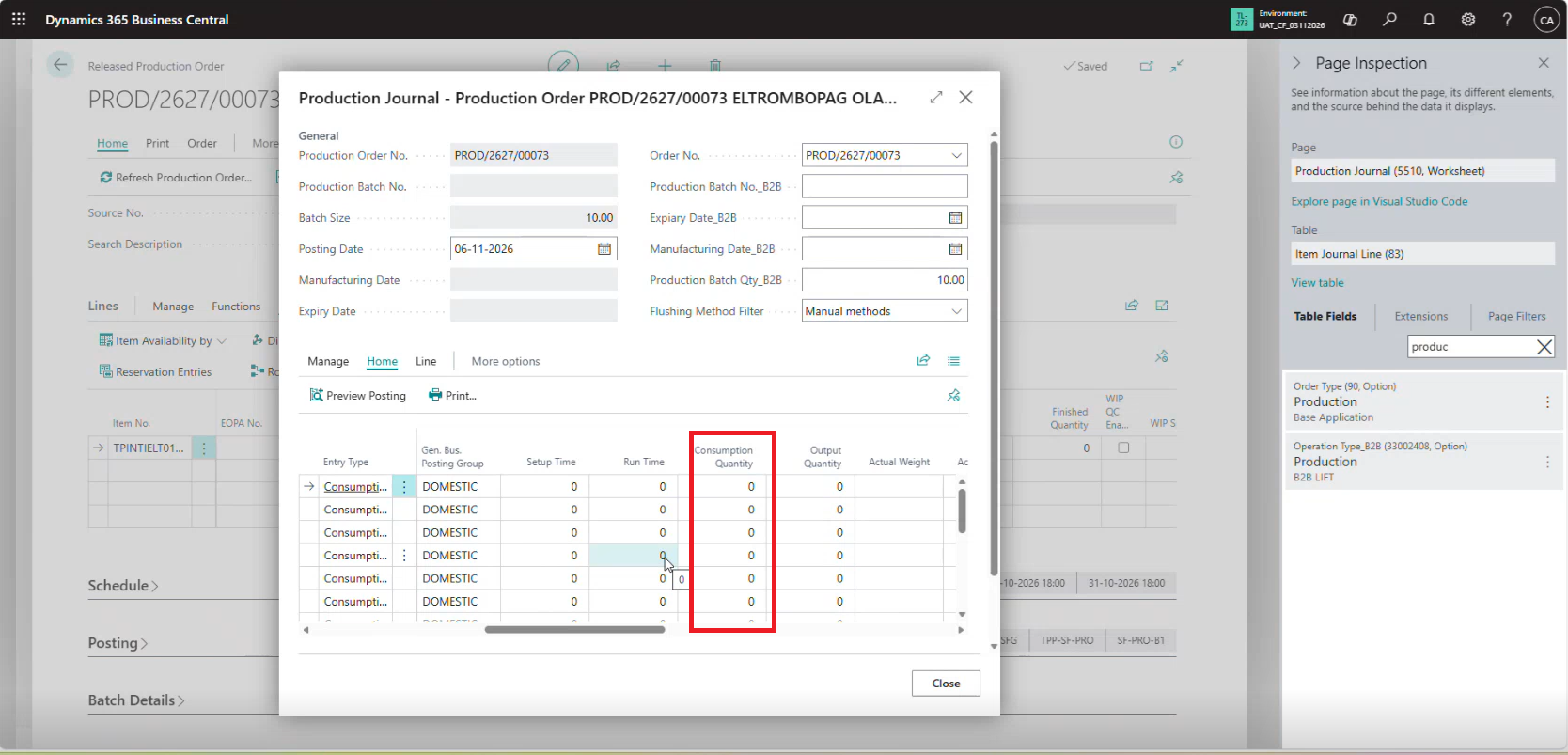
0
Consumption quantity on every RM/PM line
3
Setup gaps blocking the warehouse pick
3
Simple rules that fixed it
We reviewed the scenario with Microsoft Support and confirmed that Business Central was working as designed. The real issue was a missing step earlier in the process.
The Lesson
At a location that requires warehouse picks, consumption follows the pick. No registered pick means no consumption quantity.
How Business Central Fills Consumption Quantity
How Business Central calculates consumption depends on the warehouse setup of the location on the production order. The client’s production location was set up to require warehouse picks for production consumption.
No Pick Required
Expected Quantity
Consumption is proposed from the expected quantity on the component lines, based on the BOM and the order quantity.
Pick Required
Picked Quantity
Consumption is proposed only from the quantity that has been picked and registered to the To-Production bin. Until a pick is registered, the quantity stays at 0.
How consumption is filled at a pick-required location
Stock in Pick Bin
→
Create Warehouse Pick
→
Register Pick
→
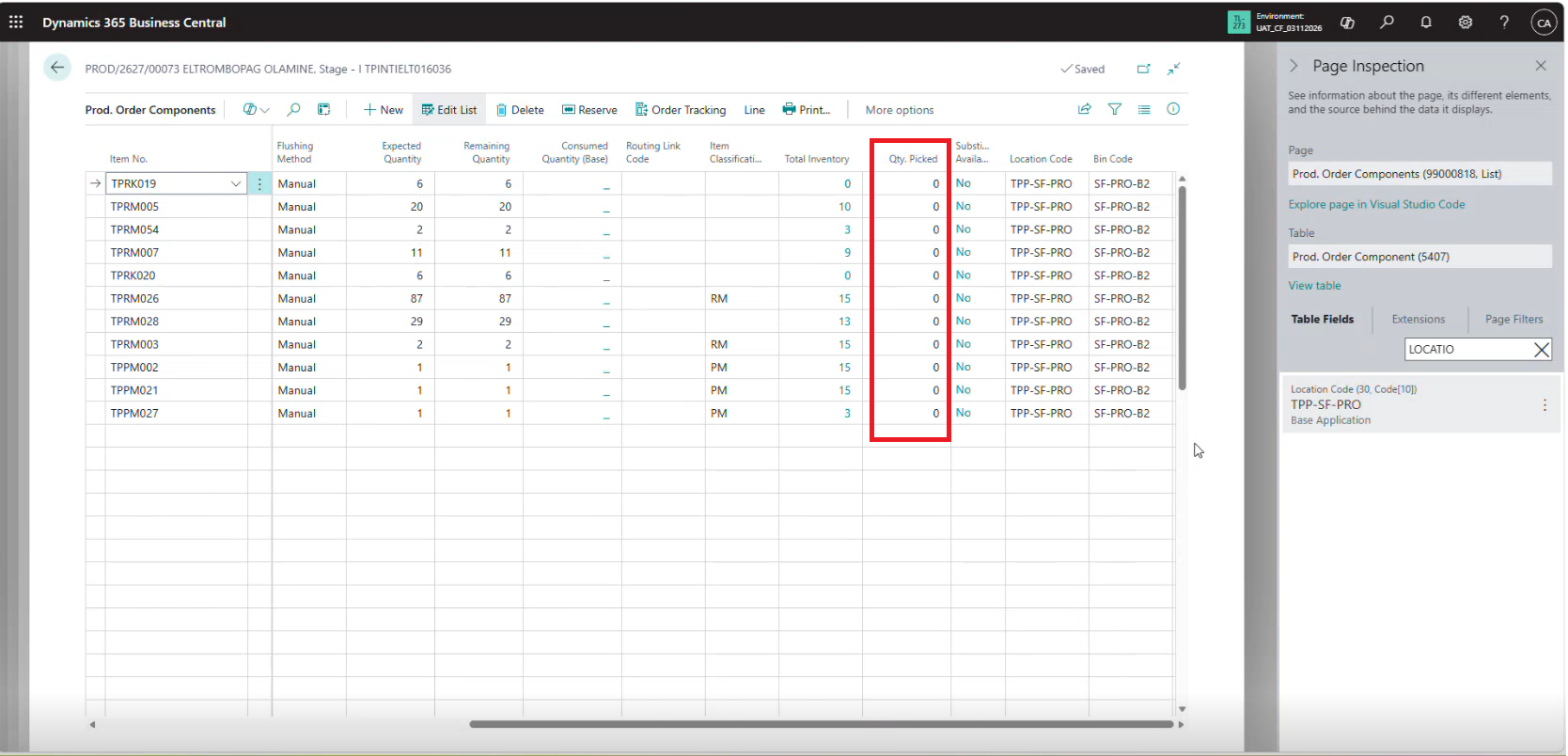
Qty. Picked Updated
→
Consumption Filled
Key Insight
A zero consumption quantity is a symptom, not the problem. The question to ask is why the pick was not registered.
Why the Pick Could Not Be Registered
We worked back from the Production Journal to the warehouse pick and found three gaps. Any one of them is enough to stop a pick from being registered.
01
No Stock in the Pick Bin
Some RM/PM items had no inventory, with lot number and expiry date, in the bin used for picking. Nothing was available to pick.
02
Same Bin for Take and Place
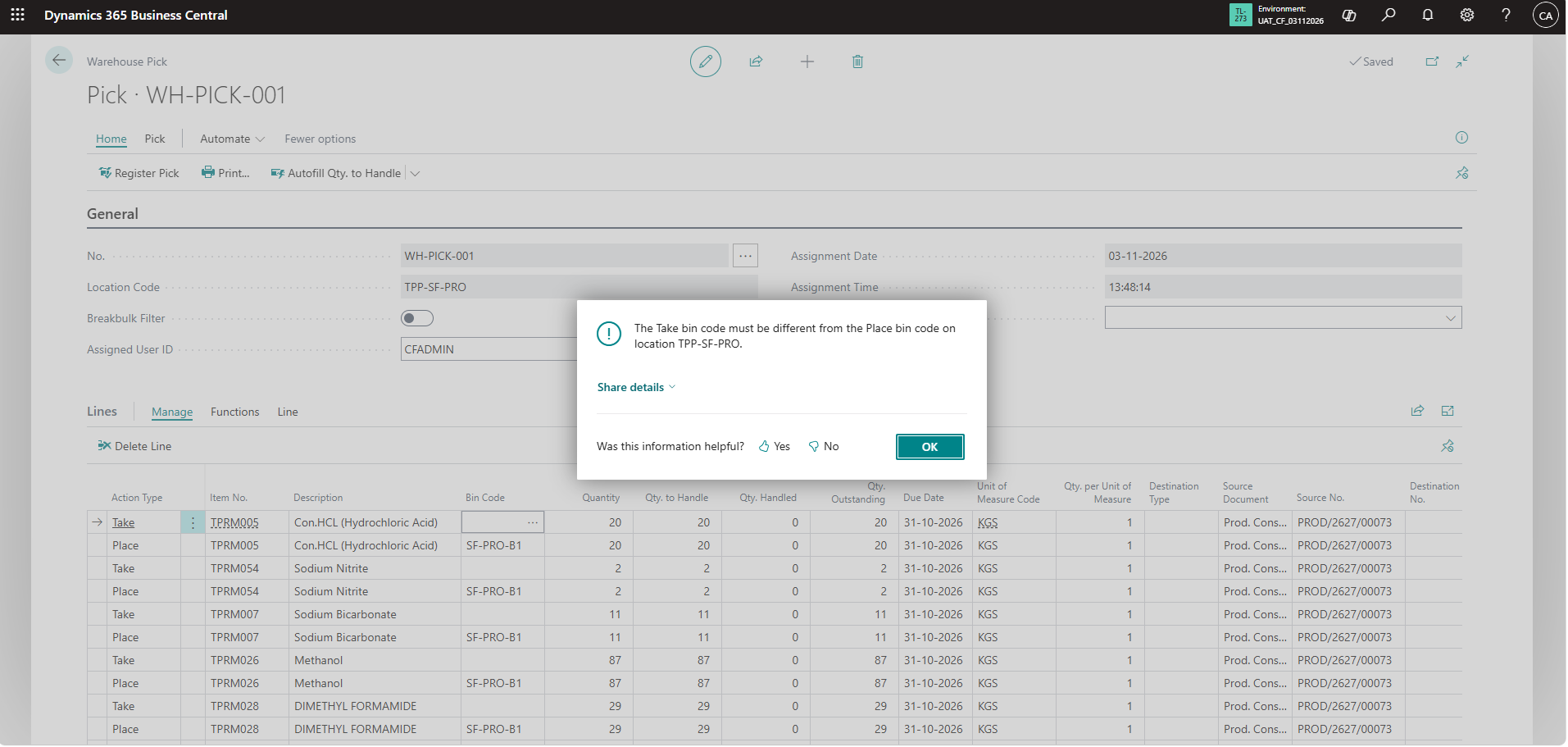
The bin holding the stock was also set as the To-Production bin. A pick moves stock from one bin to another, so these must be different.
03
Missing Number Series
Registered Whse. Pick Nos. was not set up correctly in Warehouse Setup, so a registered pick could not be numbered.
From these findings we wrote three rules. The team follows them in order whenever the consumption quantity is zero.
Rule 1: Confirm Inventory for Every Component
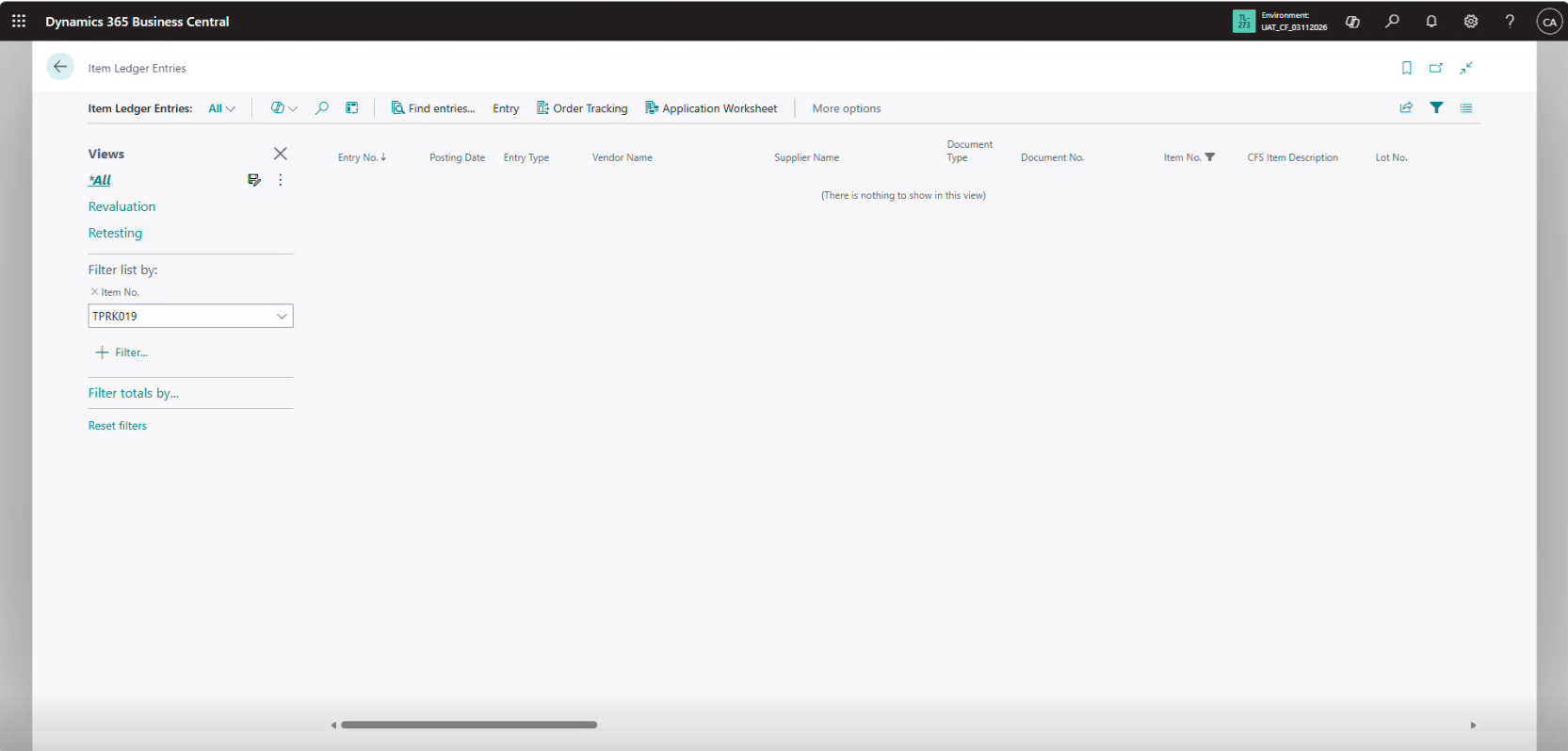
If the consumption quantity is zero, start by checking stock. Without inventory in the right location and bin, nothing can be picked.
- Search for Items and open the RM/PM item.
- Check Inventory for the production location.
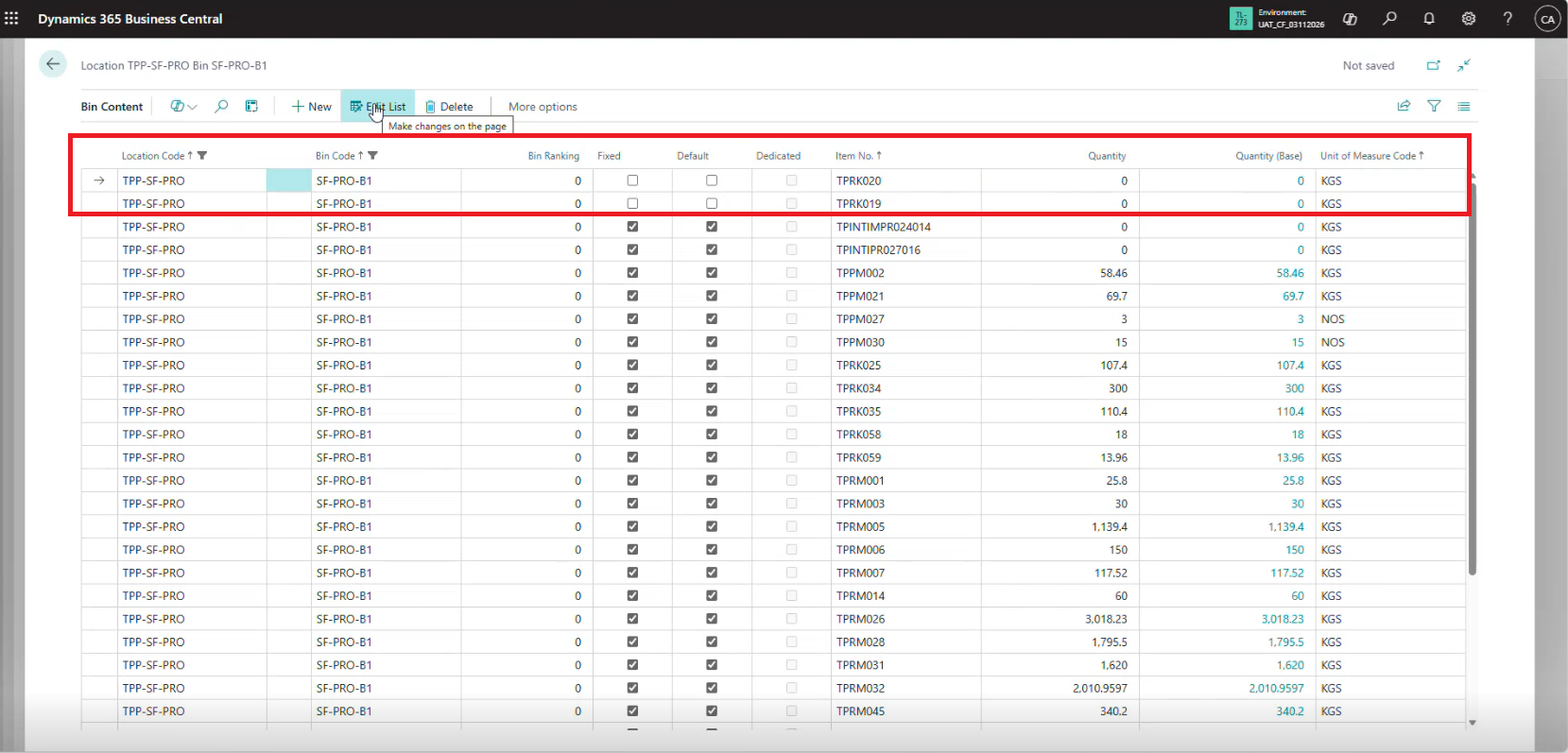
- Open Bin Contents and check the bin you pick from, for example
STORE-B1. - For lot-tracked items, confirm the stock in that bin has a lot number and expiry date.
Good to Know
Stock in a different bin, or at a different location, does not count. The pick only looks in the bins of the location on the production order.
Rule 2: Record Missing Stock with a Positive Adjustment
If the material is physically on the shelf but not in the system, record it with a positive adjustment in the right bin and with the right lot details.
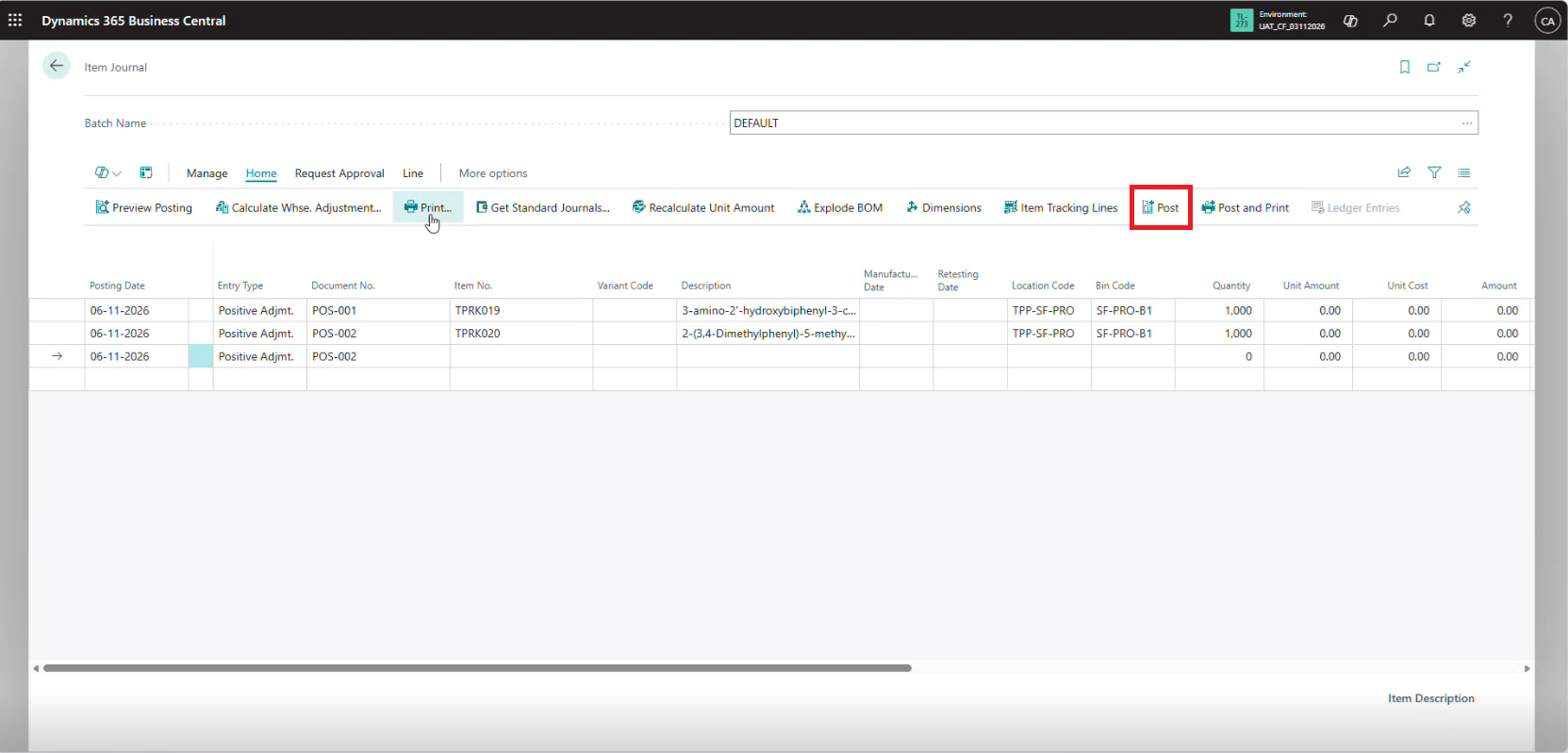
- Search for Item Journals.
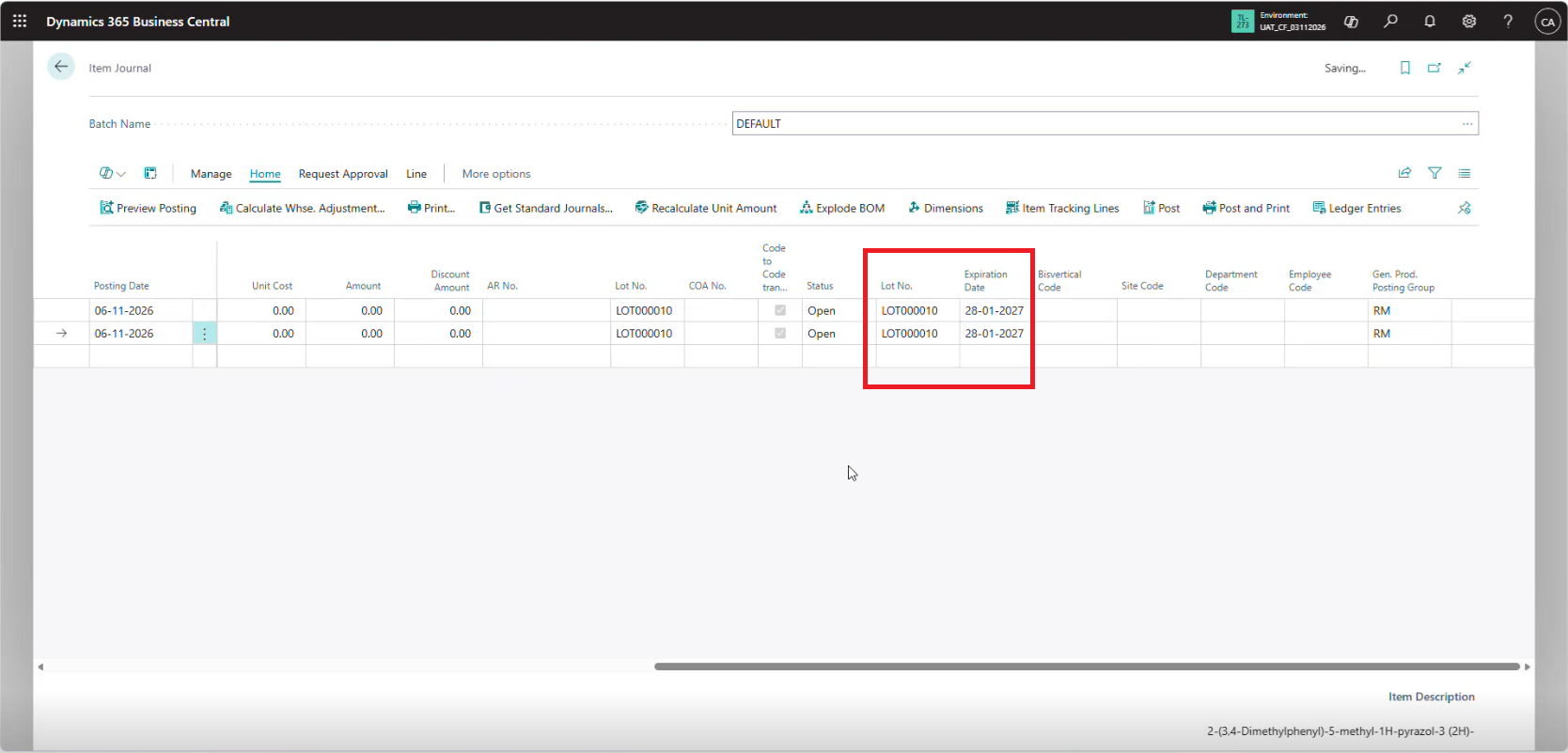
- Create a line with Entry Type Positive Adjmt., the Item No., the Location Code, the Bin Code you pick from (for example
STORE-B1), and the Quantity. - Open Item Tracking Lines and assign the Lot No. and Expiration Date.
- Post the journal.
- Open Bin Contents again and confirm the stock now shows in the bin.
Use with Care
A positive adjustment is only for stock that physically exists but is not yet recorded. RM/PM stock should normally come in through a purchase receipt or a transfer order.
Rule 3: Create and Register the Warehouse Pick
Once stock is available, the pick needs two different bins: one to take from and one to place into. This needs a one-time setup per location, followed by the same steps on each production order.
One-Time Setup per Location
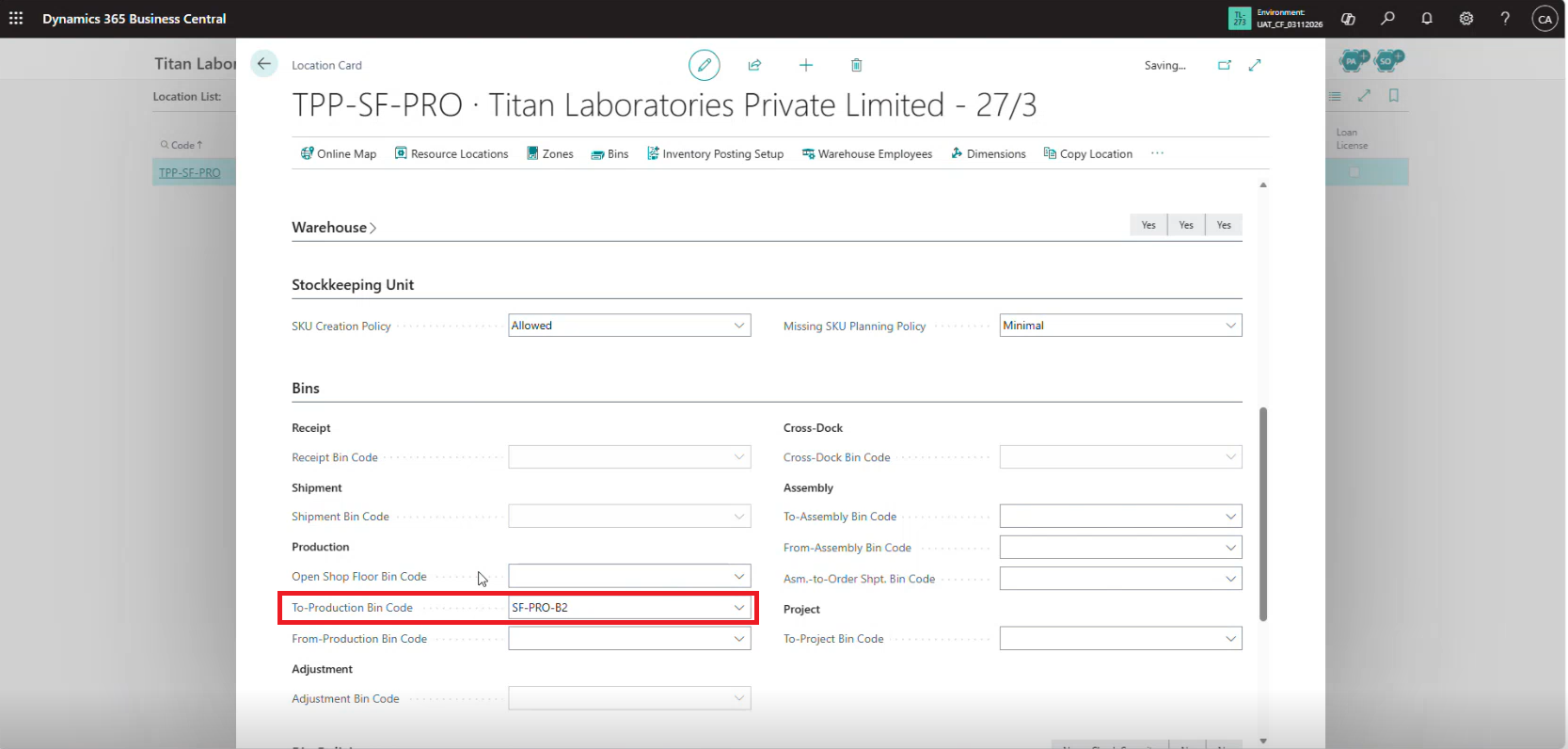
Separate To-Production Bin
On the Location Card, choose Bins, then New, and create a
bin such as PROD-B2. On the Bins FastTab, set
To-Production Bin Code to this bin. It must differ from the stock bin.
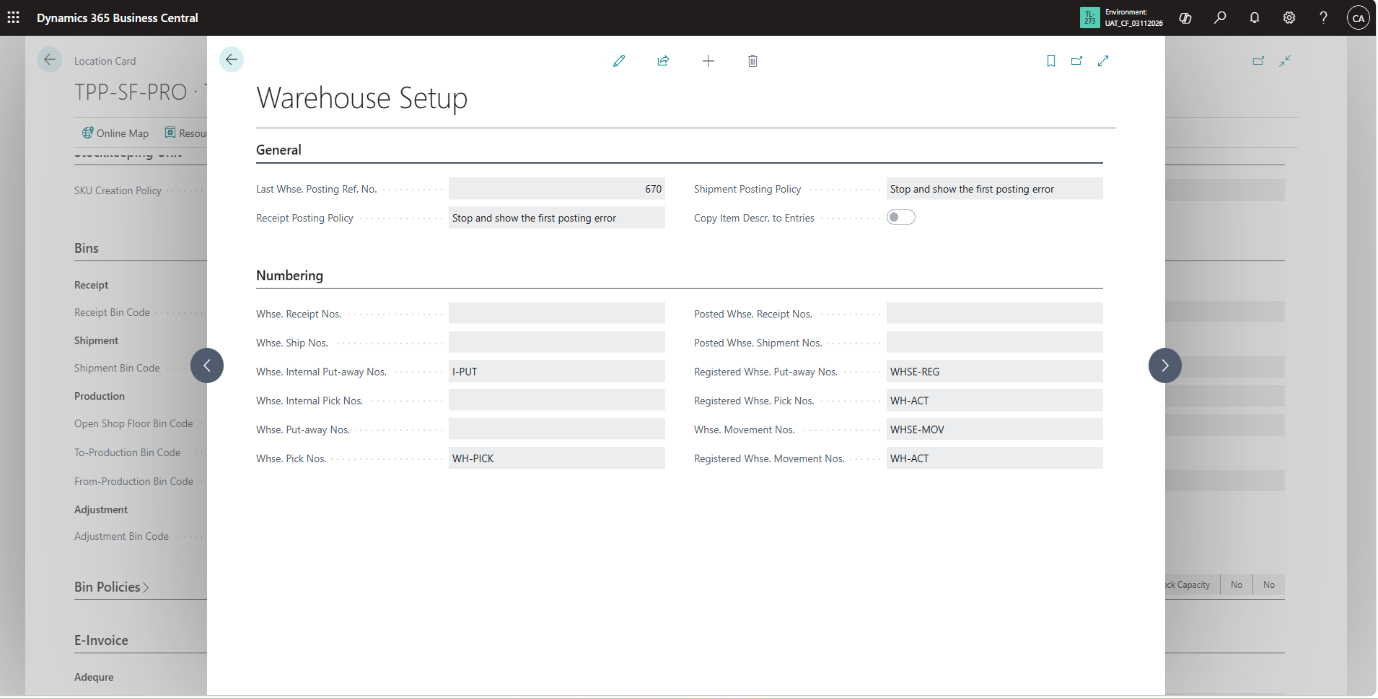
Registered Whse. Pick Nos.
Select a number series in Registered Whse. Pick Nos. and confirm it has an active line with a Starting Date and Starting No.
| Bin | Purpose | Used On Pick As |
|---|---|---|
| STORE-B1 | Where RM/PM stock is kept | Take line |
| PROD-B2 | To-Production bin on the Location Card | Place line |
For Each Production Order
- If an old warehouse pick exists for the order, delete it. Then choose Refresh Production Order on the Released Production Order.
- Open Components and check the Location Code and Bin Code on each line.
- Choose Create Warehouse Pick.
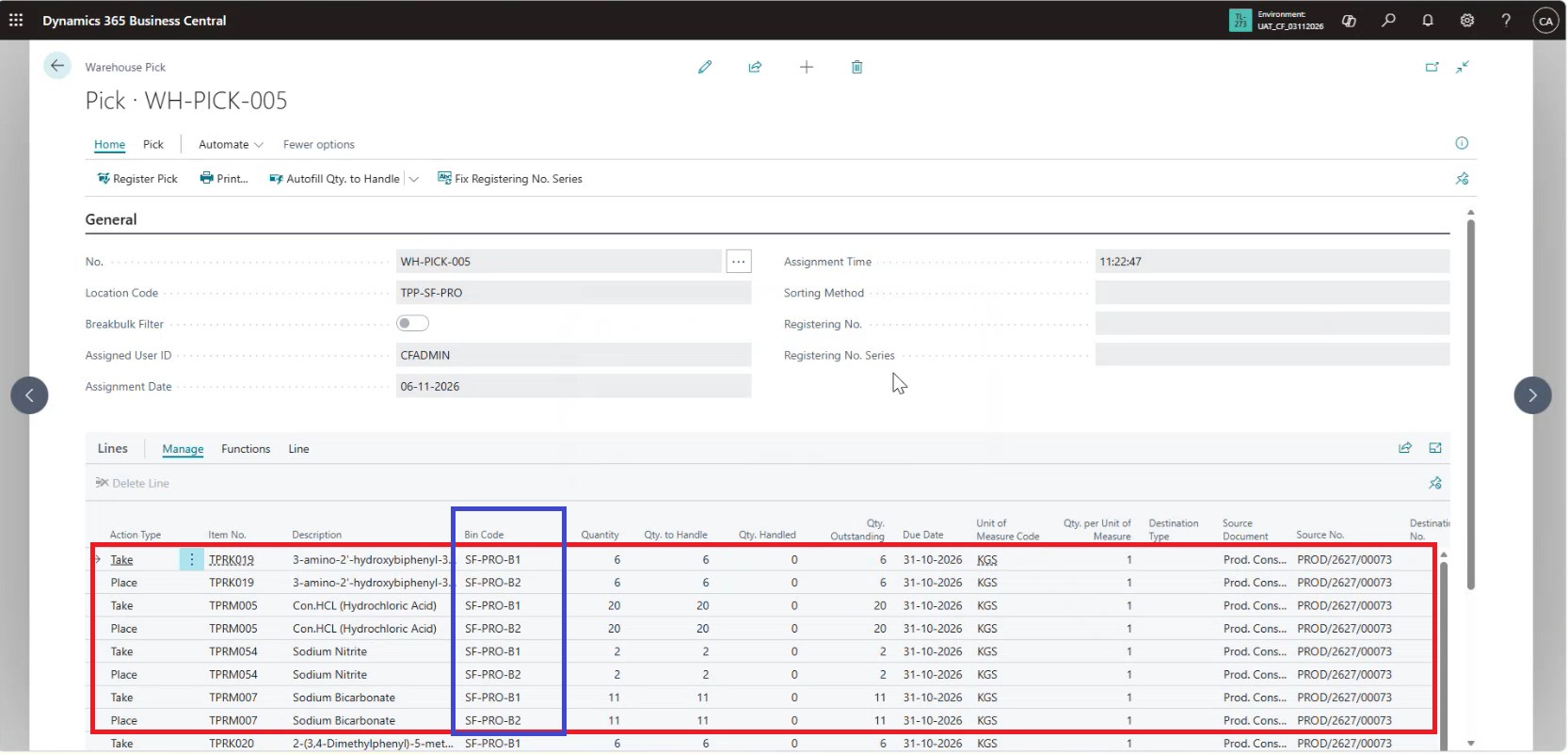
- Open the pick. Each component has a Take line (stock bin) and a Place line (To-Production bin). Confirm the bins differ and check the Lot No. on the Take lines.
- Choose Register Pick.
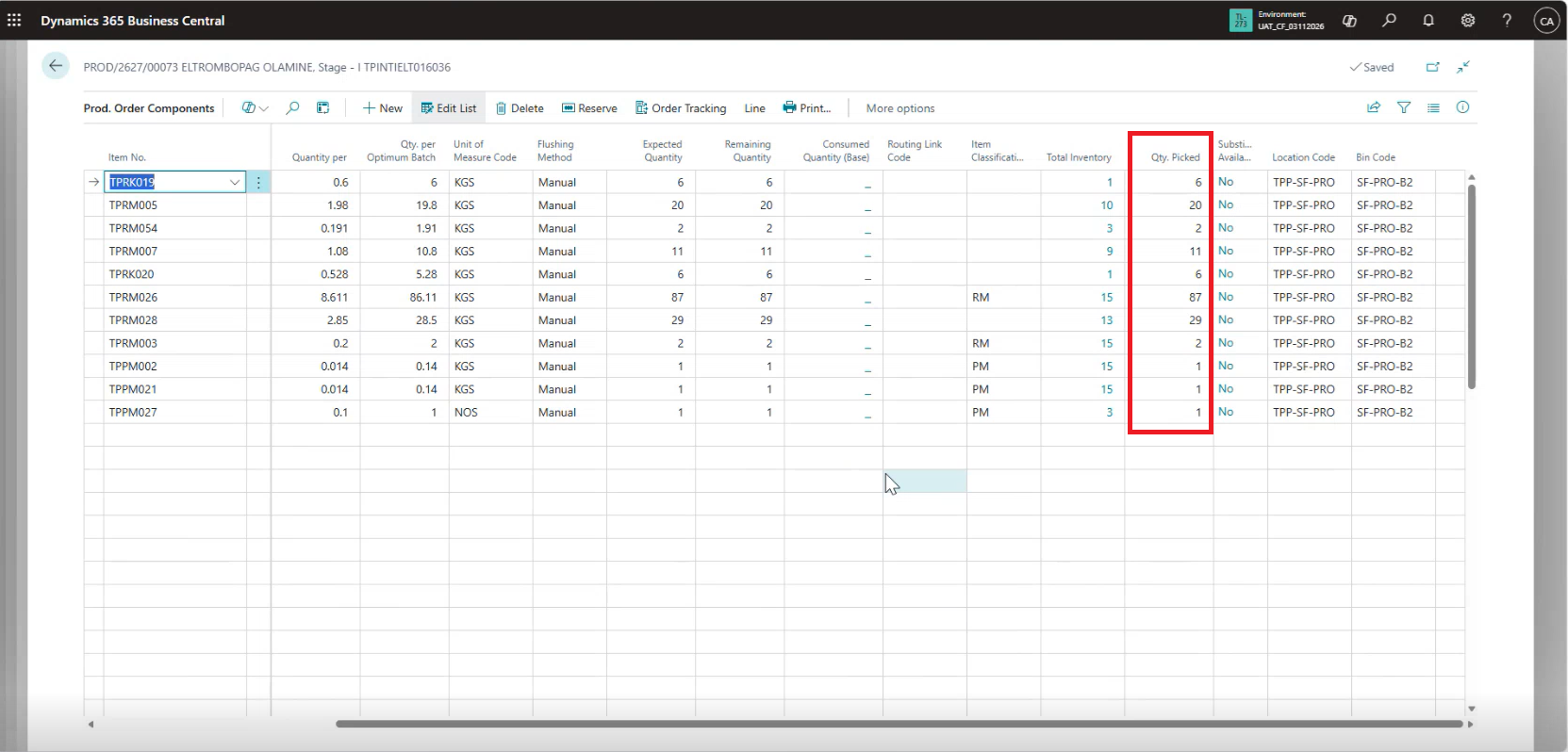
- Back on the production order, open Components and confirm Qty. Picked is updated.
The Result in the Production Journal
With the pick registered, the Production Journal works as expected.
- On the Released Production Order, open Production Journal.
- The RM/PM consumption quantity is now filled in from the registered pick.
- Review the lines and post.
The full process in short
Check Inventory
→
Positive Adjmt. if Missing
→
Pick with Different Bins
→
Register Pick
→
Consumption Appears
We validated these steps in a sandbox copy of the client’s environment before rolling them out, and the consumption quantity appeared correctly in the Production Journal.
Quick Troubleshooting Checklist
When the consumption quantity is zero at a pick-required location, work through this table from top to bottom.
| Check | What Goes Wrong | Fix |
|---|---|---|
| Bin contents | No stock, or no lot-tracked stock, in the pick bin | Receive, transfer, or adjust stock into the bin with lot details |
| To-Production bin | Same as the stock bin, so the pick cannot move anything | Create a separate bin and set it on the Location Card |
| Number series | Registered Whse. Pick Nos. missing or inactive | Assign a series with an active line in Warehouse Setup |
| Old pick | Existing pick created with the wrong bins | Delete it, refresh the order, and create a new pick |
| Qty. Picked | Pick created but never registered | Register the pick, then reopen the Production Journal |
Errors We Hit Along the Way
While fixing the setup, these messages came up in order. Each one points to the next gap.
| When | Message (Paraphrased) | What to Do |
|---|---|---|
| Selecting the Take bin | The stock bin cannot be selected for the component | Check the item has stock in that bin and location |
| Posting the positive adjustment | A lot number must be assigned | Assign the Lot No. in Item Tracking Lines |
| Posting the positive adjustment | Expiration Date must have a value | Enter the Expiration Date on the tracking line |
| Refreshing the production order | Existing item tracking or warehouse activity must be deleted | Delete the old warehouse pick first, then refresh |
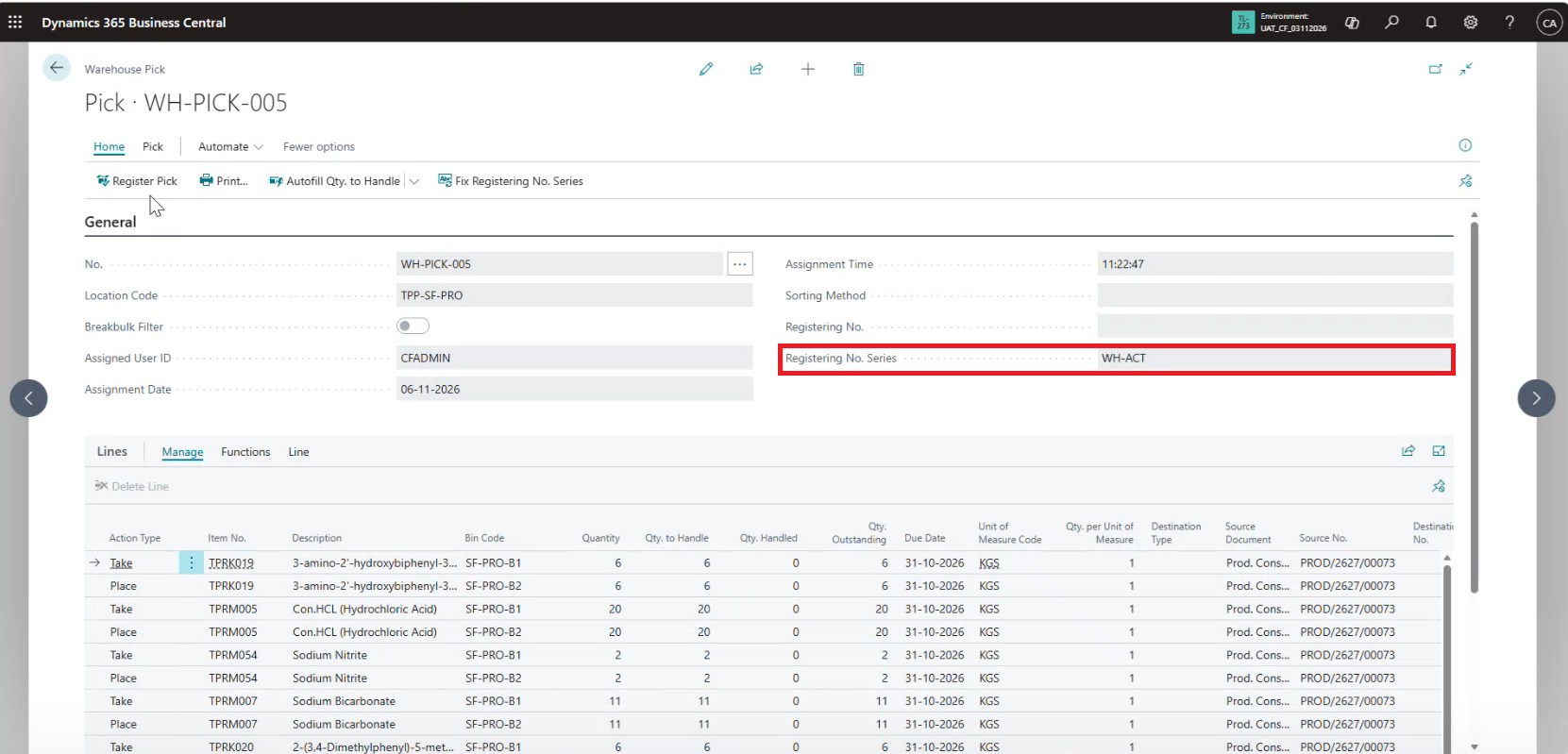
| Registering the pick | Registering No. Series must have a value in Warehouse Activity Header | Set Registered Whse. Pick Nos. with an active series line, then recreate the pick |
Good to Know
If you set up the number series after the pick was created, delete the pick and create it again so it picks up the new series.
Business Impact
The client now has a repeatable process instead of a recurring support ticket.
Accurate Material Consumption
RM/PM consumption is posted from what was physically picked to production.
Correct Lot Traceability
Lot numbers and expiry dates flow from the pick into consumption entries, which is essential for batch traceability in pharma manufacturing.
Fewer Production Delays
Planners know where to look when the quantity is zero and can resolve it themselves.
Clean Warehouse Setup
Separate stock and To-Production bins make every pick meaningful and auditable.
Confidence in Standard Behavior
The team understands why Business Central behaves this way, so there’s no need for a customization.
Frequently Asked Questions
Is a zero consumption quantity a Business Central bug?
No. At locations that require warehouse picks for production, Business Central proposes consumption only from the quantity picked and registered. Zero means no pick has been registered yet.
Where do I see whether a location requires picks for production?
On the Location Card, look at the warehouse handling settings for production consumption and the Require Pick setting. If picks are required, consumption follows the registered pick.
Can I type the consumption quantity in manually instead?
At a pick-required location this works against the warehouse controls. The stock would be consumed from a bin it was never moved to. Registering the pick keeps bin contents, lot tracking, and consumption aligned.
Why must the Take and Place bins be different?
A pick moves stock from a storage bin to the To-Production bin. If both are the same bin, there is nothing to move, and the pick cannot do its job.
When should I use a positive adjustment?
Only when the material physically exists but is not recorded in the system. Normally, RM/PM stock should arrive through a purchase receipt or a transfer order.
Conclusion
A consumption quantity of zero looks like a production problem, but in this case it started in the warehouse. When a location requires picks, Business Central ties consumption to the registered pick, and the pick depends on stock in the right bin, separate Take and Place bins, and a valid number series.
By fixing the setup and turning the process into three simple rules, we gave the client’s production team a clear path from released order to posted consumption, using standard Business Central and no custom code.
Key Takeaway
Inventory in the bin, a pick with different Take and Place bins, a registered pick. Get those three right and the consumption quantity takes care of itself.
Struggling with warehouse and production setup in Business Central?
CloudFronts helps manufacturers get the most from Microsoft Dynamics 365 Business Central with warehouse configuration, production processes, lot tracking, and troubleshooting designed around real-world operations. To discuss your setup, reach out to us.
Contact us at transform@cloudfronts.comAbout the Author

Related posts:
How We Built a Role-Based Customer Portal in Microsoft Power Pages for a US-Based IT Services Provid...
From Scattered Reports to One Click: A Client-Ready Project Report Inside Dynamics 365
Forecasting with Prophet-When Does It Make Sense