
Summary
Our team wanted to see a project’s files without leaving the Project Dashboard in our Team Hub, a set of custom pages we run inside Dynamics 365. The files live in SharePoint, and the Dynamics 365 form already shows them on its Documents tab. Our custom page had no such tab.
We added a Documents tab that lists the same SharePoint files, using three calls to the Dataverse Web API and the session you already have. There’s no Power Automate flow, no SharePoint connector and no app registration. You open the tab, see each file with its type and a link, and open it in the browser.
Table of Contents
Business Challenges
A team member checking a project in the Hub had to leave it to find the project’s documents. They opened the Project record, went to its Documents tab, then came back to the dashboard.
The usual fixes to bring those files into a custom page add moving parts we didn’t want to own:
- A Power Automate cloud flow with the SharePoint connector, which adds a flow to build, run and maintain
- A direct call to Microsoft Graph or the SharePoint REST API, which needs an app registration and a second sign-in
We wanted the files the form already shows, through the sign-in you already have.
Solution Overview
Dynamics 365 has server-based SharePoint integration. That’s the feature that connects a record to a SharePoint folder and fetches the files on your behalf. The form’s Documents tab uses it, and so can your own page.
Our Documents tab asks Dataverse, the data layer behind Dynamics 365, for three things in a row: the project’s SharePoint folder, its full address and the files inside it. Dataverse talks to SharePoint for us.
- 1Find the folderLook up the SharePoint document location linked to the project
- 2Get the addressAsk for the full folder URL, the same one behind the form’s Open Location
- 3List the filesQuery the sharepointdocument virtual table with FetchXML
We built the tab for desktop. At phone width (below 720 px) we hide it.
Technical Approach
You can follow these steps for any record that has a SharePoint document location. We used Project (msdyn_project) as the example.
- Find the document locationQuery
sharepointdocumentlocationsfor an active row whose regarding record is your project. Take the oldest one. No row means the project has no SharePoint folder yet, and our tab says so. - Get the folder addressCall
RetrieveAbsoluteAndSiteCollectionUrlon that location. You getAbsoluteUrlandSiteCollectionUrlback. We useAbsoluteUrlfor an Open in SharePoint button. Run this call and the file list in parallel. - List the files with FetchXMLSend FetchXML to the
sharepointdocumentvirtual table with a GET request. The query shape matters, see the code below. - Show the outputRender each row with its name, a type badge, the modified date, who modified it and a link.
GET /api/data/v9.2/sharepointdocumentlocations?$select=sharepointdocumentlocationid&$filter=_regardingobjectid_value eq <projectId> and statecode eq 0&$orderby=createdon asc&$top=1

GET /api/data/v9.2/sharepointdocumentlocations(<locationId>)/Microsoft.Dynamics.CRM.RetrieveAbsoluteAndSiteCollectionUrl()

// AbsoluteUrl looks like:
// https://<tenant>.sharepoint.com/msdyn_project/<folder name>_<record id without dashes>
Our first FetchXML was simpler. It used isrecursivefetch 0, no uitype, and a GUID without braces. Dataverse returned HTTP 400 with error 0x80040216, "An unexpected error occurred", from the plugin Microsoft.Crm.ObjectModel.SharePointDocumentService. We fixed it by copying the exact query shape the form’s own Documents grid sends.
<fetch distinct="false" mapping="logical" page="1" count="100">
  <entity name="sharepointdocument">
    <attribute name="fullname"/>
    <attribute name="absoluteurl"/>
    <attribute name="filetype"/>
    <attribute name="modified"/>
    <attribute name="sharepointmodifiedby"/>
    <attribute name="isfolder"/>
    <attribute name="relativelocation"/>
    <order attribute="relativelocation" descending="false"/>
    <filter><condition attribute="isrecursivefetch" operator="eq" value="1"/></filter>
    <link-entity name="msdyn_project" from="msdyn_projectid" to="regardingobjectid" alias="bb">
      <filter type="and"><condition attribute="msdyn_projectid" operator="eq" uitype="msdyn_project" value="{<projectId>}"/></filter>
    </link-entity>
  </entity>
</fetch>The output
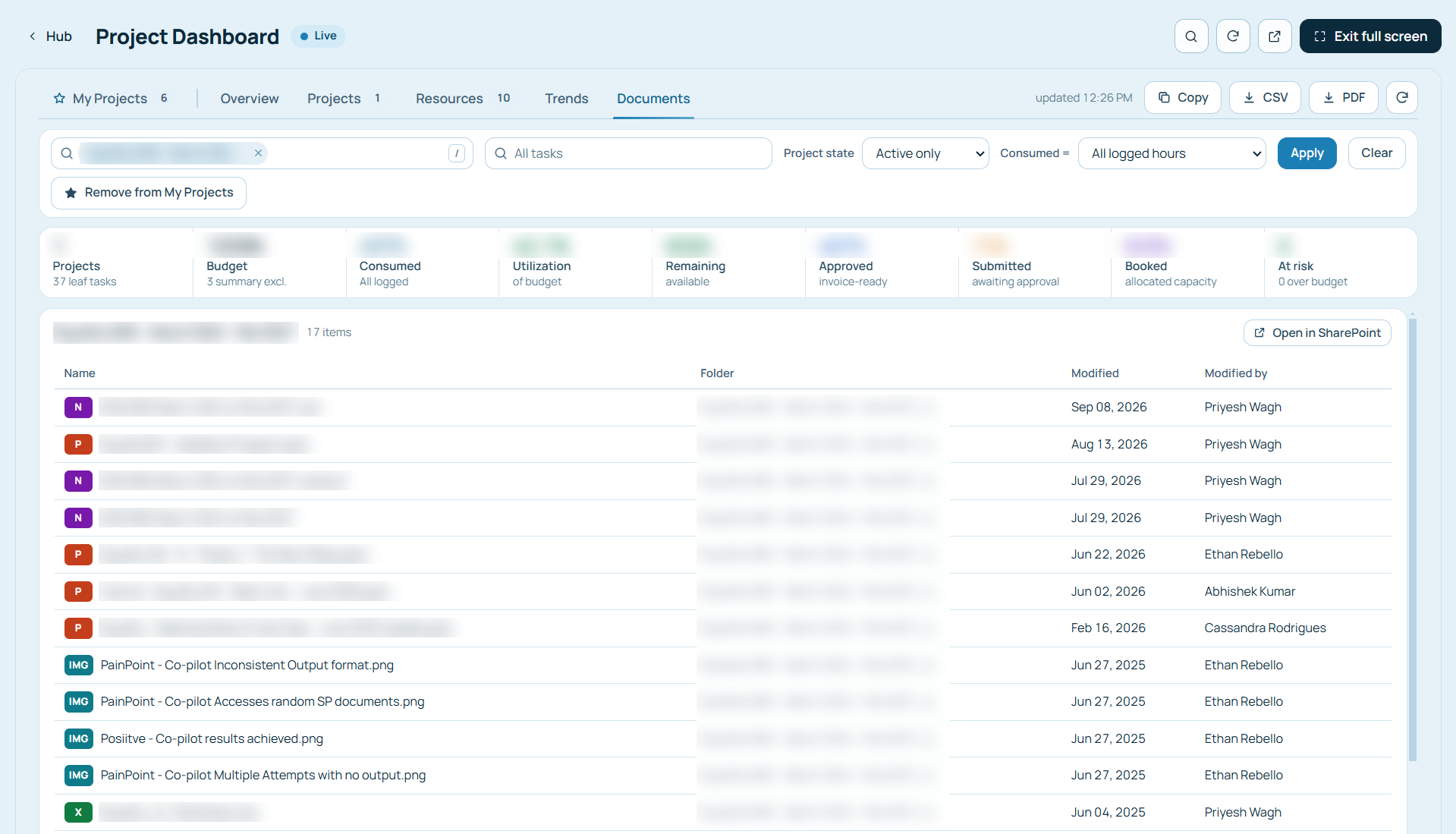
In our live test, one project returned 7 items and another returned 17, each with a name, file type and direct link. Two fixes came out of my own testing. Clicking absoluteurl downloaded Office files, so we add ?web=1 to file links and SharePoint opens them in the browser. Folders keep the plain link. A single grey icon for every file didn’t help anyone, so we show coloured badges from filetype: W for Word, X for Excel, P for PowerPoint, N for OneNote and PDF in red. We hide the folder column if every file sits in one folder.
 1
- Coloured type badges and direct links to each file
Speed shaped one decision. The file list took 2.1 s and 2.5 s in our tests, because Dynamics 365 asks SharePoint live each time. The location and URL calls take about 0.25 s. So we load files the moment you open the Documents tab and never on dashboard load. A skeleton shows while you wait, and we cache the result until you press Refresh.
Impact
Your team sees a project’s SharePoint files inside the custom page, with nothing new to run or sign in to.
- 3Dataverse Web API calls
- 0Cloud flows or connectors
- 0Extra sign-ins or app registrations
- ~2 sTo list files for one project
We haven’t measured time saved. The change is in the mechanism.
- Open the Project record
- Go to its Documents tab
- Open the Documents tab in the Hub
- Click a file to open it in the browser
Takeaways if you want the same thing in your own page:
- Copy the query the form’s Documents grid sends before you write your own FetchXML
- Load SharePoint files on demand, since each fetch goes to SharePoint live
- Add ?web=1 to Office file links so they open in the browser
Conclusion
Dynamics 365 already talks to SharePoint for you. We reused that link instead of building a second one, and the Documents tab stays a small piece of code with no flow behind it. We’ve run it on Project so far, and the pattern fits other record types with a document location once you swap the entity names in the query.
Call to Action
Want SharePoint files in your D365 pages, or a whole custom page for your team?
Talk to us about your needs on custom Dynamics 365 screens.
Email usAuthor Profile

Ethan Rebello
Solution Architect – Biz Apps · CloudFronts
My work sits at the intersection of business, technology, and solution architecture, with experience spanning Microsoft Power Platform, Dynamics 365 CRM, and AI solutions.