
How to insert data into reports in Business Central using a variable in Request Page
Introduction:
Here, I will demonstrate how a user can add data into reports by themselves from the Request Page in Business Central.
Pre-Requisites:
- Microsoft Dynamics 365 Business Central
Steps:
- Create a report and in the Report Page section enter a text variable which you want to display in the report.
requestpage
{
layout
{
area(Content)
{
group(General)
{
field(Note; Note)
{
ApplicationArea = All;
MultiLine = true;
}
}
}
}
}
2. Insert this variable on the report layout where you want it to be displayed.
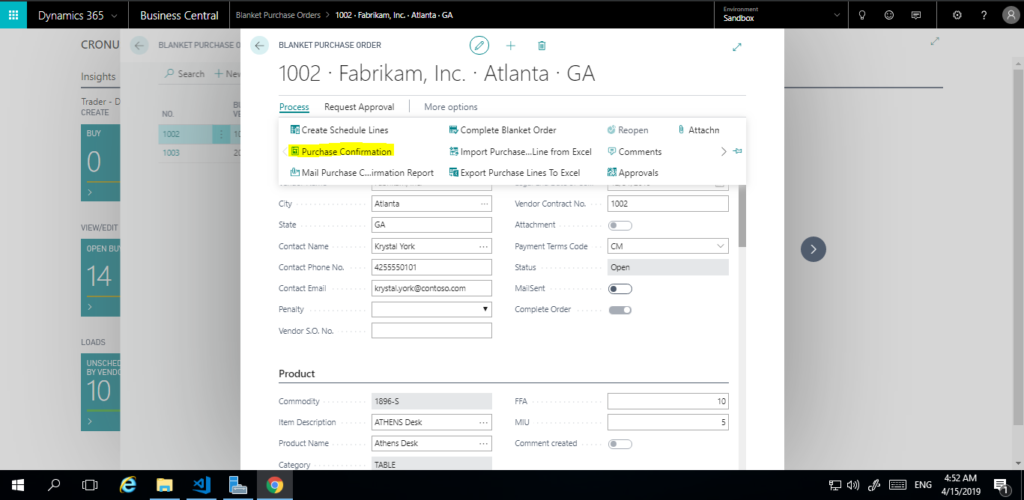
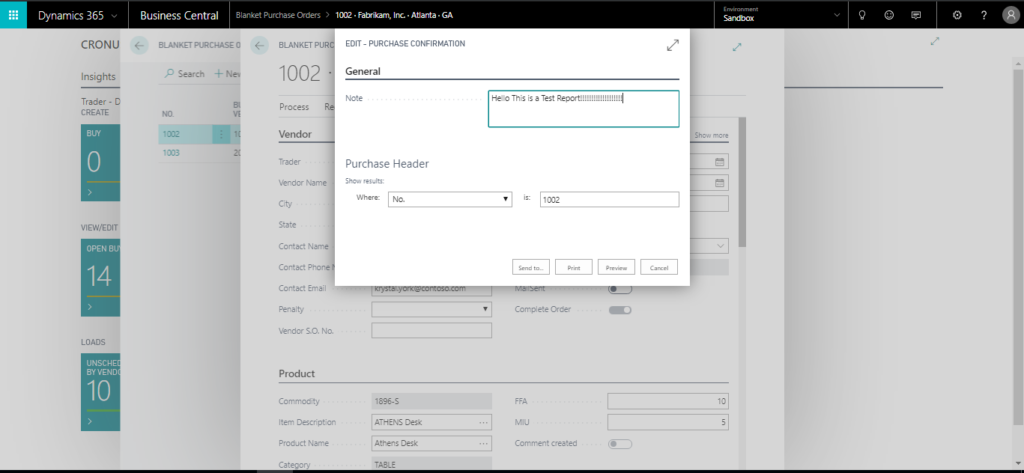
3. Click on the Action and the Request Page opens up where the data in the variable to be displayed on the report can be seen/entered. The user enters the data and clicks on Preview. The data can be seen on the report.

Conclusion:
Thus, this way user can enter data in report from the request page.
Related posts:

How an Australian Commercial Laundry Provider Automated Customer Emails and Contract Change Notifica...
How a U.S.-Based Consumer Appliance Manufacturer Automated FedEx Shipment Creation, Cancellation, an...
Engineer-to-Order with Dynamics 365: How Project Operations Handles Planning and Business Central Ma...