
Engineer-to-Order with Dynamics 365: How Project Operations Handles Planning and Business Central Manages Execution
Summary
Engineer-to-Order (ETO) manufacturers sell a machine that has not been designed yet, then buy, build and bill against milestones that sit months apart. Running that entirely in an ERP leaves the Project Manager in spreadsheets. Running it entirely in a project tool leaves finance re-keying everything.
This post shows a right-sized alternative for small and mid-sized manufacturers: Project Operations Core for planning and commercial control, Business Central for procurement, manufacturing and accounting, and a connector that owns the handoff between them.
It covers the ownership split, an end-to-end walkthrough, six points to get right before any integration is built, and the outcomes to expect.
The business challenge
Every time an Engineer-to-Order (ETO) manufacturer sits across the table from us, the conversation lands in the same place. The sales team quotes a machine that hasn’t been designed yet, engineering designs it after the order is won, procurement buys parts for that one order, the shop floor builds it, and finance bills against milestones that are months apart. Somewhere in between, the Project Manager is trying to answer a simple question: are we still making money on this job?
The usual assumption is that this needs a heavy ERP with full-blown project manufacturing. In my experience with small and mid-sized manufacturers, that is not always true. Project Operations Core for planning and commercial control, connected to Business Central for procurement, manufacturing and accounting, handles an ETO scenario well, as long as the handoff between the two is designed properly.
This article covers how we set this up, the key points that make or break it, and the outcomes you can expect.
Why ETO is a Project problem first
An ETO order behaves more like a project than a production run. There is no standard item to sell off the shelf. What you have is a customer requirement, a fixed-price commitment, a design phase, a mix of engineering labour and material, and a billing schedule tied to progress.
When organizations try to run this entirely inside the ERP, the Project Manager ends up working in spreadsheets because ERP screens are built for accountants and warehouse users, not for planning a WBS or tracking a team’s effort. When they run it entirely in a project tool with no ERP link, finance re-keys everything and invoices go out late.
The real question is not which system, but which system owns what. Get that boundary right and most of the complexity goes away.
The ownership split that works
Here’s how I sum up the split we recommend:
Project Operations Core
Sell and plan. Opportunity, fixed-price quote, project, WBS, team, estimates, approved cost budget, contract and billing milestones. This is where the Project Manager lives.
Business Central
Execute and account. Items, BOMs, routings, purchasing, warehouse, production orders, project accounting, customer invoicing, WIP and the general ledger.
The connector
The handoff. Moves the approved project baseline into Business Central and brings actuals back, so nobody re-keys anything.
Project Operations Core does not come with customer-facing invoicing or an ERP back-end, which is exactly why it fits here. It is a lighter footprint for the Project Manager, and Business Central does what it is already good at.
How the scenario is carried out
To make this concrete, take a generic example. A machine builder, let’s call them Contoso Automation, receives a request from Fabrikam Packaging for a conveyor automation cell. Here’s how it flows end to end:
- Qualify and quote. The requirement comes in as an Opportunity in Project Operations. The team prepares a fixed-price Project Quote, backed by estimates for engineering, design, assembly and commissioning, plus the major material.
- Plan the project. Once the deal looks real, a Project is created with its WBS (Project Management, Mechanical Engineering, Controls Design, Build, Commissioning and so on), the project team and resource estimates. The Project Manager can plan in detail here without touching the ERP.
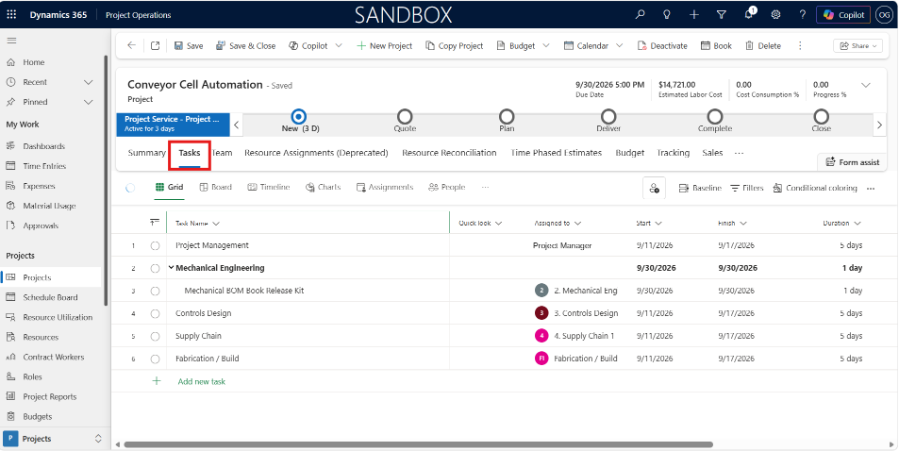
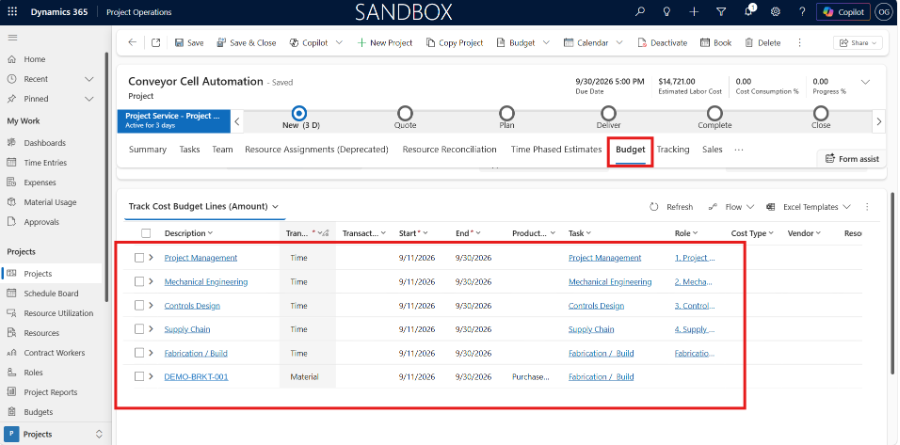
- Approve the baseline. The project budget is created from estimates across Time, Material and Expense, then submitted and approved. This approved cost budget becomes the baseline everything else is measured against.
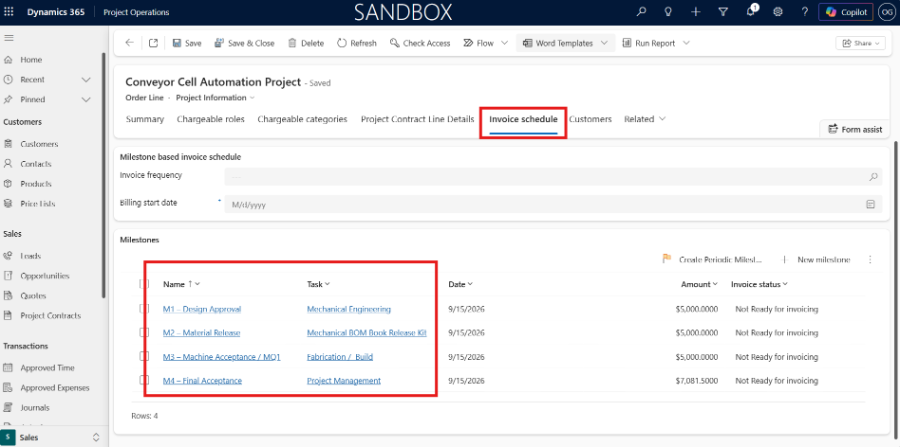
- Define billing. The quote is won and becomes a Project Contract with fixed-price billing milestones, for example Design Approval, Material Release, Machine Acceptance and Final Acceptance, each tied to the task it relates to.
- Release to Business Central. When the project is marked ready, the connector creates the Project in Business Central with its Project Tasks, Budget Planning Lines from the approved budget and Billable Planning Lines from the milestones.
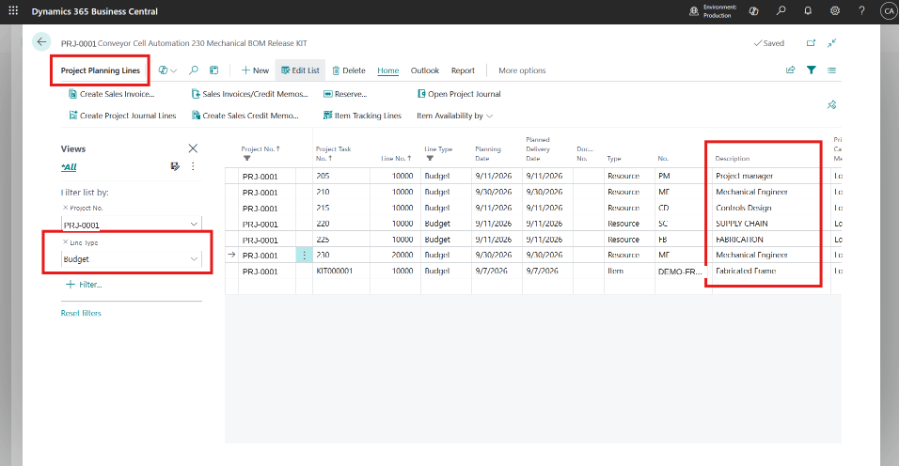
- Execute in Business Central. Project demand drives requisitions and purchase orders, receipts and put-away, then production orders with components and routings to build the sub-assemblies and the final cell.
- Bill and account. When a milestone is reached, the matching Billable Planning Line is used to raise the Sales Invoice. Actual costs post to the right Project Task and WIP is calculated in Business Central.
- Close the loop. Actuals and commitments flow back to Project Operations, so the Project Manager sees Budget vs Actual vs Forecast without asking finance for an export.
Key points to get this right
Having done a few of these, these are the points I’d insist on before a single integration is built:
- Do not copy the full WBS into Business Central. The detailed WBS belongs to the Project Manager. Map only the tasks that matter financially to Business Central Project Tasks. Copying everything just creates noise for finance and breaks every time the schedule changes.
- Make budget approval the handoff gate. Nothing moves to Business Central until the cost budget is approved and the contract is in place. This one rule saves a lot of clean-up later.
- Keep Budget and Billable lines separate in everyone’s head. Budget Planning Lines are what you expect to spend. Billable Planning Lines are what you expect to invoice. Mixing them up is the most common reason margin reports look wrong.
- Design milestone billing upfront. Agree the milestones, their triggers and who confirms them before go-live. If milestones live in someone’s inbox, billing will be late, no matter how good the integration is.
- Separate operational traceability from financial posting. Kits, sub-assemblies or release packages need traceability on the shop floor, but costs still need to land on the right financial task. Carry the operational reference into Business Central and let the costing follow the task mapping.
- Go standard first, customize later. Run the process on standard Project Operations and Business Central screens first. Only once the mapping is confirmed with the business should you add customer-specific fields or actions.
Outcomes
When this is set up correctly, here’s what changes for the business:
- No duplicate entry. The project, tasks, budget and billing schedule are entered once and flow through.
- Milestones get billed on time. Finance is not waiting on an email from the Project Manager to know what to invoice, which directly helps cashflow on long-running jobs.
- Project Managers see margin while the job is still running, not three weeks after month-end close.
- Traceability from quote to shipped machine. Every purchase, production order and invoice ties back to the project and task it belongs to.
- A cleaner data foundation. With sales, project and ERP data connected, reporting and AI agents on top of it have one consistent story to work with instead of two systems that disagree.
FAQs
- Does an ETO manufacturer need a full project manufacturing ERP?
Not necessarily. For many small and mid-sized manufacturers, Project Operations Core for planning and commercial control, with Business Central for execution and accounting, is the right-sized answer, provided the handoff between the two is designed properly.
- Which system owns what in this setup?
Project Operations Core owns the sell-and-plan side: opportunity, quote, project, WBS, estimates, approved budget, contract and billing milestones. Business Central owns the execute-and-account side: items, BOMs, routings, purchasing, production, invoicing, WIP and the general ledger. A connector moves the baseline across and brings actuals back.
- Should the full WBS be copied into Business Central?
No. Map only the tasks that matter financially. The detailed WBS stays with the Project Manager, otherwise finance gets noise and the mapping breaks every time the schedule changes.
- When should a project be released to Business Central?
Only after the cost budget is approved and the contract is in place. Making budget approval the handoff gate avoids most downstream clean-up.
- Why keep Budget and Billable planning lines separate?
Budget Planning Lines represent what you expect to spend. Billable Planning Lines represent what you expect to invoice. Mixing them up is the most common reason margin reports look wrong.
Conclusion
Engineer-to-Order does not automatically mean a heavy ERP rollout. For many small and mid-sized manufacturers, Project Operations Core for planning and commercial control, with Business Central for execution and accounting, is the right-sized answer.
The technology is the easy part. What makes it work is a clear ownership boundary, a disciplined handoff at budget approval, and a properly designed milestone billing model. Get these three right and the Project Manager, Finance and the shop floor all end up working from the same version of the project.
Running ETO projects across disconnected systems?
At CloudFronts, we have built our PO-BC Integration Module to handle exactly this handoff. If you are running ETO projects across disconnected systems today, let’s connect.
transform@cloudfronts.com
About the Author: Priyesh Wagh
Microsoft AI ERP MVP, Practice Manager · CloudFronts
Priyesh Wagh is a Practice Manager at CloudFronts and Microsoft AI ERP MVP. Priyesh works with his team in delivering Dynamics 365 business applications implementation to CloudFronts global customers, mainly in the US and Europe. For the past few years, Priyesh has been involved deeply in working on Project Operations and ERP integrations. Priyesh joined CloudFronts in 2014 and since then has been working on Dynamics 365 CRM applications to expanding experience to ERP as well.
LinkedIn: Priyesh Wagh | Website: www.cloudfronts.com
Related posts:

How an Australian Commercial Laundry Provider Automated Customer Emails and Contract Change Notifica...
How a U.S.-Based Consumer Appliance Manufacturer Automated FedEx Shipment Creation, Cancellation, an...
Dynamics 365 SharePoint Integration: How to Display SharePoint Documents in a Custom Page Using Thre...