

Filtering data in Business Central API
Business Central is its ability to integrate with other systems through APIs, allowing developers to retrieve and manipulate data programmatically. However, when dealing with large datasets or complex queries, retrieving only the relevant information efficiently becomes crucial. This is where API filtering comes in, and source table views can play a vital role in optimizing these operations.
In this blog, we’ll explore how to implement API filtering using source table views within Microsoft Dynamics 365 Business Central. We’ll cover the benefits, best practices, and a step-by-step guide to making the most out of your API integrations.
We’ll take one example, instead of fetching all sales orders, you might want to retrieve only those created within the last month or orders from a specific customer. Business Central APIs allow you to apply filters using OData queries, but in more complex scenarios, leveraging source table views can simplify the process and improve performance.
What Are Source Table Views in Business Central?
In Business Central, source table views are virtual tables created from SQL queries that extract and present data from one or more underlying tables. Views allow you to define complex data relationships and filters at the database level, which can then be consumed by your APIs.
Advantage using Source Table View
- Performance Optimization: By pushing filtering logic to the database, you reduce the load on the API layer, resulting in faster response times.
- Simplification: Views abstract complex joins and calculations, making the API calls more straightforward and easier to maintain.
- Reusability: Once created, a view can be used across multiple APIs, ensuring consistency and reducing code duplication.
- Security: Views can be designed to expose only the necessary data, which helps in securing sensitive information.
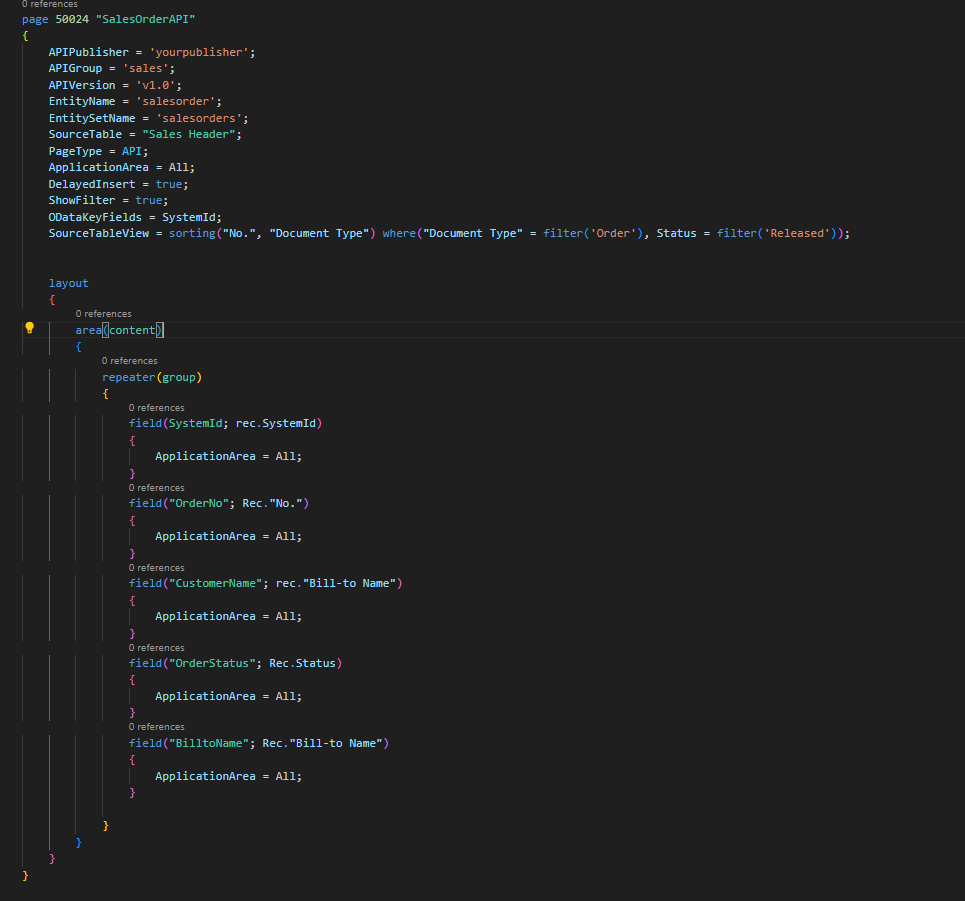
First, we have to create custom API using AL in Visual Studio Code
Steps to achieve the goal:
Using SourceTableView helps you to filter the data in your API itself without using filter work in your postman.
Create an API page and added Source table View property where I have added filters only Sales order and Approved Orders data should be shown whenever this API is used.
To conclude, API filtering using source table views in Business Central is a powerful way to optimize data retrieval and improve the performance of your integrations. By centralizing your filtering logic within the database, you can reduce the complexity of your APIs, improve security, and ensure consistent data access across your applications.
We hope you found this blog useful, and if you would like to discuss anything, you can reach out to us at transform@cloudfronts.com
