

Optimizing Inventory Operations with Microsoft Dynamics 365 Business Central
Managing inventory effectively is essential for any organization aiming to balance stock levels, minimize excess inventory costs, and ensure timely order fulfillment.
Microsoft Dynamics 365 Business Central provides a range of tools that simplify and automate inventory control – helping businesses maintain the right stock at the right time.
In this post, we’ll walk through the key features and planning tools available in Business Central’s Inventory Management module.
Pre-requisite:
- a. Business Central (Cloud version)
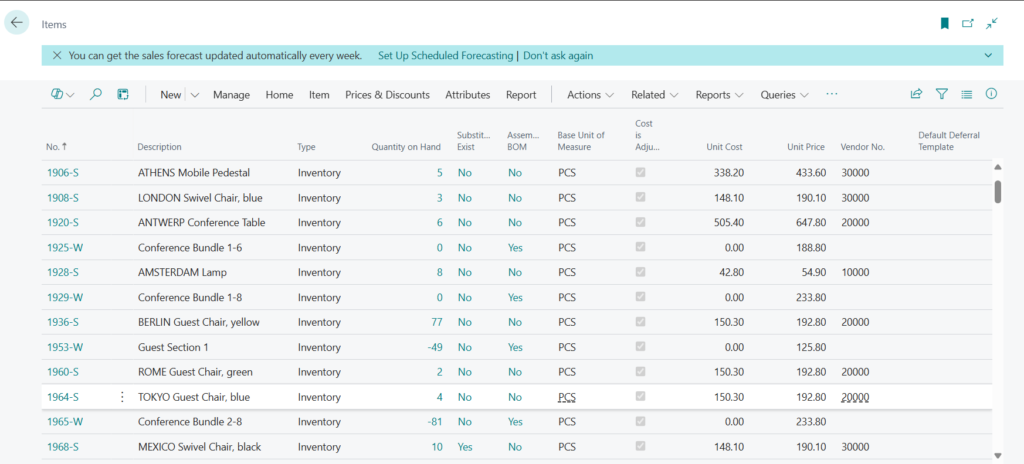
1. Access the Item List Page
Start by opening the Item List page. This page offers a complete overview of all active items, including quantities on hand, reorder points, and categories. It serves as the foundation for any inventory planning activity.
2. Open an Item Card
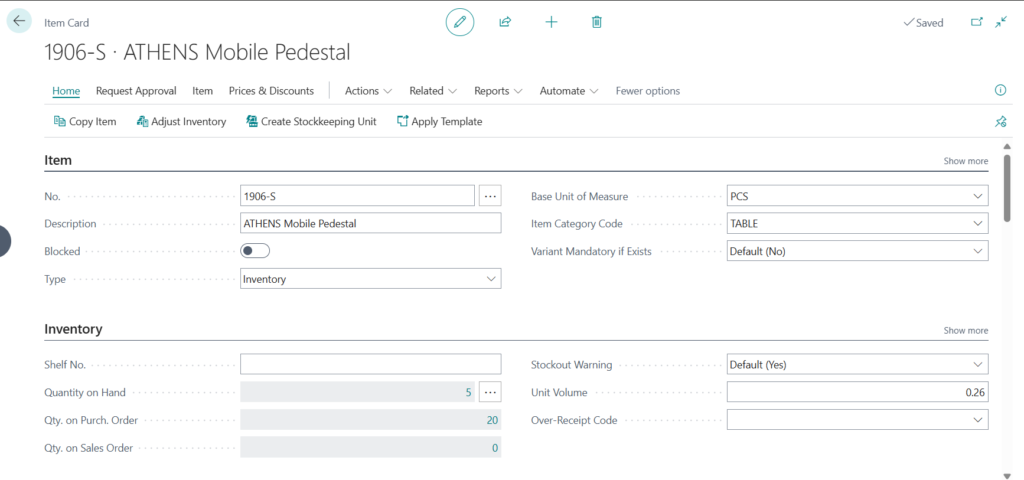
Select an item from the list to view its Item Card, where you configure how the system manages, replenishes, and forecasts that product. The setup on this page directly affects how purchase or production orders are generated.
a. Configure Replenishment Method and Reordering Policy
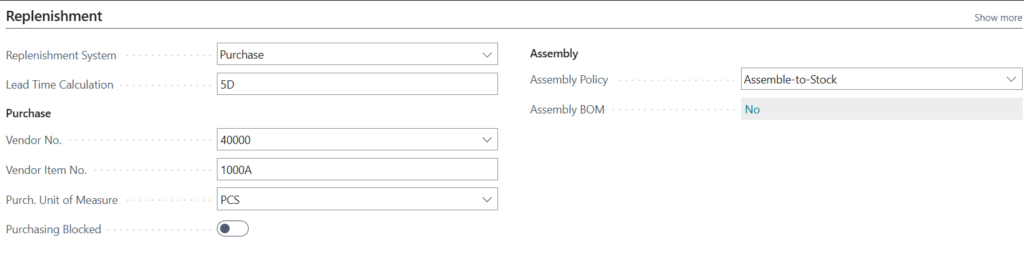
Under the Replenishment tab, you can define how stock for each item should be refilled when levels drop below a specific threshold.
Replenishment Methods include:
- a. Purchase: Automatically trigger a purchase order when the stock level is low.
- b. Production Order: Plan internal manufacturing of the product as required.
- c. Assembly: Build the item from component parts through assembly orders.
Lead Time:
Set the expected number of days it takes to receive, produce, or assemble an item. This ensures the system plans replenishment activities in advance.
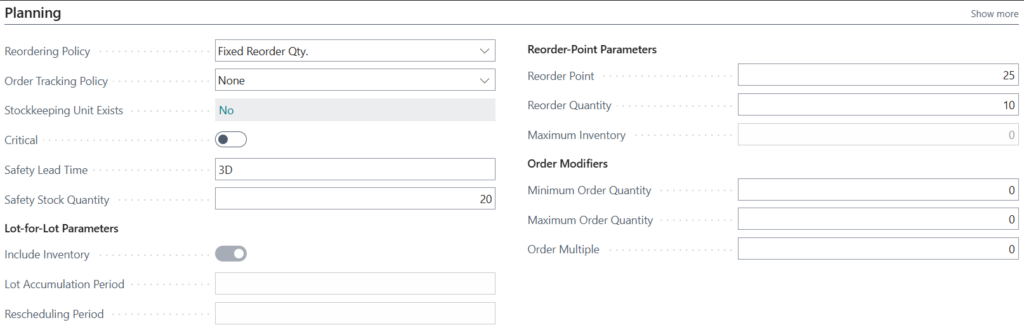
Reordering Policies:
- a. Fixed Reorder Quantity: Always order a predefined amount when inventory drops below the reorder point.
- b. Maximum Quantity: Replenish only up to a defined maximum quantity.
- c. Order: Refill to reach a target inventory level.
- d. Lot-for-Lot: Order only what’s required to meet current demand, avoiding overstocking.
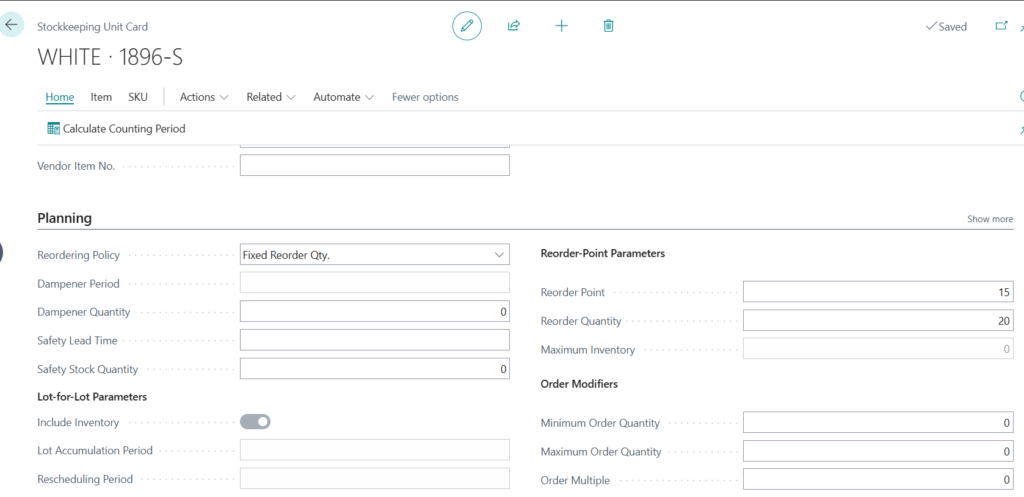
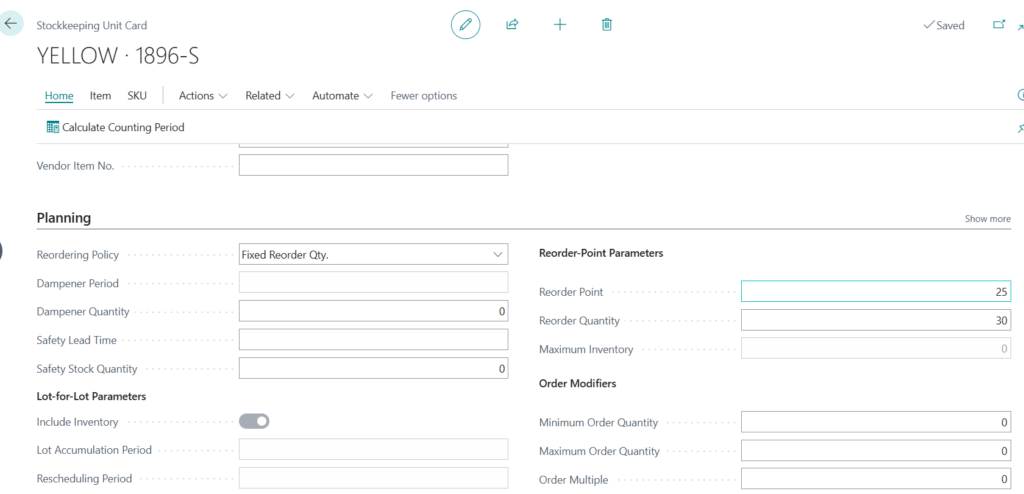
b. Using Stock Keeping Units (SKUs) for Location-Specific Planning
SKUs allow tracking of an item by individual location or variant, enabling businesses to manage stock independently across warehouses or stores.
This approach ensures accurate availability data, reduces fulfillment errors, and supports better demand analysis for each location.
c. Demand Forecasting
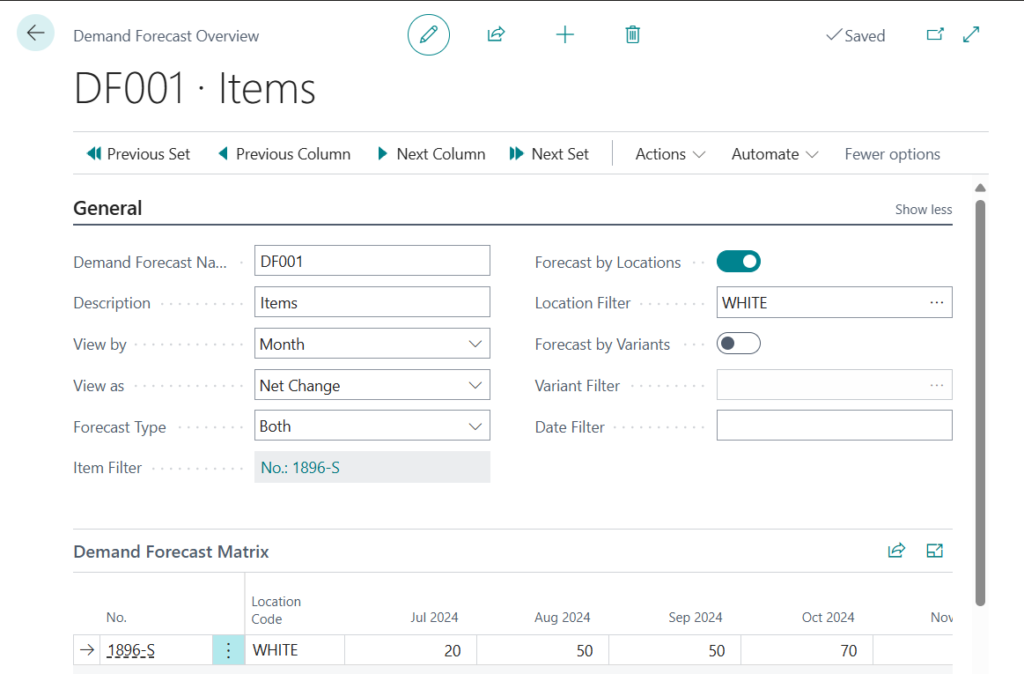
The Demand Forecast feature in Business Central helps predict future requirements by analyzing past sales and usage patterns.
Forecasts can be system-generated or manually adjusted to reflect upcoming promotions, seasonal variations, or expected demand spikes.
d. Requisition (MRP/MPS) Planning
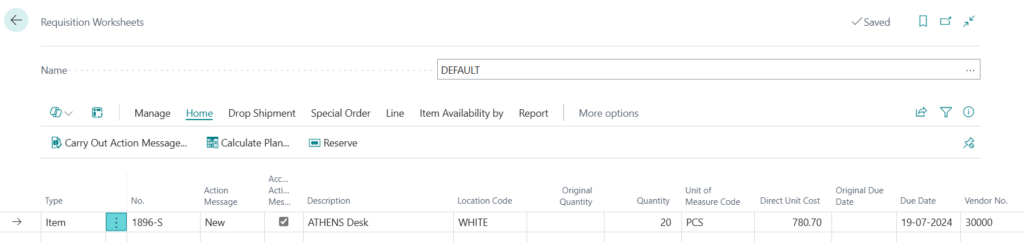
The Requisition Worksheet supports Material Requirements Planning (MRP) and Master Production Scheduling (MPS). It automatically reviews forecasts, current stock, and open orders to suggest what needs to be purchased or produced.
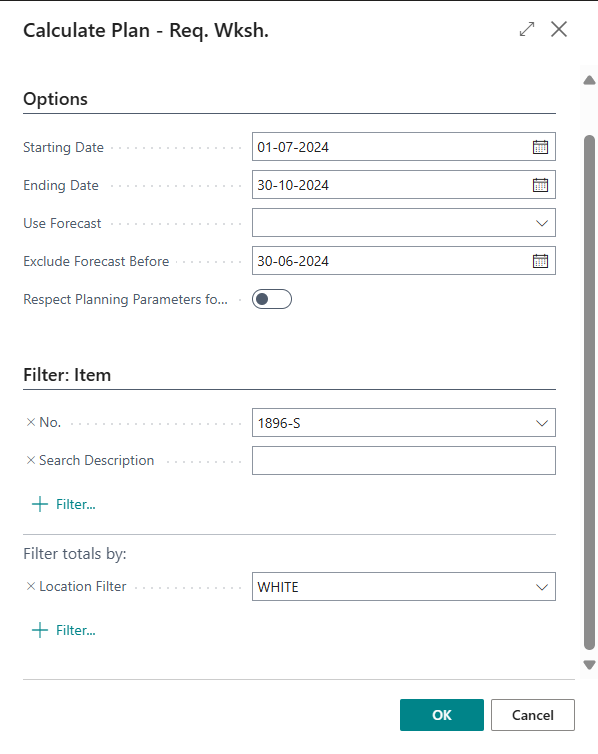
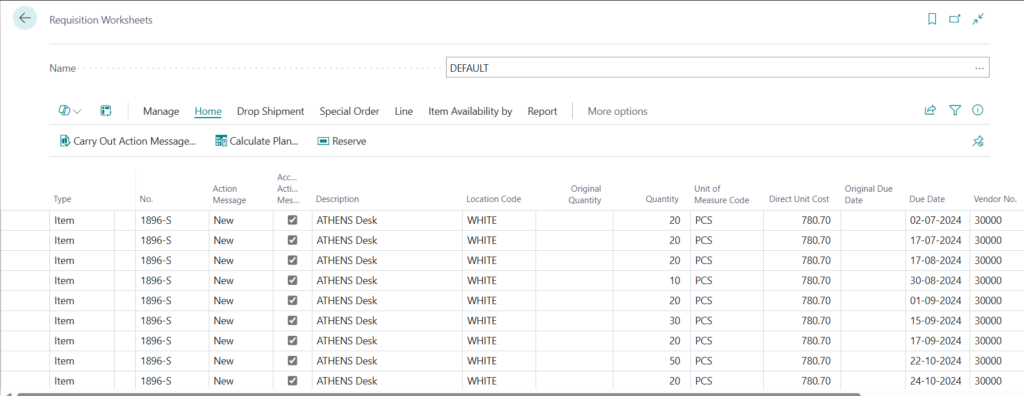
The system lists recommendations such as item names, quantities, and suppliers.
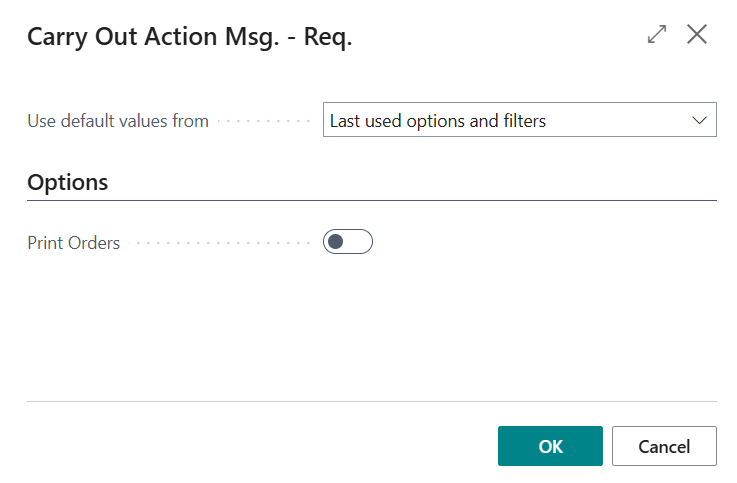
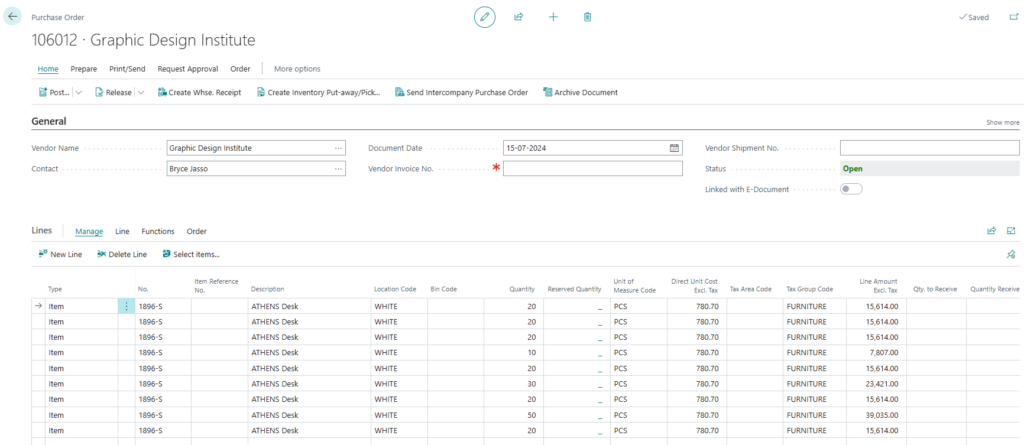
Once reviewed, click Carry Out Action Messages to create purchase or production orders directly — saving time and minimizing manual work.
e. Aligning with Sales Orders
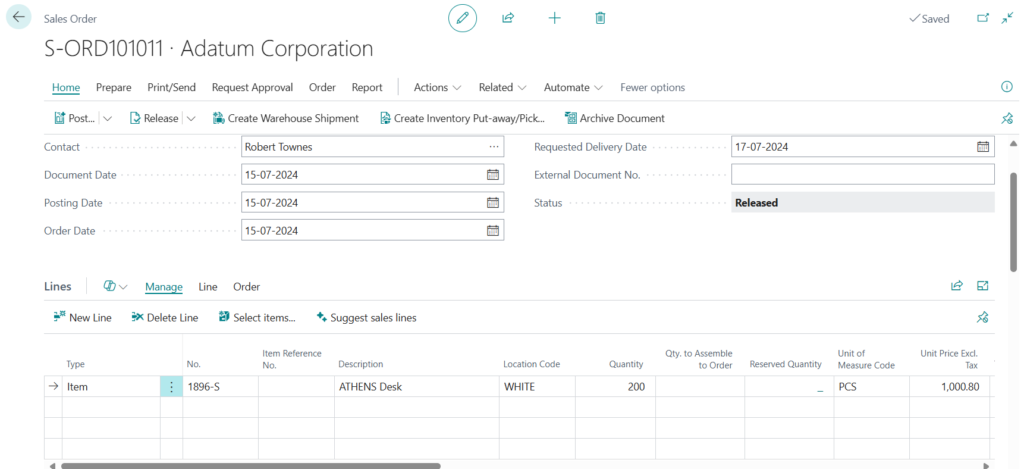
When a Sales Order is entered, Business Central dynamically recalculates availability.
If demand exceeds what was forecasted, the system proposes additional purchase or production orders to prevent shortages and maintain customer satisfaction.
To conclude, Dynamics 365 Business Central simplifies inventory control by automating procurement, forecasting demand, and synchronizing stock levels with actual sales.
By using replenishment rules, SKUs, and requisition planning, businesses can improve inventory accuracy, reduce costs, and deliver orders faster – all within a single integrated ERP system.
We hope you found this blog useful, and if you would like to discuss anything, you can reach out to us at transform@cloudFronts.com
