

Overcoming Dataverse Connector Limitations: The Power Automate Approach to Export Hidden
Working with Microsoft Dataverse Connector in Power BI is usually straightforward—until you encounter a table that simply refuses to load any rows, even though the data clearly exists in the environment. This happens especially with hidden, virtual, or system-driven tables (e.g. msdyn_businessclosure, msdyn_scheduleboardsetting) which are commonly used in Field Service and Scheduling scenarios.
Before jumping to a workaround, it’s important to understand why certain Dataverse tables don’t load in Power BI, what causes this behavior, and why the standard Dataverse connector may legitimately return zero rows.
Causes –
1] The Table Is a Virtual or System Table with Restricted Access
System-managed Dataverse tables like msdyn_businessclosure are not exposed to the Dataverse connector because they support internal scheduling and platform functions.
2] No Records Exist in the Root Business Unit
Data owned by child business units is not visible to Power BI accounts associated with a different BU, resulting in zero rows returned.
3] The Table Is Not Included in the Standard Dataverse Connector
Some solution-driven or non-standard tables are omitted from the Dataverse connector’s supported list, so Power BI cannot load them.
Solution: Export Dataverse Data Using Power Automate + Excel Sync
Since Power BI can read:
-> OneDrive-hosted files
-> Excel files
-> SharePoint-hosted spreadsheets
…a suitable workaround is to extract the restricted Dataverse table into Excel using a scheduled (When the records are few) / Dataverse triggered (When there are many records and you only want a single one, to avoid pagination) Power Automate flow.
What it can do –
-> Power Automate can access system-driven tables.
-> Excel files in SharePoint can be refreshed by Power BI Service.
-> we can bypass connector restrictions entirely.
-> The method works even if entities have hidden metadata or internal platform logic.
This ensures:
-> Consistent refresh cycles
-> Full visibility of all table rows
-> No dependency on Dataverse connector limitations
Use case
I needed to use the Business Closures table (Dataverse entity: msdyn_businessclosure) for a few calculations and visuals in a Power BI report. However, when I imported it through the Dataverse Connector, the table consistently showed zero records, even though the data was clearly present inside Dynamics 365.
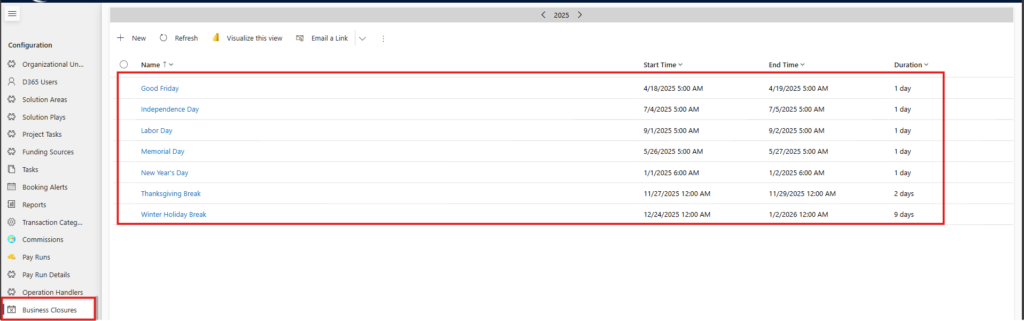

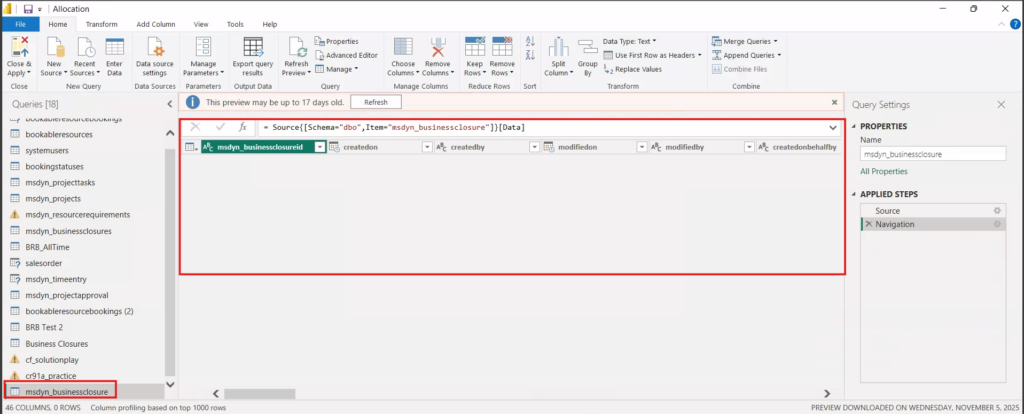
There are 2 reasons possible for this –
1] It is a System/Platform Table
msdyn_businessclosure is a system-managed scheduling table, and system tables are often hidden from external connectors, causing Power BI to return no data.
2] The Table Is Not Included in “Standard Tables” Exposed to Power BI
Many internal Field Service and scheduling entities are excluded from the Dataverse connector’s metadata, so Power BI cannot retrieve their rows even if they exist.
So here, we would fetch the records via “Listing” in Power automate and write to an excel file to bypass the limitations that hinder the exposure of that data; without compromising on user privileges, or system roles; we can also control or filter the rows being referred directly at source before reaching PBI Report.
Automation steps –
1] Select a suitable trigger to fetch the rows of that entity (Recurring or Dataverse, whichever is suitable).
2] List the rows from the entity (Sort/Filter/Select/Expand as necessary).

3] Perform a specific logic (e.g. clearing the existing rows, etc.) on the excel file where the data would be written to.
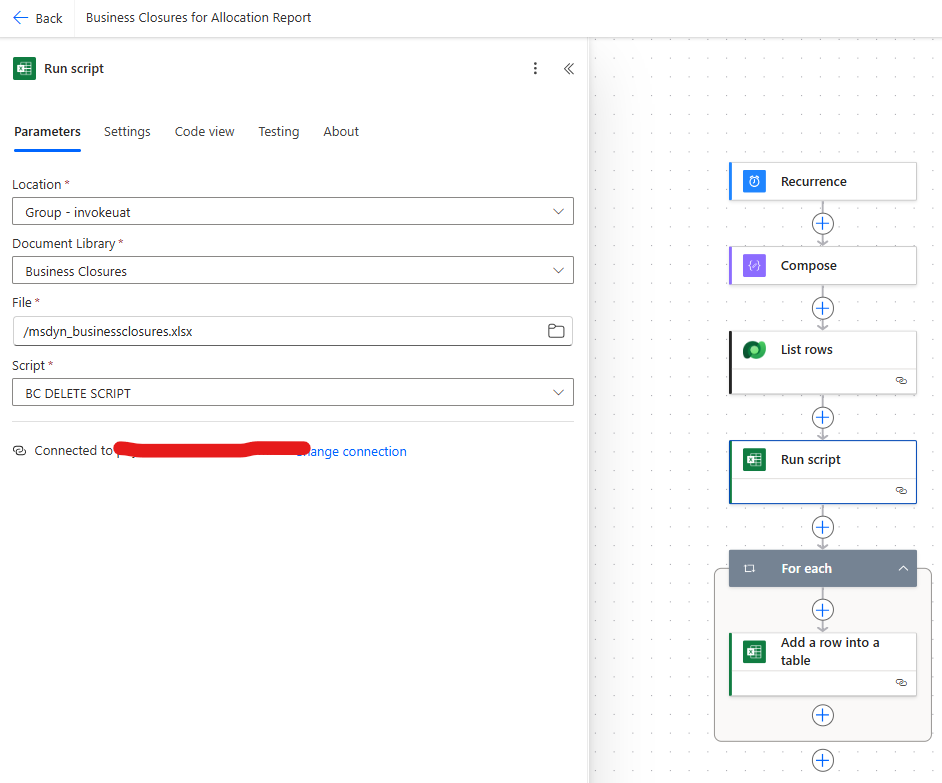
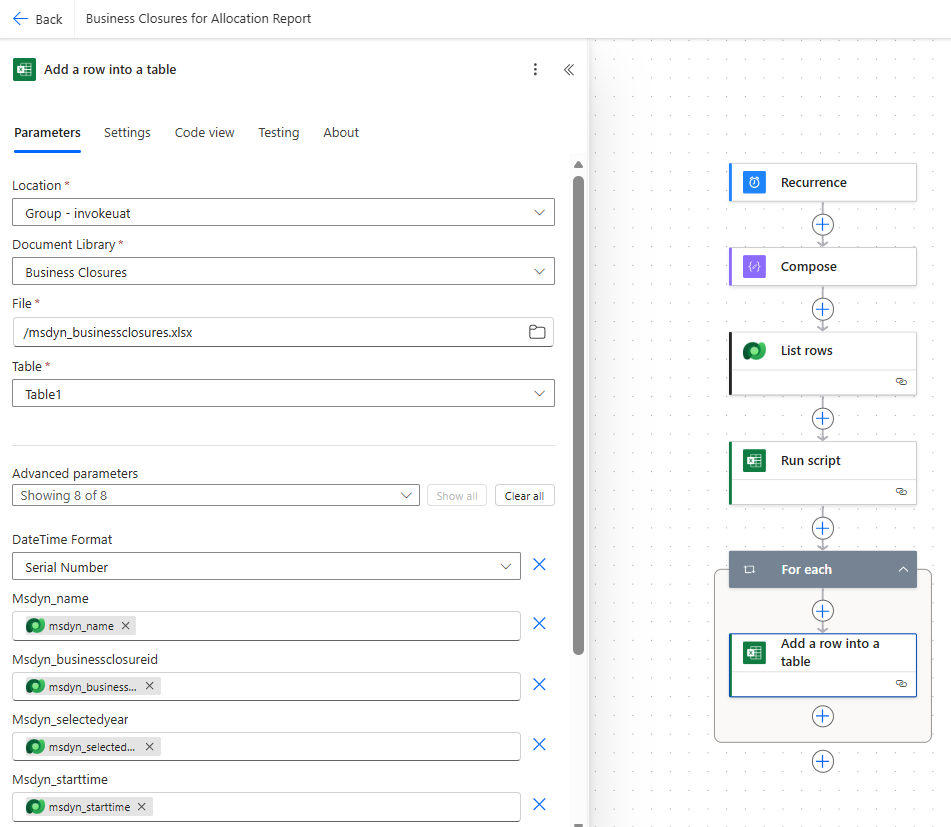
4] For each row in the Dataverse entity, select a primary key (e.g. the GUID), provide the path to the particular excel file (e.g. SharePoint -> Location -> Document Library -> File Name -> Sheet or Table in the Excel File), & assign the dynamic values of each row to the columns in the excel file.
5] Once this is done, import it to the PBI Report by using suitable Power Query Logic in the Advanced Editor as follows –
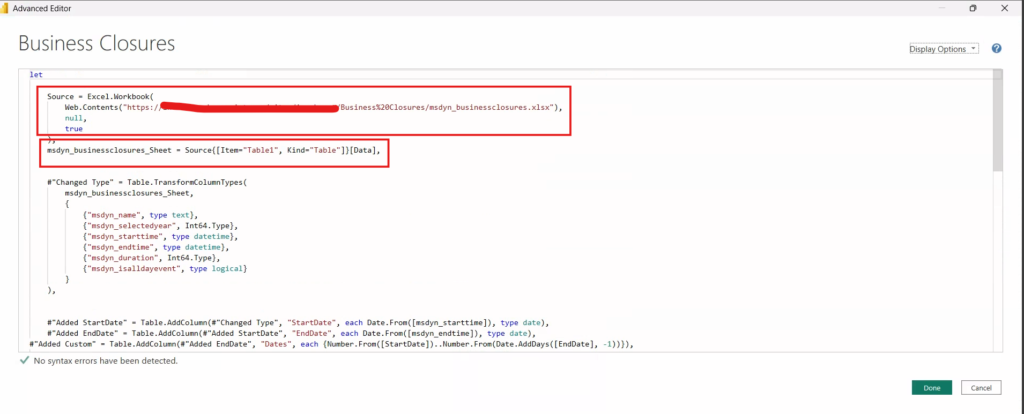
-> a) Loading an Excel File from SharePoint Using Web.Contents() –
Source = Excel.Workbook(
Web.Contents(“https://<domain>.sharepoint.com/sites/<Location>/Business%20Closures/msdyn_businessclosures.xlsx”),null,true),
What this step does:
-> Uses Web.Contents() to access an Excel file stored in SharePoint Online.
-> The URL points directly to the Excel file msdyn_businessclosures.xlsx inside the SharePoint site.
-> Excel.Workbook() then reads the file and returns a structured object containing:
All sheets, Tables, Named ranges
Parameters used:
null → No custom options (e.g., column detection rules)
true → Indicates the file has headers (first row contains column names)
-> b) Extracting a Table Named “Table1” from the Workbook –
msdyn_businessclosures_Sheet = Source{[Item=”Table1″, Kind=”Table”]}[Data],
This would search inside the Source object (which includes all workbook elements), and look specifically for an element where:
Item = “Table1” → the name of the table in the Excel file
Kind = “Table” → ensures it selects a table, not a sheet with the same name
& would extract only the Data portion of that table.
As a result, we get Power Query table containing the exact contents of Table1 inside the Excel workbook, to which we can further apply our logic filter, clean, etc.
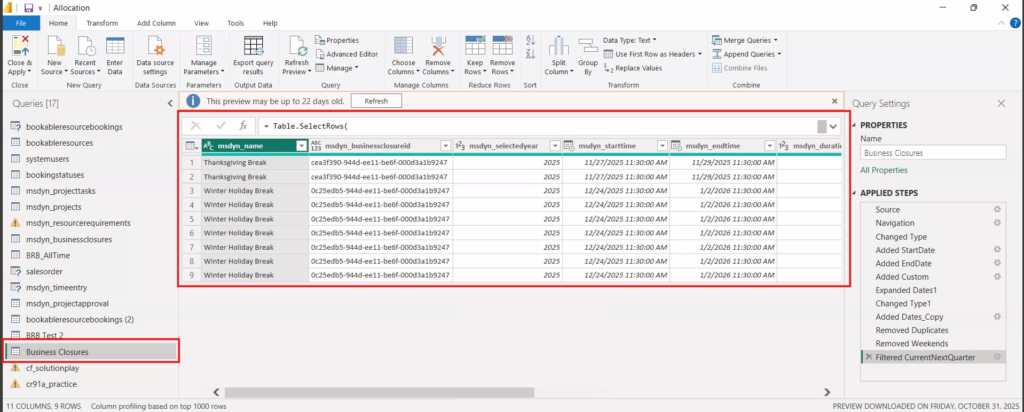
To conclude, when Dataverse tables refuse to load through the Power BI Dataverse Connector—especially system-driven entities like msdyn_businessclosure—the issue is usually rooted in platform-level restrictions, connector limitations, or hidden metadata. Instead of modifying these constraints, offloading the data through Power Automate → Excel → Power BI provides a controlled, reliable, and connector-independent integration path.
By automating the extraction of Dataverse rows into an Excel file stored in SharePoint or OneDrive, you ensure:
- a. Full visibility of all required records
- b. Predictable and refreshable data pipelines
- c. Freedom from Dataverse connector limitations
- d. A secure approach that does not require elevated user roles or admin privileges
This method is simple to build, stable to maintain, and flexible enough to adapt to any Dataverse table -whether standard, custom, or system-managed. For scenarios where Power BI needs insights from hidden or restricted Dataverse tables, this approach remains one of the most practical and dependable solutions.
I Hope you found this blog useful, and if you would like to discuss anything, you can reach out to us at transform@cloudFronts.com.
