

Building a Smart Document Viewer in Dynamics 365 Case Management
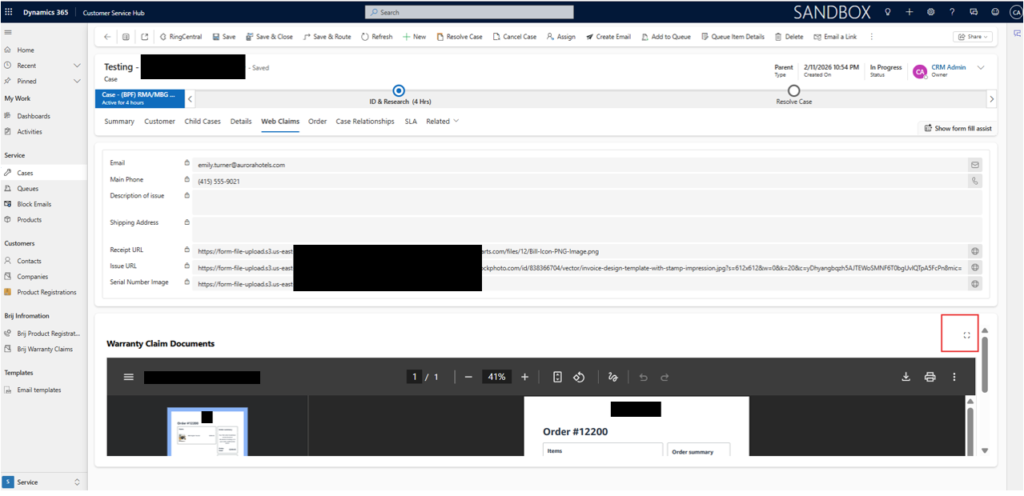
This blog explains how to build a lightweight Smart Document Viewer inside a Dynamics 365 any entity form using an HTML web resource. It demonstrates how to retrieve related document URLs using Web API, handle multiple files stored in comma-separated fields, render inline previews, and implement a modal popup viewer all without building a PCF control.
Overview
In many Dynamics 365 implementations, business processes require users to upload and reference supporting documents such as receipts, contracts, images, warranty proofs, inspection photos, or compliance attachments.
These documents are often stored externally (Azure Blob, S3, SharePoint, or another storage service) and referenced inside Dynamics using URL fields.
While technically functional, the default experience usually involves:
- >Raw URL text fields
- >Multiple comma-separated links
- >Opening documents in new browser tabs
- >No structured navigation
- >Disruptive user flow
To improve usability, we implemented a Smart Document Viewer using a lightweight HTML web resource that:
- >Displays documents inline
- >Supports multiple file formats
- >Provides next/previous navigation
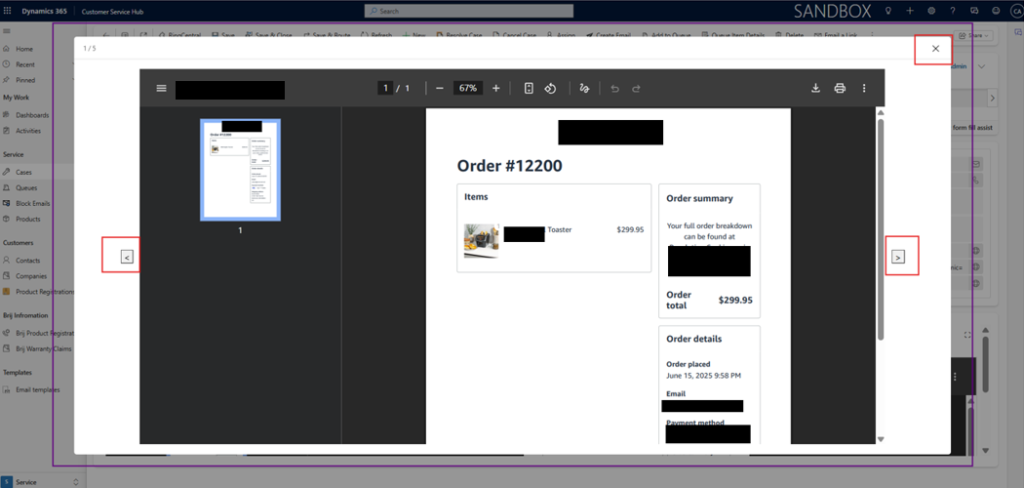
- >Offers a modal popup preview
- >Handles comma-separated URL fields
Although demonstrated here in a Case management scenario, this pattern is fully reusable and can be applied to any entity such as:
- >Case
- >Opportunity
- >Work Order
- >Custom Warranty Entity
- >Inspection Records
- >Contract Management
- >HR Document Verification
- >Compliance Tracking
The entity name and field schema may vary, but the implementation pattern remains the same.
Reusable Architecture Pattern
This customization follows a generic design:
Primary Entity
→ Lookup to Related Entity (optional)
→ Related Entity stores document URL fields
→ Web resource retrieves data via Web API
→ URLs parsed and rendered in viewer
This pattern supports:
- >Direct document fields on same entity
- >Document fields stored in related entity
- >Multiple URL fields
- >Single field with multiple comma-separated URLs
The entity and field names are configurable.
Functional Flow
- Case form loads
- Web resource initializes
- Lookup field is read
- Related Account is retrieved using Web API
- Document URL fields are extracted
- Comma-separated values are parsed
- URLs stored in memory array
- First document rendered in iframe
- Navigation and popup enabled
Technical Implementation
1. Retrieving Related Record via Web API
Instead of reading Quick View controls, we use:
| parent.Xrm.WebApi.retrieveRecord(“account”, accountId, “$select=receipturl,issueurl,serialnumberimage” ) |
Why this approach?
- >Single API call
- >Cleaner data retrieval
- >Independent of UI rendering timing
- >Better long-term maintainability
Best Practice:
Always use $select to reduce payload size.
2. Handling Comma-Separated URL Fields
Stored value example:
| url1.pdf, url2.jpg, url3.png |
Processing logic:
| function collectUrls(fieldValue) { if (!fieldValue) return; var urls = fieldValue.split(“,”); urls.forEach(function(url) { var clean = url.trim(); if (clean !== “”) { documents.push(clean); } }); } |
Key considerations:
- >Trim whitespace
- >Avoid empty values
- >Maintain clean array structure
Advanced Enhancement:
You can add:
- >Duplicate removal
- >URL validation
- >File type validation
3. Inline Viewer Implementation
Documents are rendered using a dynamically created iframe:
| var iframe = document.createElement(“iframe”); iframe.src = documents[currentIndex]; |
Supported formats:
- >JPG
- >PNG
- >JPEG
The viewer updates a counter:
| 1 / 5 |
This improves clarity for users.
4. Circular Navigation Logic
Navigation buttons use modulo arithmetic:
| currentIndex = (currentIndex + 1) % documents.length; |
Why modulo?
- >Prevents boundary errors
- >Enables seamless looping
- >Simplifies logic
5. Popup Modal Using Parent DOM
Instead of redirecting the page, we create an overlay in the parent document:
| var overlay = parent.document.createElement(“div”); overlay.style.position = “fixed”; overlay.style.background = “rgba(0,0,0,0.4)”; |
Popup includes:
- >Larger iframe preview
- >Previous / Next buttons
- >Counter
- >Close button
- >85% centered layout
Important:
Always remove overlay on close to prevent memory leaks.
Security Considerations
When rendering external URLs inside iframe:
Check:
- >CORS configuration
- >X-Frame-Options header
- >HTTPS enforcement
- >Signed URL expiration
If iframe does not render, inspect browser console for embedding restrictions.
Why HTML Web Resource Instead of PCF?
We chose HTML Web Resource because:
- >Faster delivery
- >No build pipeline required
- >Easier solution deployment
- >Lower complexity
When to use PCF instead:
- >Enterprise reusable component
- >Advanced framework integration
- >Offline support requirement
Popup Modal Viewer
Triggered by ⛶ button (top-right).
Behaviour:
- > Creates overlay in parent.document
- > Shows centered modal (85% width & height)
- > Record remains visible in background
- > Includes:
- Navigation buttons
- Counter
- Close (✕) button
No full-page takeover
Error Handling Scenarios
Handled conditions:
- > No lookup record
- > No documents available
- > Web API failure
Meaningful messages are displayed inside viewer container instead of breaking the form.
Outcome
This customization:
- > Eliminated raw URL exposure
- > Reduced tab switching
- > Improved agent productivity
- > Provided structured navigation
- > Maintained clean UX
- > Delivered fast without heavy engineering
All while keeping client data secure and architecture generic.
To encapsulate, this blog demonstrates how to implement a Smart Document Viewer inside Dynamics 365 Case forms using HTML web resources and Web API. It covers related record retrieval, multi-file parsing, inline rendering, modal overlay creation, navigation logic, and performance/security best practices without exposing any client-specific data.
If you found this blog useful and would like to discuss how Microsoft Bookings can be implemented for your organization, feel free to reach out to us.
