

Building a Unified My Allocations Dashboard in Microsoft Dynamics 365 Project Operations for an Industrial Cybersecurity Company in Texas
Summary
- 1. Built a unified “My Allocations” dashboard in Microsoft Dynamics 365 Project Operations for a project-based professional services organization.
- 2. Consolidated resource assignments, weekly hour breakdowns, and time entry management into a single custom view.
- 3. Eliminated the need to navigate between separate Project, Time Entry, and Calendar views for day-to-day tracking.
- 4. Enabled Practice Managers to switch between team members and instantly review billability without leaving the page.
- 5. Added inline time entry creation, submission, recall, and deletion all from one interface.
- 6. Introduced a consolidated calendar view showing all time entries across projects in a single month-at-a-glance layout.
- 7. Reduced clicks and screen-switching for both individual contributors and managers tracking team billability.
Table of Contents
- Introduction
- The Business Problem
- The Solution
- One Dashboard for Allocations and Time Entries
- Real-Time Hours Consumption Tracking
- Inline Time Entry Management
- The Consolidated Calendar View
- The Practice Manager View, Billability at a Glance
- Security and Role-Based Access
- Business Impact
- Frequently Asked Questions
- Conclusion
1. Introduction
For teams running project-based delivery on Microsoft Dynamics 365 Project Operations, a simple question, “How many hours are left on this task, and did I log time for it today?”, often takes far more clicks than it should. Resource assignments live in one view, time entries live in another, and consumption summaries require yet another. For project managers tracking billability across an entire team, the problem multiplies with every resource.
To solve this, a custom “My Allocations” dashboard was built directly into Dynamics 365 as a web resource, bringing project assignments, weekly hour breakdowns, hours consumption, and time entry management into a single screen. No tab switching, no re-navigation; just one view that adapts to whether you’re an individual contributor or a manager overseeing a team.
2. The Business Problem
In a typical Dynamics 365 Project Operations setup, resource assignments, time entries, and consumption reporting exist as separate entities, each with its own view or form. A consultant checking their weekly workload has to open one screen for assignments, another to log time, and a third to check whether they’re over or under budget on a task.
For Practice Managers, this friction compounds. Reviewing billability across a team means repeating this multi-screen process for every resource, switching context, re-filtering views, and manually piecing together a picture of who’s on track and who isn’t.
The Objective:
Build a single, role-aware dashboard where any user can see their assignments, track hours consumed versus planned, and manage time entries; managers can do the same for any resource on the team, without leaving the page.
3. The Solution
The “My Allocations” dashboard was designed around one core idea: everything a resource or manager needs for day-to-day tracking should live on one screen. Instead of navigating between the Project entity, the Time Entry list, and separate consumption reports, users get a consolidated view that surfaces assignments, hours, and entry management side by side.
The sections below walk through each part of the dashboard and explain how it removes a specific step from the old multi-screen workflow.
3.1 One Dashboard for Allocations and Time Entries
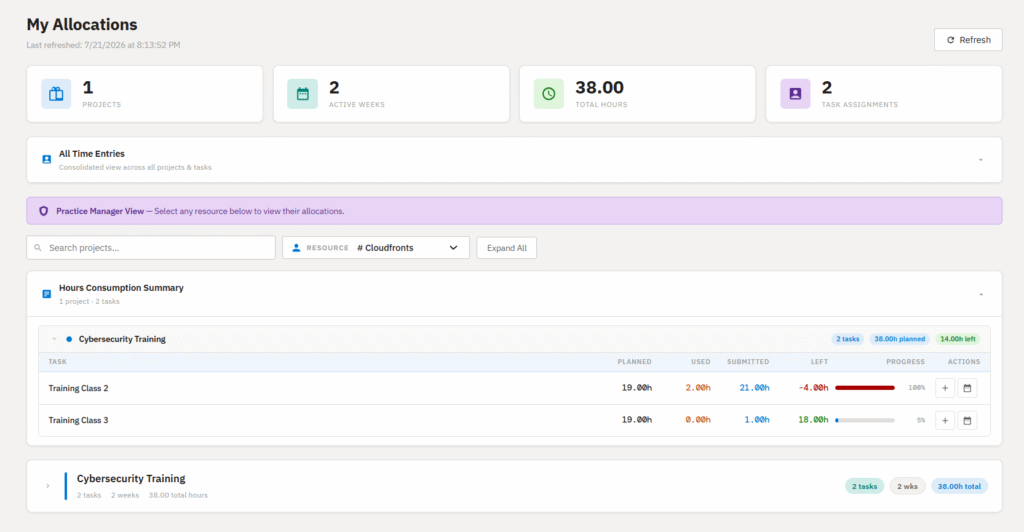
At the top of the dashboard, summary cards provide an instant overview of active projects, active weeks, allocated hours, and assigned tasks. Instead of navigating through multiple Project Operations entities, users immediately understand their workload from a single screen.
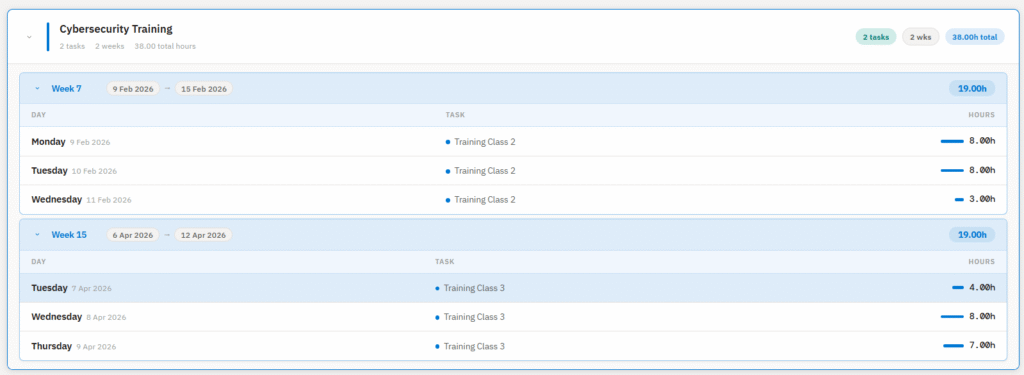
Each project expands into its assigned weeks, while every week further expands into a detailed day-by-day breakdown of allocated work. This hierarchical layout lets users drill down naturally, from the project level to weekly allocations and finally to individual daily assignments, without leaving the dashboard.
By consolidating this information into one interface, the dashboard eliminates repetitive navigation and significantly reduces the time required to understand upcoming work.
3.2 Real-Time Hours Consumption Tracking
A dedicated Hours Consumption panel gives resources and managers real-time visibility into task progress. For every task, the dashboard displays planned hours, approved hours, submitted hours awaiting approval, remaining hours, and overall consumption using an intuitive progress indicator.
Color-coded progress bars immediately communicate project health. Blue indicates healthy consumption, orange highlights tasks approaching their allocated budget, and red clearly identifies tasks that have exceeded planned effort.
This removes the need to generate reports or manually compare planned and actual effort across multiple Project Operations views.

3.3 Inline Time Entry Management
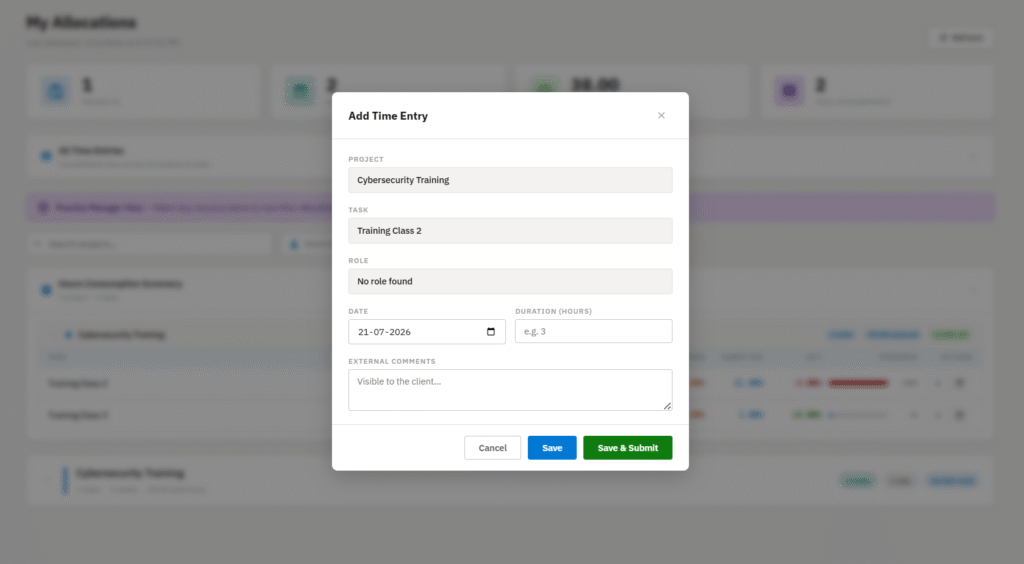
Every task includes built-in actions that allow users to create new time entries or review existing ones without leaving the dashboard. Instead of opening the standard Time Entry entity, users can complete the entire process from the same interface.
The entry form captures all required information including work date, duration, role, and external comments. Users may either save entries as drafts or immediately submit them for approval depending on their workflow.
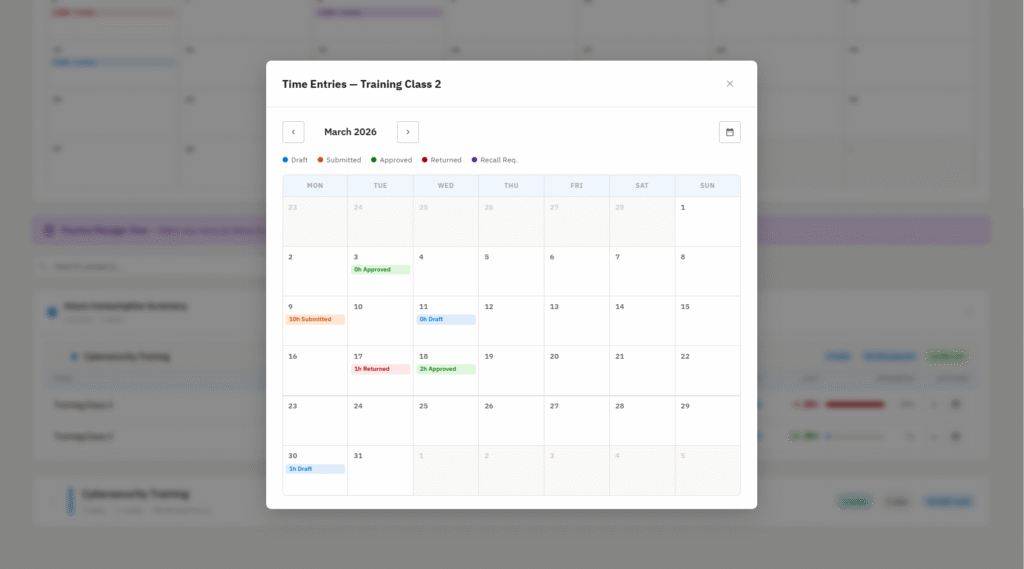
Existing entries can also be reviewed, recalled, resubmitted, or deleted directly from the dashboard, significantly reducing navigation while simplifying daily time tracking.
3.4 The Consolidated Calendar View
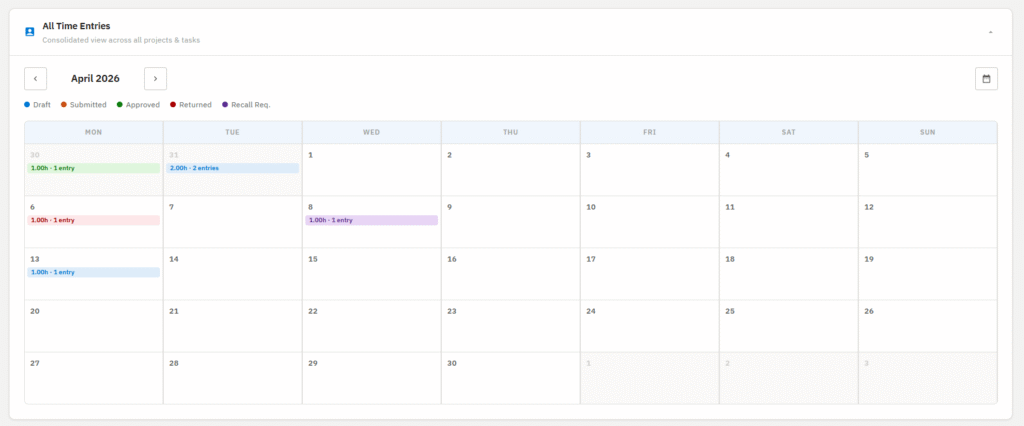
Beyond task-specific calendars, the dashboard provides a consolidated monthly calendar that displays every time entry recorded across all assigned projects. Users no longer need to inspect individual tasks separately to understand their monthly workload.
Each calendar day displays the total hours logged together with the number of recorded entries. Color indicators provide an instant visual summary of each day’s dominant submission status.
Selecting a day immediately displays every recorded time entry beneath the calendar, making monthly reviews significantly faster for both consultants and managers.
3.5 The Practice Manager View – Billability at a Glance
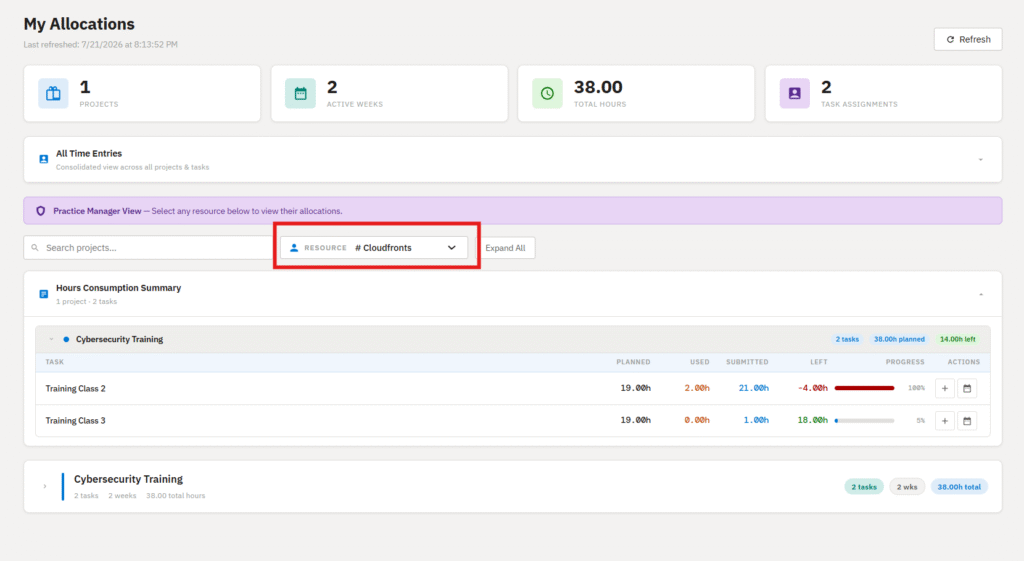
For Practice Managers, the dashboard extends beyond personal allocations by introducing a resource selector. Managers can instantly switch between team members and review each person’s complete allocation, hours consumption, and time entries without navigating away from the dashboard.
Selecting another resource refreshes the dashboard in real time, providing a complete picture of planned work, hours consumed, remaining effort, and tasks approaching budget limits. This makes reviewing billability across an entire team significantly faster than the traditional multi-screen workflow.
The Hook:
What previously required multiple screen changes for every resource can now be completed through a single dropdown selection. For Practice Managers overseeing larger teams, this translates into substantial time savings during routine billability reviews.
3.6 Security and Role-Based Access
The dashboard is designed to respect the security model of Microsoft Dynamics 365 Project Operations. While every user can access their own allocations and time entries, the ability to switch between resources is available only to users assigned an appropriate Practice Manager security role.
Role detection occurs dynamically using the currently signed-in user’s security roles. If the required role is present, the resource selector is displayed and managers can review the allocations and billability of their team members. Users without the required permissions continue to see only their own assignments and time entries.
This role-aware approach ensures sensitive project information remains accessible only to authorized personnel while maintaining a consistent user experience across the organization.
4. Business Impact
The My Allocations dashboard transforms how consultants and Practice Managers interact with Microsoft Dynamics 365 Project Operations. By consolidating allocations, time entry management, and hours consumption into a unified experience, users spend less time navigating the application and more time focusing on project delivery.
For individual contributors, the dashboard provides immediate visibility into assigned work, remaining effort, and daily time logging. For managers, it delivers an efficient way to monitor resource utilization and billability across the team without repeatedly switching between multiple entities and reports.
Overall, the solution improves productivity, streamlines operational workflows, reduces administrative effort, and enables faster decision-making through real-time project visibility.
Key Benefits
- Provides a single dashboard for allocations, hours tracking, and time entries.
- Reduces navigation across multiple Dynamics 365 Project Operations entities.
- Provides real-time visibility into planned, consumed, submitted, and remaining hours.
- Enables Practice Managers to instantly review any team member’s billability using a single resource selector.
- Supports inline creation, submission, recall, and deletion of time entries without leaving the dashboard.
- Offers a consolidated monthly calendar view for complete visibility of logged project hours.
- Improves operational efficiency while reducing repetitive administrative work.
5. Frequently Asked Questions (FAQs)
1. Does every user have access to the resource selector?
No. The resource selector is available only to users assigned a Practice Manager–level security role. Other users can view only their own allocations and time entries.
2. Can time entries be submitted directly from the dashboard?
Yes. Users can create, save, submit, recall, and delete time entries directly from the dashboard without navigating to the standard Time Entry entity.
3. How does the dashboard identify tasks approaching their allocated hours?
The Hours Consumption panel displays progress bars with color indicators that change based on the percentage of planned hours consumed. This provides an immediate visual indication of task health.
4. Can Practice Managers monitor multiple resources?
Yes. Authorized managers can switch between resources using the built-in selector and instantly review each team member’s allocations, logged hours, remaining effort, and billability from the same dashboard.
6. Conclusion
Managing allocations, monitoring project hours, and recording time should not require navigating through multiple screens. The My Allocations dashboard addresses this challenge by bringing resource assignments, hours consumption, and time entry management together into a single, role-aware interface within Microsoft Dynamics 365 Project Operations.
By combining real-time allocation tracking, inline time entry management, consolidated calendar views, and Practice Manager resource switching, the solution simplifies day-to-day operations for both individual contributors and project leaders.
Whether tracking personal work, monitoring team billability, or reviewing project progress, the dashboard provides a faster, more intuitive, and highly efficient way to manage project operations, all from a single screen.
If your Dynamics 365 Project Operations environment requires smarter automation for expense management, receipts, or document-driven workflows, reach out to CloudFronts. Our specialists build scalable Power Platform and Dynamics 365 solutions that reduce manual effort, improve compliance, and accelerate financial processes.
transform@cloudfronts.com