
Summary
Our team retyped every Hard booking in Dynamics 365 Project Operations as a time entry by hand. We fixed that with an "Import hard bookings" pop-up in Time Entry Studio. You click a booked day and it becomes a Draft time entry for the hours you have not entered yet. Soft bookings stay with the manager.
The bookings-to-time-entries flow now runs in Production in two places. Time Entry Studio imports by day. Booking Studio’s My week converts Hard bookings with a shortfall from a weekly view.
The biggest lesson sits in what we chose to skip. We create each entry ourselves instead of calling the native msdyn_TimeEntriesImport action, so we control the role, the hours and the date on every record.
Table of Contents
Business Challenges
The booking already held the project, the task, the day and the hours, yet each person still retyped all of it into a time entry.
- Double entry. A Hard booking for 4 hours on a task became a manual 4 hour time entry on the same task, every day of the week.
- Partial weeks. Someone who had already entered 1 hour of a 3 hour booking needed only the remaining 2 hours, and nothing told them that.
- Unapproved work. Soft bookings are requests waiting for a manager. Turning them into time would book hours nobody had approved.
- Billing depends on the role. The role on a time entry decides whether the hour is billable, so a wrong default changes what a client is charged.
Solution Overview
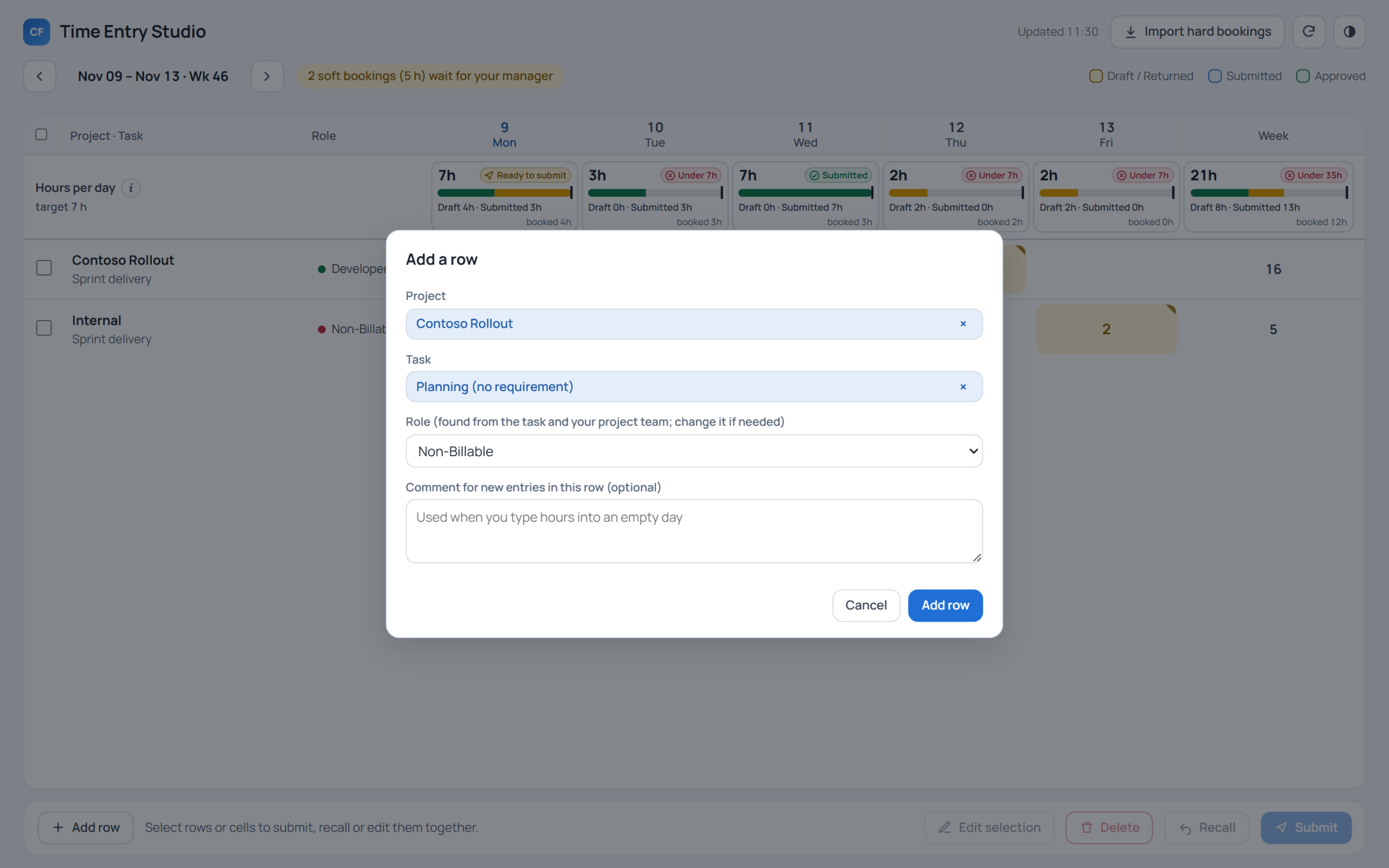
We gave every person a pop-up that lists their Hard bookings for the week by project, task and day, and lets them pick the days to turn into time.
 1
2
3
- Selected booked day
- Already entered: locked tick
- Import counts the days
A cell shows the hours still missing, not the hours booked. If 1 of 3 hours is already entered, the cell offers 2 and says "of 3". Days that are fully entered show a tick and cannot be clicked.
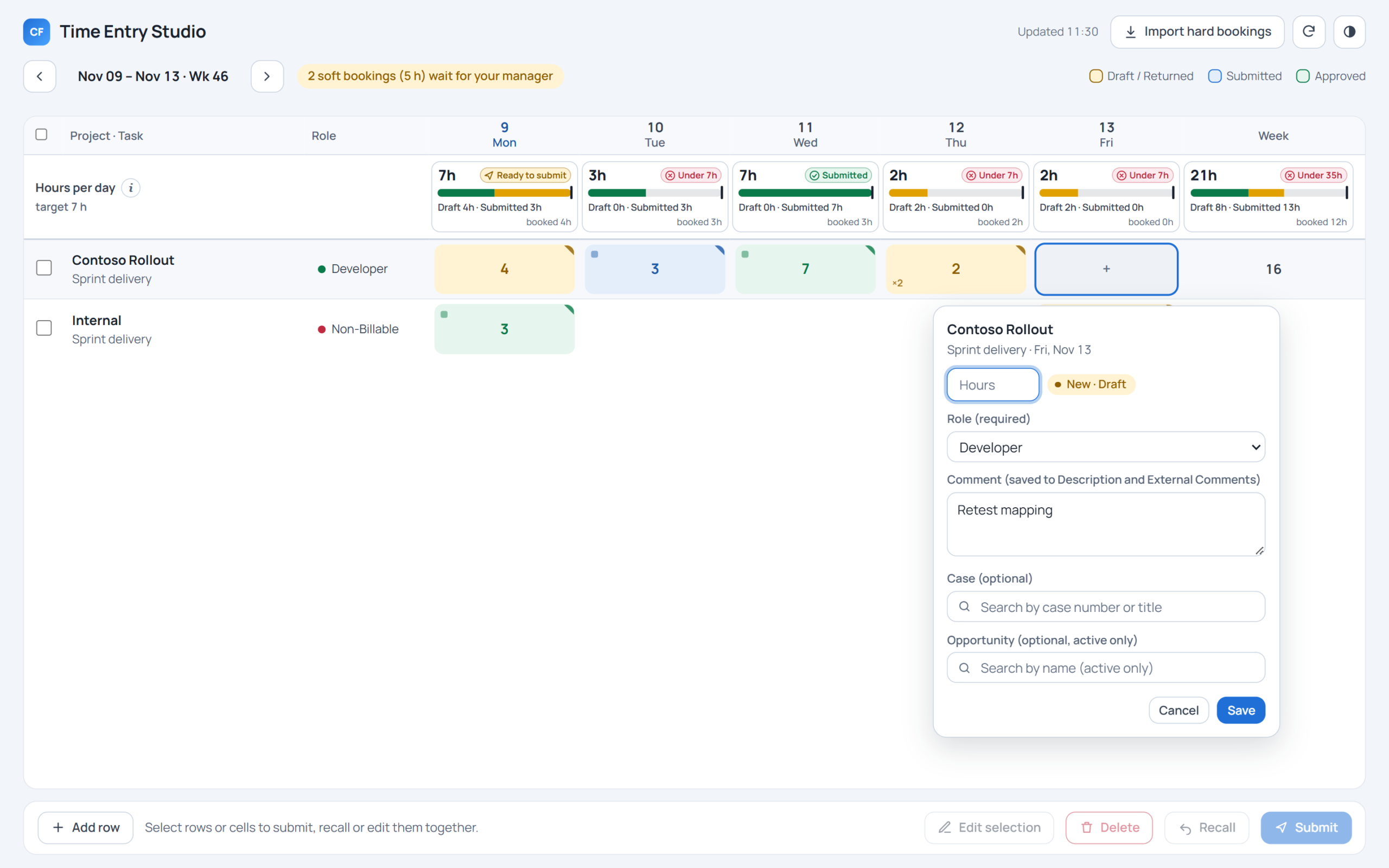
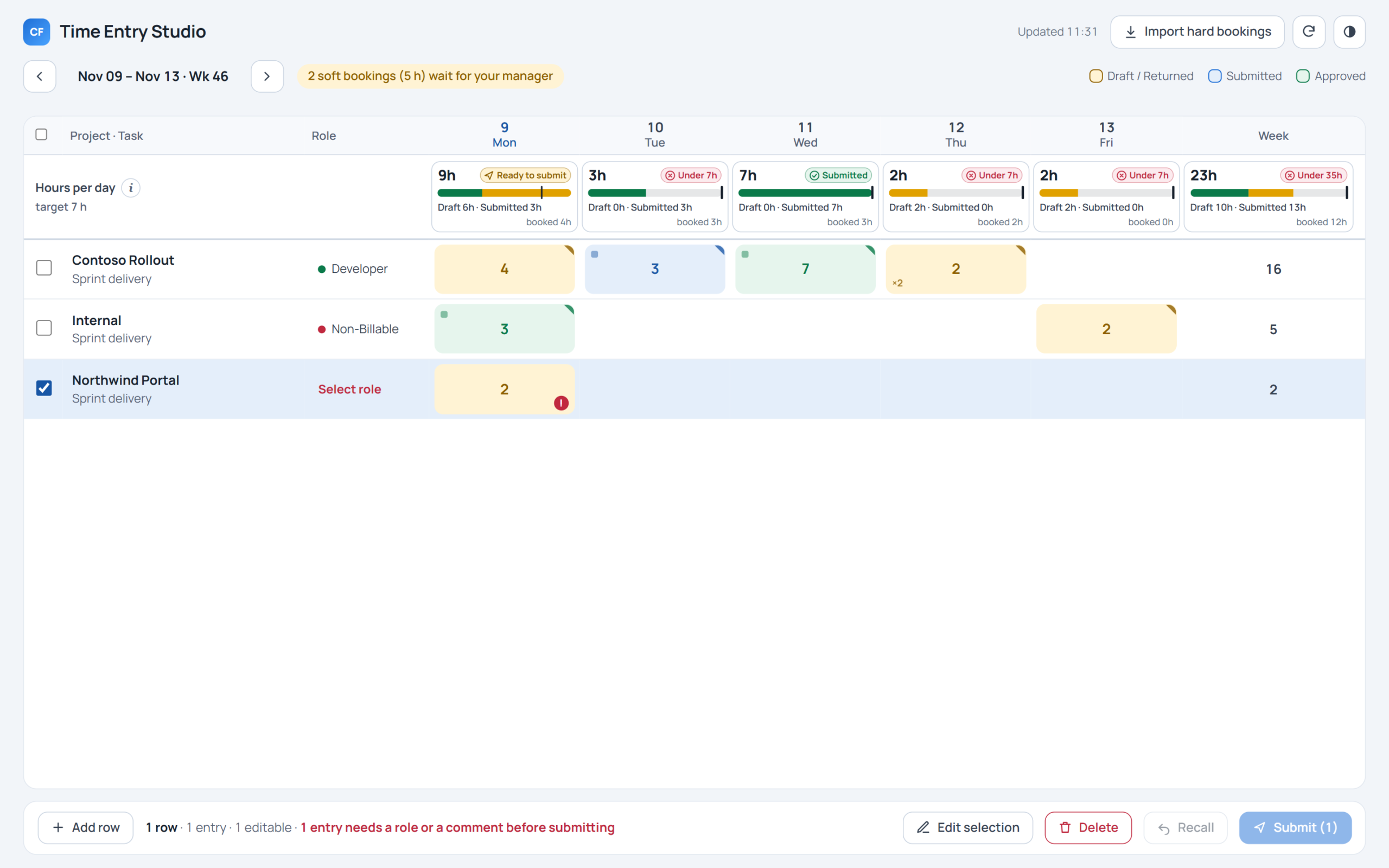
Each imported day lands as a Draft entry. The person reviews it, improves the comment and submits it in the grid they already use. The manager sees it only after that Submit.
Soft bookings stay out of the pop-up completely. A chip at the top of the week tells the person how many are still waiting for the manager.
Technical Approach
The flow reads the week’s bookings and entries, works out the gap per task and day, and writes one Draft msdyn_timeentry per selected day.
- ReadBookings and entries
bookableresourcebookingsfor my resource, not Canceled, plus mymsdyn_timeentriesfor the week. - FilterHard onlyStatus from the formatted
_bookingstatus_value. Soft rows feed the chip. - CompareGap per task and dayBooked hours minus entered hours on the same task and day.
- PickPerson clicks daysOnly cells with a gap are clickable. Select all is there too.
- WriteDraft entryOne POST per day, 3 at a time, with the role resolved first.
Should you use msdyn_TimeEntriesImport or create entries yourself?
We create each entry with a plain POST to msdyn_timeentries, because that lets us set every field ourselves. The project notes list the native msdyn_TimeEntriesImport under "Not in v1". The table shows what our build controls on each record.
| Decision | What we used | What we did not use | What it gives us |
|---|---|---|---|
| Creating the entry | POST msdyn_timeentries, one call per day | msdyn_TimeEntriesImport | We choose the hours, role, date and comment on every record |
| Hours | Booked minus already entered, per task and day | The full booked duration | No double counting after a partial week |
| Role | Resolved per project and task, with the booking’s project team member as a fallback | A single fixed role | The role decides billable time, so it follows the task |
| Which bookings | Hard only, read from the formatted _bookingstatus_value | Soft and Canceled | Only approved work becomes time |
| Date | msdyn_date at local midnight | A UTC midnight timestamp | The entry lands on the day the person sees |
| Status | Draft (msdyn_entrystatus) | Submitting straight away | The person reviews before a manager sees it |
Source: Time Entry Studio code and project notes, 2026.
How do you tell a Hard booking from a Soft one in the Web API?
We read the booking status name from the formatted value of _bookingstatus_value and compare it with "Hard". The query already excludes the Canceled status by id, so Soft and Hard are the only names left to sort.
const FV = "@OData.Community.Display.V1.FormattedValue";
const url = "https://yourorg.crm.dynamics.com/api/data/v9.2/bookableresourcebookings" +
  "?$select=starttime,duration,_msdyn_projectid_value,_new_msdyn_projecttask_value," +
  "_bookingstatus_value,_msdyn_projectteamid_value" +
  "&$filter=_resource_value eq " + resourceId + " and statecode eq 0" +
  " and _bookingstatus_value ne " + canceledStatusId +
  " and starttime ge " + from + " and starttime le " + to;

const booking = (b) => ({
  day: ymd(new Date(b.starttime)),
  h: (b.duration || 0) / 60,
  status: b["_bookingstatus_value" + FV] || "",   // "Hard" or "Soft"
  teamId: b._msdyn_projectteamid_value
});
Booking Studio applies the same rule from the other side. It expands the BookingStatus navigation property and checks name === "Hard". When it creates a Soft booking it writes bookingtype: 2, which is Liquid.
How do you pick the right role on an imported time entry?
The role decides whether an hour is billable, so we resolve it before every write and stop the write when no role is found.
- Task rule firstIf the task carries a transaction category, we use the role with the same name. In Production, 1,020 of 1,029 entries on Non-Billable tasks used that role.
- History nextThe person’s latest entry on the task, then the role most others use on it.
- Project team memberThe
msdyn_projectteamrow linked to the booking through_msdyn_projectteamid_value. - Chargeable fallbacksThe latest chargeable role on the project, then anywhere. These skip non-chargeable roles so a billable task never inherits Non-Billable.
- Stop when emptyNo role means no entry. The day shows: "No role found for this project. Add a row for it first and pick the role."
The write itself
const body = {
  msdyn_duration: gapMinutes,
  msdyn_date: new Date(day + "T00:00:00").toISOString(), // local midnight, like the CRM form
  msdyn_type: 192350000,          // Work
  msdyn_entrystatus: 192350000,   // Draft
  msdyn_relateditemtype: 192350001, // Resource Booking
  msdyn_externaldescription: task + " - booking " + dayLabel,
  "msdyn_bookableresource@odata.bind": "/bookableresources(" + resourceId + ")",
  "msdyn_project@odata.bind": "/msdyn_projects(" + projectId + ")",
  "msdyn_projecttask@odata.bind": "/msdyn_projecttasks(" + taskId + ")"
};
// role bound to /bookableresourcecategories(roleId)
await write("POST", "msdyn_timeentries", body);Writes run 3 at a time for the import. A failed day does not stop the others. The message lists each failed day and task with the server’s reason, and a ?data=dryrun=1 switch shows what would be sent without sending it.
Impact
- 1 clickper booked day to create a Draft entry
- 0Soft bookings ever turned into time
- 3parallel writes per import
- 1,020 / 1,029Non-Billable task entries matching the task rule role (Production data)
- Retype project, task, hours and role for each booked day
- Work out the remaining hours by hand after a partial entry
- Click the booked day, a Draft entry is created with role and hours
- The cell already shows the remaining hours and ticks finished days
 1
- Importing only the gap means a person can mix manual entries and imports in the same week without double counting.
- Keeping imports in Draft keeps the person, not the tool, responsible for what reaches the manager.
 1
2
- Soft booking chip
- Opens the import pop-up
Conclusion
We learned that three small rules around the write carry the value: import the gap, take the task’s role and write local midnight. The role rule rests on Production data: 1,020 of 1,029 Non-Billable task entries already used the matching role. Writing the entries ourselves kept every one of those rules in one place we can read and test.
Call to Action
Want to make Dynamics 365 work better for your business?
Get the right solutions, smarter automations, and custom enhancements to streamline your business operations.
Talk to our team