
Summary
When a contract start date moves, everyone involved needs to know: the customer who is expecting the service, and the sales representative who owns the quote. For a leading Australian commercial laundry and linen services provider, that conversation used to happen outside Dynamics 365 Sales.
We delivered a Change Contract Date action on the quote. In a single step, a sales user enters the new start date and the reason, chooses whether to notify the customer, and selects Save & Send. A server-side Dataverse plugin updates the quote and its associated contract together, then generates and sends a fully tracked Dynamics 365 email to the customer, with the quote owner in copy.
This article covers the business requirement, what we delivered, and how the plugin builds and sends the email, along with the good practices behind it and the outcome for the client.
- How sales users change a contract start date and notify the customer in a single step.
- Why the email is generated by a server-side plugin rather than in the browser.
- How the plugin updates the quote and the contract together, so they never disagree.
- How the email’s sender, recipient, copy, and Regarding record are set in code.
- How the email is created, sent, and tracked in Dynamics 365.
- The good practices we followed, and what the change meant for the client.
Read more about our journey with this customer here: View Case Study | Refer to my previous blog on generating emails using JavaScript for more context
Business Requirement
Our client is a leading Australian provider of commercial laundry, linen, and garment services, supplying motels, healthcare facilities, and businesses across the country. Their sales process runs on Dynamics 365 Sales, from lead to quote to signed contract.
Once a quote is won and a contract is in place, the contract start date tells operations when deliveries begin. Start dates sometimes move: a new site opens later than planned, a customer needs extra time, or the depot schedule changes.
The business asked for a simple way to handle this:
- The new date must update both the quote and its associated contract.
- The reason for the change must be captured.
- The customer notification must be optional, because not every change is customer-facing.
- The email must come from the company’s shared mailbox and be tracked in Dynamics 365.
- The quote owner must always be copied.
Problem Statement
A date change involves several small steps that are easy to miss when done separately: update the quote, update the contract, write an email with the right references, address it to the right people, and keep a record of it.
The aim was to turn those steps into one consistent action that:
- takes seconds for the sales user,
- always produces the same, professional customer email, and
- leaves a clear record on the contract of what changed, when, and why.
What We Addressed
One action on the quote
A Change Contract Date button sits on the quote’s command bar, next to the other quote actions.
Quote and contract stay in sync
The new start date is written to the quote and its associated contract in the same operation.
Optional customer notification
A Notify the Customer checkbox lets the user decide whether the customer is emailed.
Consistent, branded email
Every notification uses the same layout, showing the quote, the contract, the previous and new dates, and the reason.
Quote owner always informed
The sales representative who owns the quote is copied on every customer notification.
Fully tracked in Dynamics 365
The email is a Dynamics 365 activity linked to the contract, visible on its timeline.
The Process
From the user’s point of view, the whole change takes three clicks. Behind the scenes, the work is split between a small dialog in the browser and a plugin on the server:
Quote → Change Contract Date
        ↓
Dialog: New Start Date + Reason + Notify the Customer
        ↓  Save & Send
Custom action (Quote ID, New Start Date, Reason, Notify)
        ↓
Plugin (server-side, single transaction)
  1. Validate the request
  2. Update the quote's contract start date
  3. Update the associated contract's start date
  4. If Notify = Yes:
       • From  → shared company mailbox
       • To    → customer contact
       • CC    → quote owner
       • Regarding → contract
       • Create email → SendEmail
        ↓
Success message to the user  +  email delivered to the customer
1. The Change Contract Date Action
The action lives on the quote’s command bar alongside the other quote tools, so users find it where they already work.

2. Capturing the Change
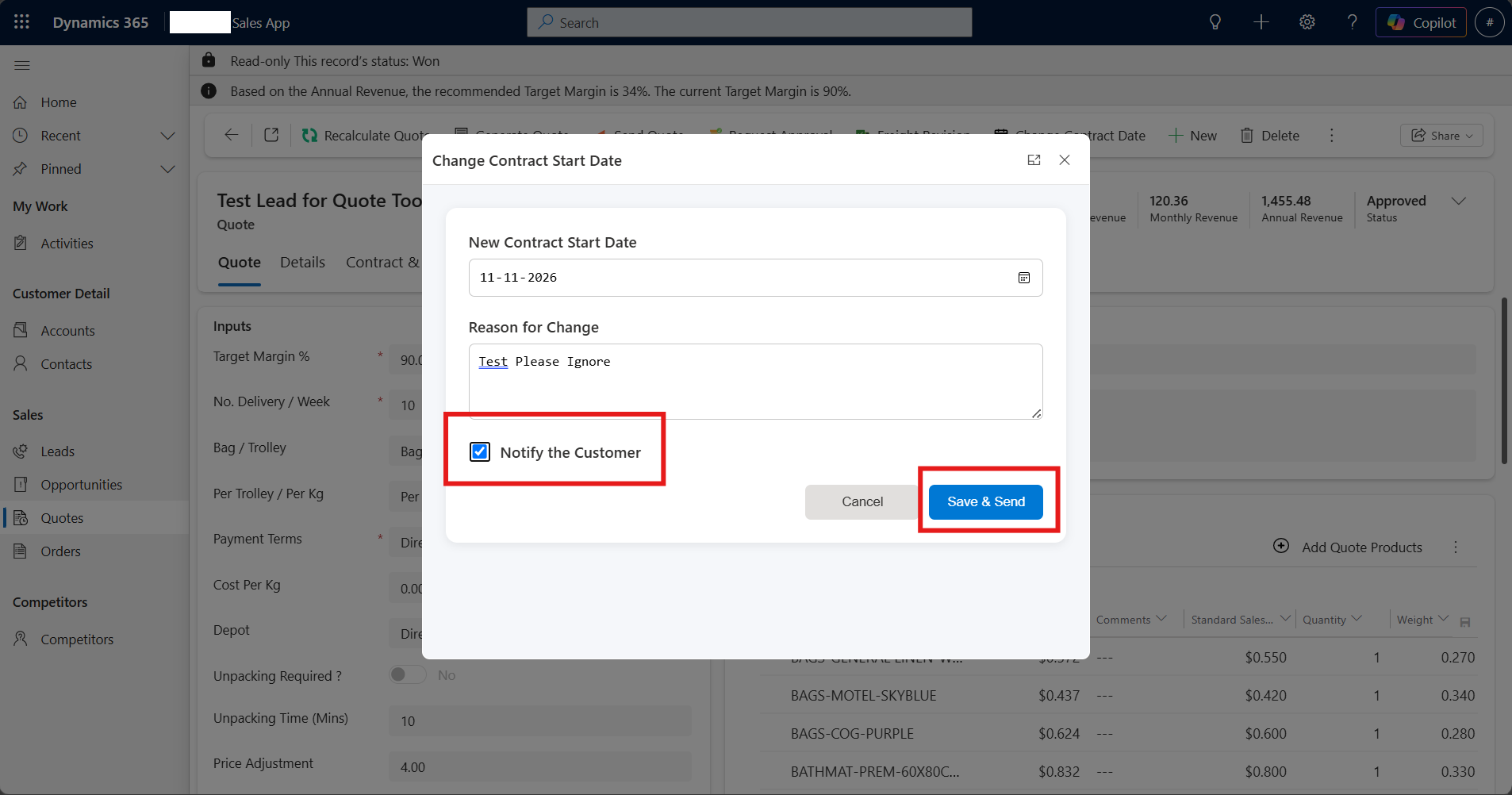
Selecting the button opens a Change Contract Start Date dialog, built as an HTML web resource and opened with Xrm.Navigation.navigateTo. It asks for three things:
| Field | Purpose |
|---|---|
| New Contract Start Date | The date deliveries should now begin |
| Reason for Change | Recorded with the change and included in the email |
| Notify the Customer | Decides whether a customer email is sent |
3. Why a Plugin for This Email?
In my previous blog, the email was generated in JavaScript, which suited an internal notification sent from the signed-in user. This scenario is different: the email goes to an external customer, from a shared company mailbox, and must stay consistent with a data change on two records.
| Consideration | JavaScript (previous blog) | Plugin (this blog) |
|---|---|---|
| Who the email is from | The signed-in user | A shared company mailbox, regardless of who clicked |
| Consistency with the data change | Separate calls; partial failure is possible | The update and the email run in one server-side transaction |
| User privileges needed | Users need rights to send email as the sender | Handled centrally by the plugin’s execution context |
| Reuse | Tied to one web resource | Any caller of the action gets the same behaviour |
| Logic visibility | Readable in the browser | Kept on the server |
4. Handing the Request to the Server
When the user selects Save & Send, the dialog shows a progress indicator and calls a custom action bound to the quote, passing the dialog values as parameters. The browser does no data updates and builds no email; it hands everything to the server.
var request = {
    entity: { entityType: "quote", id: quoteId },
    NewStartDate: newStartDate,          // Edm.DateTimeOffset
    Reason: reason,                      // Edm.String
    NotifyCustomer: notifyCustomer,      // Edm.Boolean

    getMetadata: function () {
        return {
            boundParameter: "entity",
            parameterTypes: {
                entity:         { typeName: "mscrm.quote", structuralProperty: 5 },
                NewStartDate:   { typeName: "Edm.DateTimeOffset", structuralProperty: 1 },
                Reason:         { typeName: "Edm.String", structuralProperty: 1 },
                NotifyCustomer: { typeName: "Edm.Boolean", structuralProperty: 1 }
            },
            operationType: 0,
            operationName: "cf_ChangeContractStartDate"
        };
    }
};

Xrm.Utility.showProgressIndicator("Updating contract start date...");

Xrm.WebApi.online.execute(request)
    .then(function (response) { return response.json(); })
    .then(function (result) {
        Xrm.Utility.closeProgressIndicator();
        Xrm.Navigation.openAlertDialog({ title: "Success", text: result.OutputMessage });
    });
A plugin registered synchronously on this custom action does the rest.
5. Updating the Quote and Contract Together
The plugin reads the inputs, retrieves the quote and its associated contract, and records the previous start date before changing anything, because the email needs both dates.
public void Execute(IServiceProvider serviceProvider)
{
    var context = (IPluginExecutionContext)serviceProvider.GetService(typeof(IPluginExecutionContext));
    var factory = (IOrganizationServiceFactory)serviceProvider.GetService(typeof(IOrganizationServiceFactory));
    var service = factory.CreateOrganizationService(null);   // run as SYSTEM

    var quoteRef       = (EntityReference)context.InputParameters["Target"];
    var newStartDate   = (DateTime)context.InputParameters["NewStartDate"];
    var reason         = (string)context.InputParameters["Reason"];
    var notifyCustomer = (bool)context.InputParameters["NotifyCustomer"];

    var quote    = service.Retrieve("quote", quoteRef.Id, new ColumnSet(
                       "quotenumber", "customerid", "ownerid", "cf_contractstartdate"));
    var contract = GetAssociatedContract(service, quote.Id);

    var previousStartDate = contract.GetAttributeValue<DateTime?>("cf_contractstartdate");

    // 1. Update both records with the new date
    service.Update(new Entity("quote", quote.Id) { ["cf_contractstartdate"] = newStartDate });
    service.Update(new Entity(contract.LogicalName, contract.Id) { ["cf_contractstartdate"] = newStartDate });

    // 2. Optionally notify the customer
    if (notifyCustomer)
    {
        SendStartDateChangeEmail(service, quote, contract, previousStartDate, newStartDate, reason);
    }

    context.OutputParameters["OutputMessage"] = notifyCustomer
        ? "Contract Start Date Successfully Updated on Quote and Associated Contract. " +
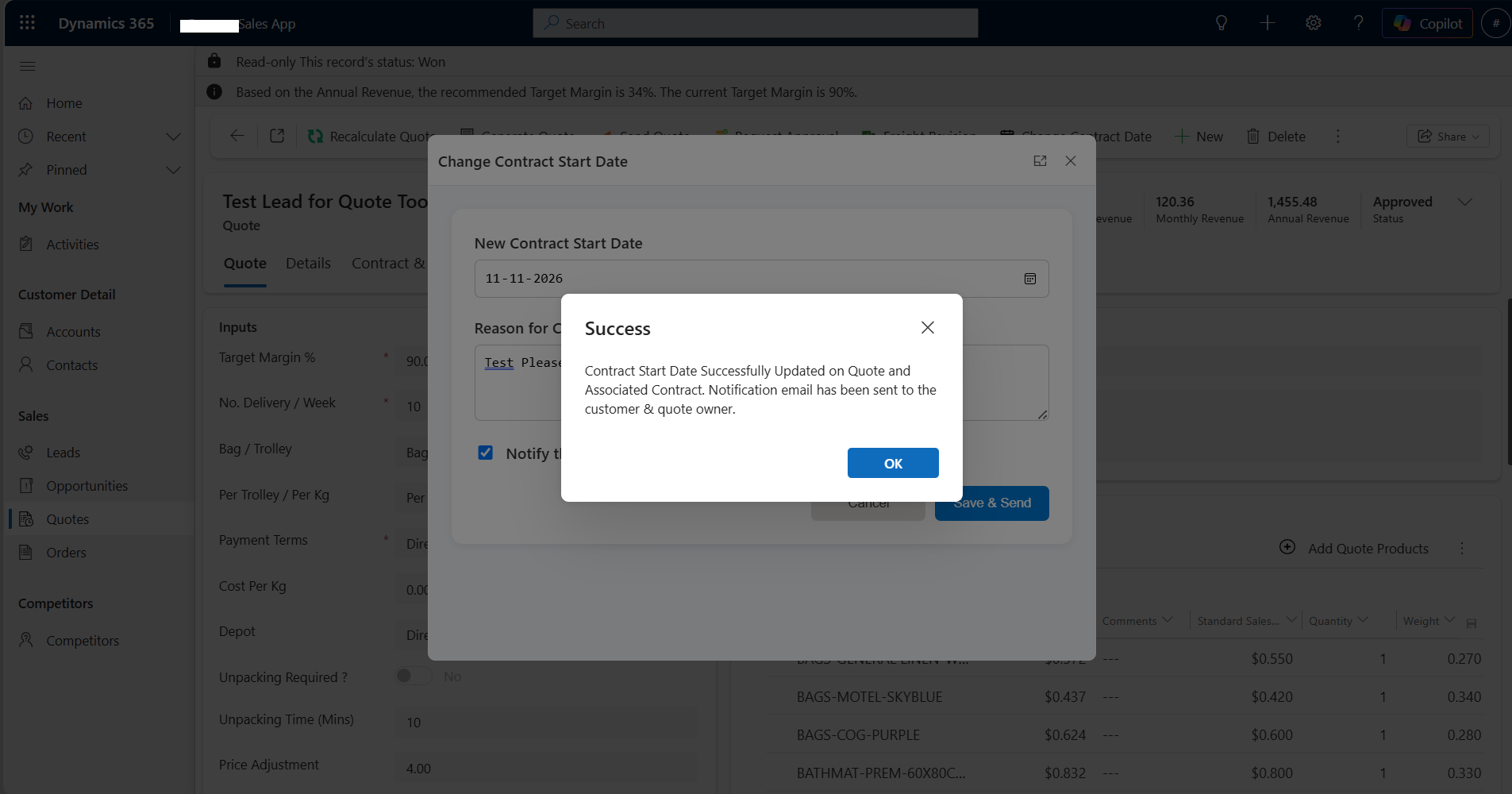
          "Notification email has been sent to the customer & quote owner."
        : "Contract Start Date Successfully Updated on Quote and Associated Contract.";
}6. Resolving the Sender and Recipients
In a plugin, senders and recipients are activity party entities placed in the email’s from, to, and cc collections.
| Role | Party | Why |
|---|---|---|
| From | The company’s shared mailbox (a queue) | Customer emails come from the business, not an individual |
| To | The customer contact on the quote | The person expecting the service |
| CC | The quote owner | The sales representative stays informed |
| Regarding | The contract | The email appears on the contract’s timeline |
private static Entity Party(EntityReference partyId) =>
    new Entity("activityparty") { ["partyid"] = partyId };

var from = new EntityCollection(new List<Entity> { Party(sharedMailboxQueueRef) });
var to   = new EntityCollection(new List<Entity> { Party(customerContactRef) });
var cc   = new EntityCollection(new List<Entity> { Party(quote.GetAttributeValue<EntityReference>("ownerid")) });
The shared mailbox is read from configuration rather than hard-coded, so the same plugin works unchanged in every environment.
7. Composing the Email
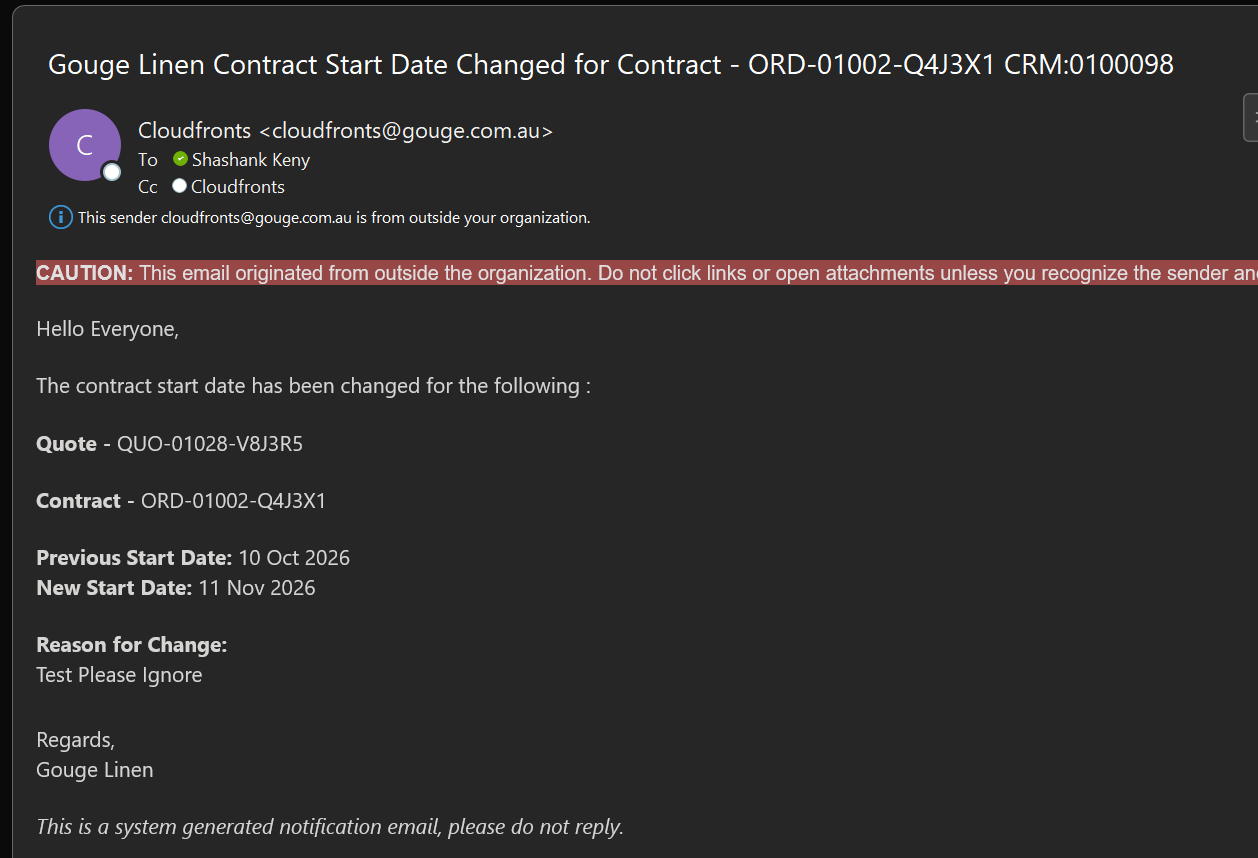
The subject includes the contract number, so both the customer and the team can find it easily. The body is simple HTML with the key facts. The reason is typed by a user, so it is HTML-encoded before it is placed in the body.
var subject = $"Contract Start Date Changed for Contract - {contractNumber}";

var body =
    "<p>Hello Everyone,</p>" +
    "<p>The contract start date has been changed for the following :</p>" +
    $"<p><b>Quote</b> - {quoteNumber}</p>" +
    $"<p><b>Contract</b> - {contractNumber}</p>" +
    $"<p><b>Previous Start Date:</b> {previousStartDate:dd MMM yyyy}<br/>" +
    $"<b>New Start Date:</b> {newStartDate:dd MMM yyyy}</p>" +
    $"<p><b>Reason for Change:</b><br/>{WebUtility.HtmlEncode(reason)}</p>" +
    "<p>Regards,<br/>{Company Name}</p>" +
    "<p><i>This is a system generated notification email, please do not reply.</i></p>";
8. Creating and Sending the Email
Sending an email from a plugin takes two calls: create the email record (as a draft), then send it with SendEmailRequest.
var email = new Entity("email")
{
    ["subject"]           = subject,
    ["description"]       = body,
    ["directioncode"]     = true,                       // outgoing
    ["from"]              = from,
    ["to"]                = to,
    ["cc"]                = cc,
    ["regardingobjectid"] = contract.ToEntityReference()
};

Guid emailId = service.Create(email);                   // Draft

service.Execute(new SendEmailRequest
{
    EmailId       = emailId,
    IssueSend     = true,                               // deliver through server-side sync
    TrackingToken = string.Empty                        // let Dynamics 365 add its own token
});| Setting | Effect |
|---|---|
IssueSend = true | Queues the email for real delivery through the shared mailbox |
TrackingToken left empty | Dynamics 365 appends its own token (for example CRM:0100098) to the subject, so customer replies are tracked back to the same conversation |
regardingobjectid | Places the email on the contract’s timeline |
SendEmailRequest means the email is queued for delivery; server-side synchronization delivers it through the shared mailbox.9. Confirming the Result
When the plugin completes, its output message is shown to the user, confirming that both records were updated and who was notified.
The customer receives a clear, consistent email from the company’s shared mailbox, showing the quote, the contract, the previous and new start dates, and the reason. The quote owner is in copy, and the tracking token in the subject links any reply back to Dynamics 365.
10. Validations and Error Handling
| Situation | What happens |
|---|---|
| No new date entered | The dialog asks for a date before calling the server |
| No associated contract found | The plugin stops with a clear message; nothing is changed |
| Notify selected, but the customer has no email address | The plugin stops with a message asking the user to update the contact; nothing is changed |
| Any failure during update or email creation | The transaction rolls back, so the quote and contract keep their original date |
| Mailbox delivery issue after sending | The email shows as Pending Send or Failed on the contract timeline and can be resent |
The plugin raises InvalidPluginExecutionException with plain-English messages, so users always know what to fix.
Good Practices We Followed
Keep the browser thin and the server in charge
The dialog collects input; the plugin owns every data change and every email.
All or nothing
Updating both records and creating the email in one transaction keeps the quote, contract, and customer communication consistent.
Send from the business, copy the owner
A shared mailbox gives customers one consistent sender, while copying the quote owner keeps sales in the loop.
Let the user decide
The Notify the Customer option means internal-only changes don’t trigger customer emails.
Track every email
Regarding the contract and keeping the tracking token turn each notification into part of the contract’s history.
Encode what users type
The reason for change is HTML-encoded before it goes into the email body.
Configuration over hard-coding
The sender mailbox comes from configuration, so the same solution moves cleanly from test to production.
Outcome for the Client
Seconds instead of several steps
Updating the quote, the contract, and the customer now happens in one action.
Always in sync
The quote and contract always show the same start date.
Professional, consistent communication
Every customer receives the same clear notification from the company mailbox.
Sales stays informed
Quote owners are copied automatically, so they’re never surprised by a change.
A complete history
Every notification sits on the contract timeline with the reason for the change.
Easy for every user
Three fields and one button: no training needed.
Conclusion
Not every email belongs in the browser. When a notification goes to a customer, comes from the business, and depends on a data change that must succeed completely, a Dataverse plugin is the right place to generate it.
Change Contract Date (quote)
→ Dialog: date, reason, notify

Custom action
→ Plugin, single transaction

Quote + Contract
→ Same new start date

Activity parties
→ From shared mailbox, To customer, CC quote owner

Email record (Regarding contract)
→ SendEmailRequest

Customer notified, history recorded
The same pattern fits many sales and service events: renewal reminders, price change notices, delivery schedule updates, and approval outcomes.
Choose where an email is generated based on who it is for and what it depends on. Internal, user-triggered notices can live in JavaScript; customer-facing emails tied to data changes belong in a plugin, where they are consistent, secure, and all-or-nothing.
Frequently Asked Questions
1. Can a plugin send an email in Dynamics 365?
Yes. Create an email record with its activity parties, then call SendEmailRequest with IssueSend set to true.
2. Why use a plugin instead of JavaScript?
A plugin runs on the server, can send from a shared mailbox, and keeps the email in the same transaction as the data change. JavaScript suits internal emails sent by the signed-in user.
3. Can the email come from a shared mailbox instead of a person?
Yes. Set the From party to a queue whose mailbox is configured for server-side synchronization.
4. What is the “CRM:” code in the subject?
It is the Dynamics 365 tracking token. It lets replies be tracked back to the original email and its Regarding record.
5. What happens if something fails halfway?
The synchronous plugin’s transaction rolls back, so neither the quote nor the contract keeps a partial change.
6. Does the customer always get an email?
Only when Notify the Customer is selected. Otherwise, only the quote and contract are updated.
7. Where can I see the email afterwards?
On the contract’s timeline, because the email is set Regarding the contract.
8. Why is my email stuck in Pending Send?
The sending mailbox must be approved, tested, enabled, and set to server-side synchronization for outgoing email.
Want to automate customer notifications or other sales processes in Dynamics 365? Reach out to the CloudFronts team at transform@cloudfronts.com.