Recovering Lost Approval History After a Purchase Order Deletion in Business Central
Summary
An Emirates-based marine services firm running Microsoft Dynamics 365 Business Central found that an approved purchase order had disappeared, along with every record of who approved it. We confirmed the order had been deleted rather than archived, showed why Business Central removes approval entries together with the document, and identified the likely approvers from the approval chain. We then explained how a point-in-time restore of Production into a sandbox recovers the actual approval history, set up the change log so future deletions are recorded in full, and recommended controls that stop approved documents from being deleted at all.
Table of Contents
- Introduction
- Understanding the Issue
- Deleted or Archived? How We Confirmed It
- Why the Approval Entries Disappeared
- Reconstructing the Likely Approvers
- Recovering the Evidence with a Point-in-Time Restore
- Making Future Deletions Traceable
- Preventing Approved Documents from Being Deleted
- Business Impact
- Frequently Asked Questions
- Conclusion
Introduction
Approval workflows in Microsoft Dynamics 365 Business Central give finance teams confidence that every purchase order was reviewed before it went to a vendor. That confidence depends on one assumption: the approval history will still be there when someone needs it.
For an Emirates-based marine services firm we work with, that assumption broke. The finance team went looking for a released purchase order and could not find it. When they checked Approval Entries, there was nothing there either. A few days later, two purchase invoices were deleted as well, and the change log had no record of them.
1
Approved purchase order missing
0
Approval entries left for it
28
Days available to recover the evidence
This post walks through how we investigated the issue, what Business Central does behind the scenes when a document is deleted, and the setup that makes every future deletion traceable.
The Lesson
In Business Central, deleting a document also deletes its approval history. Audit trails have to be set up before they are needed, not after.
Understanding the Issue
The finance team came to us with three questions. Each needed a clear, evidence-based answer.
01
Was It Deleted or Archived?
The order was in Purchase Order Archives, so it looked as if someone had simply archived it by hand.
02
Who Approved It?
The order had been released through an approval workflow, but Approval Entries showed nothing for it.
03
Why Was Nothing Logged?
The change log had just been switched on, yet the invoices deleted afterwards left no trace in it.
Deleted or Archived? How We Confirmed It
Archiving and deleting both leave a copy in Purchase Order Archives, so the archive alone does not tell you what happened. The difference is what remains in the live system.
Archived
Archive Document
A copy is saved to Purchase Order Archives, but the original order stays in the Purchase Orders list, together with its approval entries.
Deleted
Delete
The order leaves the Purchase Orders list. If Purchases & Payables Setup is set to archive orders, Business Central saves an archive copy automatically at the moment of deletion.
We worked through the possibilities one at a time:
How we ruled out each possibility
Not in Purchase Orders
→
No Receipts, Invoices or G/L Entries
→
Only in Archives
→
Version No. 1
→
Deleted
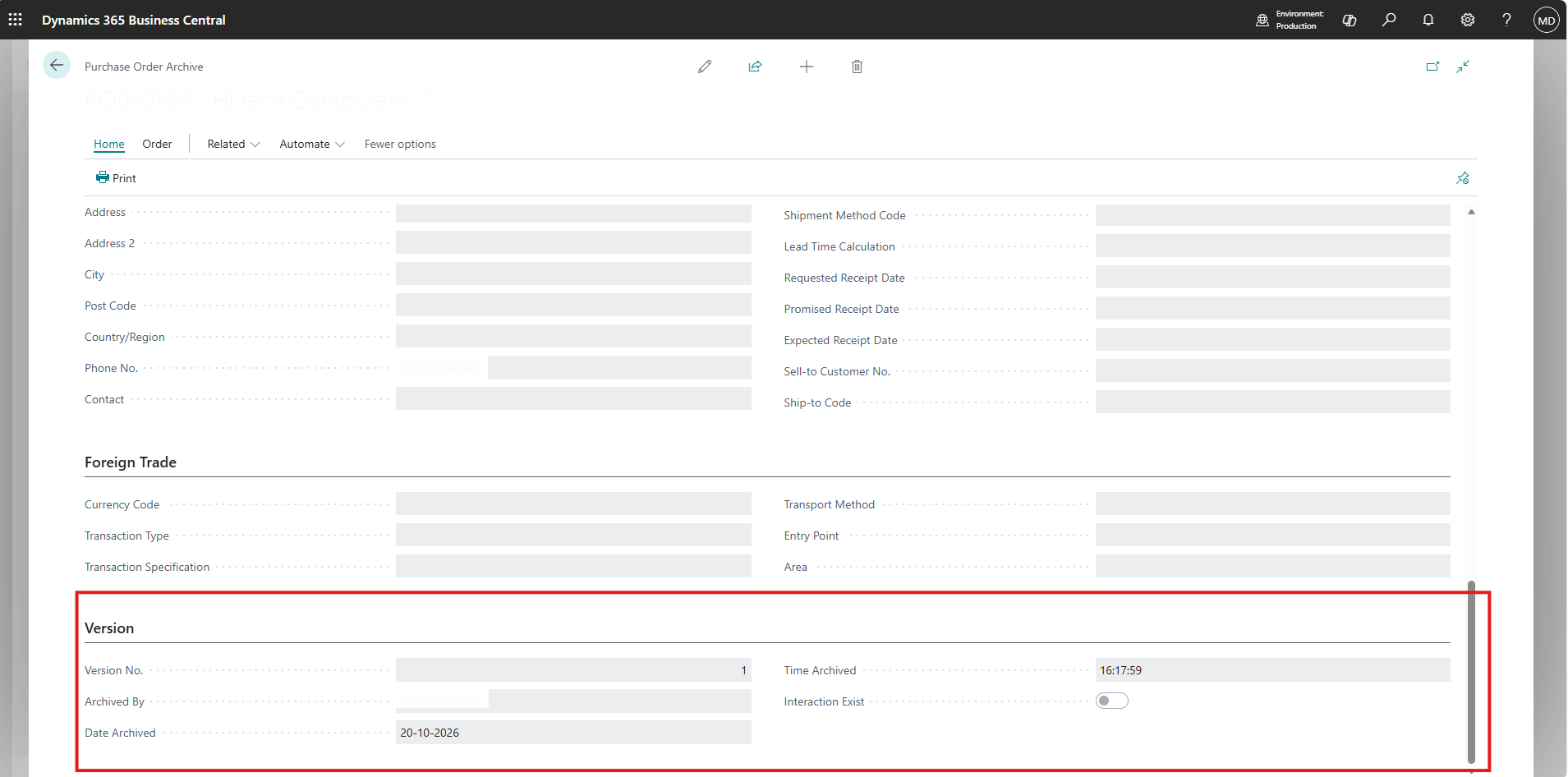
The Version section of the archived order settled it:
- Version No. 1: only one archived version existed, so the order had never been archived by hand. This version was created when the order was deleted.
- Archived By: the user ID that deleted the order.
- Date and Time Archived: the exact moment of deletion.
Why the Approval Entries Disappeared
Approval entries are linked to the document they belong to. When the document is deleted, Business Central deletes its approval entries too. The archive keeps the order’s header and lines, but not its approval history.
To show this to the client with evidence rather than theory, we reproduced it on a copy of Production using an older released order:
1
Released Order
We picked a purchase order that had been released through the approval workflow.
2
Approvals Recorded
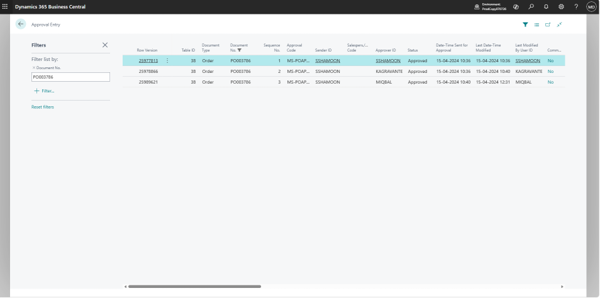
Its Approval Entries showed three approvals from three different approvers.
3
Order Deleted
After the order was deleted, Approval Entries showed nothing for it.
4
Archive Copy Remains
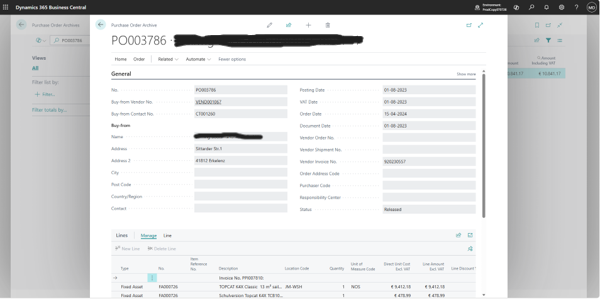
The order was still available in Purchase Order Archives, without its approvals.
Key Insight
Purchase Order Archives answer what the order looked like. They do not answer who approved it. Once a document is deleted, that question can only be answered from a backup.
Reconstructing the Likely Approvers
With the approval entries gone, we looked at the next purchase order raised by the same user. Approvals follow the approver chain set up in Approval User Setup, so an order from the same requester with a similar amount follows the same route.
| Step | Role | What Happens |
|---|---|---|
| 1 | Requester | Raises the purchase order and sends it for approval |
| 2 | First approver | Next user in the requester’s approver chain |
| 3 | Second approver | Next user in the chain, based on the approval limits |
A Reconstruction, Not a Record
This identifies the most likely approvers, but it is not proof. It assumes the approval setup has not changed since, and that the deleted order’s amount did not cross a limit that would have added another approver.
Recovering the Evidence with a Point-in-Time Restore
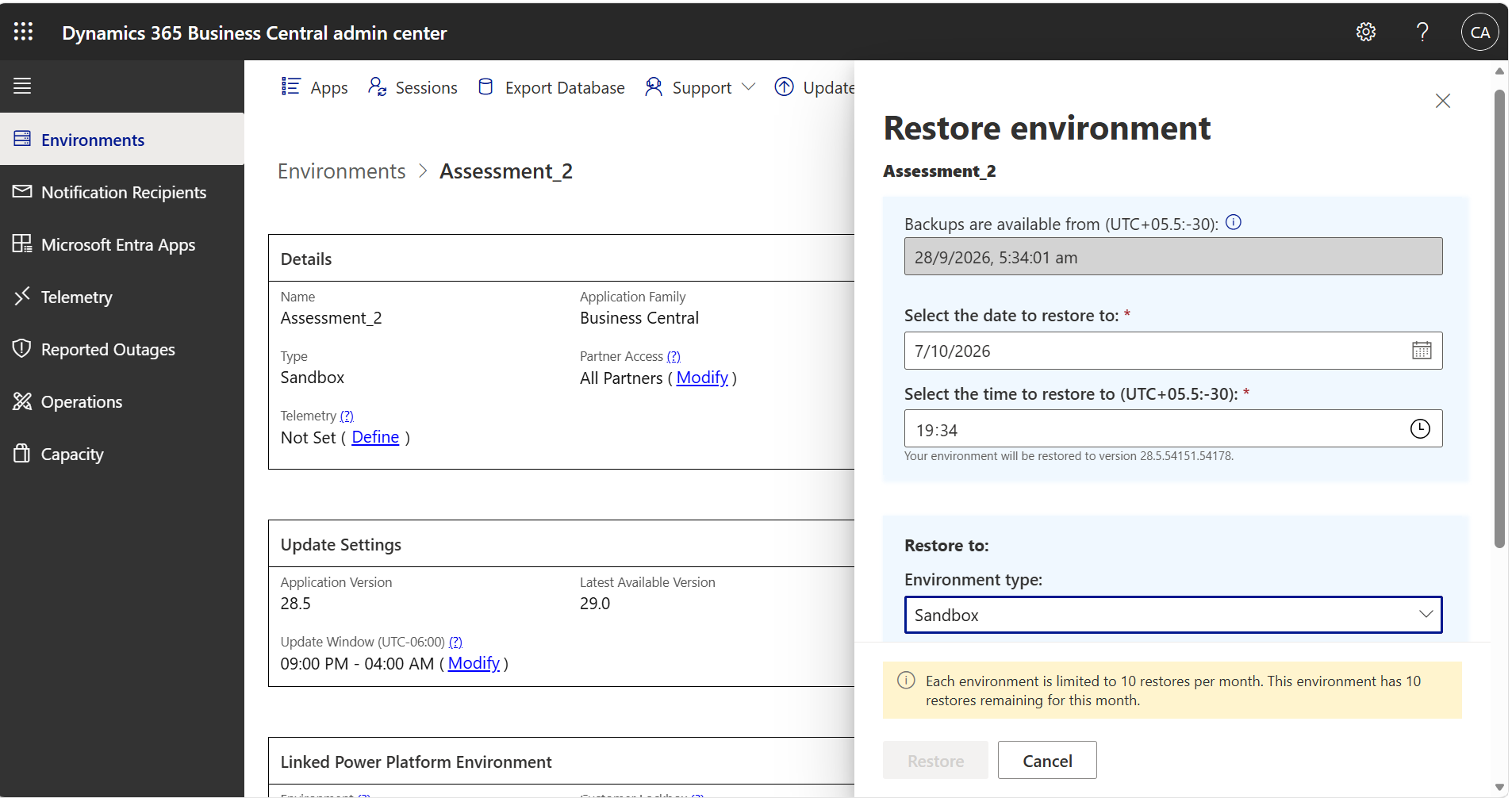
Business Central Online lets you restore an environment to any point in time within the last 28 days. A Production environment can be restored as a new sandbox, which leaves Production untouched. In that copy, the deleted order still exists with all its approval entries.
Steps We Recommended
- In the Business Central Admin Center, open the Production environment and choose Restore.
- Pick a point in time a few minutes before the deletion. Convert the archive’s timestamp to the time zone the Admin Center uses first.
- Restore it as a new Sandbox environment. This needs a free environment slot and can take some time.
- Before anyone works in it, put all job queue entries on hold and confirm email is disabled, so nothing reaches vendors or approvers.
- Open the order and record its approval entries: sender, each approver, status, and the date and time of each approval.
- Repeat for the deleted purchase invoices, using a restore point after they were created and before they were deleted.
- Share the evidence, then delete the sandbox to free the slot.
Act Quickly
Restore points older than 28 days are not available, so the window to recover the evidence closes.
Restore Limit
Each environment can be restored up to 10 times per calendar month.
Production Is Safe
The sandbox is a separate copy. Nothing in Production changes.
Making Future Deletions Traceable
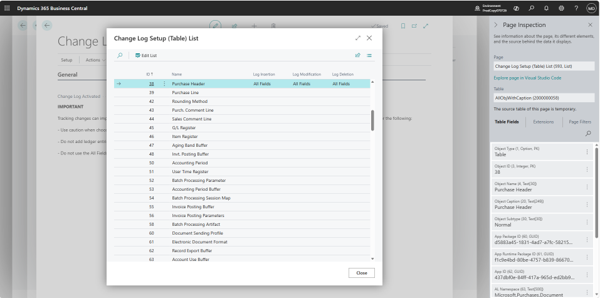
The client had switched on the change log just before the invoices were deleted, yet nothing was recorded. Activating the change log is only the first step. Each table also has to be set up to log insertions, modifications and deletions, for selected fields or all fields.
We tested the full setup on the Production copy:
1
Configure the Table
Set Purchase Header to log insertions, modifications and deletions.
2
Delete a Test Invoice
Deleted a test purchase invoice created for this purpose.
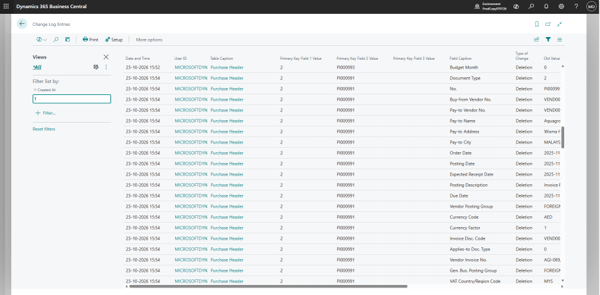
3
Check the Log
Change Log Entries showed the deletion with date, time, user and the field values.
Tables We Recommended Logging
| Table | ID | Why It Matters |
|---|---|---|
| Purchase Header | 38 | Records who created, changed or deleted an order or invoice |
| Purchase Line | 39 | Records changes to items, quantities and amounts |
| Approval Entry | 454 | Keeps a record of approvals even if the document is later deleted |
| Purchase Header Archive | 5109 | Shows when archive versions are created or removed |
| Purchase Line Archive | 5110 | Shows changes to archived line details |
Good to Know
Set this up in every company. Microsoft recommends logging selected fields rather than all fields to limit database growth, so choose the fields auditors actually need. New entries appear in Change Log Entries once each user’s session restarts, for example after signing out and back in.
Preventing Approved Documents from Being Deleted
Logging tells you what happened. The better outcome is that an approved document cannot simply be deleted in the first place. We recommended three controls:
01
Terminate, Don’t Delete
Replace deletion of approved documents with a Terminate process that requires remarks and next-level approval.
02
One Person, One Login
Even a complete change log only shows a user ID. Shared logins hide who actually made the change.
03
Keep Archiving On
Archiving orders on deletion keeps a copy of the document, which is what made this investigation possible.
Business Impact
The investigation gave the finance team clear answers, and the recommended setup closes the gap for every future document.
Evidence-Based Answers
Who deleted the order and when was confirmed from system records, not assumptions.
A Path to Full Recovery
A point-in-time restore recovers the original approval history without touching Production.
Complete Audit Trail
With the change log configured, deletions of purchase documents and approval entries are recorded with user, date and time.
Stronger Controls
Approved documents move toward a controlled Terminate process instead of deletion.
Audit Readiness
The finance team can answer auditor questions about approvals with records, not reconstruction.
Frequently Asked Questions
Does Purchase Order Archives keep the approval history?
No. The archive keeps the order’s header and lines. Approval entries are linked to the live document and are deleted together with it.
How can I tell if an order was deleted rather than archived?
Check whether the order is still in the Purchase Orders list and whether it was posted. If it is only in the archive, look at the Version No. An order deleted without any earlier manual archiving has a single version, created at the moment of deletion.
Will restoring an environment affect Production?
No. Restoring Production as a sandbox creates a separate environment. Production keeps running as normal, and the sandbox can be deleted once the evidence is collected.
Why didn’t the change log capture the deleted invoices?
The change log was activated, but the Purchase Header table had not yet been set up to log deletions. Each table must be configured for the types of change you want recorded.
How long do we have to recover deleted data?
Business Central Online supports restoring to any point within the last 28 days. After that, the restore point for the deletion is no longer available.
Conclusion
A missing purchase order looks like a small problem until someone asks who approved it. In Business Central, deleting a document also removes its approval history, and an archive copy alone cannot fill that gap.
By confirming the deletion from the archive, reproducing the behavior on a copy of Production, and outlining a point-in-time restore to recover the original records, we gave the client clear answers and a path to full evidence. The recommended change log setup, together with a Terminate process for approved documents, makes sure the same question does not go unanswered again.
Key Takeaway
Configure the change log for your key tables now, and stop approved documents from being deleted. An audit trail only helps if it exists before the deletion happens.
Need a reliable audit trail for approvals and deletions in Business Central?
CloudFronts helps organizations strengthen Microsoft Dynamics 365 Business Central with approval workflows, audit controls, change log configuration, and investigation support designed around real-world business requirements. To discuss your setup, reach out to us.
Contact us at transform@cloudfronts.comAbout the Author

Related posts:
From Project Operations to Business Central: Following the Data Behind Project Financials
Location-Based Item Based Visibility in Business Central for a Maldives-Based Marine Services Firm
How to Integrate Dynamics 365 Project Operations with Business Central Using Dataverse