

How to Integrate Dynamics 365 Project Operations with Business Central Using Dataverse
Summary
Project-based organizations often manage project delivery in Microsoft Dynamics 365 Project Operations while relying on Microsoft Dynamics 365 Business Central for finance, purchasing, inventory, and accounting. Without a connected process, project teams and finance teams can end up working with different versions of the same information. CloudFronts built an integration between Project Operations and Business Central using Dataverse plugins. Instead of relying on users to manually recreate records, the integration responds to important Project Operations events and sends the relevant data to Business Central through web services. It covers customers, projects, timesheets, expenses, invoices, and inventory availability, writes the Business Central identifier back to the originating Project Operations record, and captures failed transactions in an Error Log for troubleshooting.
Table of Contents
- The Project Integration Challenge
- Our Integration Architecture
- Keeping Project Customers in Sync
- Connecting Projects to Business Central
- Synchronizing Timesheets
- Moving Project Expenses into Finance
- Connecting Project Invoices
- End-to-End Project Integration Flow
- Business Benefits
- Key Implementation Considerations
- Frequently Asked Questions
- Conclusion
About the Example in This Post
To show how the integration behaves end to end, the screenshots use a sample customer, Westview Ltd, and its project, Westview-Project-003. These are sandbox records used purely to demonstrate the data flow between Project Operations and Business Central.
The Project Integration Challenge
Project-based businesses have a unique challenge: the people delivering the project and the people managing its financial impact often work in different systems.
Project Operations can be the place where project teams manage customers, projects, resources, tasks, time, expenses, and project billing. Business Central, meanwhile, can be responsible for financial management, purchasing, inventory, and other ERP processes.
When these systems are not connected, the same project information may have to be entered more than once. A project manager may record time in Project Operations while finance needs the same information in Business Central. A project invoice may be created in one system while the corresponding financial information needs to be reflected in another.
The Core Problem
Project teams need to work in the system designed for project delivery, while finance needs accurate and timely information in the ERP. Manual re-entry creates extra effort, delays, and opportunities for data inconsistency.
The objective of the integration was therefore not simply to move records between two applications. It was to connect the project lifecycle with the corresponding Business Central processes.
Our Integration Architecture
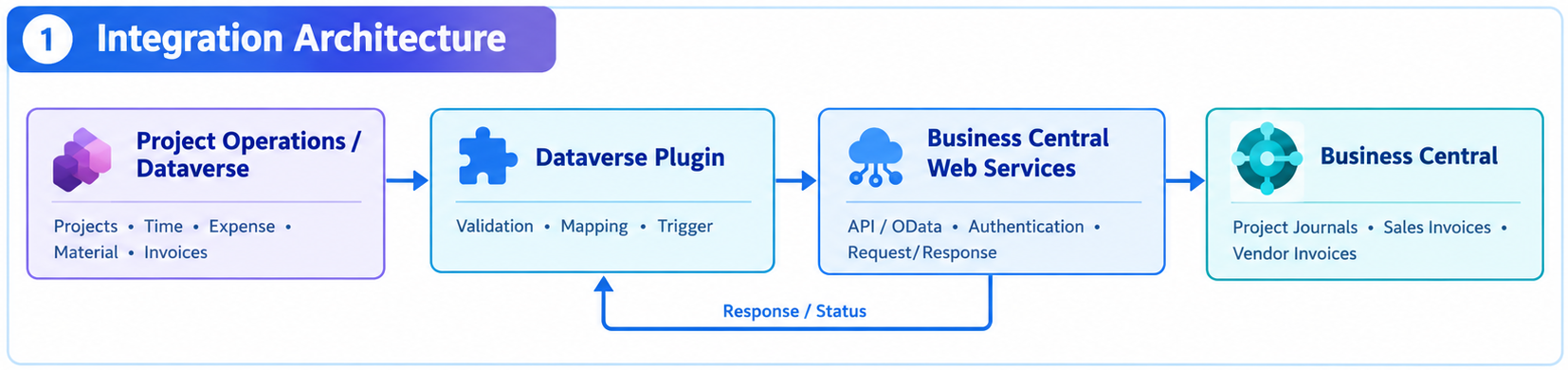
The integration uses Dataverse plugins as the event-driven layer connecting Project Operations with Business Central.
A Dataverse plugin is a piece of C# code that runs when a Dataverse record is created, updated, or otherwise processed. This provides an opportunity to respond to project-related events and send the relevant information to Business Central.
High-Level Flow
- A user creates or updates a project-related record in Project Operations.
- The corresponding Dataverse event triggers the plugin.
- The plugin reads the required information from Dataverse.
- The data is transformed into the structure required by Business Central.
- The plugin calls the relevant Business Central web service.
- Business Central creates or updates the corresponding record.
- The Business Central identifier is written back to the Project Operations record where required.
- If the request fails, the integration captures the error and the data involved in an Error Log.
Why an Event-Driven Approach?
The integration reacts when project information changes, instead of depending on users to remember when and where the same information must be entered.
Keeping Project Customers in Sync
Customers are a fundamental dependency for project processes. Before project transactions can be represented correctly in Business Central, the corresponding customer needs to exist there.
When a customer is created or processed in Project Operations, the integration sends the relevant customer information to Business Central.
What the Integration Achieves
01
Create or Sync
Creates or synchronizes the customer in Business Central.
02
Map the Fields
Uses the appropriate source-to-target field mapping.
03
Capture the Number
Captures the Business Central customer number.
04
Write It Back
Writes the Business Central identifier back to the originating record where required.
This creates an important link between the two systems. The Project Operations record retains the Business Central number, so users do not have to search manually for the corresponding ERP record.
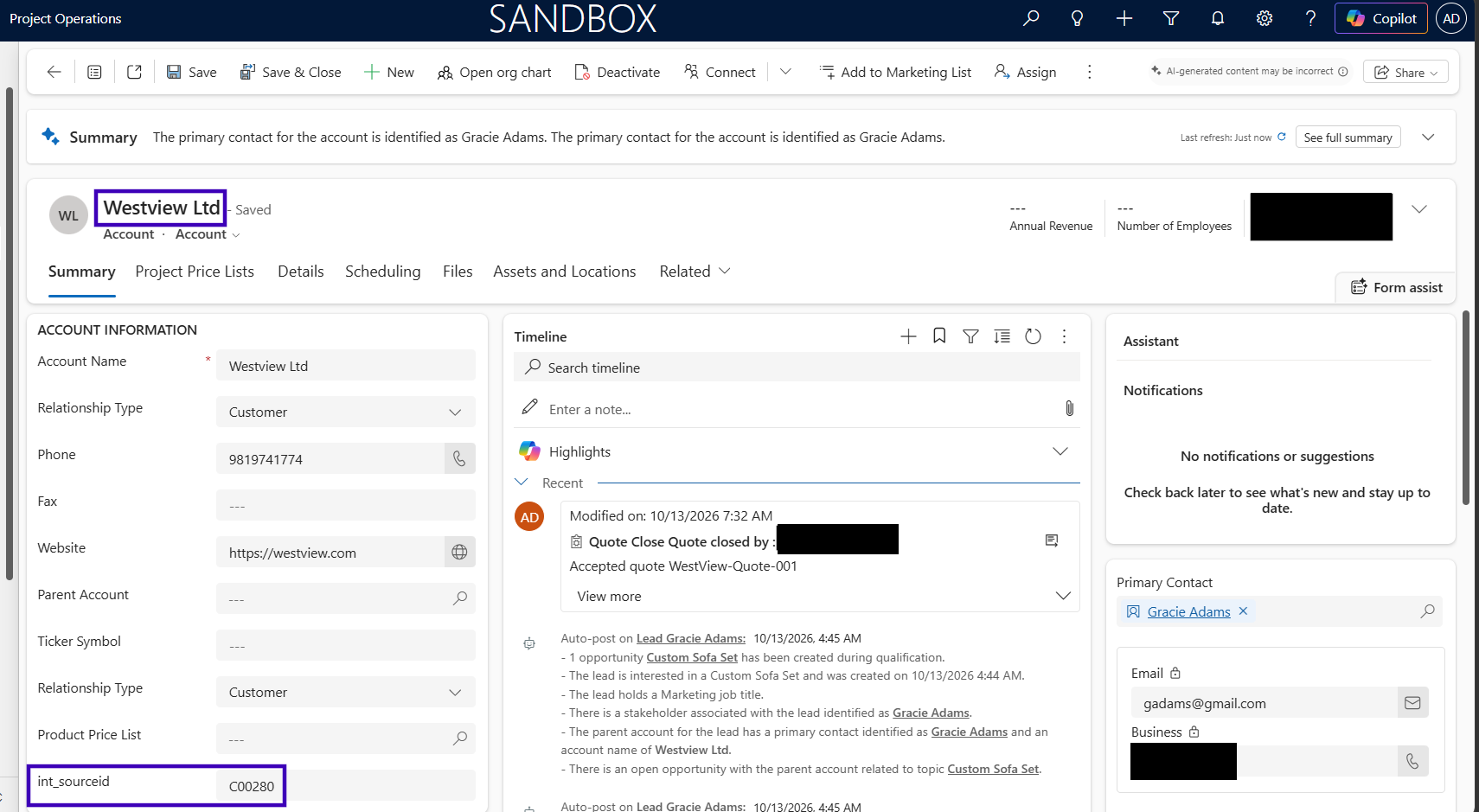
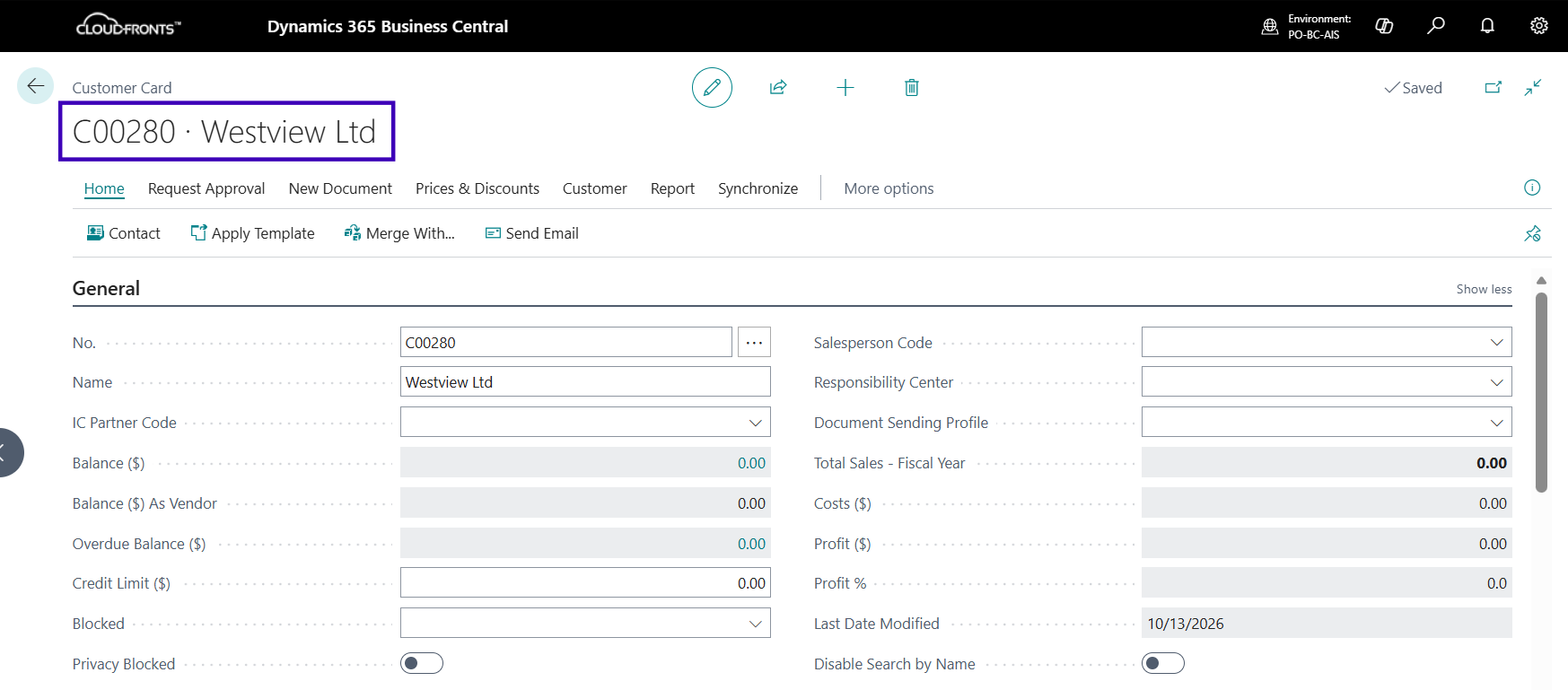
In our example, Westview Ltd is created as an account in Project Operations. The integration
synchronizes it to Business Central and writes the resulting Business Central customer number
(C00280) back onto the Project Operations record.
Connecting Projects to Business Central
Customer synchronization is only the beginning. The central object in a project-based integration is the project itself.
When a project is created or prepared for synchronization, the integration retrieves the project information required by Business Central and creates the corresponding project record. It then maintains the relationship between the Project Operations project and the Business Central project using the relevant identifiers.
Why Project Identifiers Matter
A Project Operations record may contain Dataverse identifiers and lookup references, while Business Central works with its own project numbers. These identifiers cannot simply be assumed to be interchangeable. The integration needs to resolve the correct project identifier and use it when subsequent project-related transactions are sent to Business Central.
Project Integration Principle
Synchronizing a project is not only about copying project fields. It establishes the reference that later transactions, such as time, expenses, materials, and billing, use to reach the correct Business Central project.
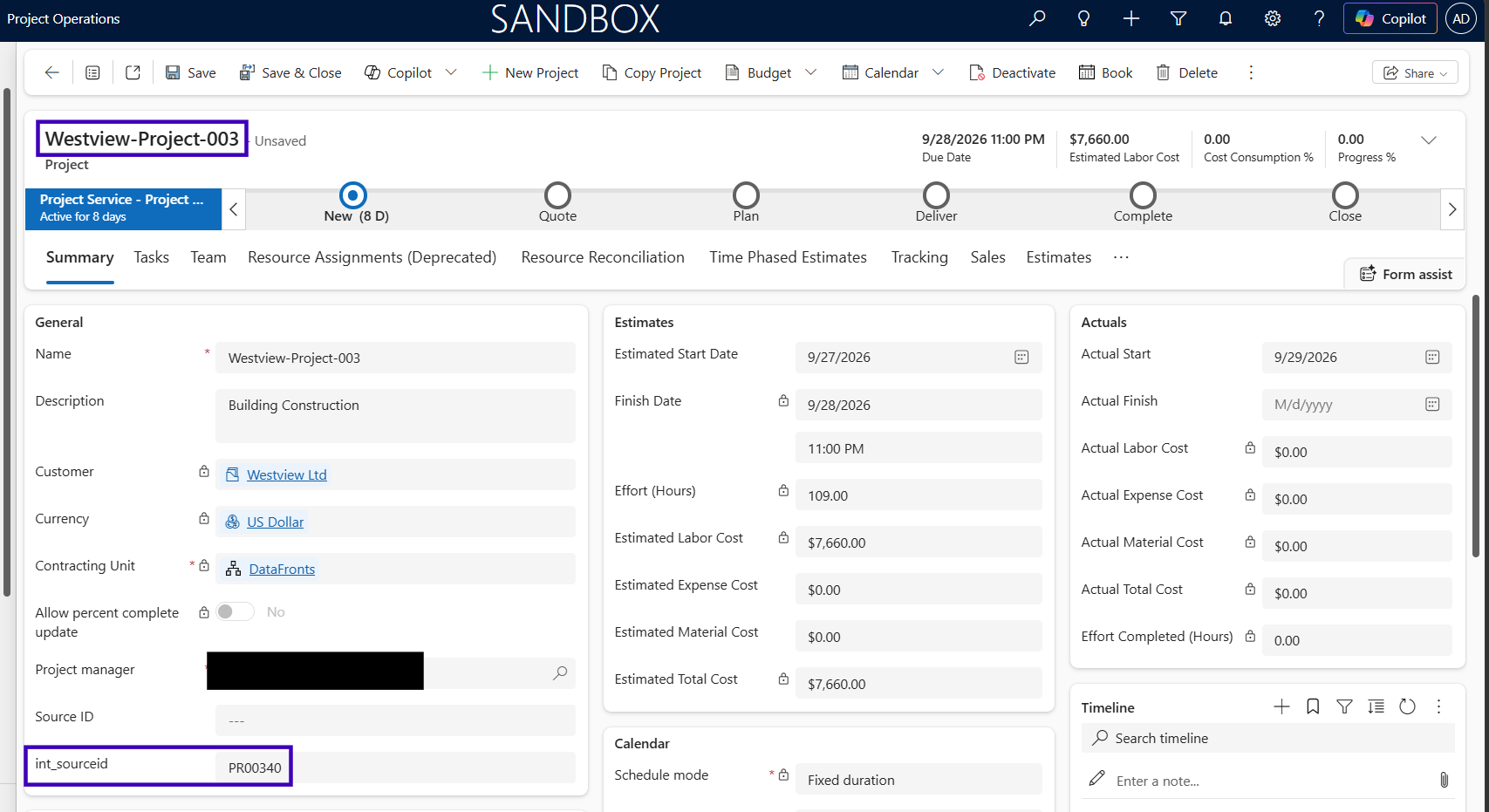
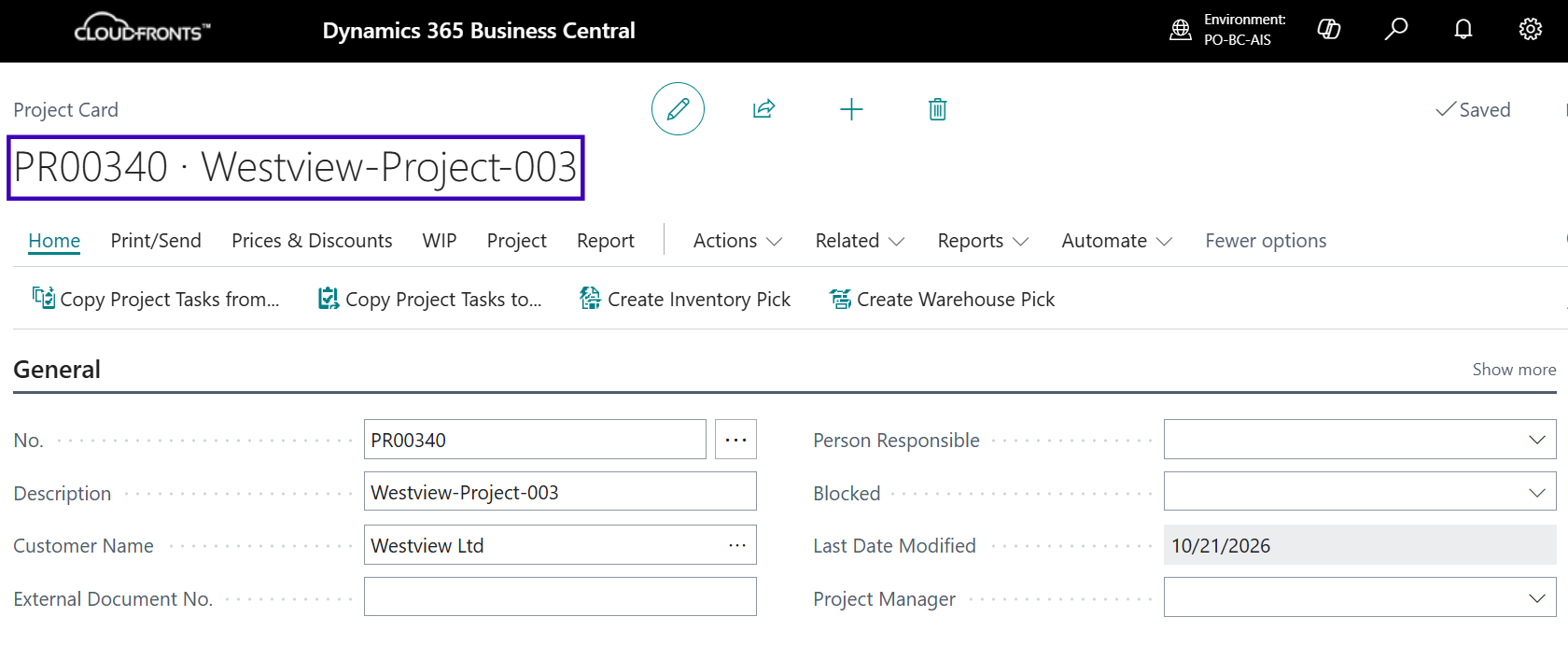
Continuing the example, Westview-Project-003 is created under Westview Ltd in Project Operations. The
integration creates the matching project in Business Central and writes the Business Central project
number (PR00340) back to the int_sourceid field on the Project Operations
record.
Synchronizing Timesheets
Time is one of the most important project transactions because it connects project activity with project cost and potentially project billing.
When a timesheet or time-entry record is processed in Project Operations, the integration sends the relevant information to Business Central for the corresponding project process.
Typical Information Involved
- Project reference
- Project task or activity
- Resource or worker
- Date
- Duration or hours
- Description
- Billable or non-billable context
A key consideration is that source systems may represent duration differently from the destination. For example, Project Operations may provide duration in minutes while the Business Central process expects hours.
{% if entry.msdyn_duration and entry.msdyn_duration > 0 %}
  {% assign hours = entry.msdyn_duration | divided_by: 60.0 | round: 2 %}
{% else %}
  {% assign hours = 0.0 %}
{% endif %}
The transformation converts a duration expressed in minutes into hours before sending the value to the destination, subject to the target API and business process requirements.
Project-Specific Consideration
The time entry must be associated with the correct Business Central project. A valid project reference is just as important as the number of hours being transferred.
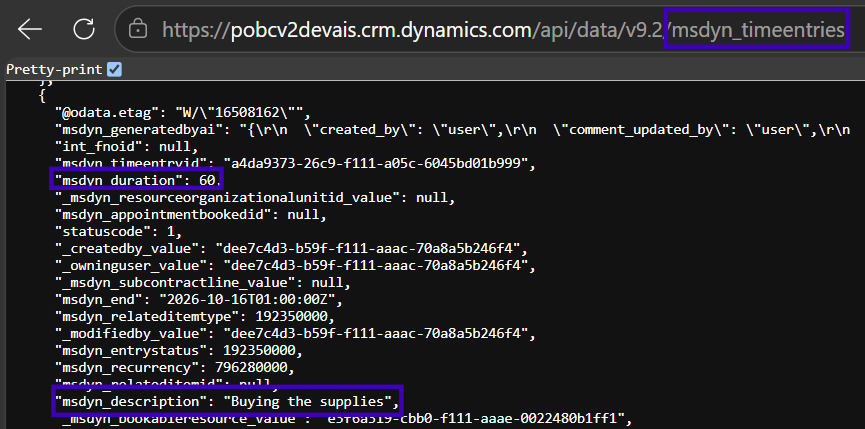
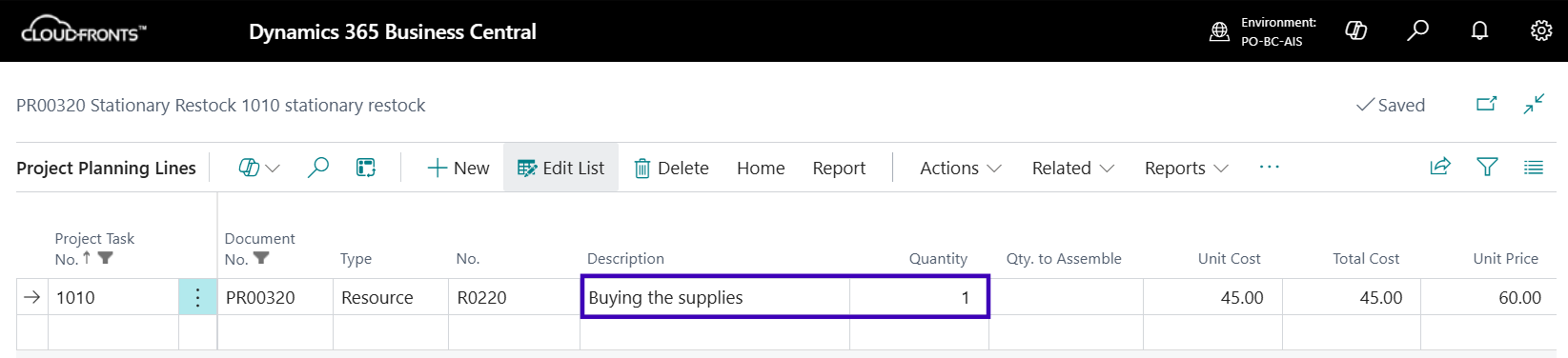
For Westview-Project-003, a time entry of 60 minutes with the description Buying the supplies
is recorded in Project Operations (msdyn_timeentries) and converted to 1 hour on the
corresponding Business Central project planning line.
60
Minutes recorded in Project Operations
÷ 60
Converted by the integration
1
Hour on the Business Central planning line
Moving Project Expenses into Finance
Project expenses provide another connection between project execution and financial management. Expenses incurred for a project need to be associated with the right project and, where applicable, the appropriate financial dimensions or accounting information.
The integration takes project expense information from Project Operations and sends the relevant information to Business Central.
The Important Part Is the Relationship
An expense amount by itself is not enough. The integration needs to preserve the project context so that the financial transaction can be associated with the intended project.
Context that travels with each expense
Project
→
Project Task
→
Expense
→
Amount
→
Financial / Project Classification
Maintaining this context helps finance teams work with project information without requiring project users to manually recreate every expense in the ERP.
Connecting Project Invoices
Project billing is another area where synchronization between project management and finance becomes important. Project Operations may contain the project invoice and its details, while Business Central needs the corresponding invoice information for financial processing. When invoice data is integrated, the relationship between invoice headers and invoice lines must be maintained carefully.
Invoice Integration Considerations
- Identify the correct project and customer.
- Retrieve the invoice identifier and source reference.
- Maintain the relationship between the invoice header and invoice details.
- Map line-level amounts and quantities using the correct business meaning.
- Ensure that Business Central receives the required document information.
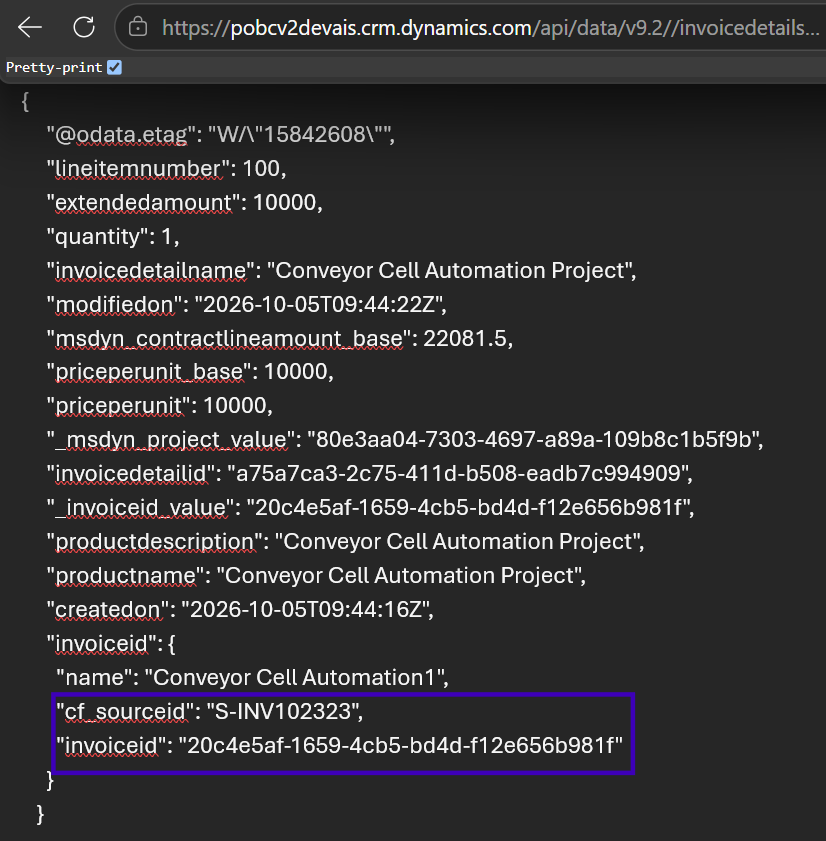
For example, a Dataverse invoice detail may use a lookup relationship to its invoice. Rather than treating the lookup identifier as the final business value, the integration retrieves the related invoice fields required for mapping.
$expand=Invoices($select=name,cf_sourceid)The exact navigation property and fields depend on the Dataverse schema in the implementation.
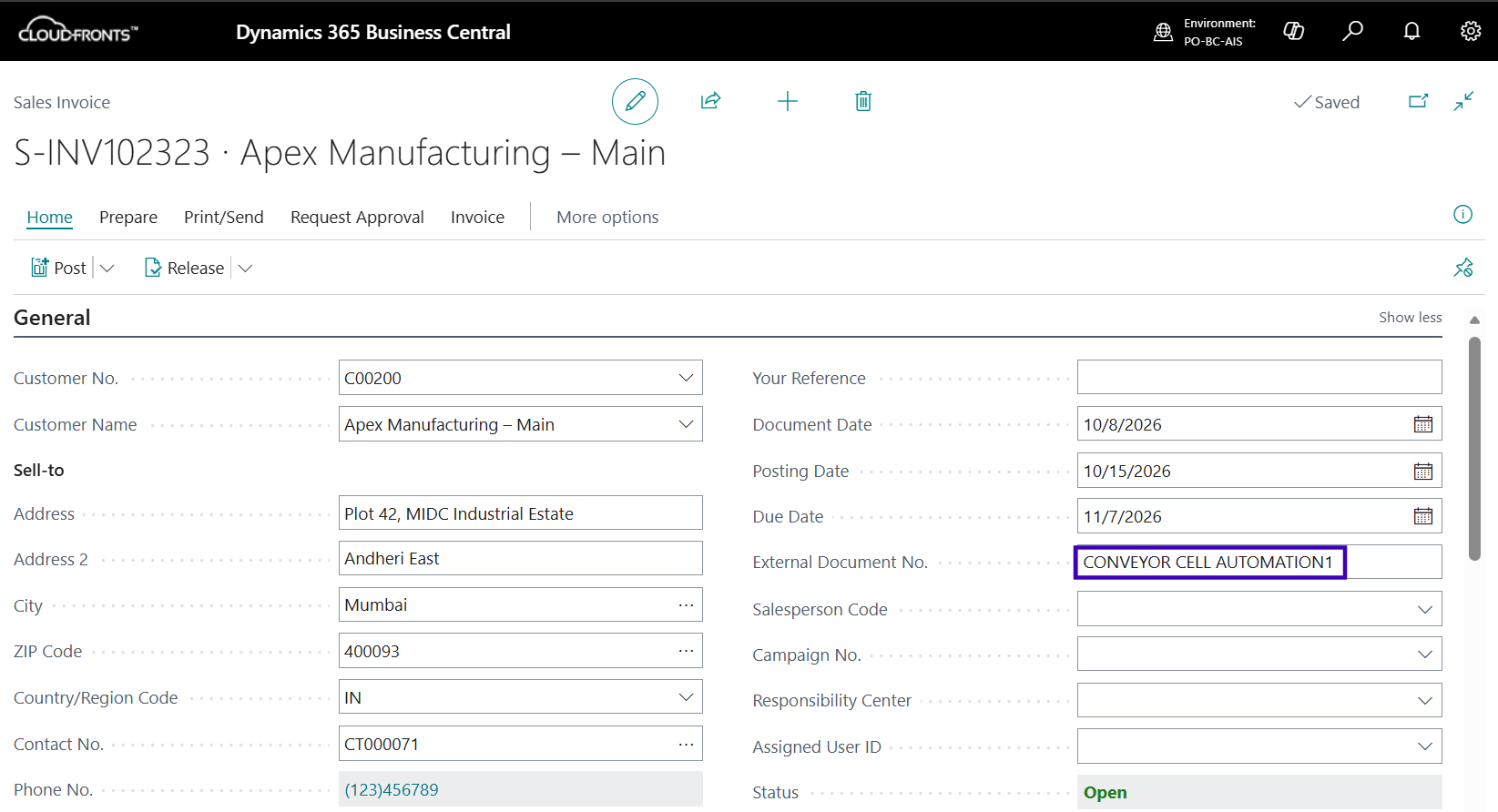
The invoicedetails record carries the line amount and quantity, with the parent invoice’s
cf_sourceid pointing to the resulting Business Central sales invoice
(S-INV102323). The screenshot below shows a representative Business Central sales invoice,
for Apex Manufacturing – Main, generated through the same process.
End-to-End Project Integration Flow
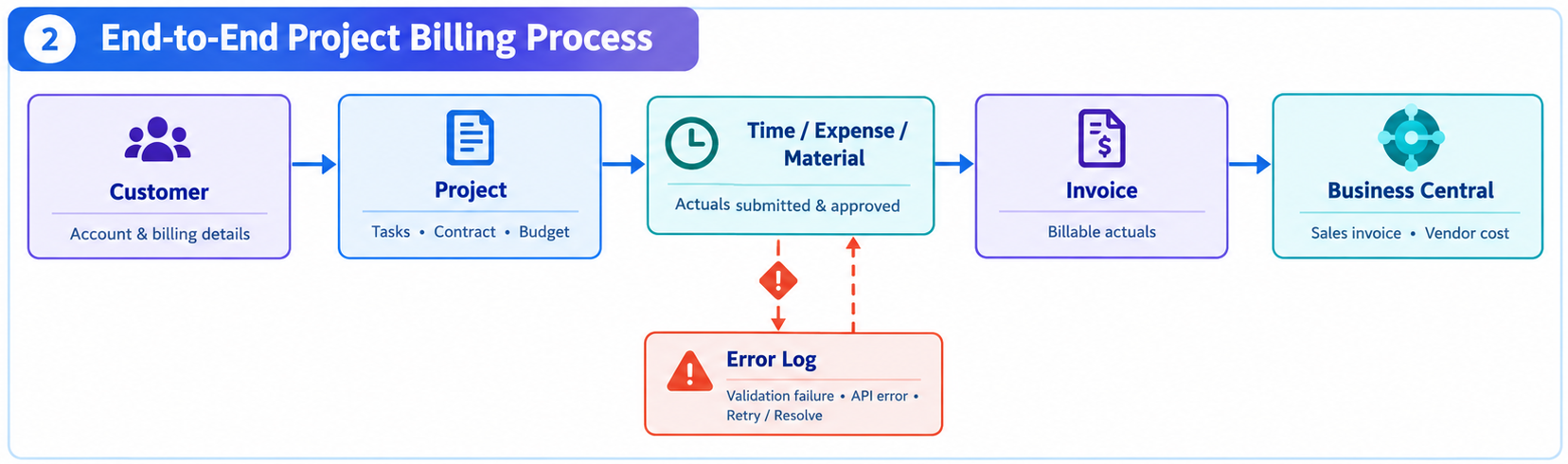
When the individual integrations are viewed together, they form a connected project lifecycle rather than a collection of independent interfaces.
| Project Operations Activity | Integration Action | Business Central Result |
|---|---|---|
| Customer created | Plugin sends customer information | Customer created or synchronized |
| Project created | Plugin maps project information and identifiers | Business Central project created or linked |
| Time entered or processed | Plugin transforms duration and project references | Project time transaction created |
| Project expense processed | Plugin sends project and expense context | Financial or project transaction created |
| Invoice processed | Plugin maps invoice and related details | Business Central invoice process receives the data |
| Material required | Plugin checks Business Central inventory | Available stock information returned to the project process |
| Integration failure | Error information and sent data are logged | Error Log available for investigation |
The Bigger Picture
The integration connects project execution with the ERP processes that support project finance, inventory, and operational reporting. Instead of treating each synchronization as a separate task, the design maintains the relationship between the project and its downstream business transactions.
Business Benefits
The value of the integration is not simply that two systems exchange data. The larger benefit is that project and finance processes can operate from connected information.
For Project Teams
- Less duplicate data entry
- Project records linked to their ERP counterparts
- Project transactions flow into the financial system
- Inventory can be checked in Business Central when required
For Finance Teams
- Project data reaches Business Central without manual re-entry
- Customer, project, time, expense, and invoice data stay connected
- Each system keeps its role: finance in Business Central, projects in Project Operations
- Failed transactions are captured in a structured Error Log
For the Organization
- Less duplication between project and ERP processes
- Better sync between operational and financial information
- A more traceable project-to-finance process
- A foundation to extend to more project scenarios
Key Implementation Considerations
01
Understand the Business Process First
The integration should represent the project lifecycle, not simply copy fields between applications.
02
Maintain Identifier Relationships
Source GUIDs, Business Central numbers, project numbers, document numbers, and other identifiers should be mapped deliberately.
03
Respect Master-Data Dependencies
Customers, projects, items, resources, dimensions, and other prerequisites must exist before dependent transactions are processed.
04
Validate Data Types
Dates, decimals, integers, quantities, and durations often require explicit transformation.
05
Handle Exceptions Deliberately
Failed integrations should give a consultant or support team enough information to diagnose the problem.
06
Protect Against Duplicate Processing
Create and update logic should be designed so that retrying a transaction does not create duplicates.
07
Keep the Integration Observable
Logging and traceability matter most when multiple project transactions trigger downstream financial processes.
Technical Takeaway
The most important part of an integration is not the API call itself. It is the event handling, data transformation, identifier mapping, Business Central validation, dependency management, and error handling around that call.
Frequently Asked Questions
Why integrate Project Operations with Business Central?
Project Operations manages project execution while Business Central manages financial and ERP processes. Integration connects the two so project information does not have to be manually recreated in the ERP.
Why use Dataverse plugins?
Dataverse plugins run in response to record events, which makes them a natural way to implement event-driven integration logic close to the Project Operations data.
Does the integration only synchronize projects?
No. It covers the wider project lifecycle, including customers, projects, time, expenses, invoices, and inventory checks against Business Central.
What happens when an integration request fails?
The failure is captured in an Error Log along with the data that was sent, making it easier to identify and correct the issue.
Can this approach be extended?
Yes. The same architecture can be extended to additional project and ERP scenarios, provided the source and destination processes, APIs, dependencies, and business rules are properly mapped.
Conclusion
A successful Project Operations to Business Central integration is about more than moving records between two Microsoft applications. It is about connecting the project lifecycle with the financial and operational processes that support it.
By using Dataverse plugins to respond to project-related events, the integration moves customers, projects, time, expenses, and invoices into Business Central, while also retrieving information such as inventory availability when the project process needs it.
Just as importantly, the integration provides traceability. Business Central identifiers are written back to the originating records, and failed requests are captured in an Error Log with the relevant data for troubleshooting.
Key Takeaway
The goal is a connected project-to-finance process, where project teams work in Project Operations and finance relies on Business Central, without anyone recreating the same information twice.
Looking to connect Project Operations and Business Central?
CloudFronts helps organizations design and implement Microsoft Dynamics 365 solutions that connect project operations, finance, inventory, and other business processes. To discuss a similar implementation, reach out to us.
Contact us at transform@cloudfronts.comRelated posts:
Forecasting with Prophet-When Does It Make Sense

How a Multi-Country Oil & Gas and Marine Services Provider Corrected Receipt Costs Before Invent...
How to Extend Dynamics 365 CRM Using Side Panes: A Practical Implementation for a US-Based Kitchen A...