
Enable Run Report button on Project Entity in D365 PSA
Introduction:
This blog details steps for Run Report button on Project Entity in D365 PSA.
Pre-requisites:
1. Ribbon Customizations solution installed in environment.
Steps:
Below are steps to configure Company Insights on custom form “FSA Account” for Account Entity
1. Create a new solution for Ribbon Customizations. Add project entity in the solution.
2. Add Another entity which has Reporting Enabled like – “Opportunity”.
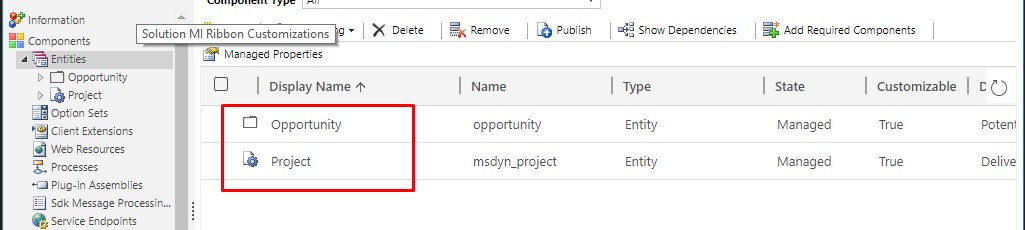
3. Open the new solution in Ribbon Work bench.
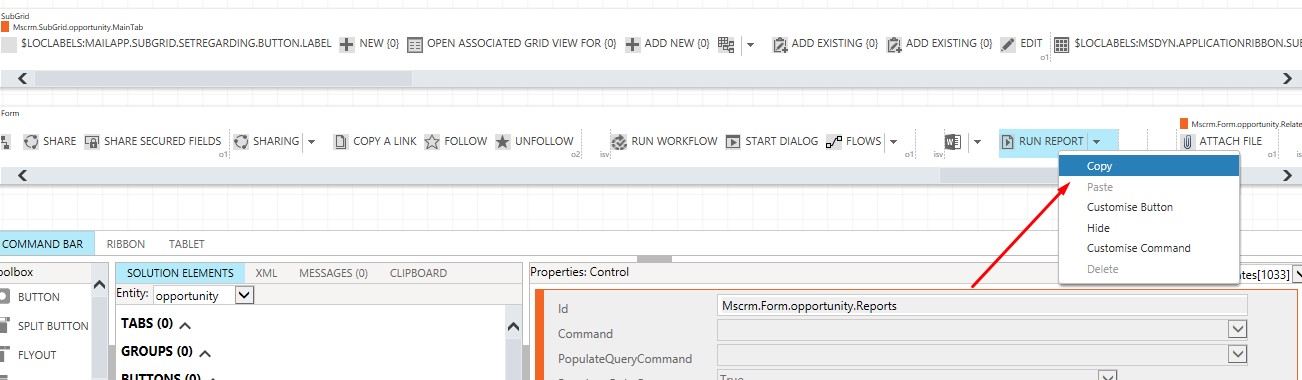
4. Copy the “Report” button from Opportunity.
5. Paste the Button on Project Form Ribbon like below:
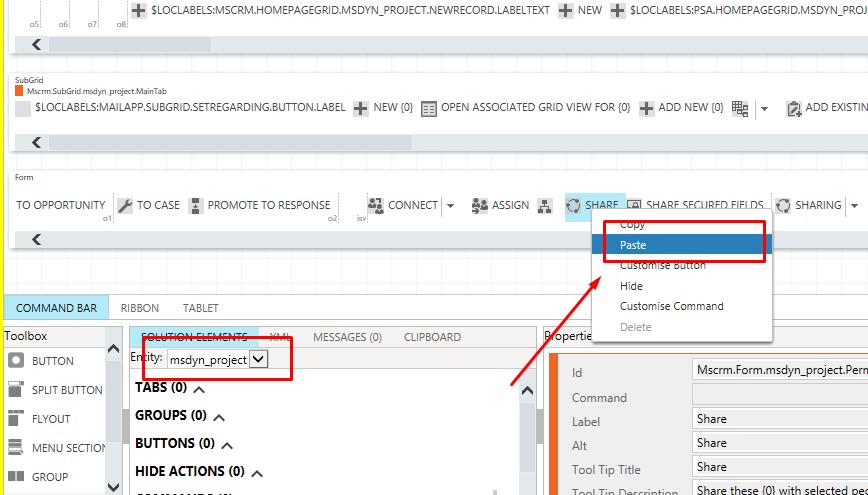
6. Publish the ribbon Customizations.
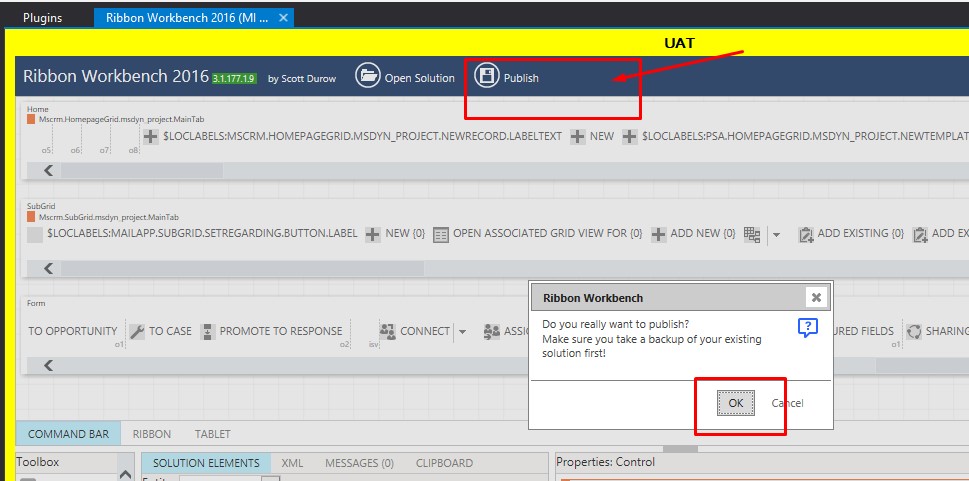
7. You should now be able to see the Run Report Button on Project form.

8. Similarly you can also add other buttons like “Run Workflow” or “Start Dialog” button on Project or any other entity which does not have this enabled by Default.
Conclusion:
Hope this blogs helps you to enable “Run Report”, “Run Workflow” or “Start Dialog” button missing from Project entity in D365 PSA.
Related posts:
Engineer-to-Order with Dynamics 365: How Project Operations Handles Planning and Business Central Ma...
Dynamics 365 SharePoint Integration: How to Display SharePoint Documents in a Custom Page Using Thre...
How a Leading North American Commercial Vehicle Manufacturer Surfaced Custom Warehouse Data on the W...