

How to Generate and Use SSL Certificates in Microsoft Dynamics 365 Business Central
Security is a critical aspect of any ERP implementation. When integrating Microsoft Dynamics 365 Business Central with external systems such as APIs, payment gateways, banks, IRIS, VAT systems, or third-party services, SSL/TLS certificates play a key role in securing communication.
A common misconception is that Business Central itself generates SSL certificates. In reality, Business Central only consumes certificates-the generation and management are handled externally.
In this blog, we will cover:
- a. What SSL certificates are in the context of Business Central
- b. How to generate an SSL certificate (self-signed)
- c. How to configure it for Business Central (On-Prem)
- d. Common use cases and best practices
What Is an SSL Certificate in Business Central?
An SSL (Secure Sockets Layer) / TLS certificate is used to:\Hook:
- a. Encrypt data during transmission
- b. Authenticate systems or services
- c. Enable secure API communication
In Business Central, certificates are commonly used for:
- a. API authentication
- b. Web services
- c. Bank integrations
- d. Government portals (VAT, IRIS, GST, etc.)
- e. Azure Functions or Logic Apps authentication
Important: Business Central does not create SSL certificates—it only stores and uses them.
Steps to Generate an SSL Certificate (Self-Signed)
This approach is typically used for development or on-premises environments.
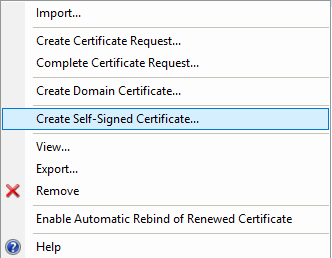
Step 1: Create a Self‑Signed Certificate in IIS
- a. Open IIS Manager as Administrator.
- b. Select the server node in the left panel.
- c. Open Server Certificates.
- d. Click Create Self‑Signed Certificate.
Step 2: Provide Certificate Details
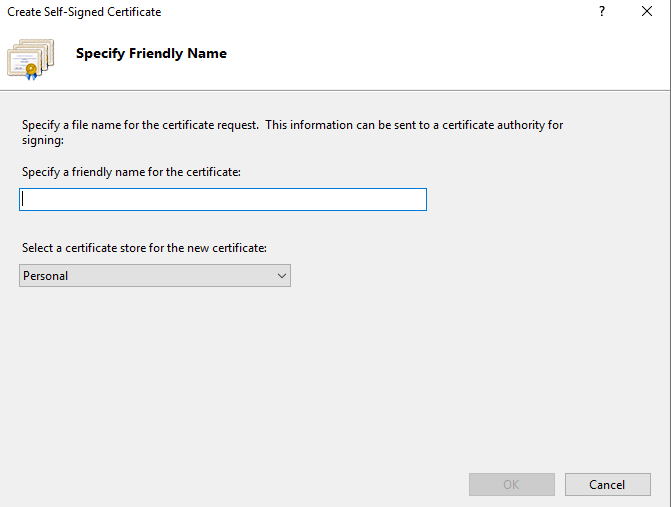
- a. Enter a Friendly Name for the certificate.
- b. Select the Certificate Store (usually Personal).
- c. Click OK to create the certificate.
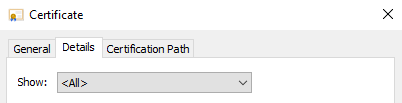
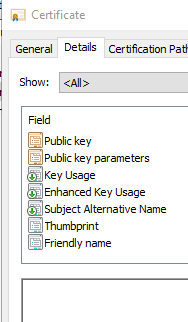
Step 3: Copy the Certificate Thumbprint
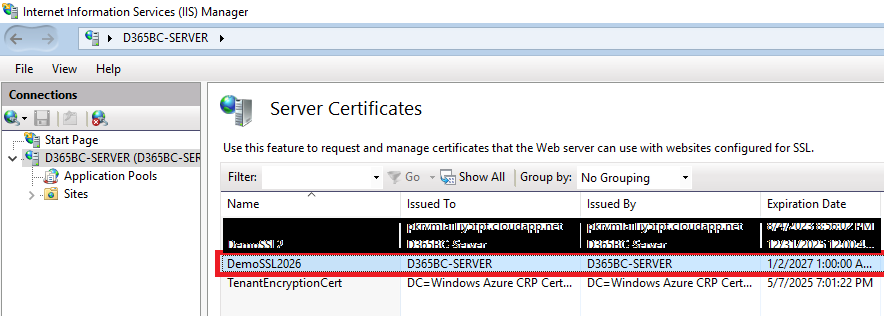
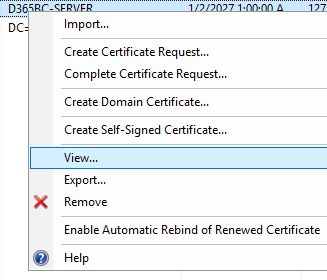
- a. Right‑click the newly created certificate.
- b. Select View → Details.
- c. Locate Thumbprint.
- d. Copy the thumbprint value and save it in Notepad.
This thumbprint will be required in the next step.
Step 4: Configure Certificate Using PowerShell
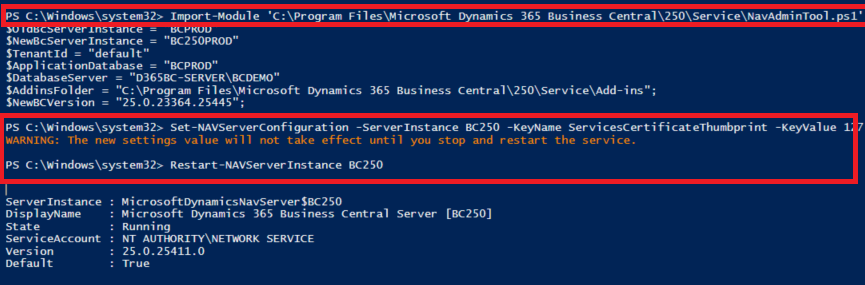
- a. Open Windows PowerShell ISE as Administrator.
- b. Run the required PowerShell commands.
- c. After the -KeyValue parameter, paste the certificate thumbprint.
Step 5: Verify Required Properties
Ensure all required certificate properties are set to True, including:
- a. Exportable key
- b. Client authentication
- c. Server authentication

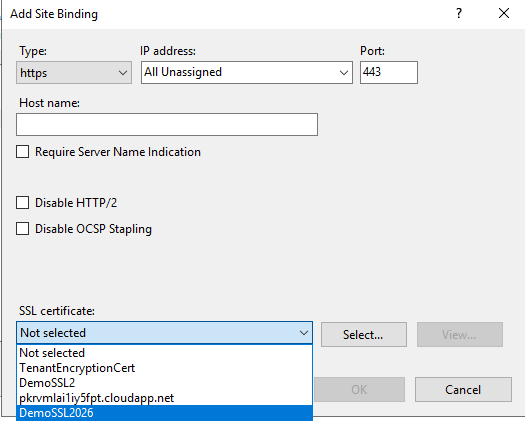
Step 6: Bind the Certificate in IIS
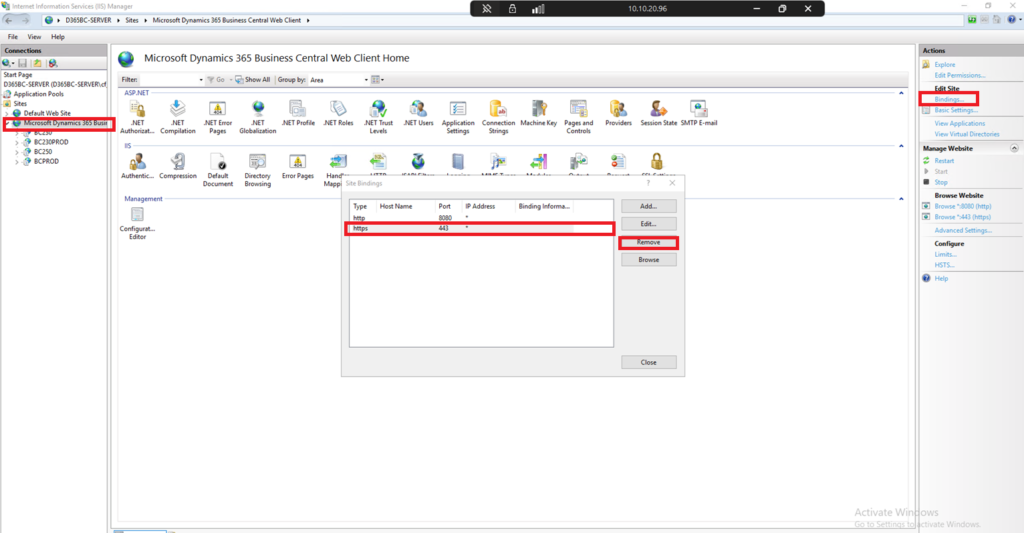
- Open IIS Manager.
- Navigate to: Microsoft Dynamics 365 Business Central site.
- Open Bindings.
- Remove the existing HTTPS (443) binding (if any).
- Click Add:
- a. Type: HTTPS
- b. SSL Certificate: Select the newly created certificate
- Click OK.
Step 7: Add Certificate Using MMC
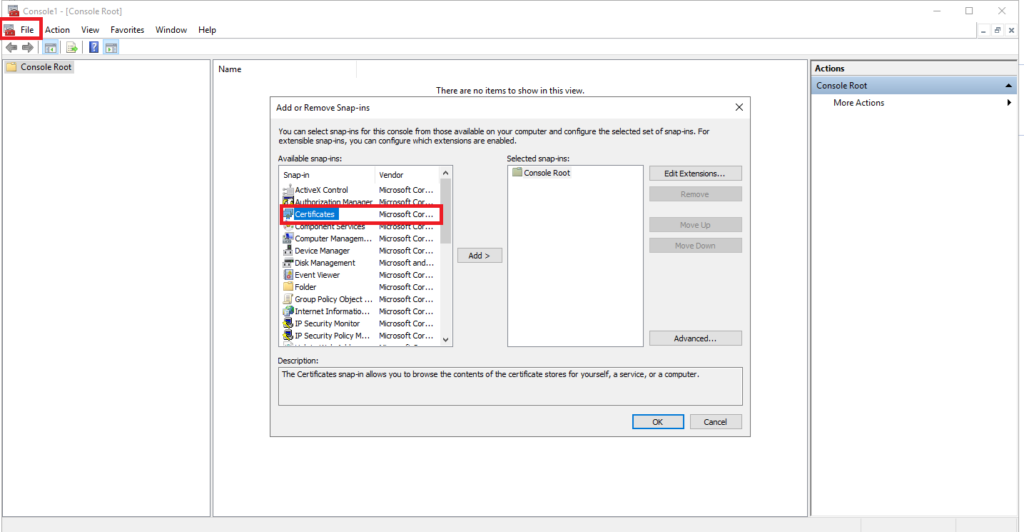
- Press Win + R, type mmc.exe, and press Enter.
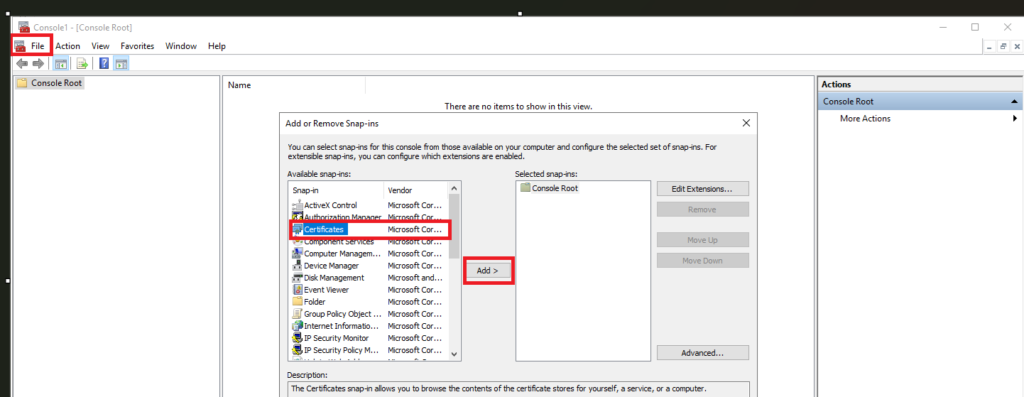
- Go to File → Add/Remove Snap‑in.
- Select Certificates.
- Choose Computer Account → Local Computer.
- Click Finish → OK.
Step 8: Verify Certificate Installation
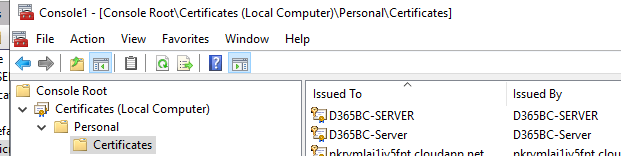
The certificate should now be visible under:
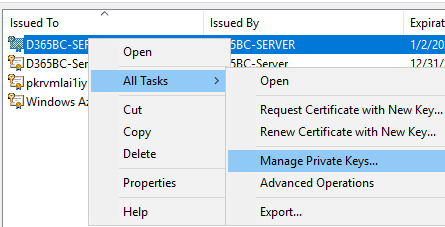
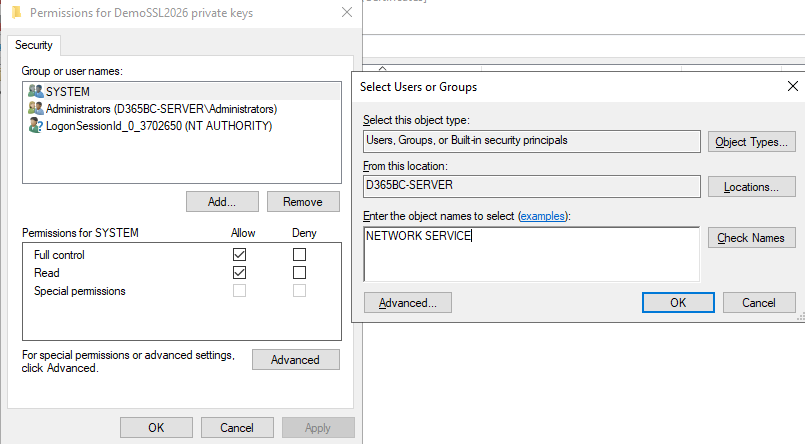
Step 9: Grant Permissions to Business Central Service
- Right‑click the certificate.
- Select All Tasks → Manage Private Keys.
- Click Add.
- Add NETWORK SERVICE.
- Grant Allow – Full Control.
- Click Apply → OK.
This ensures the Business Central service can access the certificate.
To conclude, SSL certificates are a core security component in Business Central integrations. While Business Central does not generate certificates, it provides robust mechanisms to store and consume certificates securely in both cloud and on‑prem environments.
Understanding the generation, configuration, and usage flow ensures secure, compliant, and reliable integrations.
We hope you found this blog useful, and if you would like to discuss anything, you can reach out to us at transform@cloudfronts.com
