

How to Handle Language and Format Region in RDLC Reports in Microsoft Dynamics 365 Business Central
In global implementations of Microsoft Dynamics 365 Business Central, reports are consumed by users across multiple regions. While the underlying data remains the same, the way it is presented—especially numbers, dates, and currency-must adapt to regional expectations.
A common mistake developers make is focusing only on translations while ignoring regional formatting differences. This often results in reports where values appear correct but are interpreted incorrectly due to formatting.
This blog explains how to dynamically control both language and format region in RDLC reports using AL, ensuring accurate and user-friendly reporting across regions.
What You Will Learn
- Difference between Language and Format Region in Business Central
- How to dynamically set regional formatting in RDLC reports
- Best practices for multilingual reporting
- Common mistakes to avoid in global implementations
The Report Example
Below is a working example where the report dynamically sets language and formatting before execution:
report 50121 “Test Multilingual Report”
{
Caption = ‘Test Multilingual Report’;
UsageCategory = ReportsAndAnalysis;
ApplicationArea = All;
DefaultLayout = RDLC;
RDLCLayout = ‘./Report Layouts/TEstrepo.rdl’;
dataset
{
dataitem(PurchaseHeader; “Purchase Header”)
{
column(Customer_No; “Buy-from Vendor No.”) { }
column(Customer_Name; “Buy-from Vendor Name”) { }
column(Balance_LCY; Amount) { }
}
}
trigger OnPreReport()
var
LanguageMgt: Codeunit Language;
VendorRec: Record Vendor;
begin
if VendorRec.Get(PurchaseHeader.”Buy-from Vendor No.”) then begin
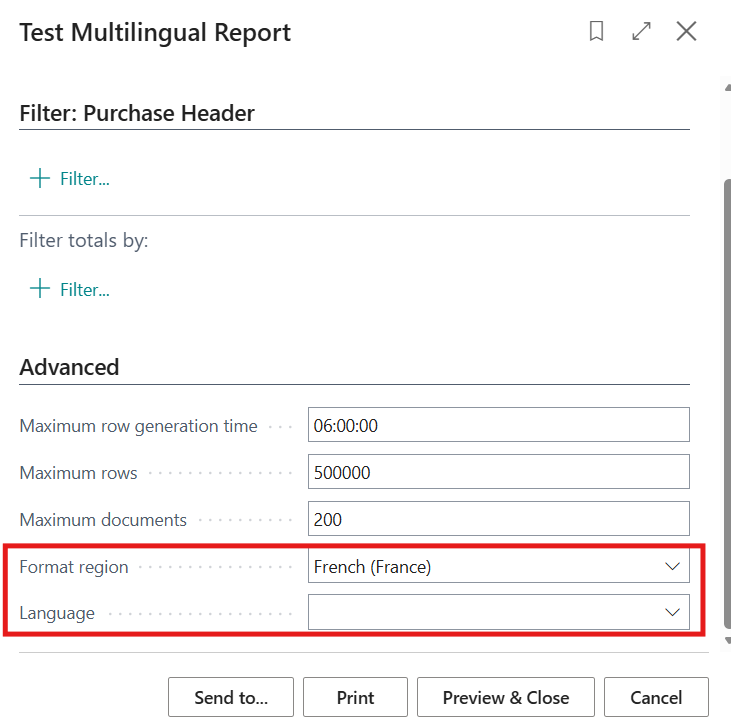
CurrReport.Language :=
LanguageMgt.GetLanguageIdOrDefault(VendorRec.”Language Code”);
CurrReport.FormatRegion :=
LanguageMgt.GetFormatRegionOrDefault(VendorRec.”Format Region”);
end;
end;
}
What This Code Actually Does
Before the report starts rendering, the OnPreReport trigger executes.
a. CurrReport.Language sets the language used for captions and labels in the report
b. CurrReport.FormatRegion defines how numbers, dates, and currency values are formatted
The key point is that these values are applied at runtime, meaning the same report behaves differently depending on the data it processes.
Why This Matters
Consider the same numeric value:
a. In US format: 1,234.56
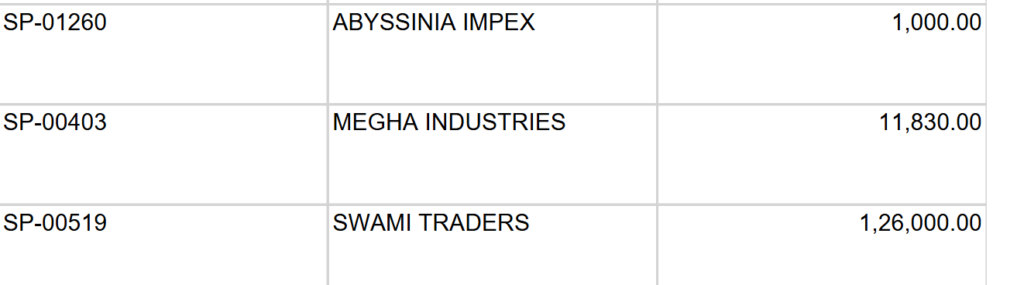
b. In French format: 1.234,56
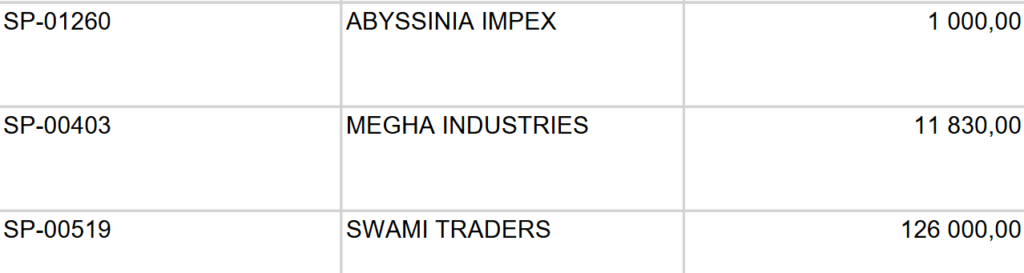
If a report shows the wrong format, users may misread values. In financial documents, this is not just a cosmetic issue-it can lead to real errors.
By setting FormatRegion, you ensure that:
a. Decimal separators are correct
b. Thousand separators follow regional standard
c. Currency formatting aligns with expectations
Best Practices for RDLC Reports in Business Central
- Always set both
CurrReport.LanguageandCurrReport.FormatRegion - Avoid converting numeric values to text in AL
- Let RDLC handle formatting using regional settings
- Do not use hardcoded number formats
- Test reports with multiple language and region combinations
Common Mistake to Avoid
Avoid hardcoded expressions like:
=Format(Fields!Balance_LCY.Value, "#,##0.00")
This overrides regional settings and prevents dynamic formatting.
Why This Matters for Global Implementations
Accurate localization ensures:
- Better user experience across regions
- Reduced risk of financial misinterpretation
- Consistency in global reporting standards
- Improved adoption of Business Central across international teams
Final Thoughts
Multilingual reporting in Microsoft Dynamics 365 Business Central is not just about translating text. True localization means presenting data in a way that aligns with regional expectations.
By dynamically setting both language and format region using AL, you can build scalable, globally adaptable reports without increasing RDLC complexity.
I hope you found this blog useful. If you would like to discuss anything further, feel free to reach out to us at transform@cloudfronts.com.
