

How We Built & Deployed a Mobile-Based Canvas App for Unified Time, Expense (with Receipts) & Material Submission with Project-Based Approvals for a US Cybersecurity Firm
Summary
- A US-based oil & gas cybersecurity firm implemented a mobile-first Canvas App integrated with Dynamics 365 Project Operations to unify time, expense, and material submission, tracking, and approval.
- The solution enabled project-specific approval workflows where only assigned approvers could validate submitted records.
- CloudFronts introduced a dual-mode interface (Day Mode and Week Mode) to improve usability for both field engineers and managers.
- Submission and approval cycle time reduced from hours/days to near real-time visibility.
Table of Contents
Customer Scenario
A Texas-based cybersecurity firm specializing in operational technology (OT) security for oil rigs manages multiple concurrent field projects using Dynamics 365 Project Operations.
Employees and resources were responsible for logging:
- Time entries
- Expense entries (travel, accommodation, airfare, etc.)
- Material usage logs (equipment, parts, consumables, etc.)
However, the system was not designed for mobile-first usage, and processes were fragmented across multiple interfaces.
Key Challenges
- Field engineers & other Resources could not efficiently submit entries from mobile devices
- Time, expense, and material tracking existed in separate workflows
- Approval processes had to be restricted to project-specific stakeholders
- Project managers lacked real-time visibility into resource usage
- • Delays in submission can cause downstream billing and reporting issues
Project tracking accuracy can get compromised, and reporting delays directly affected client communication and billing cycles.
Solution Overview
CloudFronts designed and deployed a unified mobile application using Power Apps (Canvas Apps) integrated with Dynamics 365 Project Operations.
Objective:
One app → All submissions → Controlled approvals → Real-time visibility
What the App Enables
For Field Users:
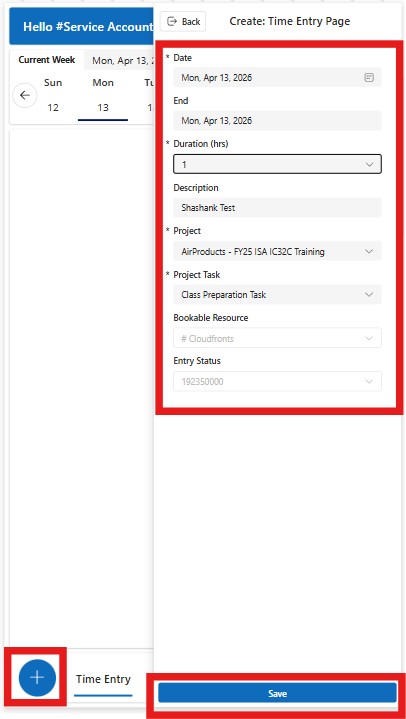
- Submit time entries (daily or weekly)
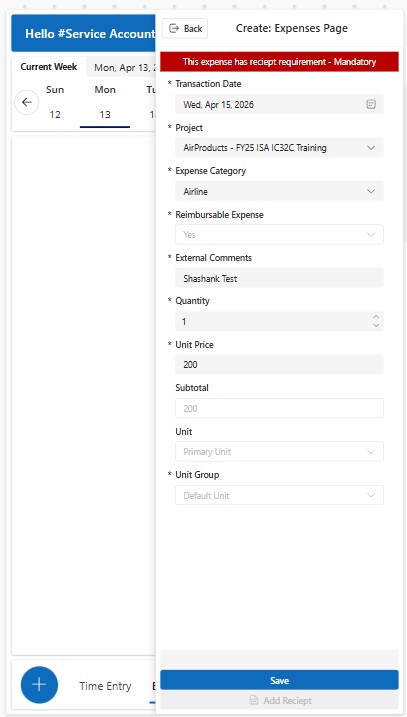
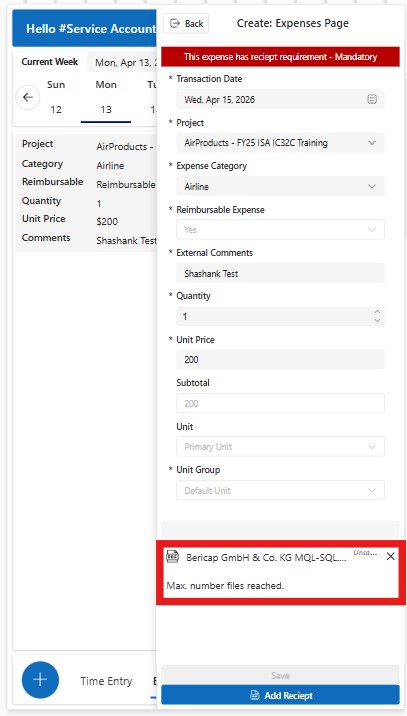
- Create expense entries with receipt validation
- Log material consumption against projects
- Track submission status instantly
For Project Approvers:
- View only entries related to assigned projects
- Approve or reject submissions directly from mobile
- Maintain audit-ready approval workflows
Key UX Features
The application is designed with a strong focus on usability for both resources and project approvers, ensuring a seamless mobile experience across submission and approval workflows.
1. Day Mode / Week Mode Toggle
The app provides a flexible entry experience through a dual-mode interface:
- Day Mode: Enables detailed entry for a single day, ideal for precise logging and corrections.
- Week Mode: Allows bulk entry across multiple days, reducing effort for repetitive data entry.
This flexibility significantly improves usability across different working styles and scenarios.
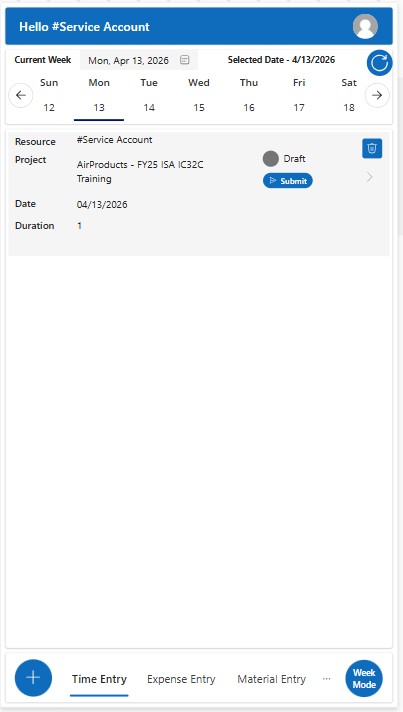
2. Calendar-Based Swipe Navigation
The application introduces a Dynamics-style calendar navigation with swipe support, allowing users to:
- Traverse across multiple days or weeks effortlessly
- View and manage multiple submission records in sequence
- Navigate between historical and current entries with minimal effort
This mobile-first interaction design reduces friction in high-frequency data entry scenarios.
3. Unified Submission & Approval Experience
The UI/UX is intentionally designed to mirror the complete lifecycle of a record, ensuring consistency between submission and approval stages.
Each record follows a structured lifecycle aligned with Dynamics 365 stages:
- Submitted
- Pending
- Approved
- Rejected
- Recall Requested
- Recall Request Approved
- Recall Request Rejected
The interface dynamically adapts based on the current stage:
- Action buttons (Approve, Reject, Recall, etc.) are conditionally visible
- Status indicators are clearly displayed
- Users experience the same structured flow from creation to closure
This ensures clarity, reduces errors, and improves user confidence in the system.
4. Dynamic Action-Based UI (Smart Button Behavior)
The app intelligently modifies UI controls based on record state:
- Submit button appears only for draft entries
- Approve/Reject buttons are visible only to project approvers
- Recall option is available only after submission
- Post-approval states restrict further edits
This enforces role-based and state-based control, preventing invalid actions and maintaining process integrity.
5. Conditional Receipt Upload for Expense Entries
Expense submission logic is enhanced with category-driven validation:
- Mandatory: Airline tickets, OT hardware purchases
- Optional: Meals, local travel
This balances compliance requirements with user convenience, avoiding unnecessary friction.
6. On-Demand Data Refresh
Users can manually refresh data within the app to:
- Fetch the latest submission and approval statuses
- Sync newly created or updated records
- Ensure real-time visibility without relying solely on background refresh
Especially useful in environments with intermittent connectivity.
7. Mobile-First Interaction Design
- Touch-friendly controls
- Swipe navigation
- Lightweight screens for faster performance
- Minimal navigation depth
This ensures field engineers working in remote or on-site environments can operate efficiently.
Functional Implementation
This section outlines how the solution was implemented within Dynamics 365 Project Operations and the Power Platform to enable end-to-end submission and approval management.
1. Unified Data Model in Dataverse
All three entry types — Time, Expense, and Material — are structured within Dataverse and linked to:
- Project
- Resource (User)
- Approval records
- Supporting documents (for expenses)
Each submission creates a corresponding record with a defined lifecycle stage, ensuring consistency across all entry types.
2. Submission Logic from Canvas App
Each submission type follows a structured flow:
- User selects project and entry type (Time / Expense / Material)
- Required fields are validated based on entry type
- Conditional logic enforces:
- Receipt requirement (for specific expense categories)
- Mandatory fields (based on business rules)
- Record is created in Dataverse
- Submission triggers backend approval workflow
This ensures that all records entering the system are complete, validated, and ready for approval processing.
3. Approval Record Creation & Routing
Upon submission:
- A corresponding approval record is automatically created
- The system identifies project-specific approvers
Key behavior:
- Only assigned project approvers can view and act on records
- Approval actions update the main record status
4. Record Lifecycle Management (Status-Driven System)
Lifecycle:
Draft → Submitted → Pending → Approved / Rejected → Recall Flow
- Users submit records → moves to Submitted
- Approvers review → Approved or Rejected
- Users request recall → Recall Requested
- Approvers respond → Recall Approved or Rejected
Controlled through:
- Power Apps UI logic
- MS Bound Actions for submission and approval handling
- Dataverse status fields
5. Expense Receipt Handling (Integrated from Previous Solution)
- Receipt upload enforced conditionally
- Files stored as Notes (Annotations) in Dataverse
- Linked to expense records
This eliminates manual document handling and ensures compliance.
Solution Walkthrough
The following walkthrough highlights how the mobile-based Canvas App enables end-to-end submission and approval for Time, Expense, and Material entries in a unified experience.
Application Screens
The screenshots below demonstrate the key user journeys, including entry creation, calendar navigation, submission flow, and approval actions.
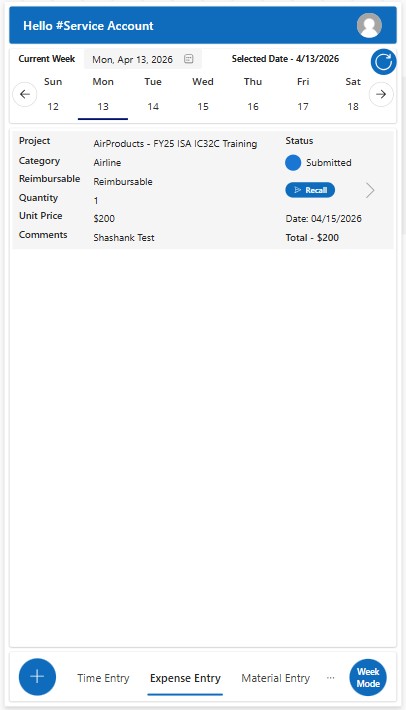
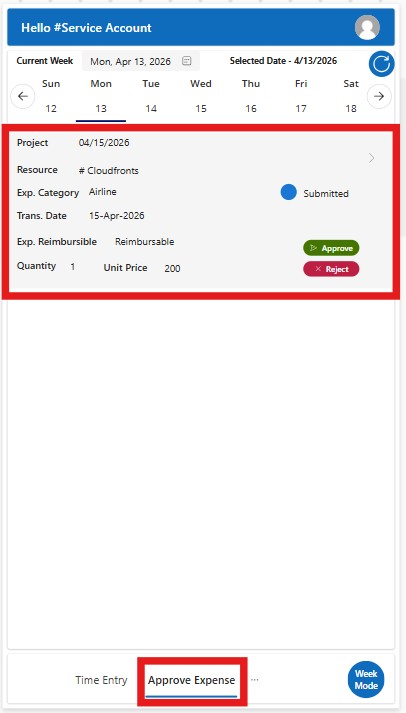
End-to-End Submission & Approval Flow
The Video below demonstrates the real-time working of the application, covering:
- Creating time, expense, and material entries
- Switching between Day and Week modes
- Submitting records for approval
- Approvers reviewing and taking action
- Status updates reflecting instantly in the UI
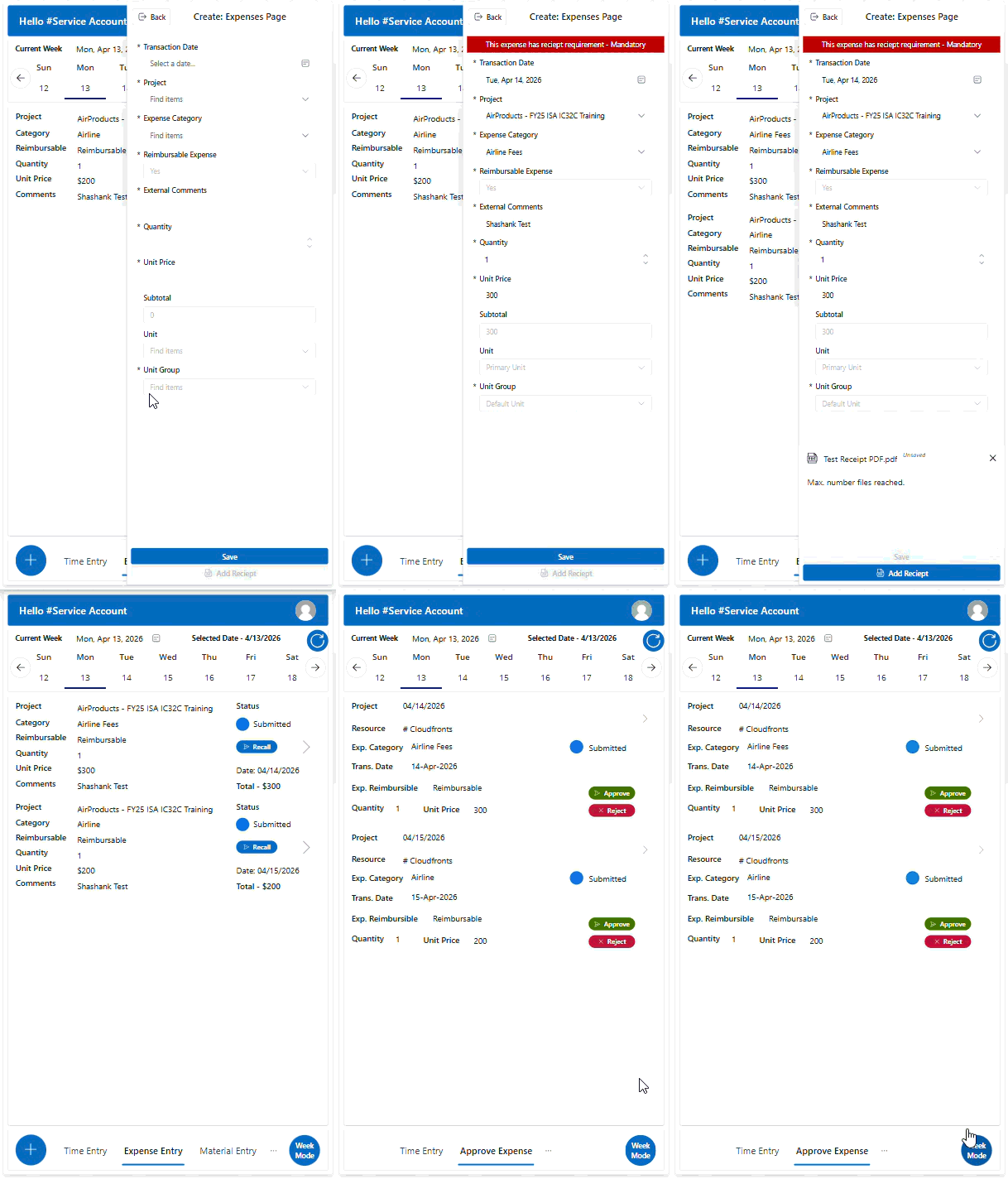
This walkthrough demonstrates how the application delivers a seamless, mobile-first experience while maintaining strict control over validation, submission, and approval workflows within Dynamics 365 Project Operations.
Architecture & Integration Approach
Core Components
- Power Apps (Canvas App)
- Dataverse
- Bound Actions
- Dynamics 365 Project Operations
End-to-End Flow
- User submits entry
- Record stored in Dataverse
- Approval triggered
- Approver action taken
- Status updated in real time
Design Principle: Keep business logic centralized in Dataverse and actions while keeping UI lightweight.
Business Impact
- Submission time: Delayed → Real-time mobile submission
- Approval turnaround: Hours/days → Instant approvals
- Data accuracy: Fragmented → Structured validation
- User experience: Multiple tools → Single app
- Visibility: Delayed → Real-time tracking
FAQs
1. Can a single Canvas App handle multiple submission types like time, expense, and materials?
Yes. A well-designed Canvas App can unify multiple entry types using conditional logic and modular components while maintaining a consistent user experience.
2. How are approvals restricted to project-specific users?
Approval routing is handled via Bound Actions using project-resource relationships defined in Dynamics 365 Project Operations App, ensuring only assigned approvers for a specific project can act.
3. How is data consistency maintained across different entry types?
All records are stored in Dataverse with a standardized lifecycle and validation rules, ensuring uniform data structure and process flow.
4. Can this solution be extended further?
Yes. It can be extended with Power BI dashboards, billing integration, or AI-based insights for predictive project tracking.
Conclusion
Fragmented submission and approval processes are a major challenge in project-driven organizations.
By implementing a mobile-first Canvas App integrated with Dynamics 365 Project Operations, all critical project inputs are unified into a single workflow.
When submission, validation, and approval are unified, efficiency and data accuracy improve significantly.
Looking to build a similar solution?
Explore how CloudFronts can help you design scalable Power Platform solutions tailored to your business needs.
Visit CloudFronts
Shashank Keny
Associate Consultant · CloudFronts
Shashank Keny is an Associate Consultant at CloudFronts with 1.5+ years of experience in cloud, data, and business applications. He specializes in building scalable, API-driven architectures and integrating enterprise systems across the Microsoft ecosystem.
He is a Certified Databricks Data Engineer with hands-on experience in Dynamics 365 Project Operations and Dynamics 365 Sales, along with delivering business intelligence solutions using Power BI.
His expertise also extends to modern AI solutions, including building custom copilots and implementing intelligent applications using Azure AI Foundry.
Passionate about solving real-world business challenges through data and AI, he focuses on delivering efficient, scalable, and production-ready solutions.
- Experience: 1.5+ years
- Certification: Databricks Certified Data Engineer
- Specialization: Dynamics 365 Project Operations, Power BI, Azure Integrations, AI Solutions
