Automating Cost Control in Azure: Monitor and Manage Resource Spending Efficiently
Summary
- We implemented an automated cost control process for our internal AI Sales Insights solution running in Azure.
- Azure Budget Alerts were connected with Automation Runbooks to automatically stop resources once spending crossed a defined threshold.
- The setup reduced manual monitoring and helped us maintain tighter control over Azure consumption.
- The solution used native Azure services with Managed Identity authentication for secure automation.
- The same approach can be extended to Azure Virtual Machines, App Services, Databases, and other Azure resources.
Azure Budget Alerts integrated with Automation Runbooks for automated cost control
Table of Contents
- 1. Why We Needed This
- 2. Solution Overview
- 3. Azure Services Used
- 4. Step 1: Create the Azure Budget
- 5. Step 2: Create an Action Group
- 6. Step 3: Create the Automation Runbook
- 7. Step 4: Enable Managed Identity
- 8. Step 5: Assign Required Permissions
- 9. Step 6: Test the Complete Flow
- 10. Business Impact
- 11. Frequently Asked Questions
- 12. Conclusion
Why We Needed This
Our AI Sales Insights solution uses Azure services such as Function Apps and AI processing components to generate and process sales insights.
Since the environment runs on a Pay As You Go subscription, costs can increase unexpectedly if resources continue running after active usage hours or during extended testing cycles.
Initially, we were monitoring costs manually through Azure Cost Management dashboards and email alerts. However, this approach had a few limitations:
- Alerts were sometimes noticed too late
- Resources continued running even after thresholds were reached
- Development environments stayed active longer than needed
- Manual intervention was required every time
We wanted a simple solution where Azure could automatically take action when spending crossed a defined limit.
Solution Overview
We implemented the following workflow:
- Azure Budget continuously monitors subscription spending
- A Budget Alert gets triggered when the threshold is reached
- The alert calls an Azure Action Group
- The Action Group triggers an Automation Runbook
- The Runbook authenticates using Managed Identity
- The Runbook automatically stops the Azure resource
This gave us a lightweight and reliable automation setup for controlling costs.
Azure Services Used
| Service | Purpose |
|---|---|
| Azure Cost Management | Monitor Azure spending |
| Azure Budget Alerts | Detect threshold breaches |
| Azure Action Groups | Trigger automation |
| Azure Automation | Execute PowerShell Runbooks |
| Managed Identity | Secure authentication |
Step 1: Create the Azure Budget
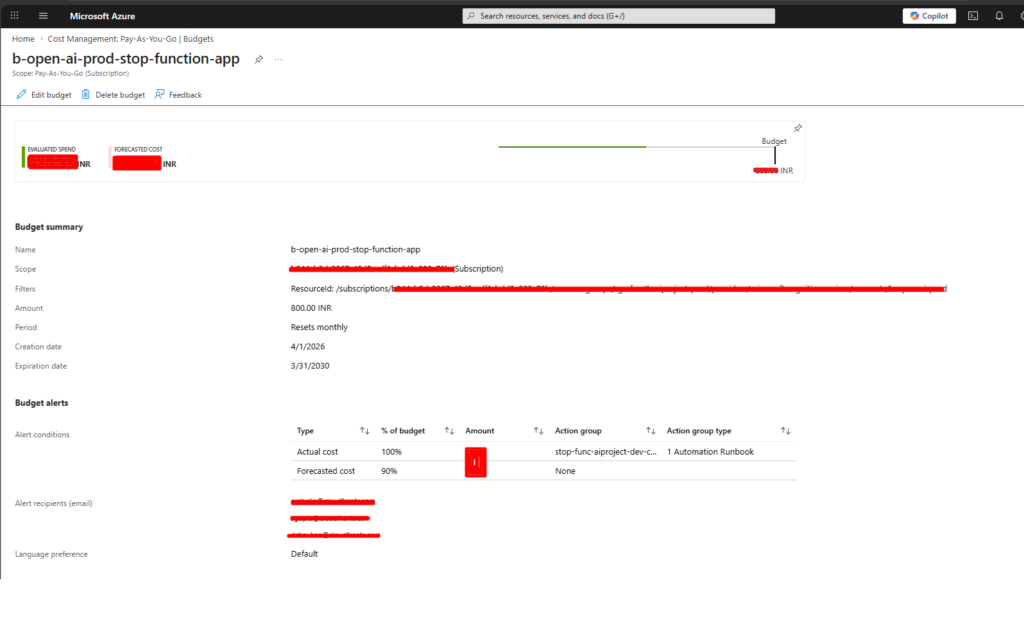
We started by creating a budget inside Azure Cost Management.
Azure Budget configuration for automated cost monitoring
Budget Configuration
| Setting | Value |
|---|---|
| Budget Amount | ₹800 INR |
| Reset Frequency | Monthly |
| Forecast Alert | 90% |
| Actual Cost Alert | 100% |
One important thing we learned during implementation is that Azure budget calculations are not always real time.
If automation starts only at 100%, additional usage may already occur before the alert executes.
Because of this, setting automation thresholds slightly earlier, usually around 85% to 90%, is safer for production environments.
Step 2: Create an Action Group
Next, we created an Azure Action Group.
The Action Group acts as the bridge between the Budget Alert and the Automation Runbook.
- Set Action Type as Automation Runbook
- Select the Automation Account
- Link the target Runbook
Once configured, Azure automatically executes the Runbook whenever the budget alert is triggered.
Step 3: Create the Automation Runbook
Inside Azure Automation, we created a PowerShell Runbook using Runtime Version 5.1.
The Runbook dynamically accepts Azure resource values instead of hardcoded names, making it reusable across multiple environments.
Dynamic PowerShell Script
# Variables
$ResourceGroupName = "{Your Azure Resource Group Name}"
$FunctionAppName = "{Your Azure Function App Name}"

# Authenticate using System Managed Identity
try {
    Connect-AzAccount -Identity
    Write-Output "Successfully authenticated with Managed Identity"
}
catch {
    Write-Error "Failed to authenticate: $_"
    exit 1
}

# Stop Azure Function App
try {
    Stop-AzFunctionApp `
        -Name $FunctionAppName `
        -ResourceGroupName $ResourceGroupName `
        -Force

    Write-Output "Function App stopped successfully"
}
catch {
    Write-Error "Failed to stop Function App: $_"
    exit 1
}
Step 4: Enable Managed Identity
To avoid storing credentials inside the script, we enabled System Assigned Managed Identity for the Automation Account.
This allowed the Runbook to authenticate securely against Azure without usernames, passwords, or secrets.
This approach is cleaner, more secure, and easier to maintain.
Step 5: Assign Required Permissions
After enabling Managed Identity, we assigned RBAC permissions to the Automation Account on the target resource.
The following roles were used:
- Contributor
- Website Contributor
- Function App Contributor
Without proper permissions, the Runbook may authenticate successfully but still fail while stopping resources.
Step 6: Test the Complete Flow
Before connecting everything to the Budget Alert, we tested the Runbook manually.
- Verify Managed Identity authentication
- Confirm the Azure resource stops correctly
- Validate RBAC permissions
- Test Action Group execution
Once everything worked successfully, the Runbook was connected to the Budget Alert.
Business Impact
| Area | Before | After |
|---|---|---|
| Cost Monitoring | Manual | Automated |
| Resource Shutdown | Manual | Automatic |
| Response Handling | Manual Action Required | Automatic Resource Shutdown |
| Cost Governance | Reactive | Proactive |
This setup helped us reduce unnecessary runtime costs and eliminated the need for continuous manual monitoring of our AI Sales Insights environment.
Conclusion
This implementation helped us build a simple and practical cost governance process for our internal AI Sales Insights solution.
Instead of relying only on dashboards and email notifications, Azure now takes automated action whenever spending crosses the configured threshold.
As AI workloads continue growing, automating cloud cost control will become increasingly important for maintaining predictable and manageable Azure spending.
We hope you found this blog useful. If you would like to discuss similar Azure automation and cost optimization solutions, feel free to connect with us at transform@cloudfronts.com .
Can Azure automatically stop resources when a budget limit is reached?
Yes. Azure Budget Alerts can trigger Action Groups, which can execute Automation Runbooks to stop Azure resources automatically.
Is Managed Identity required?
No, but it is strongly recommended because it avoids storing credentials inside scripts.
Can this approach work for other Azure resources?
Yes. The same setup can be used for Virtual Machines, App Services, databases, and several other Azure services.
Does Azure stop resources immediately after the threshold is reached?
Not always. Budget calculations can have slight delays, which is why using slightly lower thresholds is usually safer.
Related posts:

From Project Operations to Business Central: Following the Data Behind Project Financials
Location-Based Item Based Visibility in Business Central for a Maldives-Based Marine Services Firm
Connecting Project Operations to Finance: Our Dataverse-to-Business Central Integration for Project ...