How a Leading North American Commercial Vehicle Manufacturer Scoped Master Planning to a Single Site or Warehouse in Dynamics 365 Finance & Supply Chain Management
Summary
Multi-plant manufacturers often run Planning Optimization as one global master plan that nets supply and demand across every site and warehouse together. That’s fine right up until each plant has its own planners, its own coverage rules, and its own idea of when on-hand stock should get consumed first.
Microsoft’s “Plan for a single site or warehouse in Planning Optimization” feature (Feature Management, available from version 10.0.44) fixes this at the source: a master plan can now filter on stock dimensions (site, warehouse, batch), not just items, so the plan’s entire universe of supply, demand, and coverage data can be scoped to one location.
We rolled this out for a North American truck manufacturer running several plants under a single legacy global plan. Splitting planning by site let each plant’s team run and own a plan tuned to what’s actually stocked and consumed there, without touching anyone else’s numbers.
The problem with one global plan
A single master plan covering every plant is simple to set up and easy to explain: one run, one set of planned orders, one schedule. It’s also where the friction starts once a business runs more than one plant with different products, different suppliers, and different teams responsible for each.
Planners at one plant end up looking at planned orders shaped in part by another plant’s on-hand corrections and forecast edits. A coverage code change made for one site’s parts can shift output for a site that has nothing to do with it. And because it’s one run, a data issue at any single plant (a bad forecast import, a stuck transaction) can delay the plan for every other plant waiting on the same run to finish.
What the feature actually changes
Master plans have always supported an item filter. What’s new is a Stock Dimensions table sitting alongside the Items table inside the plan filter, meaning a plan can now be scoped by Site, Warehouse, Batch number, or any other inventory dimension, not just by which items it considers.
That distinction matters: this isn’t a coverage-code setting that changes how the plan computes numbers for items it already sees. It changes what the plan sees in the first place. The filter cascades to every planning input, including inventory transactions, forecasts, and item coverage settings like safety stock. Two plans with the same items can end up looking at entirely different supply and demand once their stock-dimension filters diverge.
Turning it on
The feature ships behind Feature Management, disabled by default:
- 1Open the Feature Management workspace and find Plan for a single site or warehouse in Planning Optimization.
- 2Enable it. No separate deployment step is needed; the new filter option appears immediately under Master Planning > Setup > Plans > Master Plans.
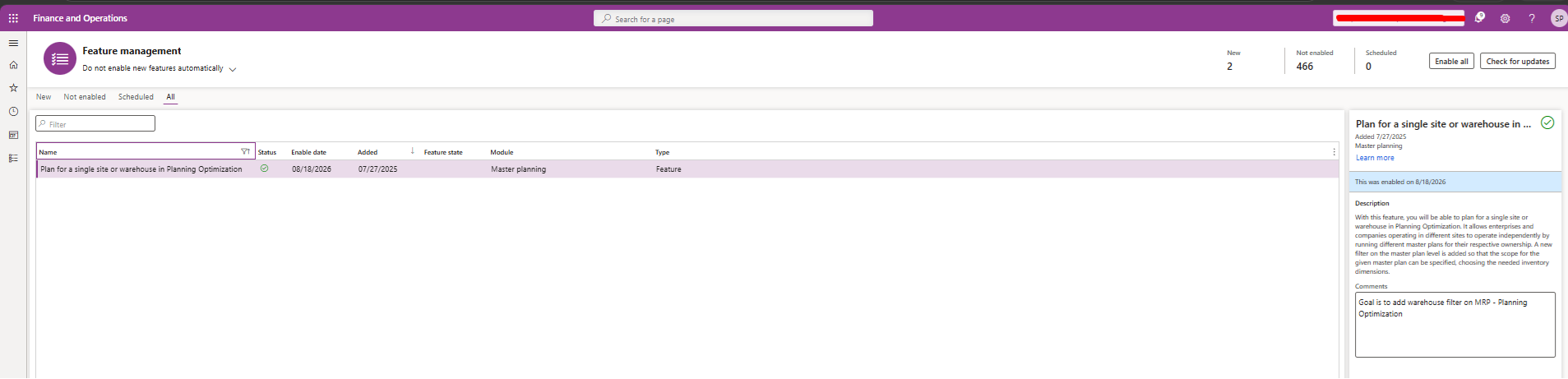
Building a plan filter on stock dimensions
With the feature enabled, scoping a plan to one plant is a setup task, not a code change:
- 1Open or create a master plan under Master Planning > Setup > Plans > Master Plans.
- 2Open Plan Filter. The Stock Dimensions table now appears alongside the Items table, and any inventory dimension is selectable as a filter field.
- 3Add the dimension that defines this plant’s scope (typically Site and Warehouse) and set the values that belong to it.
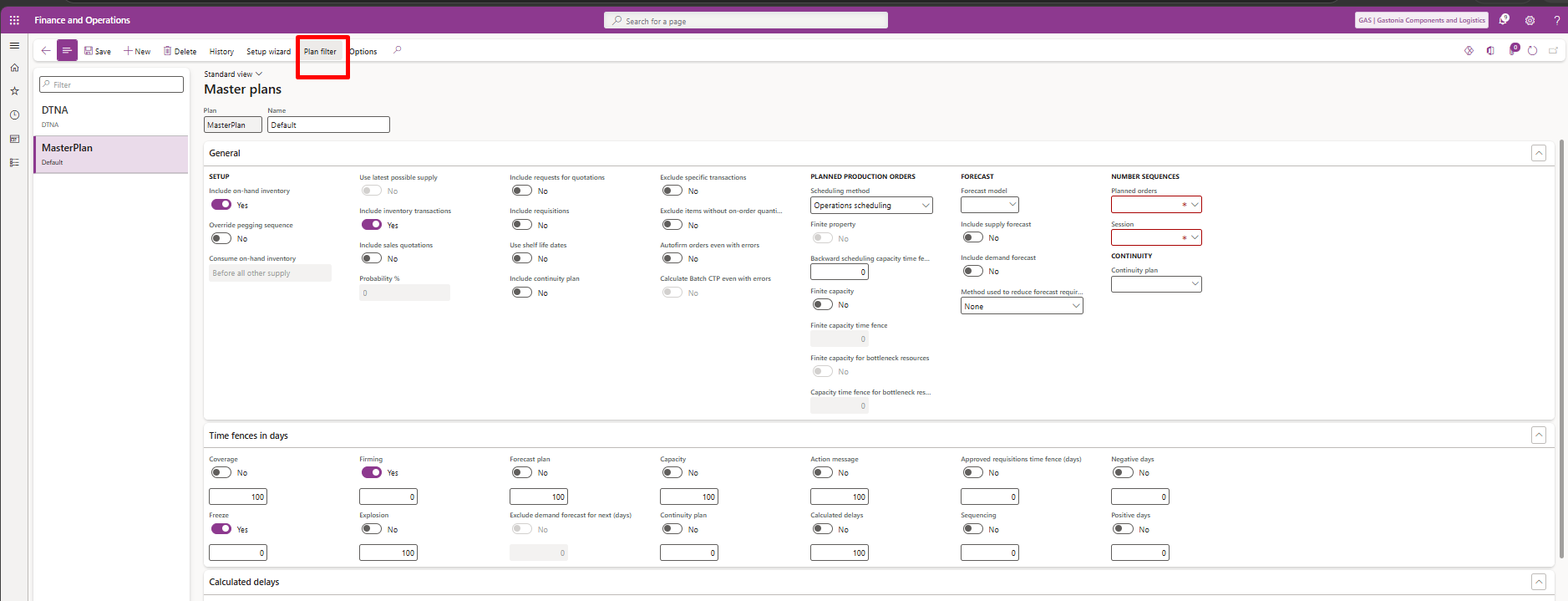
Two plants, two different plans
The client’s plants didn’t just need separate scopes; they needed separate policies. One plant runs standard assembly parts with no lot tracking; another runs batch-tracked, shelf-life-sensitive components that need on-hand stock consumed before anything else. The stock-dimension filter made both plans possible from the same master plan setup, configured independently:
Plant A: Chassis Assembly
- Filter: Site = 1, Warehouse = WH-CHASSIS
- Includes on-hand stock and stock transactions
- No batch dimension; parts aren’t lot-tracked here
- Standard pegging behavior
Plant B: Engine Components
- Filter: Site = 2, Warehouse = WH-ENGINE, plus Batch number
- Override Pegging Sequence enabled: on-hand consumed before other supply
- Shelf dates respected for batch-tracked, perishable-sensitive components
- Completely independent run schedule from Plant A
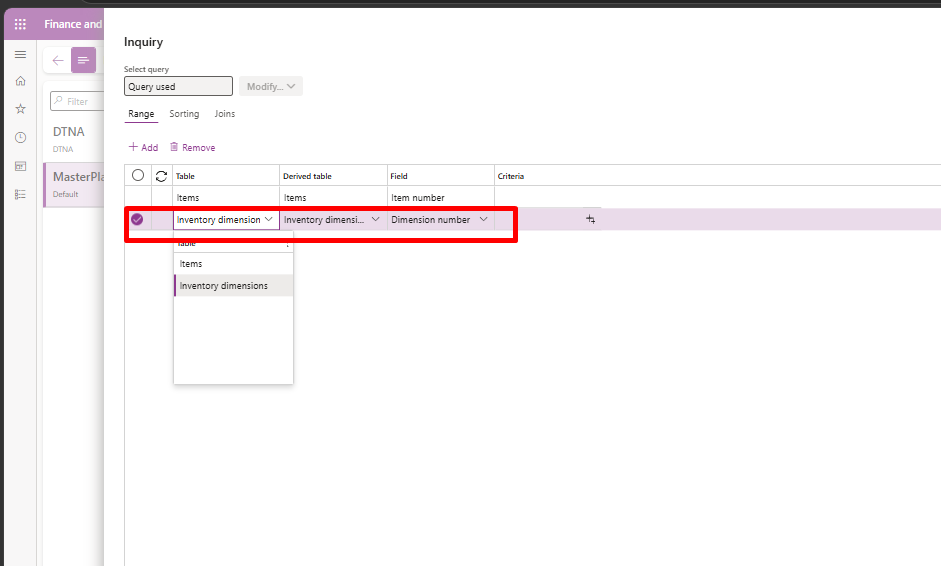
Neither configuration affects the other. Plant B’s shelf-life logic never touches Plant A’s parts, and Plant A’s simpler setup isn’t forced to carry batch-level complexity it doesn’t need.
“A single global plan optimizes for the business on paper. Separate site-level plans optimize for the planners who actually have to run them.”
Running the site-specific plan
From Master Planning > Run > Master Planning (or the Master Planning workspace), select the plan for the plant you want to run. The system generates planned orders only within that plan’s stock-dimension scope, and nothing from other sites enters the calculation. The standard item filter is still available at run time to narrow further, or it can be left blank to run every item within the plan’s scope.
The catch: full filter only
This is the detail that caught our planning team off guard the first time: stock-dimension scoping only works through the master plan’s own Plan Filter, not through the ad hoc runtime dialog filter. Open that runtime dialog and only the Items table is available; Site, Warehouse, and Batch simply aren’t selectable there.
Practical implication: planners can’t improvise a one-off site-scoped run from the run dialog. Every site or warehouse that needs its own independent plan needs its own master plan record, configured ahead of time, not a flexible plan filtered differently run to run.
FAQs
1Does this replace coverage groups or item coverage settings?
No. Coverage codes still govern how the plan calculates replenishment for the items it sees. This feature governs what the plan sees in the first place: the stock-dimension filter applies before coverage logic runs.
2Can supply and demand for one item get double-counted across two site plans?
Not if the filters are built to be mutually exclusive: different Site/Warehouse combinations with no overlap. Each unit of stock then belongs to exactly one plan’s scope. Overlapping filters between plans is a configuration mistake, not a feature limitation.
3Can one master plan cover multiple sites with different sub-filters?
No. The filter is set at the master plan level, one scope per plan. A site that needs its own run cadence, policy, or ownership needs its own master plan record, not a sub-filter inside a shared one.
4What version do we need, and is it on by default?
The capability is available from version 10.0.44 onward, but it ships behind Feature Management and is disabled by default. Confirm it’s actually enabled, not just released to your version, before configuring plan filters.
5Does enabling this feature change how our existing master plans behave?
No. Existing plans that don’t set a stock-dimension filter continue to run exactly as before. The Stock Dimensions option simply becomes available on any plan where you choose to use it.
Conclusion
A single global master plan is easy to stand up, but it forces every plant onto one schedule, one policy, and one set of coverage assumptions, whether or not that fits how the business actually operates. Scoping Planning Optimization to a site or warehouse turns that one plan into as many independently governed plans as the business needs, each with its own filter, its own pegging behavior, and its own run cadence.
The trade-off is planning ahead rather than improvising: because the scope has to be built into the master plan itself rather than applied at run time, every site that needs independent planning needs its own plan record set up in advance. For a multi-plant manufacturer, that upfront setup is a small price for planners who can finally run their own numbers without waiting on, or being distorted by, every other plant on the floor.
Running one global plan across multiple plants?
The right master planning architecture reflects how each site actually operates, not a single global assumption stretched across all of them.
Connect with Us →About the Author

Raviraj Hirve
Sr. Technical Consultant · CloudFronts
Raviraj Hirve is a Sr. Technical Consultant at CloudFronts with experience in Microsoft Dynamics 365 Finance & Operations development, customization, and implementation. He focuses on translating business requirements into practical, production-ready F&O solutions.
His experience includes X++ development, table and form extensions, warehouse management (WHS) customizations, custom services, and Planning Optimization / Master Planning configuration.
He focuses on understanding business requirements and designing practical, scalable, and maintainable solutions within the Dynamics 365 Finance & Operations ecosystem.
Specialization: Dynamics 365 Finance & Operations, X++ Development, Warehouse Management, Custom Services, Batch Framework, Planning Optimization
Focus Areas: ERP Customization, Supply Chain & Warehouse Solutions, Integration Services, Master Planning
LinkedIn: Raviraj Hirve
Related posts:

From Client Secrets to Certificate-Based Authentication: Building a Secure Integration with Azure Ke...
From Multiple Data Sources to Azure Databricks: A Zero-Downtime Power BI Report Data Migration for F...
Using AI for Data Discipline That Drives Better AI Outcomes