How an Abu Dhabi-Based Diversified Holding Company Built Department-Wise Budget Control in Microsoft Dynamics 365 Business Central
Summary
For Emirates Consortium, we designed a customized Department Budget Management solution in Microsoft Dynamics 365 Business Central to bring greater control and visibility to departmental budgeting. The solution enables Finance teams to maintain budgets by Department, Budget Year, Budget Month, Category, and Subcategory while separately tracking Original Budget, Additional Budget, Effective Budget, Consumed Amount, and Available Budget. It also introduces controlled budget revisions, Purchase Order validation, Finance-only access, revision history, and consumption tracking based on posted purchasing transactions.
Table of Contents
- Introduction
- The Business Requirement
- Designing the Department Budget Structure
- What Finance Can See on the Department Budget Setup
- Separating Original, Additional and Effective Budget
- Protecting the Original Budget
- Controlled Budget Revision
- Why the Revision Is Linked to a Purchase Order
- Purchase Order Must Be Open Before Budget Revision
- Restricting Budget Revision to Finance
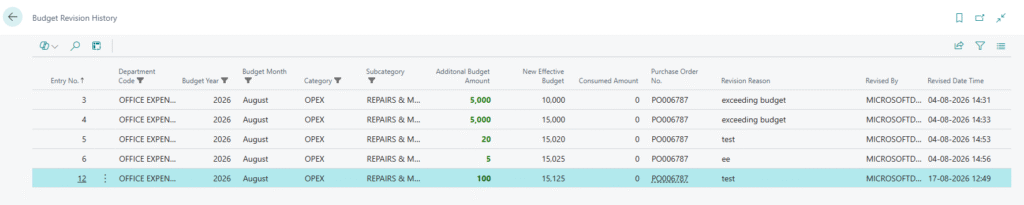
- Maintaining Budget Revision History
- How We Calculate the Available Budget
- Calculating the Consumed Amount from Posted Transactions
- How Partial Invoicing Is Handled
- Putting It All Together
- Business Benefits
- Conclusion
Introduction
As part of our implementation for Emirates Consortium, we designed a customized Department Budget Management solution in Microsoft Dynamics 365 Business Central to strengthen budget control and provide Finance teams with greater visibility into departmental expenditure.
The solution enables budgets to be maintained using a structured combination of Department, Budget Year, Budget Month, Category, and Subcategory. It also provides separate visibility into the Original Budget, Additional Budget, Effective Budget, Consumed Amount, and Available Budget, along with controlled budget revisions, Purchase Order validation, Finance-specific access, revision history, and consumption tracking based on posted purchasing transactions.
This approach was designed to help Finance teams answer important budget-control questions such as:
- What was the original approved budget?
- How much additional budget was provided later?
- How much has already been consumed?
- How much budget is currently available?
- Who revised the budget and when?
- Why was additional budget required?
For one of our Business Central implementations, we addressed this requirement by developing a dedicated Department Budget Management solution.
The objective was to keep the process simple for Finance users while providing the controls and auditability expected from an ERP system.
The Business Requirement
Previously, departmental budgets were maintained outside Business Central, making it difficult to validate purchasing transactions against the latest available budget.
Another challenge was that a department could have several different budgets.
| Department | Year | Month | Category | Subcategory | Original Budget |
|---|---|---|---|---|---|
| ADMIN | 2026 | August | OPEX | Fuel Cost | 5,000 |
| ADMIN | 2026 | August | OPEX | Engine | 5,000 |
| ADMIN | 2026 | August | CAPEX | Boat | 50,000 |
Therefore, maintaining only a single budget amount against a department was not sufficient.
We needed a structure that could identify the exact budget applicable to a particular expenditure.
Designing the Department Budget Structure
We created a dedicated Department Budget Setup page in Business Central.
Each budget is uniquely identified using the following combination:
Department + Budget Year + Budget Month + Category + Subcategory
For example:
ADMIN → 2026 → August → OPEX → Fuel Cost
This structure allows Finance to maintain separate budgets for different expense areas within the same department and month.
From a technical perspective, the same combination is used as the primary key of the Department Budget Setup table:
key(PK;
    "Department Code",
    "Budget Year",
    "Budget Month",
    Category,
    Subcategory)
{
    Clustered = true;
}
This ensures that duplicate budget records cannot be created for the same combination.
What Finance Can See on the Department Budget Setup
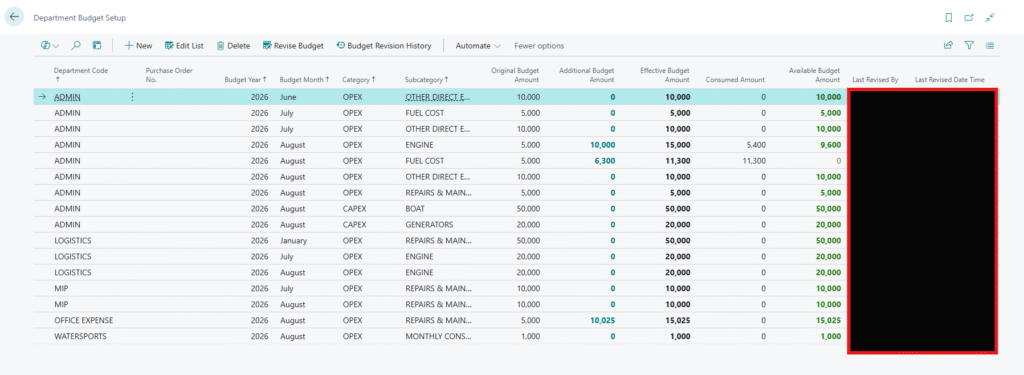
The Department Budget Setup page was designed to give Finance a quick view of the complete budget position.
| Field | Purpose |
|---|---|
| Department Code | Department for which the budget is maintained |
| Purchase Order No. | Related Purchase Order, where applicable |
| Budget Year | Budget year |
| Budget Month | Month for which the budget is maintained |
| Category | Expense classification, such as OPEX or CAPEX |
| Subcategory | Detailed expense classification |
| Original Budget Amount | Initial budget allocated by Finance |
| Additional Budget Amount | Additional budget provided through revisions |
| Effective Budget Amount | Total approved budget after revisions |
| Consumed Amount | Budget already utilized |
| Available Budget Amount | Remaining budget available for utilization |
| Last Revised By | User who last revised the budget |
| Last Revised Date Time | Date and time of the latest revision |
This gives Finance a consolidated view without having to calculate the current budget manually.
Example
Original Budget Amount: 5,000
Additional Budget Amount: 10,000
Effective Budget Amount: 15,000
Consumed Amount: 5,400
Available Budget Amount: 9,600
From a single page, Finance can immediately understand the complete position of that budget.
Separating Original, Additional and Effective Budget
One of the most important decisions in this solution was not allowing the original budget to be overwritten whenever additional funds were approved.
Consider an original budget of:
AED 10,000
Later, Finance approves an additional:
AED 5,000
Simply changing the original budget from 10,000 to 15,000 would remove the history of what was initially approved.
Instead, we maintain these amounts separately:
| Budget Component | Amount |
|---|---|
| Original Budget | 10,000 |
| Additional Budget | 5,000 |
| Effective Budget | 15,000 |
The calculation is:
Effective Budget = Original Budget + Additional Budget
"Effective Budget Amount" :=
    "Budget Amount" +
    "Revised Budget Amount";
Although the calculation itself is straightforward, keeping these values separate provides much better financial visibility and auditability.
Protecting the Original Budget
Once a Department Budget is created, the original budget and its identifying information should not be casually changed.
For this reason, we added validations to protect fields such as:
- Department
- Budget Year
- Budget Month
- Category
- Subcategory
- Original Budget Amount
if "Budget Amount" <> xRec."Budget Amount" then
    Error(
        'The original budget amount cannot be changed after the budget is created. Use the Revise Budget action instead.');
Therefore, instead of allowing:
Create Budget → Manually Edit Budget → Edit Again
the controlled process becomes:
Create Original Budget → Lock Original Amount → Use Revise Budget for Additional Allocation
This preserves the integrity of the original budget.
Controlled Budget Revision
Budgets naturally change during the year, so preventing all changes would not be practical.
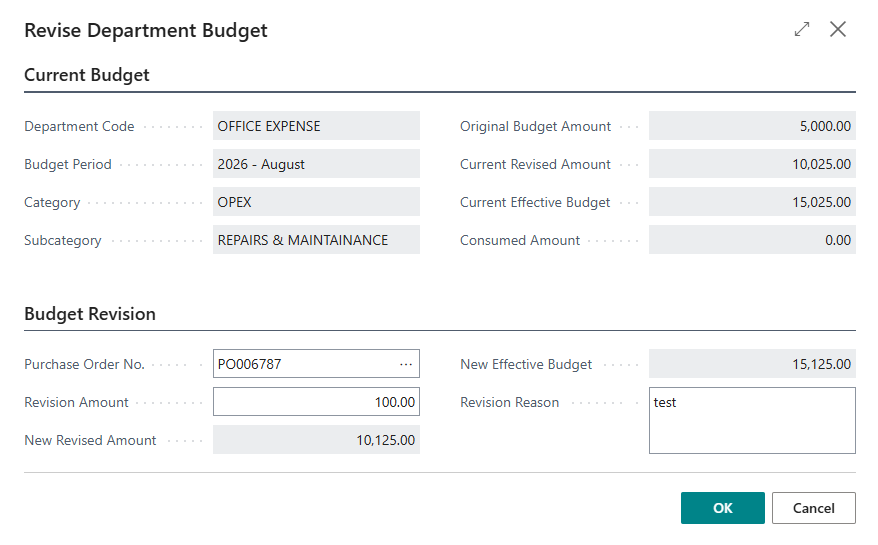
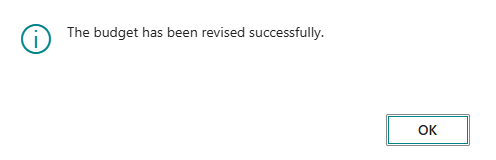
To handle this requirement, we introduced a dedicated Revise Budget action.
When additional budget is required, the Finance user provides:
- Purchase Order No.
- Revision Amount
- Revision Reason
| Description | Amount |
|---|---|
| Original Budget | 10,000 |
| Existing Additional Budget | 5,000 |
| New Revision | 3,000 |
| New Additional Budget | 8,000 |
| New Effective Budget | 18,000 |
The original 10,000 remains unchanged. Only the additional budget is increased.

Why the Revision Is Linked to a Purchase Order
An additional budget allocation should have a clear business reason.
Therefore, the budget revision can be associated with the Purchase Order that requires the additional budget.
The system validates that the selected Purchase Order belongs to the same:
Department + Budget Year + Budget Month + Category + Subcategory
This prevents a Finance user from accidentally revising the wrong budget.
Purchase Order Must Be Open Before Budget Revision
A budget linked to a Purchase Order can only be revised when the Purchase Order is in Open status.
If the Purchase Order is already Pending Approval, Finance cannot revise the budget directly.
PO Pending Approval → Cancel Approval Request → PO Becomes Open → Finance Revises Budget → PO Budget Is Revalidated → Send for Approval Again
if PurchaseHeader.Status <> PurchaseHeader.Status::Open then
    Error(
        'Purchase Order %1 must be Open before the budget can be revised. Please cancel the approval request first.',
        PurchaseOrderNo);
This prevents the financial basis of a Purchase Order from being changed while the document is actively going through approval.
Restricting Budget Revision to Finance
Budget revision is a financially sensitive activity and should not be available to every user.
For this implementation, authorized Finance users are maintained in the FINANCE Workflow User Group.
WorkflowUserGroupMember.SetRange(
    "Workflow User Group Code",
    'FINANCE');

WorkflowUserGroupMember.SetRange(
    "User Name",
    UserId);

if WorkflowUserGroupMember.IsEmpty() then
    Error(
        'Only a member of the FINANCE workflow user group can revise department budgets.');
Procurement users can raise purchasing requirements, but only authorized Finance users can increase the available departmental budget.
Maintaining Budget Revision History
Showing only the latest additional budget amount was not enough.
Finance also needed to understand how the budget reached its current value.
Therefore, every budget revision creates a separate entry in Budget Revision History.
- Original Budget Amount
- Previous Revised Amount
- Revision Amount
- New Revised Amount
- Previous Effective Budget
- New Effective Budget
- Consumed Amount
- Related Purchase Order No.
- Revision Reason
- Revised By
- Revised Date/Time
| Revision | Amount | Effective Budget |
|---|---|---|
| Original Budget | 10,000 | 10,000 |
| Additional Budget 1 | +5,000 | 15,000 |
| Additional Budget 2 | +3,000 | 18,000 |

How We Calculate the Available Budget
Effective Budget
This represents the total approved budget after considering additional allocations.
Effective Budget = Original Budget + Additional Budget
Consumed Amount
This represents the budget that has actually been utilized.
Available Budget
This represents the amount still available for future expenditure.
Available Budget = Effective Budget − Consumed Amount
| Budget Position | Amount |
|---|---|
| Original Budget | 10,000 |
| Additional Budget | 5,000 |
| Effective Budget | 15,000 |
| Consumed Amount | 5,400 |
| Available Budget | 9,600 |
procedure UpdateCalculatedAmounts()
begin
    "Effective Budget Amount" :=
        "Budget Amount" +
        "Revised Budget Amount";

    "Available Budget Amount" :=
        "Effective Budget Amount" -
        "Consumed Amount";
end;
Calculating the Consumed Amount from Posted Transactions
An important question during the design was:
At what point should the budget actually be considered consumed?
We decided not to consume the budget simply when a Purchase Request or Purchase Order is created.
For this implementation, the Consumed Amount is recalculated based on Posted Purchase Invoices, while Posted Purchase Credit Memos reduce the consumed amount where applicable.
Consumed Amount = Posted Purchase Invoice Amount − Posted Purchase Credit Memo Amount
For example:
Effective Budget: 15,000
Posted Purchase Invoice: 5,400
Consumed Amount: 5,400
Available Budget: 9,600
How Partial Invoicing Is Handled
This design also works with partial purchasing transactions.
Suppose the Purchase Order value is:
AED 10,000
Only AED 4,000 is invoiced initially.
First Posted Invoice: 4,000
Consumed Amount: 4,000
When the remaining AED 6,000 is invoiced later, the consumed amount is recalculated based on the additional posted invoice.
This means the budget reflects actual invoiced expenditure rather than simply the total value of an open Purchase Order.
Putting It All Together
Finance Creates Department Budget
↓
Original Budget Is Protected
↓
Purchasing Transactions Use the Relevant Department / Month / Category / Subcategory Budget
↓
Posted Purchase Invoices Update Consumed Amount
↓
Available Budget Is Recalculated
↓
If Additional Budget Is Required → Finance Uses Revise Budget
↓
Original Budget Remains Unchanged
↓
Additional Budget Updates Effective Budget
↓
Every Revision Is Stored in Budget Revision History
This gives Finance both control and visibility without making the process unnecessarily complicated.
Business Benefits
- Better Budget Visibility: Finance can see Original, Additional, Effective, Consumed, and Available amounts from one page.
- Stronger Financial Control: The original budget cannot be casually overwritten after creation.
- Controlled Revisions: Additional allocations are handled through a dedicated revision process.
- Clear Accountability: Budget revisions are restricted to authorized Finance users.
- Purchase Order Traceability: Additional budget can be linked back to the Purchase Order that required it.
- Audit Trail: Every revision maintains the reason, amount, user, date/time, and previous/new budget position.
- Actual Consumption Tracking: Budget consumption is driven by posted purchasing transactions rather than manual updates.
Conclusion
Building Department Budget Management in Business Central was not primarily about creating another budget table.
The important part was defining how the budget should behave throughout its lifecycle.
We designed the solution around a few simple principles:
Keep the original budget unchanged.
Track additional allocations separately.
Restrict revisions to authorized Finance users.
Link revisions to the underlying business requirement.
Calculate consumption from actual posted transactions.
Maintain a complete history of every budget change.
The result is a Department Budget Setup that gives Finance a clear answer to four important questions:
What was originally budgeted?
What additional budget was approved?
How much has been consumed?
How much is still available?
This Department Budget framework also forms the financial-control layer behind the broader budget-controlled procurement process in Microsoft Dynamics 365 Business Central.
I hope you found this blog useful, and if you would like to discuss anything or explore a future implementation, you can reach out to us at transform@cloudfronts.com .
About the Author

Related posts:

From Client Secrets to Certificate-Based Authentication: Building a Secure Integration with Azure Ke...
From Multiple Data Sources to Azure Databricks: A Zero-Downtime Power BI Report Data Migration for F...
Using AI for Data Discipline That Drives Better AI Outcomes