

Summary
SIP Industries is a Houston-based manufacturer of engineered components. Every new part it makes goes through a six-stage New Product Development (NPD) Business Process Flow in Dynamics 365. Most of the people who approve those stages never open the CRM. They include plant engineers and QA inspectors in India, the U.S. engineering team and customer reviewers. They replied by email, and the CRM team typed each reply into the NPD record and then clicked Next Stage by hand. We replaced that manual relay with three Power Automate flows, plus a small daily reminder flow. Each approver gets an email with one button, which opens a pre-filled HTML form that needs no login. The flows save the answers to Dataverse and move the stage forward once its conditions are met. Nobody keys in approvals or moves stages by hand any more.
- Industry
- Manufacturing
- Region
- United States
Table of Contents
Business Challenges
SIP already had a working NPD Business Process Flow on a custom New Product Development table. The stage design was sound. The time went into one recurring loop that the CRM team ran by hand for every stage of every part.
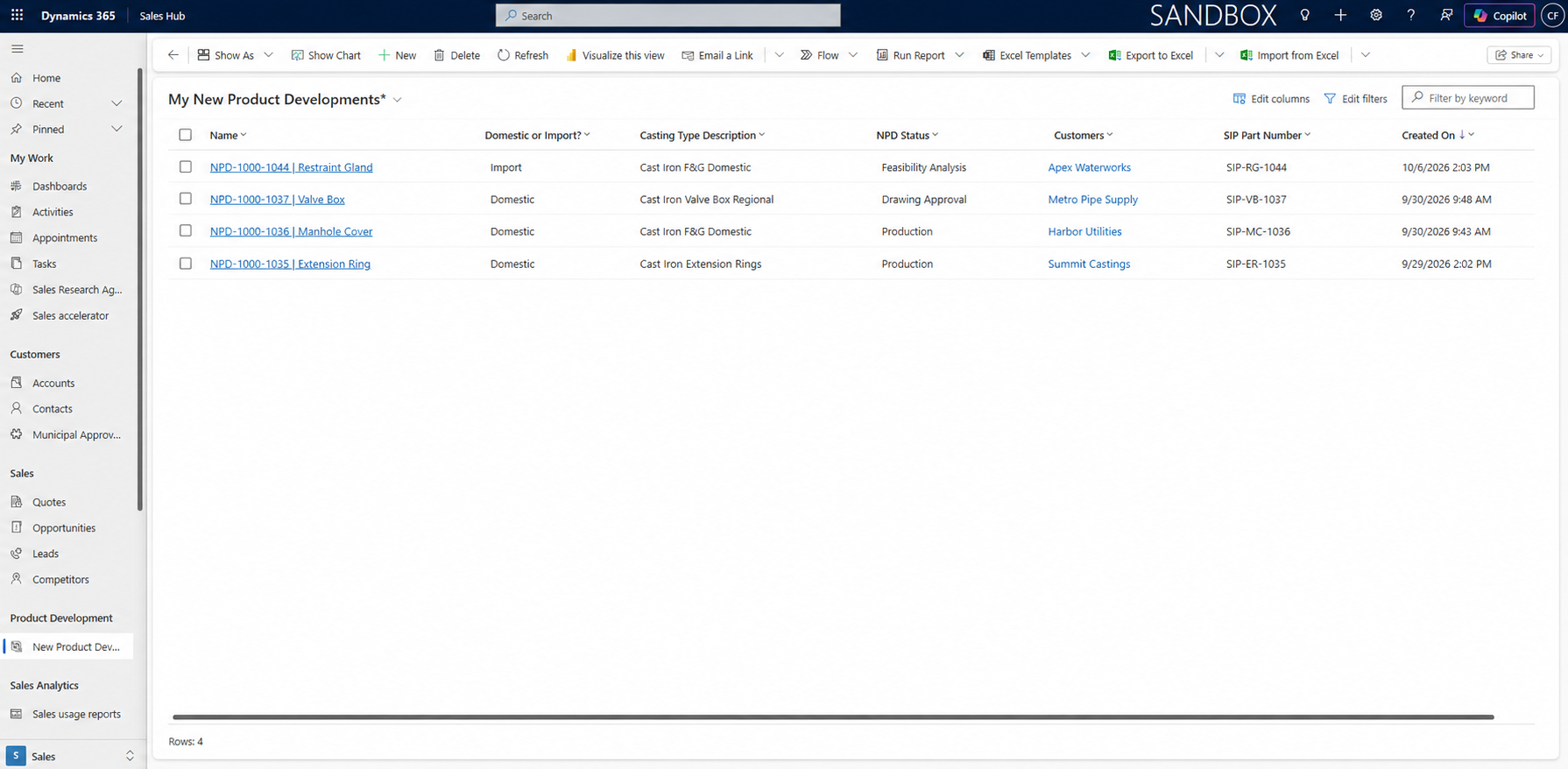
- A CRM user emailed the approver for that stage and attached or linked the latest drawing
- The approver replied in the thread, often with a one-line "go ahead" and an estimate buried in the text
- The CRM user read the reply and typed the decision, notes and dates into the NPD record
- The CRM user opened the Business Process Flow and clicked Next Stage
- The CRM user emailed the next team to tell them it was their turn
That loop broke down in four specific places.
- Licensing the approvers was never realistic. A customer reviewer who signs off a sample twice a year does not need a Dynamics 365 seat, training and a password to remember
- Some stages close on more than one decision. Feasibility needs feasibility approval, engineering approval and a created engineering drawing. First Article Inspection needs both the India QA team and the U.S. engineering team. These approvals arrived in any order and someone had to keep track of which were still missing
- Drawing approvals stalled for weeks. Nothing reminded the reviewer, so follow-up depended on a CRM user remembering to chase
- The audit trail lived in personal mailboxes. Opening the NPD record told you the current stage, not who approved it or when
Solution Overview
We put an email-driven approval layer on top of the existing NPD process. When an NPD record reaches a stage, Dynamics 365 emails the approver for that stage. The email is written for that stage, so a Pattern request shows pattern details and an inspection request shows inspection details. It ends with one button.
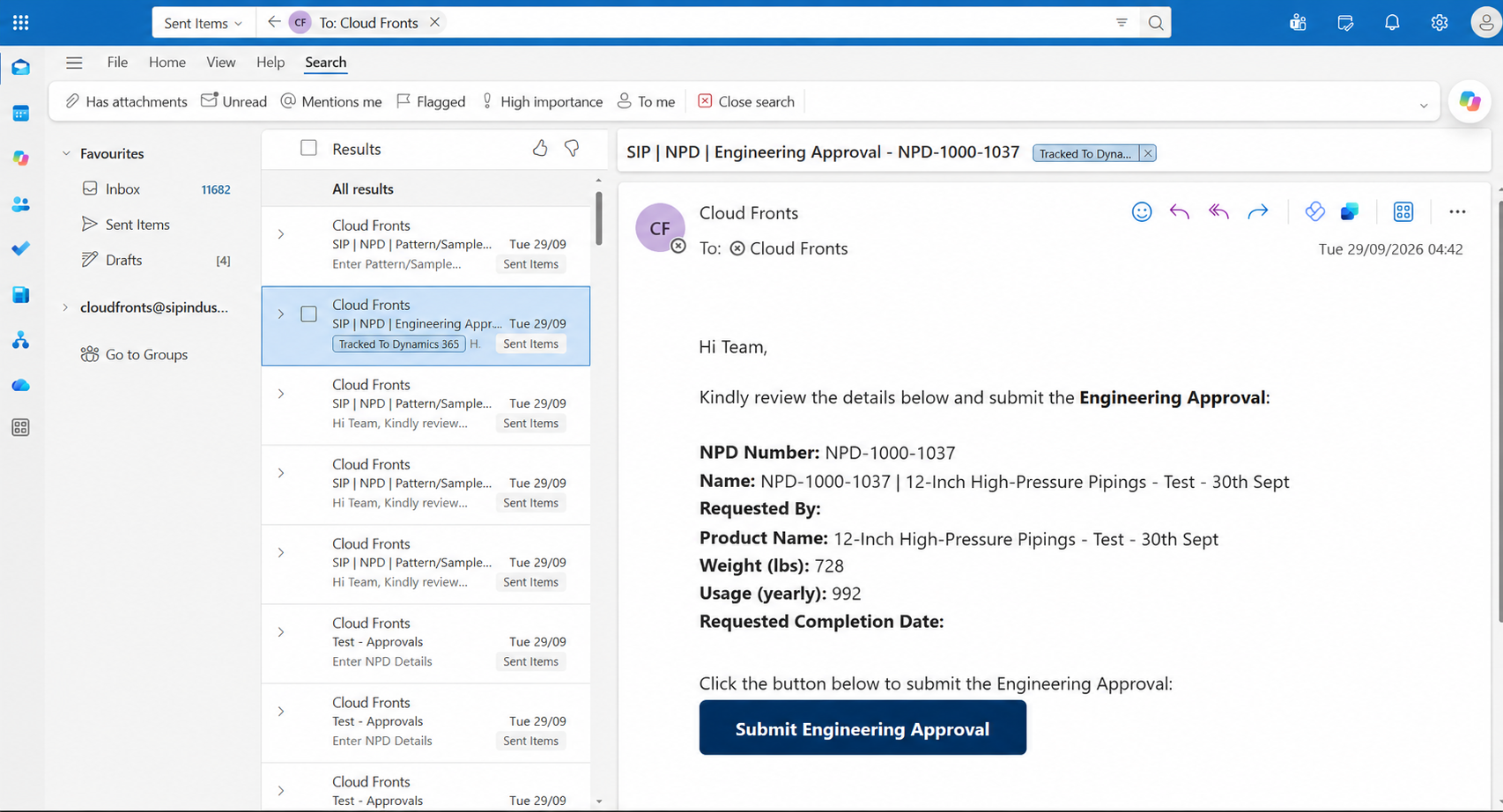
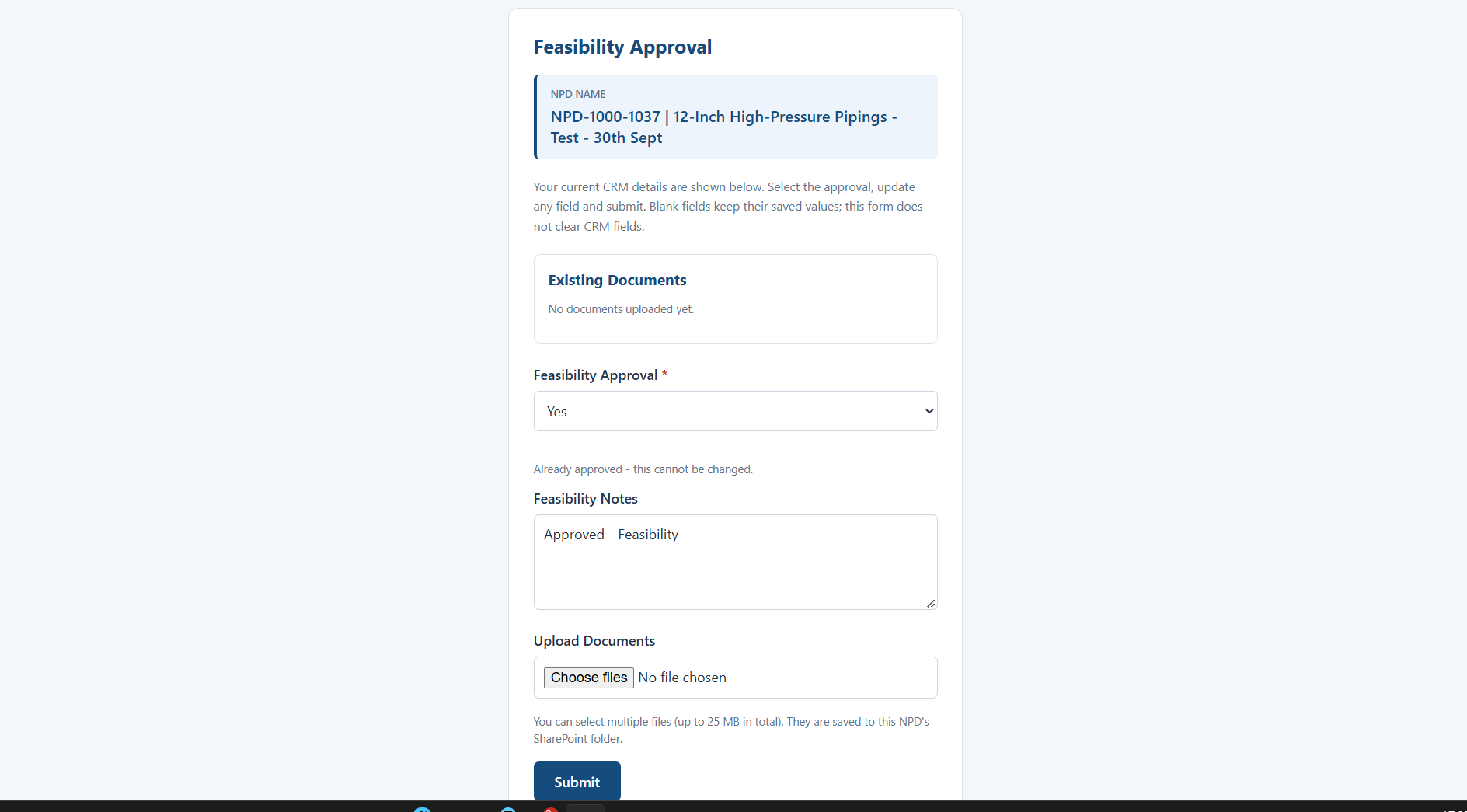
The button opens a web form in the approver’s browser, already filled in with whatever the NPD record holds. The form lists the product’s SharePoint documents and accepts new uploads. The approver picks a decision, adds notes and submits.
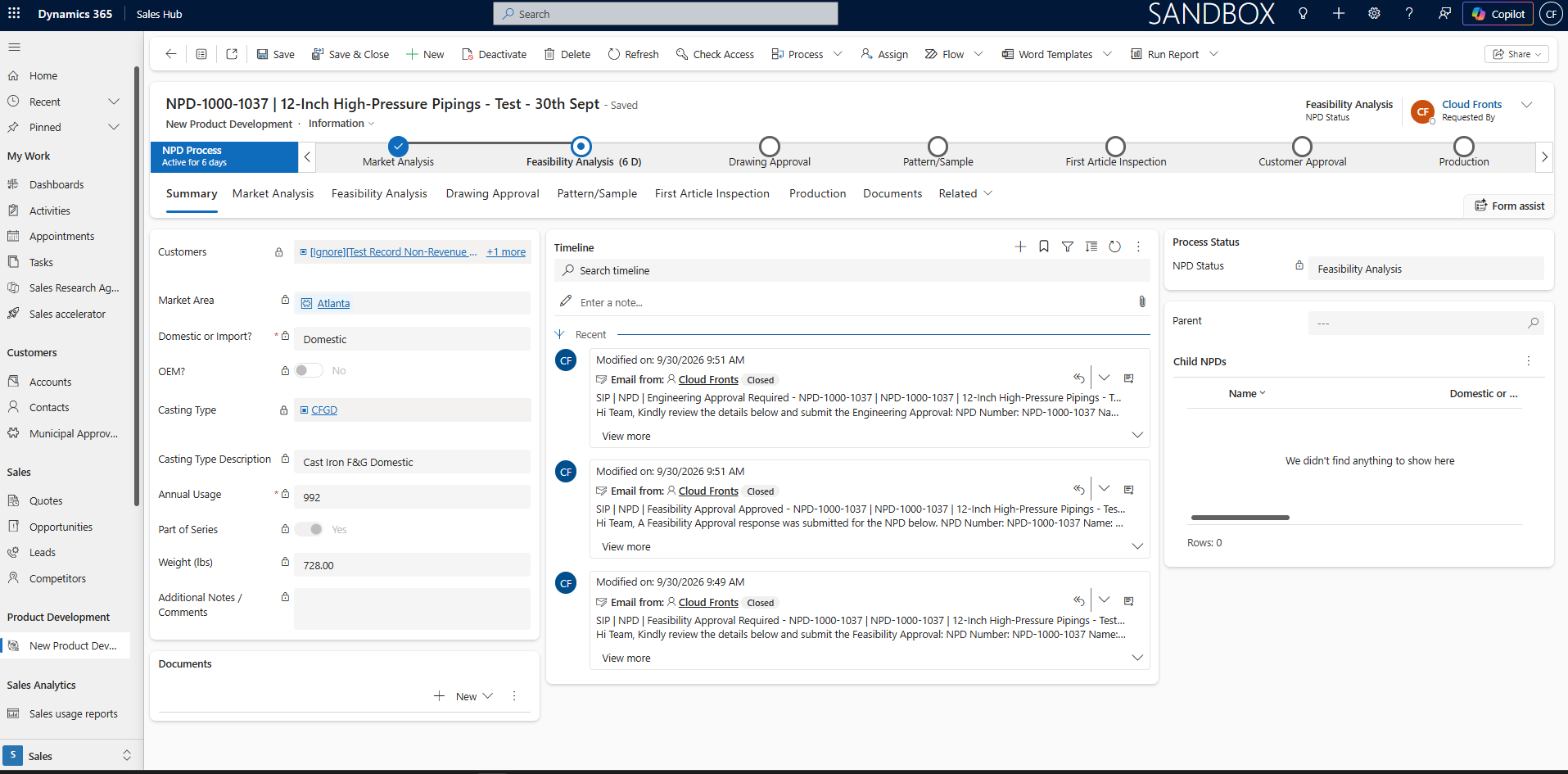
Dynamics 365 then saves the answers into the right NPD fields. It moves the process to the next stage if that stage’s conditions are now complete, and the next approver gets their email. A rejection or a "Requires Changes" answer keeps the record in its current stage and notifies the NPD team instead.
Technical Approach
Architecture at a Glance
- TriggerNPD record savedStatus or an approval field changes
- Flow 1Send Approval EmailTracked email with a stage-specific button
- Flow 2Show Approval FormReturns pre-filled HTML for the stage
- Flow 3Save Approval ResponseWrites answers and uploads to Dataverse and SharePoint
- DataverseBPF advancesNext stage starts and Flow 1 fires again
These three flows run the entire approval loop, and the loop closes itself. When Flow 3 saves an answer, the NPD record changes, and that change triggers Flow 1 again. Flow 1 then either moves a stage whose conditions are now all met or sends the next approver their email. Alongside the loop, a separate reminder flow runs once a day and chases open drawing approvals.
Six Stages, Eight Forms
| Stage | Approver | Form Captures | Stage Closes When |
|---|---|---|---|
| Feasibility | Feasibility team, Engineering team | Feasibility approval, engineering approval, notes, estimated development timeline, estimated tooling cost | Both approvals recorded and engineering drawing created |
| Drawing Approval | Drawing reviewer | Drawing received, sample required, feedback, approval | Reviewer approves on the form |
| Pattern | Plant and tooling team | Pattern status, foundry, notes | Pattern Status set to Ready For Inspection |
| First Article Inspection | India QA, U.S. engineering | FAI approval and date, sample sent to U.S., shipment date, U.S. approval and comments | Both India and U.S. approvals recorded |
| Customer Approval | Customer | Yes, No or Requires Changes, with the approval date set automatically | Customer answers Yes |
| Production | Production team | Release notification | Final stage |
NPD stages, approvers and the condition that closes each one
Six stages produce eight forms because two stages have two separate approvers. Feasibility has one form for the feasibility team and one for engineering. First Article Inspection has one for India QA and one for U.S. engineering. Each form is identified by a stage key: feasibility, engineering, drawing, pattern, fai, fai_us, customer and production.
Each form shows only the fields that apply to the record. The India FAI form asks whether a sample was sent to the U.S. only when the drawing reviewer marked a sample as required. It asks for the shipment date only after the sample has gone.
Why the Form Lives Inside Power Automate
| Criteria | Power Pages | Canvas App | Our choiceHTML form from Power Automate |
|---|---|---|---|
| Approver opens it without signing in | ✗ | ✗ | ✓ |
| No per-approver licence | ✗ | ✗ | ✓ |
| Deploys in the same solution as the NPD flows | partial | ✓ | ✓ |
| Rich UI controls out of the box | ✓ | ✓ | partial |
| Identity checked on every visit | ✓ | ✓ | ✗ |
The last row is the cost of our choice, and we accepted it on purpose. Most SIP approvers act only a few times a year, and every one of them receives the link directly from the CRM mailbox. For that audience, avoiding a sign-in and a licence mattered more than checking identity on every visit. The access callout at the end of this section covers the limits.
Three Flows Keyed by Stage
Building one email flow, one form flow and one save flow for each of the eight forms would have meant 24 flows that are almost identical. Instead, we built just three approval flows, and each one takes the stage key as input and branches on it in a Switch. If SIP wants a new field or new email branding, we change one Switch case. We do not edit eight copies of the same flow. A fourth, lightweight flow sits outside the approval loop and only sends drawing reminders.
| Flow | Trigger | Responsibility |
|---|---|---|
| 1. Send Approval Email | NPD row modified, filtered to status and approval columns | Works out the stage key, moves stages that need several approvals, builds and sends the tracked email |
| 2. Show Approval Form | HTTP request from the email button | Reads the NPD record, lists SharePoint documents, returns the stage’s HTML form |
| 3. Save Approval Response | HTTP request from the form submit | Writes only the fields the approver filled in, uploads files, moves stages that close on a single approval, notifies the NPD team |
| Drawing Follow-Up Reminder | Daily recurrence | Finds drawing approvals whose Follow Up date has passed, sends a reminder and pushes the date out 14 days |
The three approval flows and the daily reminder flow
Serving the Form From an HTTP Trigger
Nothing is hosted. The email button links to Flow 2’s HTTP trigger URL and passes the stage key and the NPD record ID as query parameters. Flow 2 reads the record, builds the HTML for that stage with the saved values already filled in, and returns it through a Response action with content type text/html.
GET https://<flow-2-trigger-url>&stage=drawing&recordId=<npd-record-guid>

Flow 2: Get NPD row from Dataverse
Flow 2: List files in the product's SharePoint folder
Flow 2: Switch on stage, build Drawing Approval HTML
Response: 200, Content-Type: text/html
The form submits to Flow 3, which has its own HTTP trigger. Flow 3 parses the posted fields and any file uploads. It writes a column only when the approver entered a value in that field, so a quick approval never clears notes or estimates entered earlier. If the record cannot be found, the approver sees a short error page, not a broken form.
Advancing the BPF Instance
The active stage is not stored on the NPD row. It is stored on a separate Business Process Flow instance record linked to the NPD row. To move a stage, the flow finds that instance and checks it is still in the expected stage. It then updates two columns, the active stage and the traversed path.
PATCH /api/data/v9.2/<bpf_entityset>(<instance-id>)
{
  "activestageid@odata.bind": "/processstages(<next-stage-id>)",
  "traversedpath": "<existing-path>,<next-stage-id>"
}
Leaving out the traversed path update is a common mistake. If you skip it, the record shows the new stage, but the BPF control cannot work out how the record got there. Users then see stages they cannot step back through. We split the stage moves between two flows based on where each condition can be met.
| Stage Move | Moved By | Reason |
|---|---|---|
| Feasibility to Drawing Approval | Flow 1 | Three conditions, any of which can be set from a form or directly in the CRM |
| Drawing Approval to Pattern | Flow 3 | Closes on one reviewer’s approval |
| Pattern to FAI | Flow 1 | Pattern Status can change on the form or in the CRM |
| FAI to Customer Approval | Flow 1 | Two approvals from two countries, in either order |
| Customer Approval to Production | Flow 3 | Closes on the customer’s single answer |
Which flow moves each stage
Tracked Emails From a CRM Mailbox
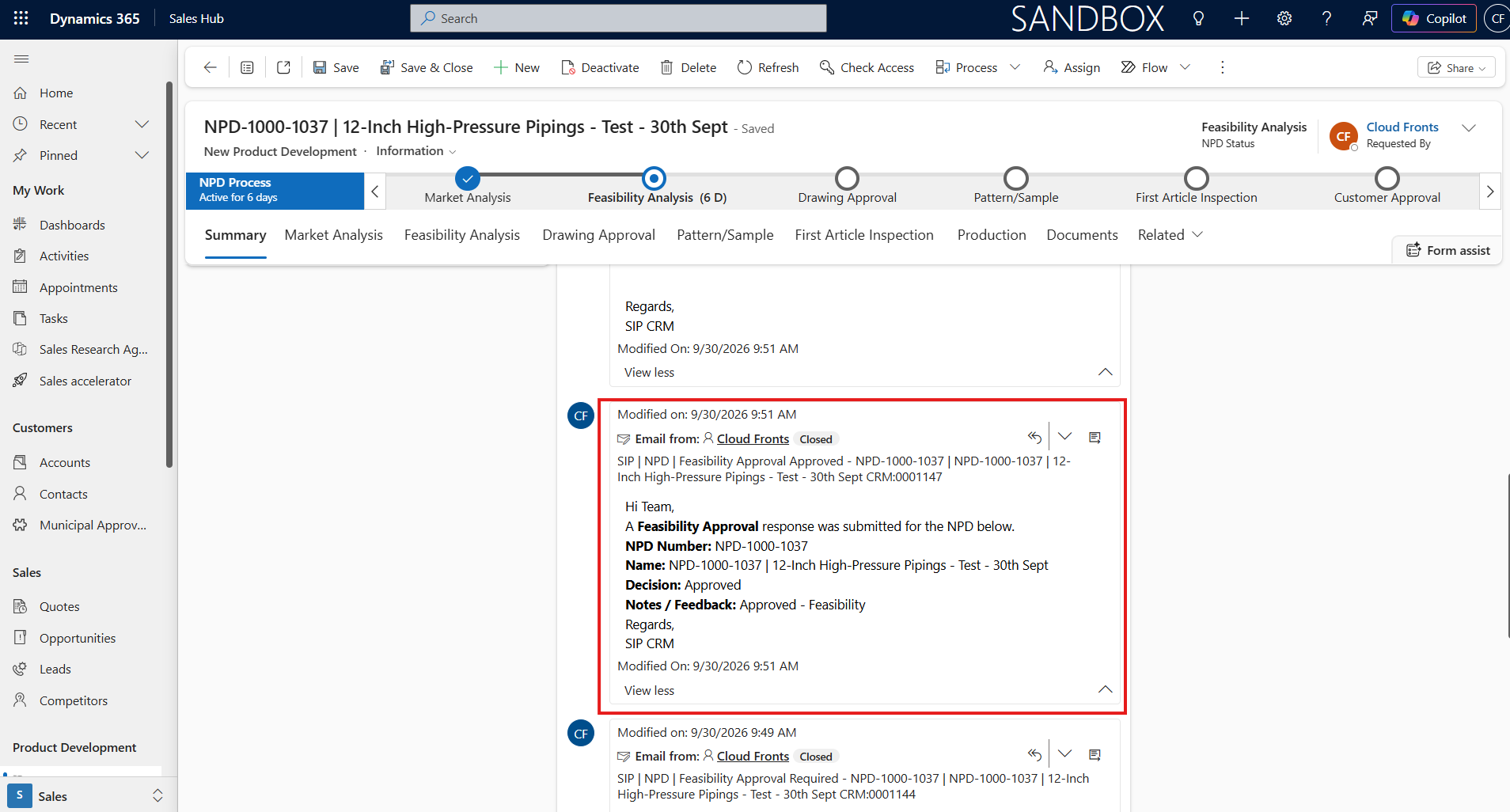
The Outlook connector would have been one action, but an email sent through Outlook never appears in Dynamics 365. Every request, reminder and confirmation is instead created as an Email activity regarding the NPD record. It is then sent with the Dataverse SendEmail bound action from a dedicated CRM mailbox. When the NPD team opens a record, its timeline shows who was asked, when they were asked and exactly what they received.
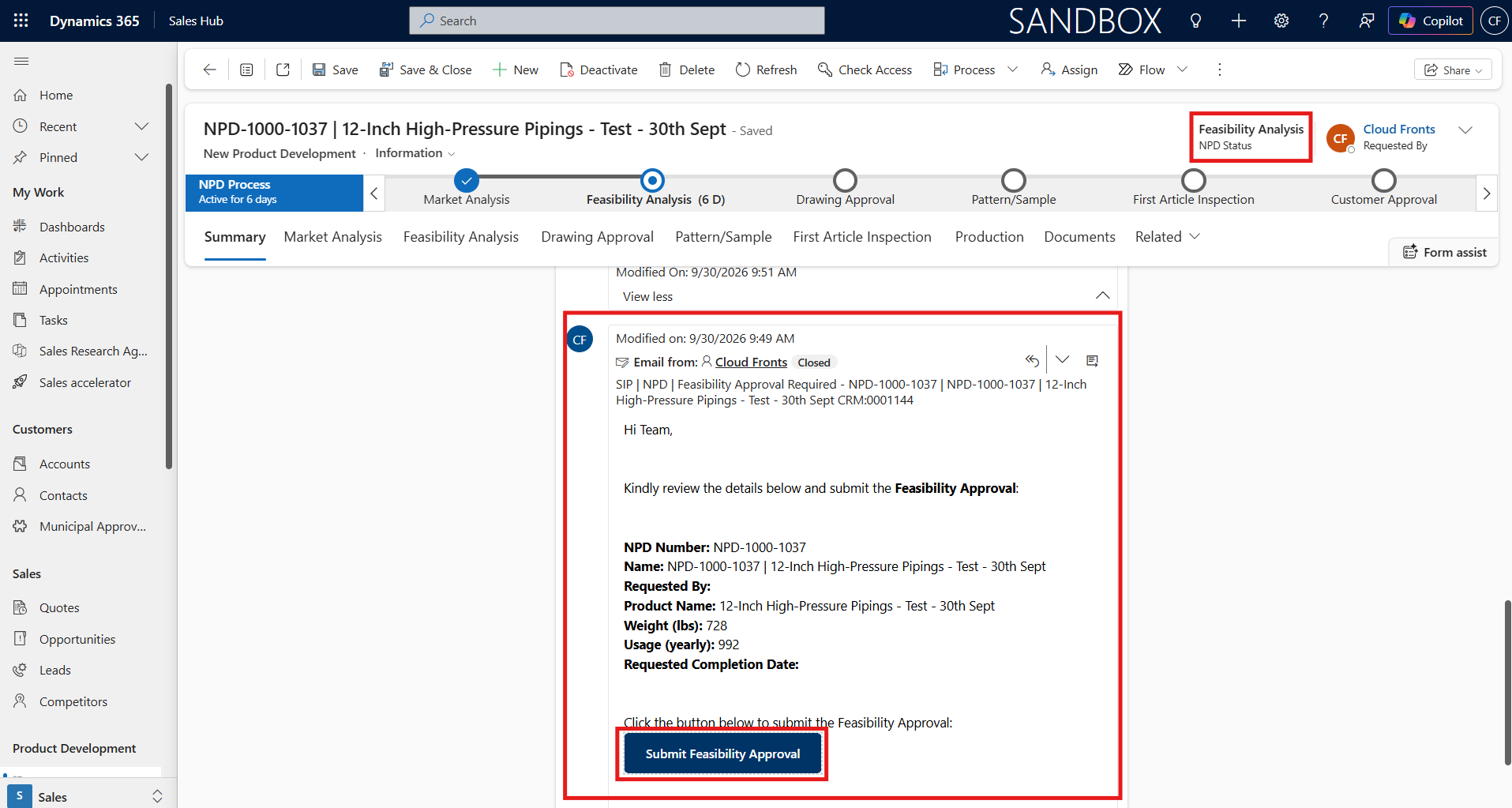
The same applies once the approver submits the form. The confirmation that Flow 3 sends is also tracked against the record, so the decision and its details sit right next to the original request.
Failure Modes We Designed For
- ◆Duplicate emailsA single save can fire the row-modified trigger more than once. Flow 1 runs with concurrency set to one and checks for an identical email sent since the current stage started. If it finds one, it stops.
- ◆Self-triggering loopsFlow 1 writes the Follow Up dates on the NPD row itself. The trigger’s filter columns cover only status and approval fields, so writing those dates does not start Flow 1 again.
- ◆Date drift across time zonesMidnight on 15 October in India is 18:30 UTC on 14 October, so a Houston user would see the 14th. We save date-only values at 12:00 UTC, which falls on the same calendar day in both countries.
- ◆Accidental stage skipsOnly an approval can move a stage. A No or Requires Changes answer sends a notification to the NPD team and leaves the stage where it is.
- ◆Silent drawing reviewsEntering Drawing Approval sets Follow Up 14 days ahead. The reminder flow checks every day and sends a reminder when that date passes. It then sets the next reminder 14 days later.
- ◆Missing SharePoint folderIf an approver uploads a file before the product has a document folder, Flow 3 creates the folder first and then uploads the file.
What It Costs to Run in Production
- Premium connector licensing sits with the flows, not the approvers. The HTTP request trigger and the Response action are premium, so Flows 2 and 3 need a Power Automate Premium or Process licence. Approvers still need no licence at all
- One approval cycle costs at least four flow runs. Flow 1 sends the email, Flow 2 runs once each time the approver opens the form, Flow 3 saves the answer, and Flow 1 runs again on that save. We size API request capacity against form opens as well as submissions, because approvers often open a form more than once before they submit
- Flow 2 has to respond quickly. The browser waits for the Response action, and an HTTP-triggered flow that has not responded within 120 seconds times out. We keep Flow 2 to one Dataverse read and one SharePoint folder listing. Anything slower runs after submission in Flow 3
- Trigger URLs are tied to an environment. Importing the solution from UAT into production creates new HTTP trigger URLs. The links that Flow 1 puts in emails, and the form’s submit address, must point to the production URLs. If they do not, production emails open the UAT form
What We Would Do on the Next Build
We would store both trigger URLs in solution environment variables from the start. Then a deployment to a new environment means updating two values instead of searching for them inside Compose actions. We would also issue a one-time token with each request email and mark it as used when the form is submitted. That way, an old email forwarded later cannot overwrite a decision that has already been made.
Business Impact
- 0Dynamics 365 licences needed by approvers outside the CRM
- 0Stages moved by hand across the six-stage NPD process
- 8Stage-specific forms, pre-filled from the NPD record
- 3Power Automate flows running every approval
- Approvals arrived as free-text email replies
- A CRM user typed decisions and estimates into the NPD record
- A CRM user clicked Next Stage after every approval
- Drawing reviews were chased only when someone remembered
- Approvals arrive through a form linked to the record
- The approver’s answers land in the correct NPD fields
- The BPF advances as soon as the stage condition is met
- A reminder goes out every 14 days until the drawing is answered
- The person who makes the decision is the person who records it, so notes and estimates are no longer lost when a CRM user retypes them
- Stages that need two or three approvals now close the moment the last one arrives, whatever order the approvals come in
- Every request, reminder and response is an activity on the NPD timeline, so audit questions are answered from the record and not from personal mailboxes
Each stage entry and each approval now has a timestamp in Dataverse. SIP can therefore report the time each new part spends in each NPD stage in Power BI, using data the process already records.
Conclusion
For SIP, the bottleneck in NPD was never the engineering decision. It was the hand-off between an approver’s inbox and a Dynamics 365 record. Removing that hand-off did not require a portal or new licences. It took three Power Automate flows, a stage key and careful handling of the BPF instance. The same approach applies directly to engineering change requests, supplier onboarding and quote approvals, where the people who decide also work outside the CRM.
Connect With Us
Ready to make your CRM work for you?
We can show you what Dynamics 365 can do for your business, set it up around your processes and keep improving it as your team grows.
Talk to CloudFrontsAuthor Profile

Cassandra Rodrigues
Consultant · CloudFronts
I’m a Microsoft Dynamics 365 and Power Platform Consultant with four years of experience delivering CRM customizations, business process automation, customer portals, and system integrations. I work with Dynamics 365 Sales, Customer Service, Project Operations, Power Apps, Power Automate, Power Pages, and Microsoft Dataverse, alongside JavaScript, C# plugins, and Azure Functions. I enjoy understanding how people work, identifying everyday challenges, and turning complex business requirements into practical, scalable solutions. Through this blog, I share insights and lessons from my implementation experience.
