

From Quote to Signed Contract in Minutes: Automating DocuSign Integration for an Australia-Based Commercial Laundry Services Company
Summary
- Automated end-to-end contract generation and digital signing for an Australia-based commercial linen and garment services company using Dynamics 365 Sales, Power Automate, and DocuSign.
- Eliminated manual contract preparation and PDF email workflows, replacing them with a one-click process triggered directly from the Dynamics 365 Quote record.
- Integrated DocuSign envelope creation, recipient assignment, and signature tab placement — all orchestrated through Power Automate cloud flows.
- Enabled real-time contract status tracking and automatic archival of signed PDF contracts back into SharePoint, linked directly to the originating Quote.
- Reduced contract turnaround time from days to hours, allowing the sales team to focus on customer relationships rather than administrative paperwork.
- Delivered a seamless customer experience — recipients receive a professionally formatted DocuSign email and can sign digitally from any device.
Introduction
In industries where service agreements govern weekly delivery schedules, pricing structures, and compliance obligations, the speed and accuracy of contract execution can directly impact revenue and customer satisfaction. For commercial textile and linen services businesses in Australia, every signed contract represents a new route, a new customer, and a new revenue stream.
Yet for many organisations, the final leg of the sales journey — converting an approved quote into a signed, legally binding contract — remains a surprisingly manual, error-prone process: exporting Word documents, emailing PDFs, chasing signatures, and manually filing returned documents.
This blog documents how we at Cloudfronts transformed that process for a leading Australian commercial linen and garment services provider — deploying a fully automated DocuSign integration within Microsoft Dynamics 365 and Power Automate to take contracts from generation to signature without any manual intervention.
The Business Problem
Our client operates across multiple depots in Australia, servicing hotels, aged care facilities, hospitality venues, and healthcare providers with regular linen and garment delivery contracts. Their sales team works within Dynamics 365 Sales Hub, managing quotes that detail complex pricing, delivery schedules, weight-based charges, and product schedules.
Before the integration, the contract signing process looked like this:
- A sales representative would generate a contract Word document from a template.
- The document was manually reviewed and converted to PDF.
- The PDF was emailed to the customer’s contact for signature.
- The customer would print, sign, scan, and return the document.
- The signed document would be manually uploaded to SharePoint and linked to the quote.
This process introduced several critical pain points:
- Delays of 3–7 business days waiting for customer signatures.
- Inconsistent document versions being sent to customers.
- No visibility into whether a contract had been opened, reviewed, or signed.
- Risk of lost or misplaced signed documents.
- Significant administrative burden on the sales team.
The business needed a solution that was seamless for both their internal team and their customers — something that could be triggered with a single action and would handle everything from document preparation to legally valid digital signature collection and storage.
The Solution
We designed and implemented a fully automated contract signing workflow that integrates Dynamics 365 Sales, Microsoft Power Automate, SharePoint, and DocuSign. The solution covers the entire lifecycle of a contract — from generation to signing to archival.
Key Components
Dynamics 365 Sales Hub
Central system for quote and customer management.
Power Automate
Orchestration layer connecting Dynamics 365, SharePoint, and DocuSign.
SharePoint
Document storage for generated and signed contracts.
DocuSign
Digital signature platform for legally binding contract execution.
How It Works — At a Glance
The solution is driven by two connected Power Automate flows:
- Send Contract Flow — Triggered manually from the Dynamics 365 Quote record. Retrieves the contract document from SharePoint, creates a DocuSign envelope, adds the contract document and recipient, places signature/name/date tabs, and sends the envelope.
- Receive Signed Contract Flow — Triggered automatically when the DocuSign envelope is completed. Retrieves the signed PDF from DocuSign and saves it to the same SharePoint folder, linking it back to the quote for a complete audit trail.
Implementation
1 Step 1
Generate the Contract from Dynamics 365
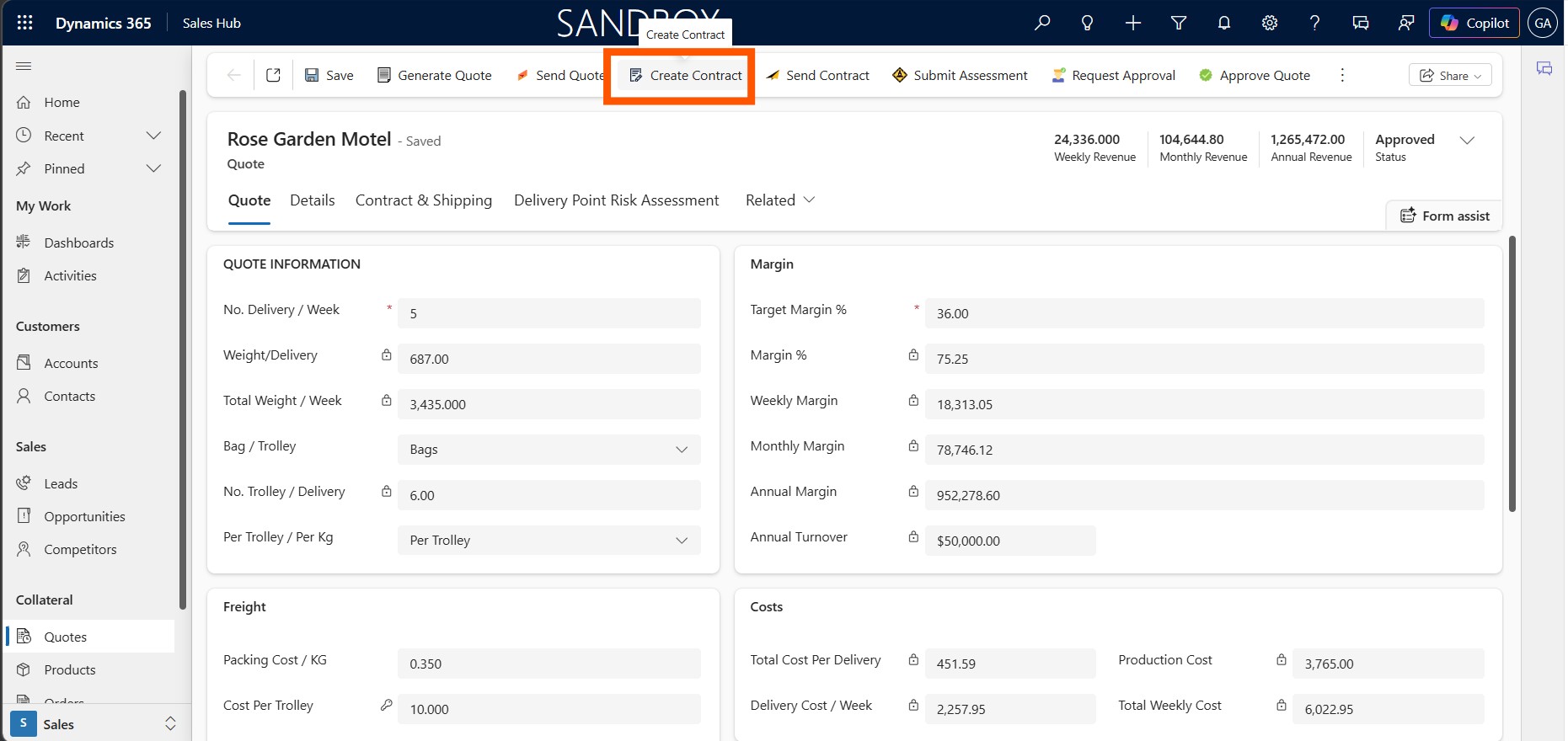
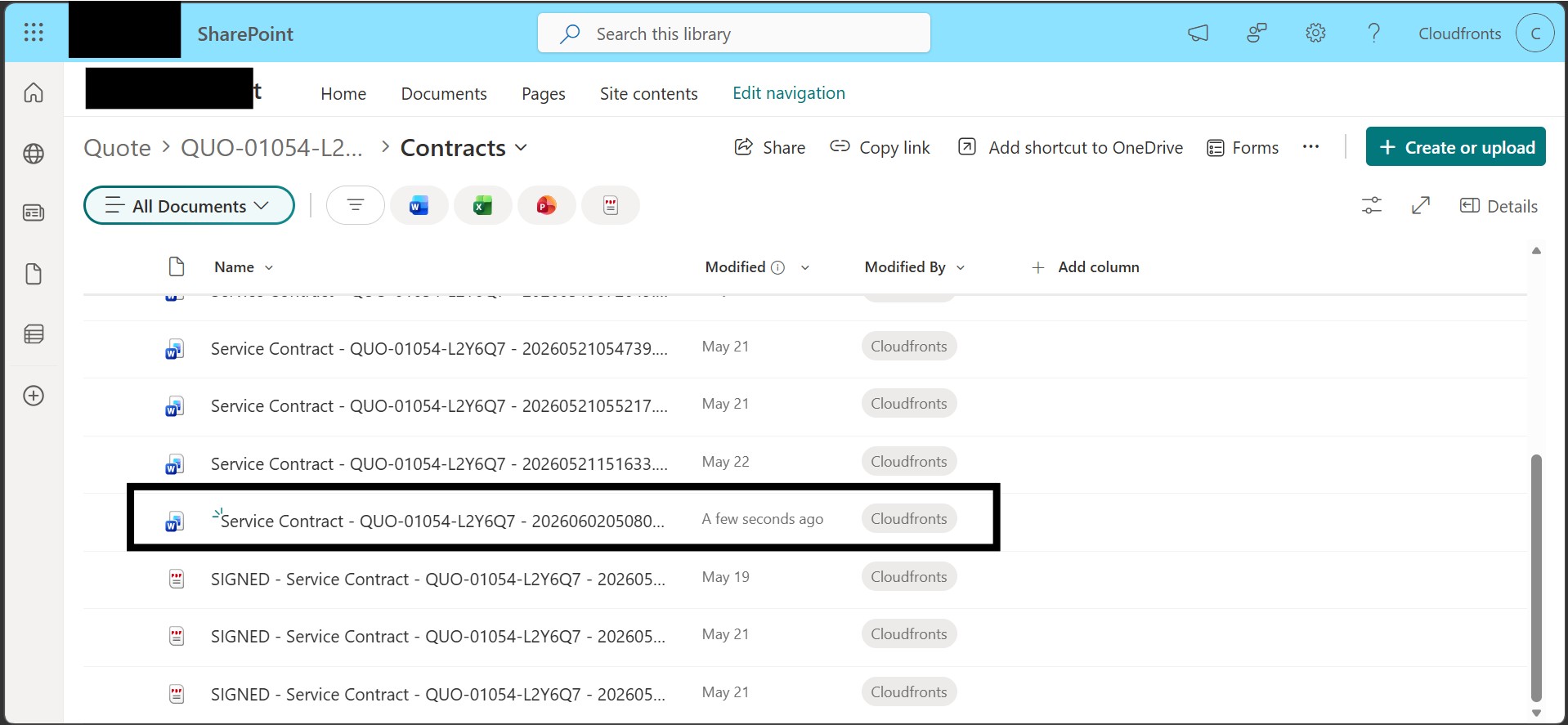
The process begins in the Dynamics 365 Sales Hub on an approved Quote record. The sales representative clicks the Create Contract button in the command bar. This action triggers a workflow that generates a Service Contract Word document using the quote data and saves it to a dedicated Contracts folder in SharePoint, organised under the Quote number.
Once generated, a confirmation dialog appears prompting the user to Open Contract for review before sending. The contract document is auto-named with the Quote ID and a timestamp, ensuring version control and traceability.

2 Step 2
Send the Contract for Signing
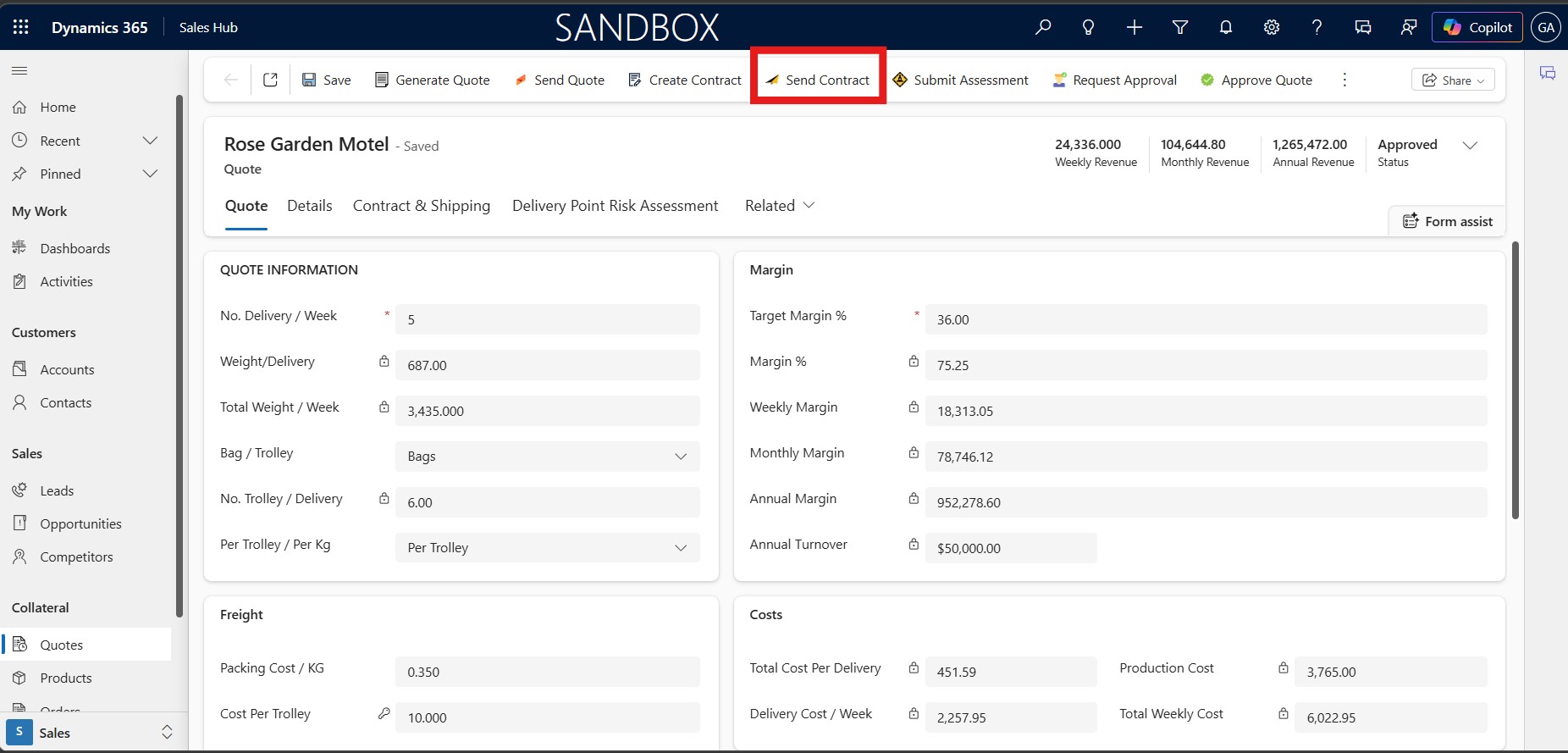
After reviewing the document, the representative clicks Send Contract from the same Quote record. This triggers the main Power Automate flow — To send Contract Document to Customer for DocuSign.
The flow executes the following steps:
- Compose Quote ID — Extracts and formats the Quote identifier.
- Get document location related to quote — Uses a FetchXML query against the SharePoint Document Location entity in Dataverse to locate the correct SharePoint folder linked to the Quote.
- Get Quote, Get Customer, Get Contact — Retrieves the customer’s full name and email address from Dynamics 365 for use as the DocuSign recipient.
- Initialise variables — Sets up Envelope ID, Recipient ID, and Parent Site location for downstream use.
- Iterate and locate the contract file — Loops through the SharePoint document library, resolves parent locations, retrieves file content, properties, and metadata.
- Create DocuSign Envelope — Creates an envelope with the subject line ‘DocuSign: Review & Sign the Contract Document’ and a personalised email body addressed to the customer contact.
- Add Document to Envelope — Attaches the contract Word document (encoded as Base64) to the envelope as a DOCX file.
- Add Recipient — Adds the customer contact as a signer with their full name and email from Dynamics 365.
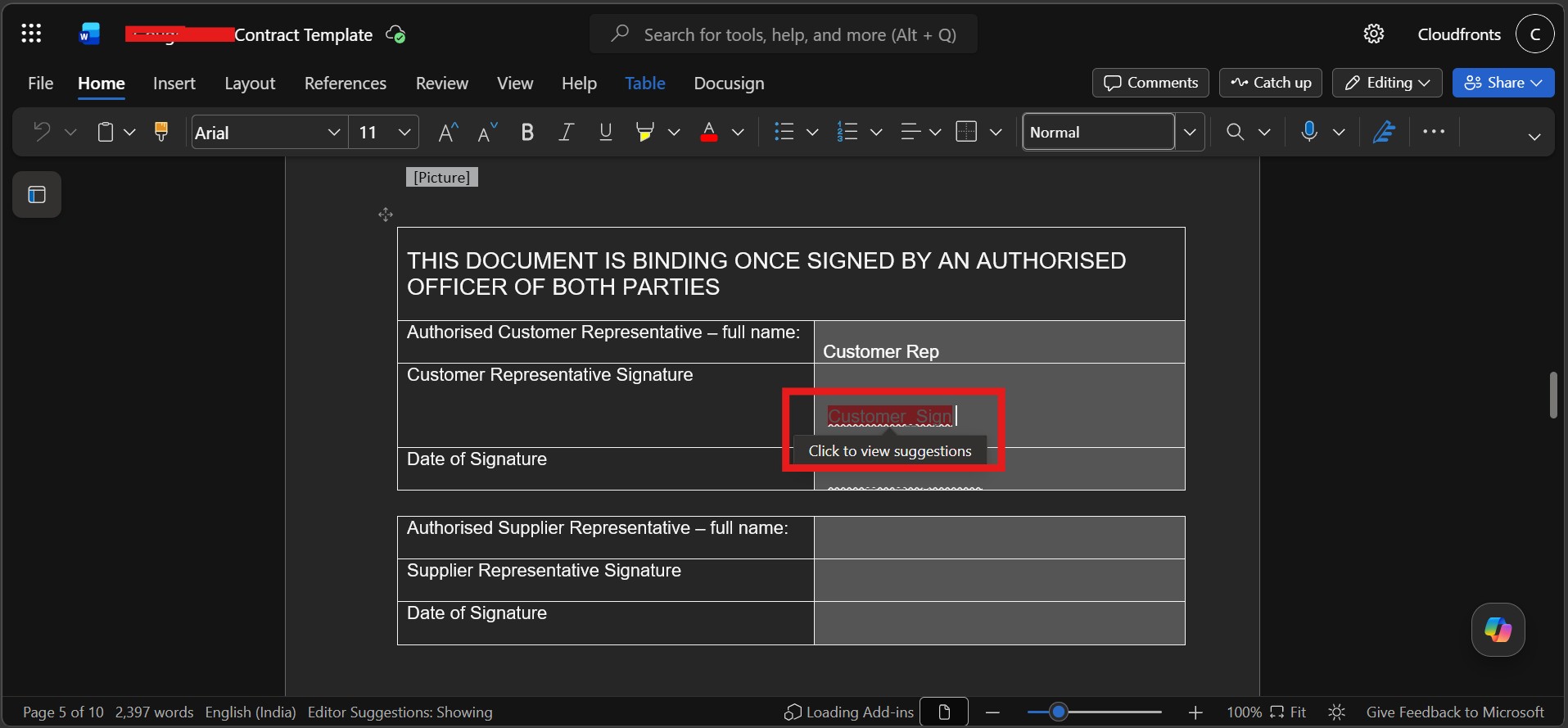
- Add Signature Tabs — Places signature & other fields expaected to be filled by the recipient on the document using predefined strings embedded in the Word template.
- Send Envelope — Finalises and dispatches the envelope, delivering the signing request to the customer’s inbox.
3 Step 3
Customer Signs via DocuSign
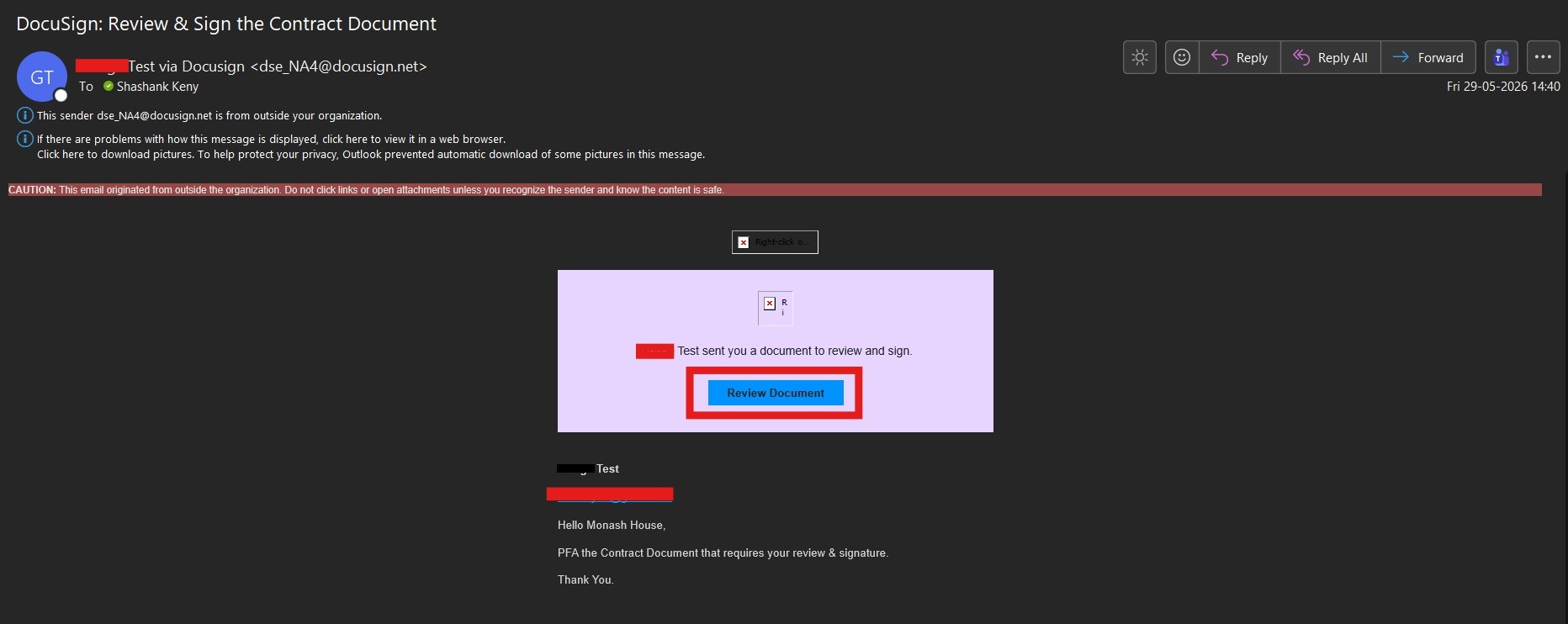
The customer receives a professionally formatted email from DocuSign with the subject ‘DocuSign: Review & Sign the Contract Document’. Clicking Review Document opens the contract directly in their browser — no downloads, no printing required.
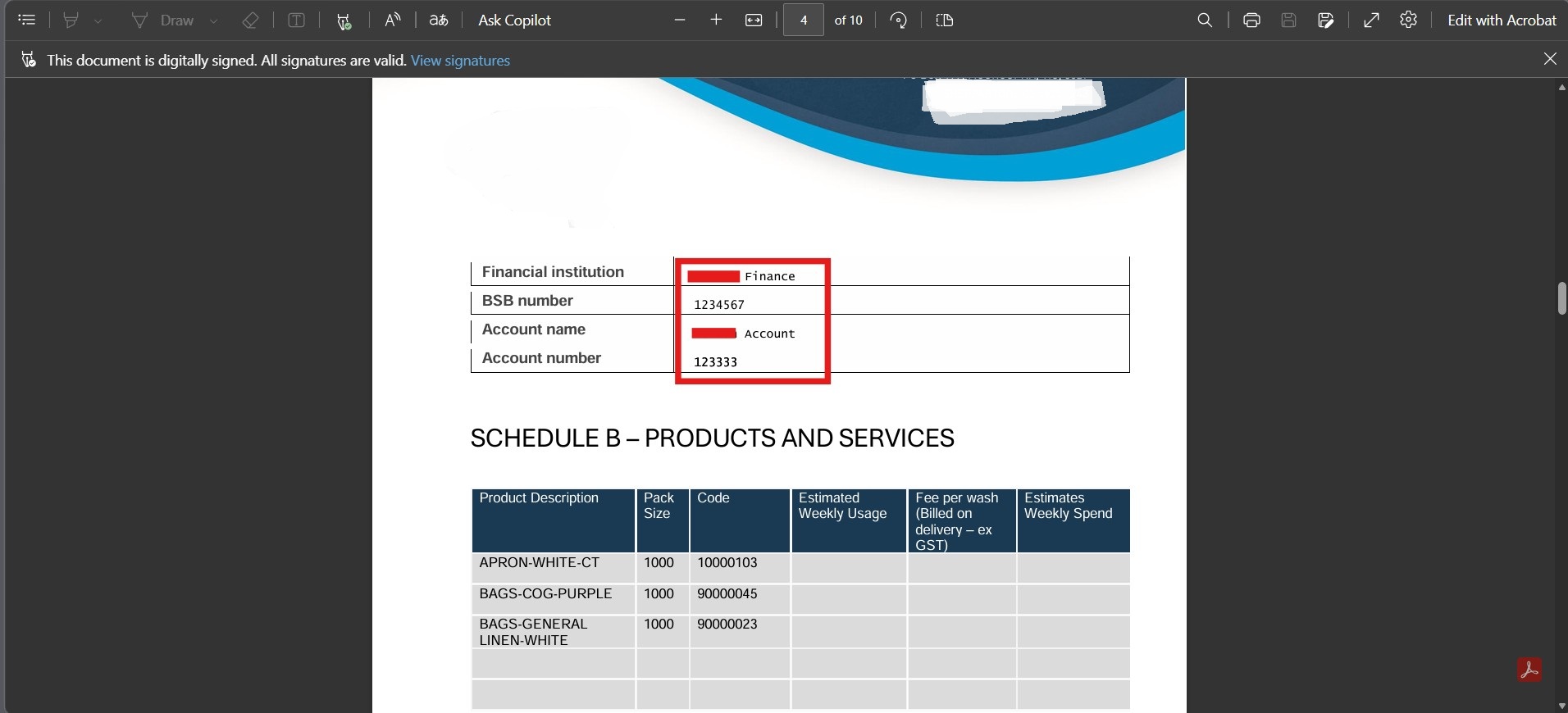
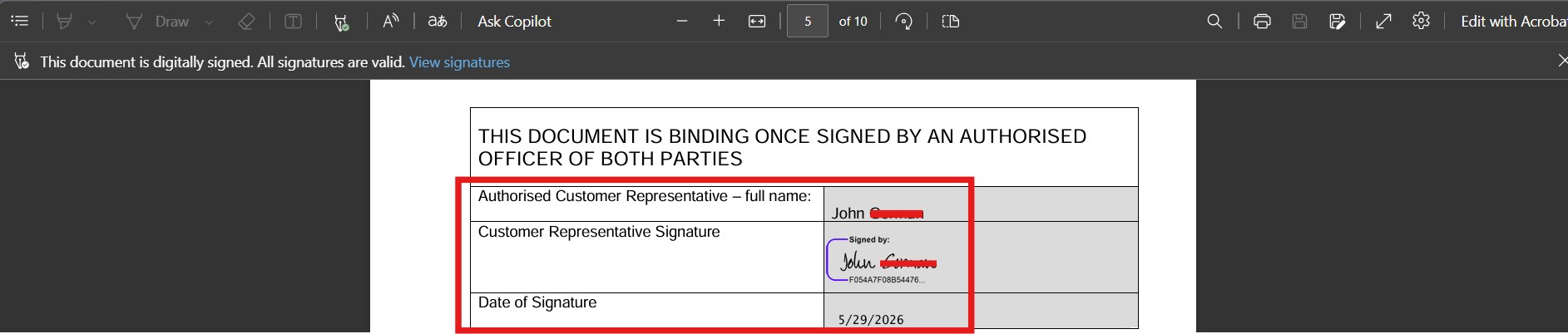
DocuSign places the signature, name, and date fields precisely where the Word template strings are positioned — including financial institution details, BSB, and account information fields for direct debit authorisation. The customer simply clicks the fields and signs digitally.
4 Step 4
Signed Contract Returned and Archived
Once the customer completes signing, DocuSign fires a webhook event (envelope-completed) that triggers the child Power Automate flow: Automation to receive the Signed and Filled PDF.
This flow:
- Listens for
envelope-completedevents via DocuSign Connect (V3). - Lists and retrieves all documents from the completed envelope.
- Gets the signed PDF as a combined document (without Certificate of Completion).
- Identifies the originating Quote record in Dynamics 365.
- Creates the signed PDF file in the Contracts folder in SharePoint with the naming convention
SIGNED - [Contract Name].pdf.
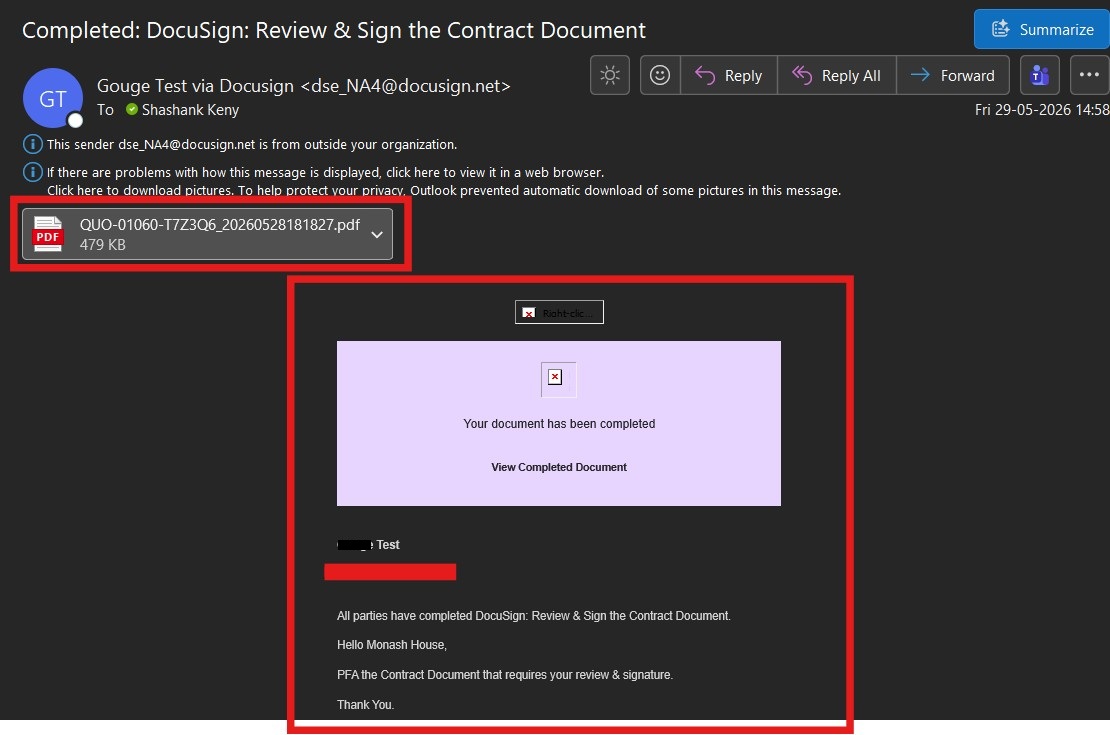
The completed, signed contract is now accessible directly from the Quote record in Dynamics 365 — no manual filing required.
Business Impact
The DocuSign integration delivered measurable improvements across the sales and operations functions:
Faster TurnaroundContract turnaround time reduced from 3–7 days to same-day in most cases.
Zero Manual StepsNo manual actions required between quote approval and signed contract archival.
Full VisibilityComplete contract status tracking — sent, viewed, signed, or pending.
Consistent ContractsProfessionally formatted contracts sent every time — no version errors.
Better CXDigital signing from any device — no printing needed for customers.
Auto ArchivalSigned PDFs automatically stored in SharePoint, linked to the correct Quote.
Time SavingsReduced admin workload, freeing the sales team for customer-facing activities.
Legal ComplianceLegally compliant digital signatures with DocuSign’s full audit trail and certificate.
Frequently Asked Questions
Do customers need a DocuSign account to sign?
No. Customers receive a direct link via email and can sign the document through a browser without creating a DocuSign account.
What happens if the customer doesn’t sign the contract?
DocuSign supports automated reminder emails, which can be configured in the envelope settings. The sales team also retains visibility of unsigned envelopes in the DocuSign dashboard. After a fixed retention period, the envelope is voided or expires.
Can the contract template be updated without changing the flow?
Yes. The Word document template is maintained in SharePoint. Updates to content, branding, or clauses only require changes to the template file. The Power Automate flow and DocuSign tags remain unchanged, provided the strings are preserved.
Are financial details like BSB and account number captured securely?
Yes. DocuSign uses encrypted transmission and secure storage. The contract places dedicated fields for financial institution details, ensuring customers provide this information directly within the secure signing session.
Can this solution be extended to handle multiple signatories?
Absolutely. The Power Automate flow can be extended to add multiple recipients with sequential or parallel signing orders, allowing multiple parties to sign before the envelope is marked complete.
Conclusion
Contract execution is one of the last remaining manual bottlenecks in many B2B sales processes. For our Australian commercial textile services client, the integration of DocuSign with Dynamics 365 and Power Automate transformed what was once a multi-day, manual exercise into a seamless, automated workflow triggered by a single button click.
The result is a faster, more professional, and more reliable experience for both the sales team and their customers — with every signed contract automatically filed, accessible, and traceable from the originating Quote in Dynamics 365.
Ready to modernise your Workflows & Integrations your D365 Sales Hub ?
CloudFronts builds scalable Power Platform and Dynamics 365 solutions that replace legacy Processes & Automations infrastructure. Reach out at transform@cloudfronts.com.

Shashank Keny
Associate Consultant · CloudFronts
Shashank Keny is an Associate Consultant at CloudFronts with 1.5+ years of experience in cloud, data, and business applications. He specializes in building scalable, API-driven architectures and integrating enterprise systems across the Microsoft ecosystem.
He is a Certified Databricks Data Engineer with hands-on experience in Dynamics 365 Project Operations and Dynamics 365 Sales, along with delivering business intelligence solutions using Power BI.
His expertise also extends to modern AI solutions, including building custom copilots and implementing intelligent applications using Azure AI Foundry.
Passionate about solving real-world business challenges through data and AI, he focuses on delivering efficient, scalable, and production-ready solutions.
- Experience: 1.5+ years
- Certification: Databricks Certified Data Engineer
- Specialization: Dynamics 365 Project Operations, Power BI, Azure Integrations, AI Solutions
