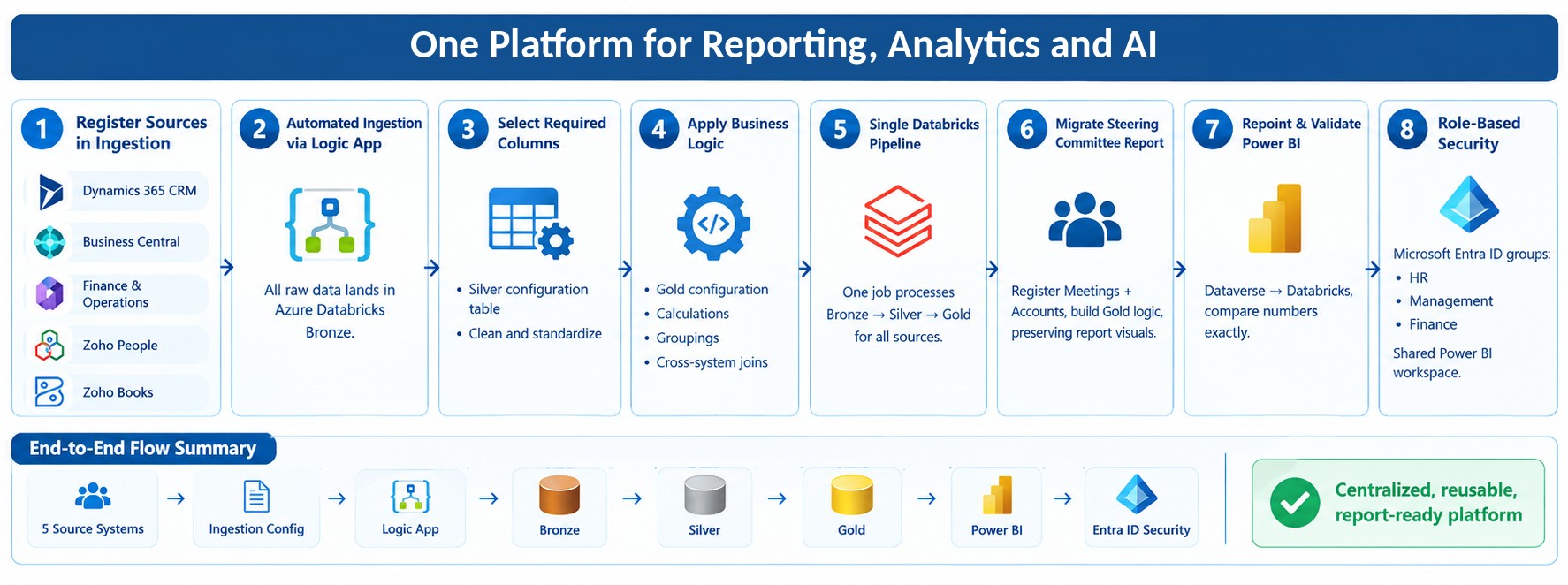
Post Single Invoice for multiple Sales Shipment in Dynamics 365 Business Central
There might be a case where the company sends a single invoice for multiple Sales orders shipments, in this scenario we will see how to post one invoice for multiple sales shipment of the same customer.
You can use Combine Shipment function to Invoice more than one sales shipment.
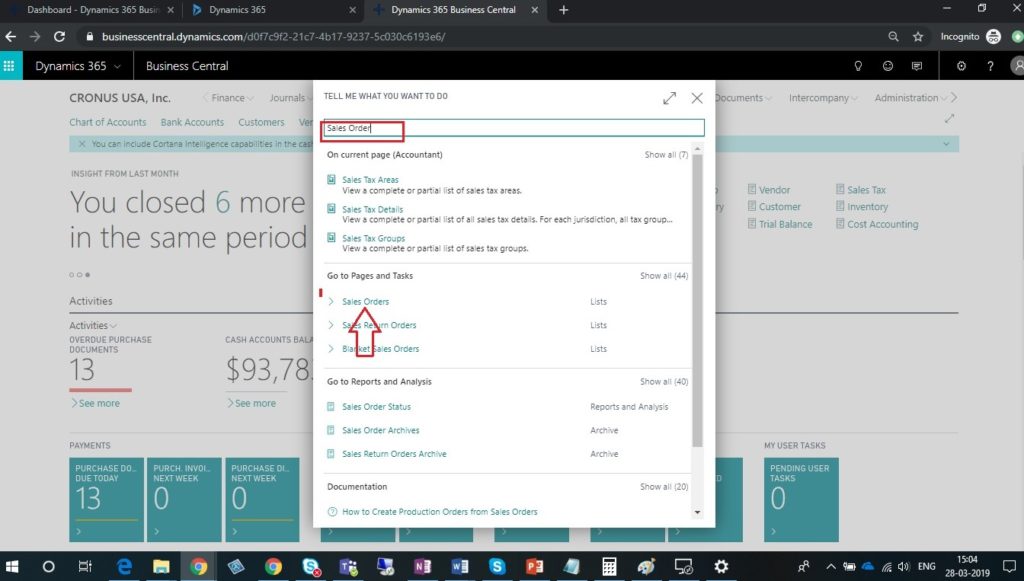
- In search option, enter Sales order and then choose related link.
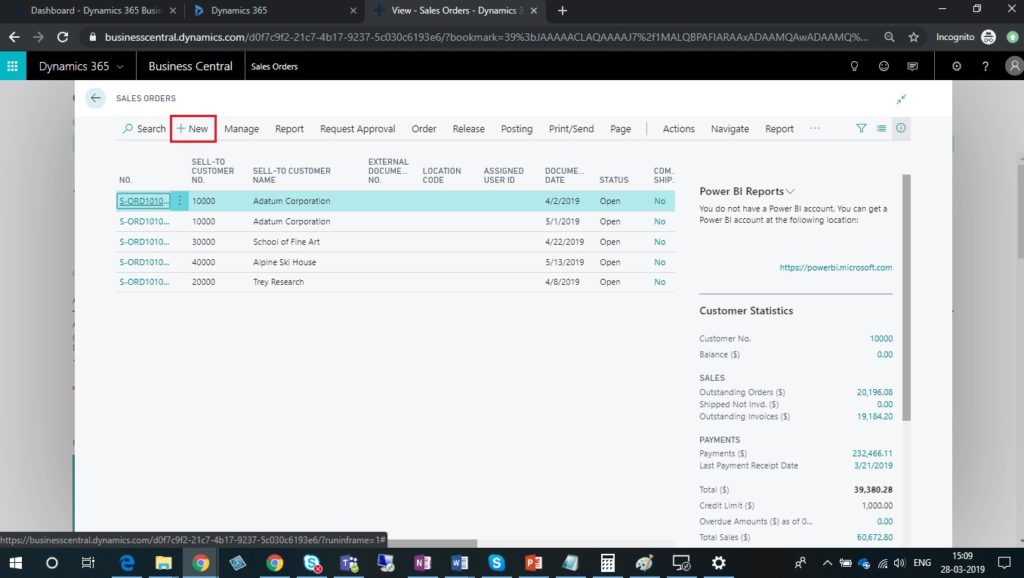
- Click on New button to create Sales Order.
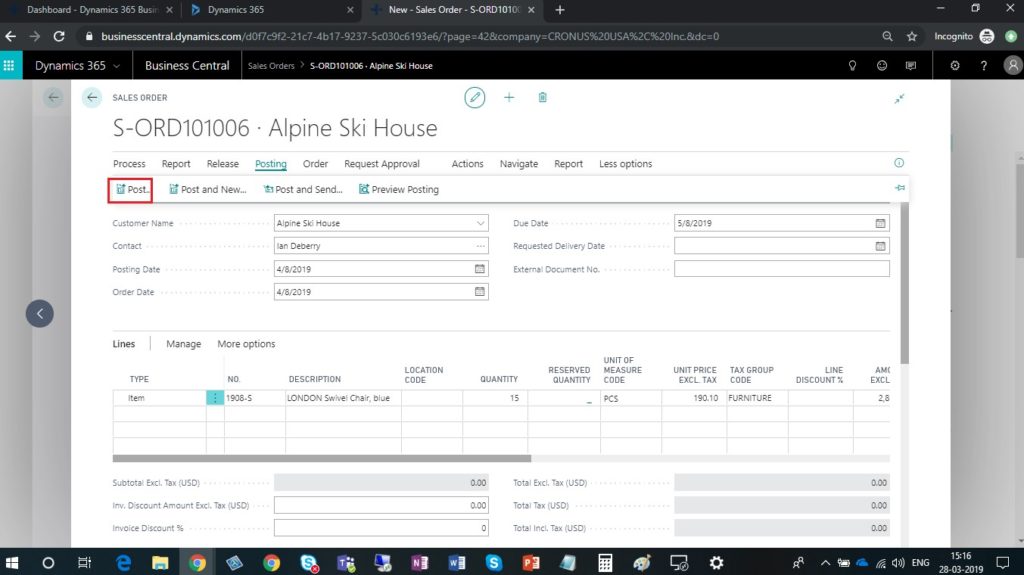
- Enter all necessary information on Sales order which are required and click on Post button.
- Select ship and choose OK button to post Sales Shipment.
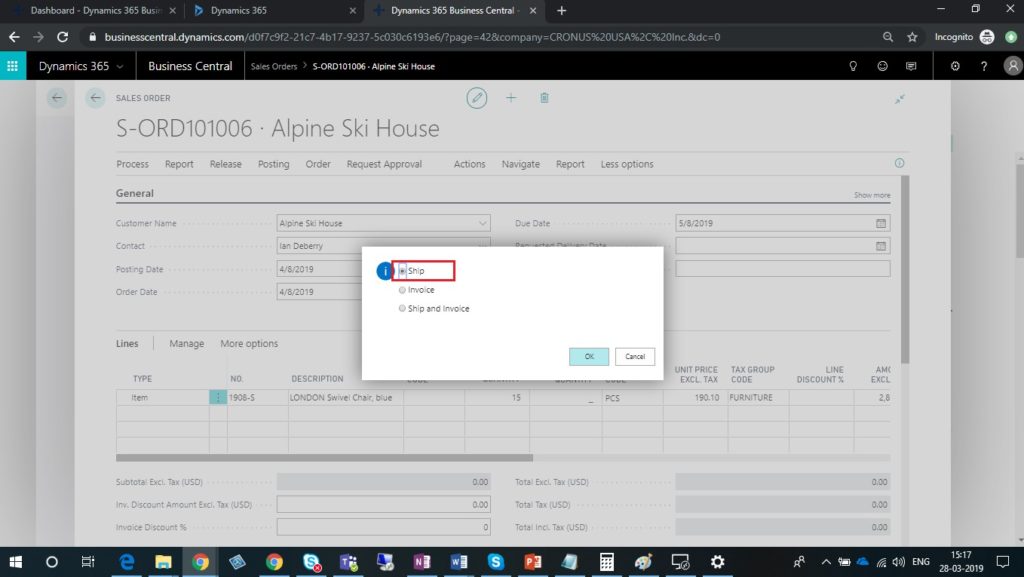
- Repeat steps from 1 to 4 to create multiple Sales order and post sales shipment.
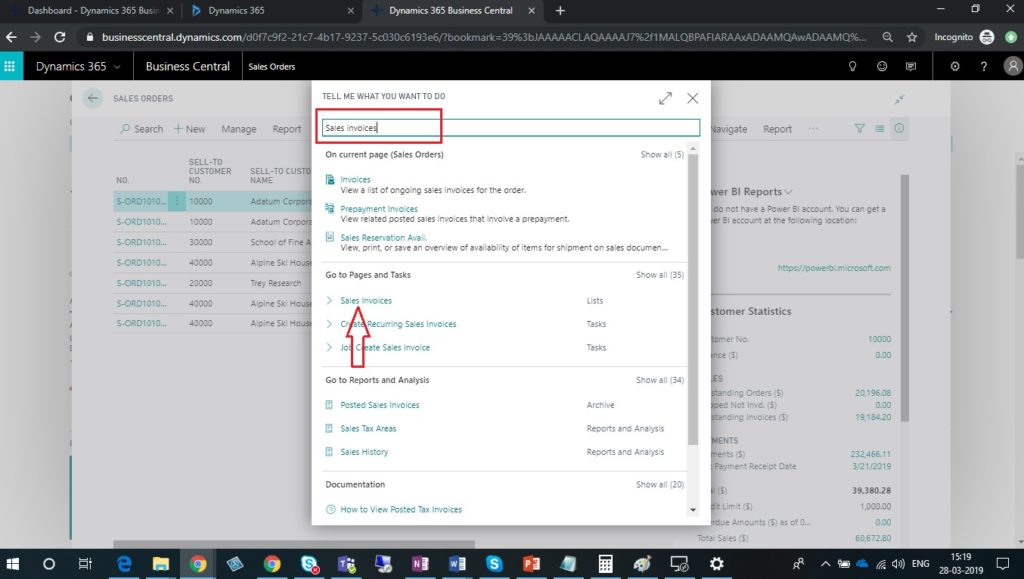
- Now in search option, enter Sales Invoices and choose related link.
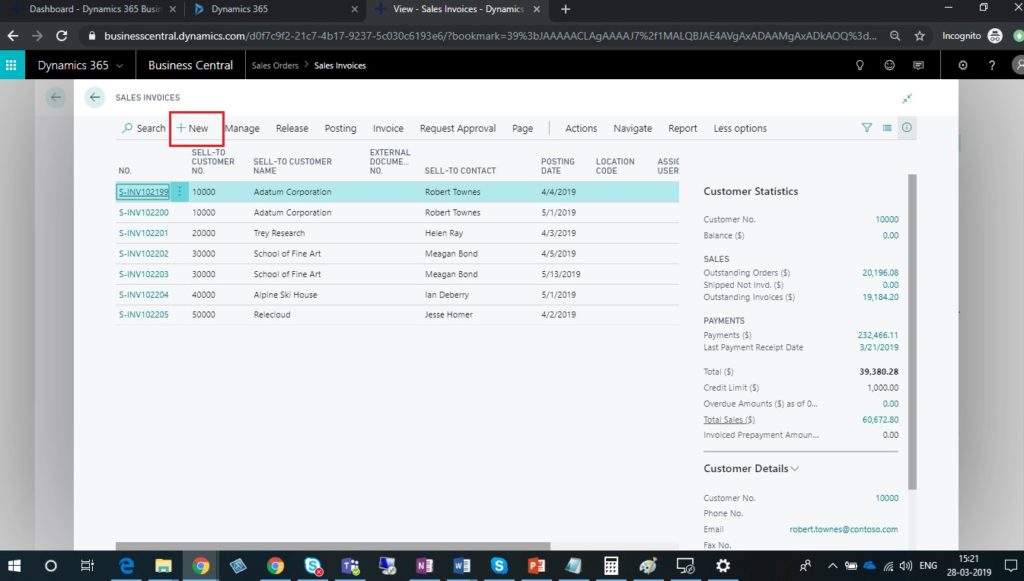
- Click on New button to create Sales Invoice.
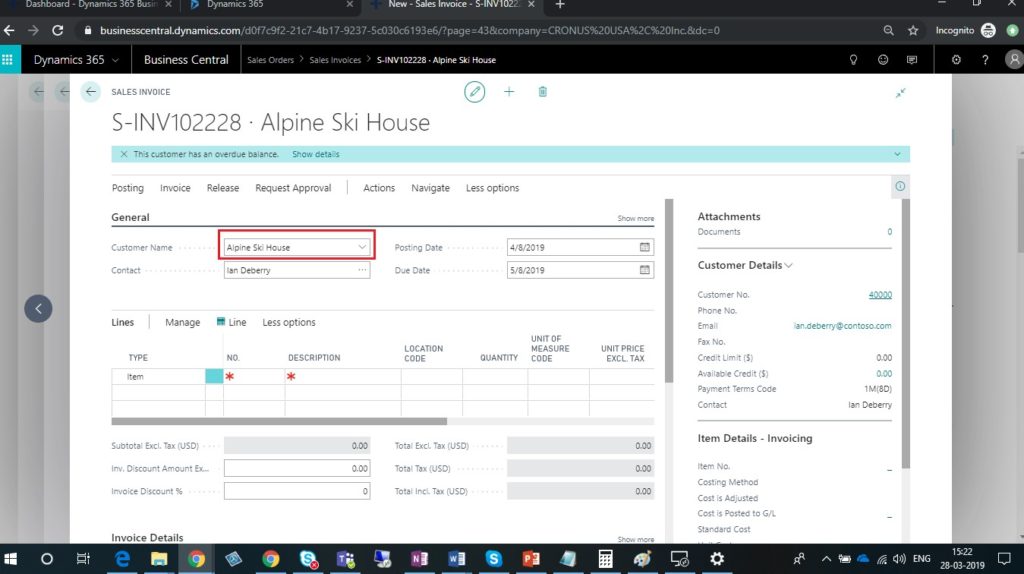
- Select Customer in Customer Name field.
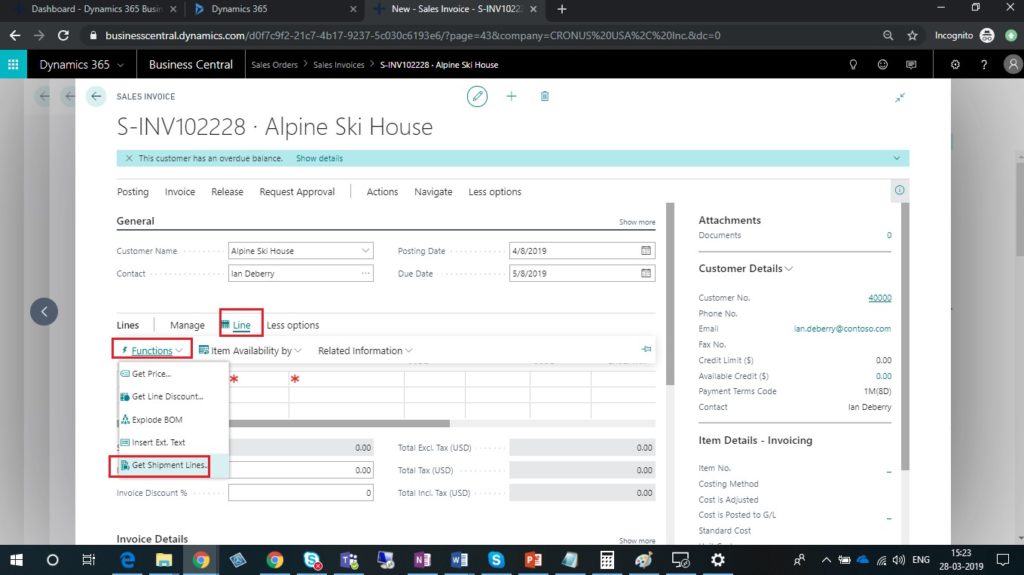
- On the LinesFastTab, choose the Get shipment Lines.
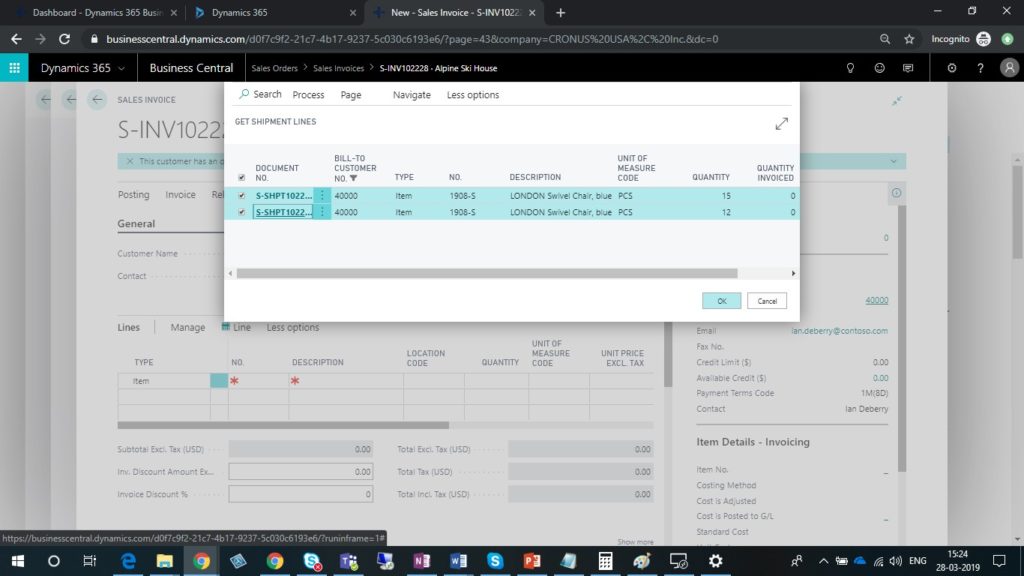
- Select multiple Shipment lines that you want to include in the invoice and choose the OK button.
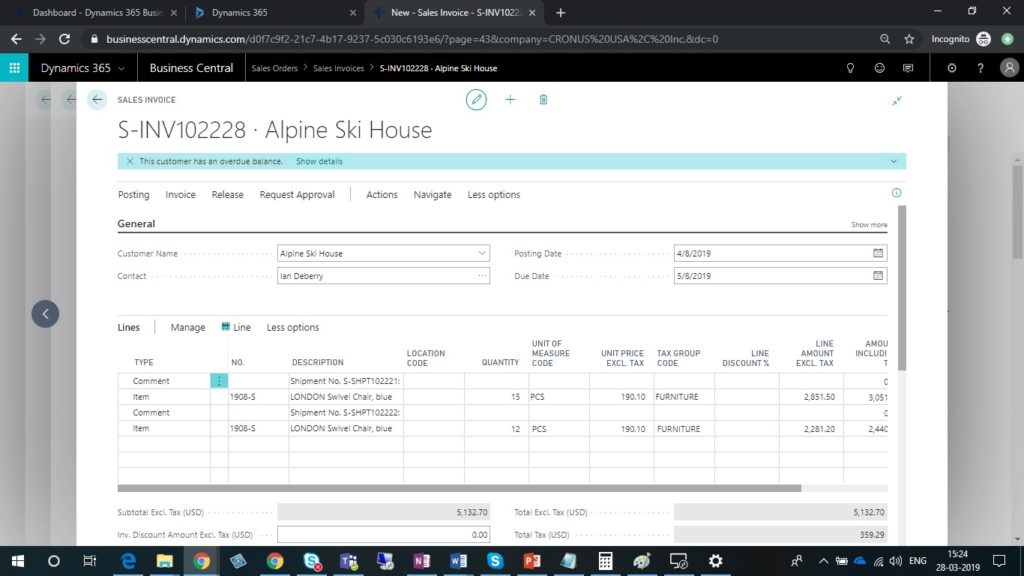
- In Line section, You can see the added sales shipment lines.
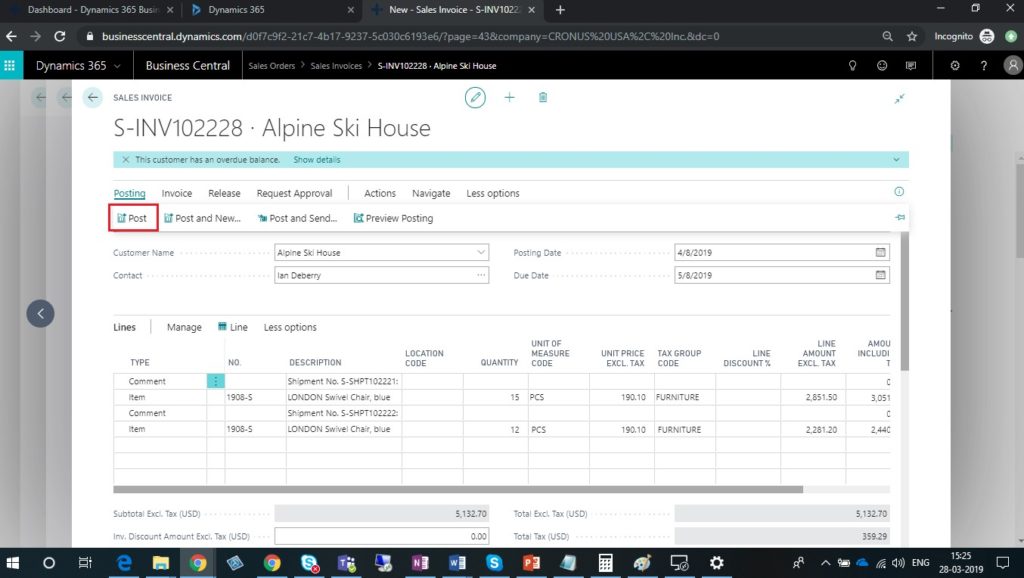
- To post the invoice, choose the Post
Related posts:

From Project Operations to Business Central: Following the Data Behind Project Financials
Location-Based Item Based Visibility in Business Central for a Maldives-Based Marine Services Firm
Connecting Project Operations to Finance: Our Dataverse-to-Business Central Integration for Project ...