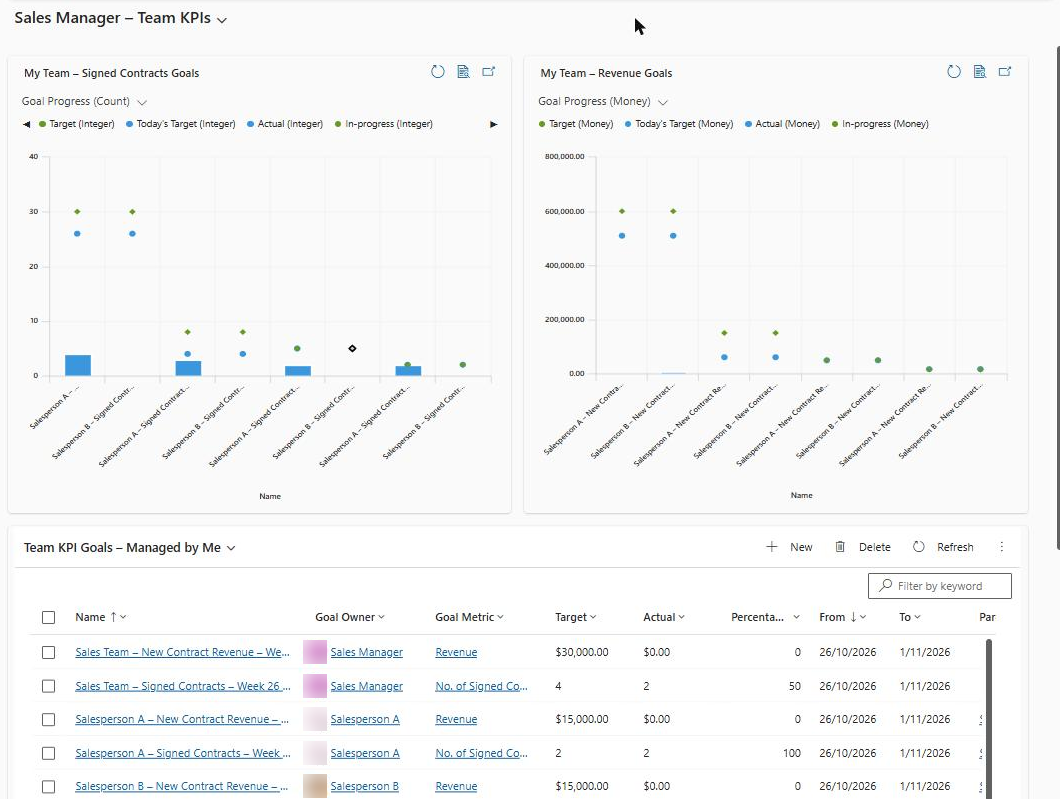

Setting Unified Interface App Icons
Default App Icons for typical D365 environment look like these.

But here’s what you can do to change these to put custom SVG icons.
SVG Icons
Regardless of dimensions, SVG icons work everywhere. So why keep them to just Ribbons, you can even change your App Icons to SVG Icons in your Dynamics 365 implementation.
- Make Web Resource for your SVG Icon.

- Open your Model Driven App in Dynamics 365 Solution. In the App Designer, go to Properties of the App itself and look for the drop-down above App Tile.

- Select your SVG Icon and Publish the same

- And you’re set!


Hope this helps!
Related posts:
Engineer-to-Order with Dynamics 365: How Project Operations Handles Planning and Business Central Ma...
Dynamics 365 SharePoint Integration: How to Display SharePoint Documents in a Custom Page Using Thre...
How a Leading North American Commercial Vehicle Manufacturer Surfaced Custom Warehouse Data on the W...