

Implementing Smart Rules in Microsoft Power Pages Using Server Logic
In modern customer portals, simply collecting data is not enough, ensuring that the data follows real business rules is what truly makes a solution reliable. While many implementations rely heavily on client-side scripts for validation, these checks can be bypassed and often don’t reflect the actual logic enforced in CRM systems.
When working with Microsoft Power Pages integrated with Microsoft Dynamics 365, implementing server-side smart rules allows organizations to enforce business policies securely and consistently. This approach ensures that validations happen where the data truly lives inside Dataverse making the portal not just user-friendly, but also trustworthy.
This article walks through a practical CRM scenario to demonstrate how server logic can be used to enforce real business rules while maintaining a seamless user experience.
The Real-World Scenario
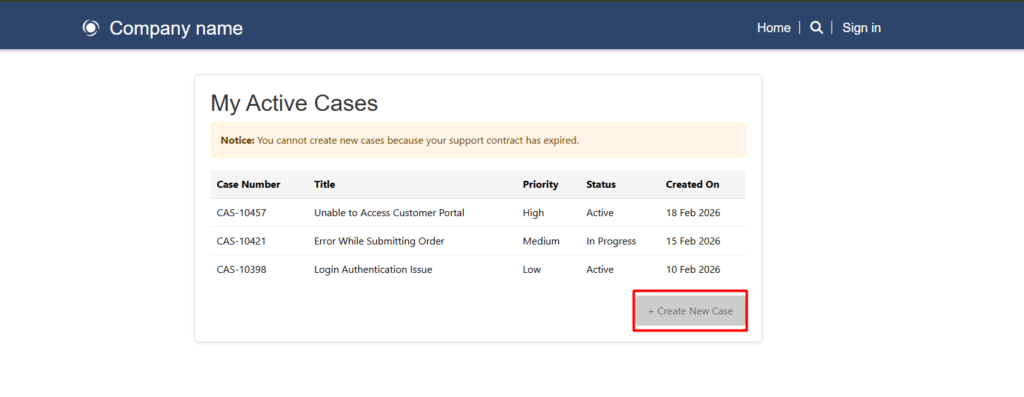
Imagine a customer support portal where users can raise support cases. From a business perspective, customers should only be able to create cases if they have an active support contract.
Without server validation, a user could potentially bypass client-side checks and still submit a request. This creates operational issues, invalid records, and manual cleanup for support teams.
To solve this, we implement a smart rule that checks contract status directly from Dataverse before allowing case creation.
If the contract is inactive → The form is disabled and a message is shown
If the contract is active → The user can submit the case
Why Server Logic matters?
Server-side validation ensures that rules are enforced regardless of how the request is submitted. Even if someone manipulates the browser or disables JavaScript, the rule still applies.
This makes server logic the most reliable way to enforce entitlement checks, approval conditions, and compliance requirements.
Key advantages include:
- a. Strong data integrity
- b. Consistent enforcement of business rules
- c. Reduced invalid submissions
- d. Alignment with CRM processes
- e. Improved operational efficiency
How the Smart Rule works in this case?
The logic is straightforward but powerful.
- The portal identifies the logged-in user
- A Dataverse query checks for an active support contract
- The UI dynamically adjusts based on the result
- Case submission is only allowed when criteria are met
Because the validation happens through a server query, the decision is authoritative and secure.
What the User experiences?
From the user’s perspective, the experience feels simple and intuitive.
If their contract is inactive, they immediately see a clear message explaining why they cannot create a case. The form fields are disabled to prevent confusion.
If their contract is active, they can proceed normally and submit their request without any additional steps.
This balance between transparency and control creates a smooth user journey while still enforcing business rules.
Server Logic vs Client Validation
One of the most common questions is why server logic is necessary when client validation already exists.
Client-side validation is excellent for improving usability by providing instant feedback, but it should never be the only layer of control because it can be bypassed.
Server logic, on the other hand, acts as the final authority. It ensures that no invalid data enters the system, regardless of user actions.
The best practice is to use both -> client validation for user experience and server logic for security.
Steps to add Server Logic
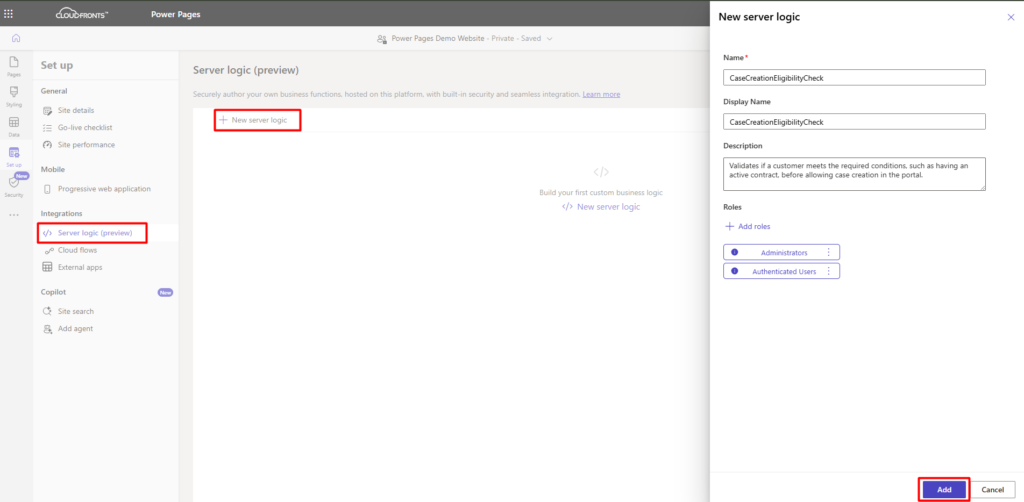
Step 1 – Identify the Business Rule
First, clearly define what you want to validate.
Example: Only allow case creation if the customer has an active support contract.
This ensures you know what data needs to be checked in Dataverse.
Step 2 – Create Required Table Permissions
Server logic needs permission to read data from Dataverse.
Go to Power Pages Management app
Navigate to Security → Table Permissions
Create a new permission
Fill details:
- a. Table = Contract
- b. Access Type = Global or Contact
- c. Privileges = Read
- d. Web Role = Authenticated Users
Save and repeat if needed for Case table.
Step 3 – Create or Open Web Template
This is where server logic (Liquid + FetchXML) lives.
Go to Content → Web Templates
Click New
Name it:
CaseCreationEligibilityCheck
Paste your Liquid + FetchXML logic
This template will run on the server when the page loads.
Step 4 – Add FetchXML Query
Inside the template, create a query to check eligibility.
You’ll fetch records like:
- a. Active contract
- b. Active cases
- c. Customer details
This query runs on the server and determines the outcome.
When you will open the Server Logic code, you will see the default boilerplate server-side script that Power Pages generates for you when you create a new Server Script.
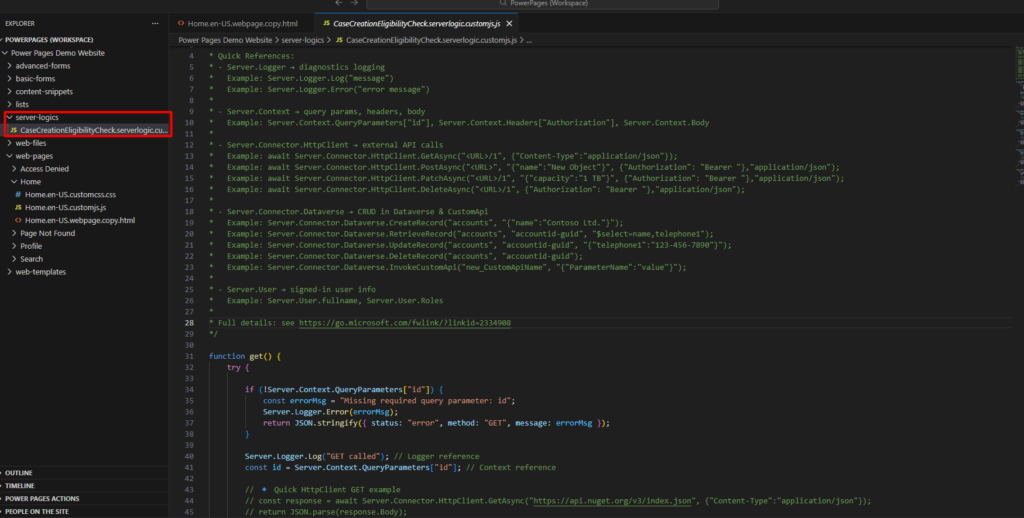
What the boilerplate does
- GET / POST / PUT / PATCH / DEL functions are all pre-created so you can handle REST-style requests.
- Server.Logger – lets you log messages for debugging.
- Server.Context – lets you access query parameters, headers, and body data.
- Server.Connector.Dataverse – lets you CRUD records in Dataverse.
- Server.User – gives info about the currently signed-in user.
Right now, it’s just a template; it doesn’t do any validation yet.
How to adapt it for CaseCreationEligibilityCheck
We want to:
- Check if the logged-in user has an active support contract.
- Optionally check other rules (like max active cases).
- Return a JSON response indicating whether the user can create a case.
Here’s the code in this case:
async function get() {
try {
// Get the current user
const contactId = Server.User.id;
Server.Logger.Log(“Checking case creation eligibility for contact: ” + contactId);
// Query Dataverse for active contract
const contracts = await Server.Connector.Dataverse.RetrieveRecord(
“new_supportcontract”, // table name
contactId, // record id (for contact lookup, you may need a fetch query instead)
“$select=new_name,statuscode”
);
let eligible = false;
if (contracts && contracts.statuscode == 1) { // 1 = Active
eligible = true;
}
return JSON.stringify({
status: “success”,
eligibleToCreateCase: eligible,
message: eligible
? “You can create a new case.”
: “You cannot create a new case. Active contract required.”
});
} catch (err) {
Server.Logger.Error(“Eligibility check failed: ” + err.message);
return JSON.stringify({
status: “error”,
message: err.message
});
}
}
Step 5 – Add Conditional Logic
Use Liquid conditions to enforce rules.
If contract exists → Allow form
Else → Show restriction message
This ensures the UI responds based on real data.
Step 6 – Attach Template to a Web Page
Now connect the logic to a page.
Go to Content → Web Pages
Open your Case page
Select the Web Template you created
Save
Step 7 – Test with Different Users
Testing is important to validate behavior.
User with active contract → Can create case
User without contract → Sees restriction message
This confirms your server rule works correctly.
Step 8 – Improve User Experience
Add clear messages so users understand what’s happening.
Examples:
- Contract expired notice
- Contact support link
- Disabled submit button
Good UX reduces confusion and support calls.
CRM Perspective
From a CRM standpoint, this approach closely mirrors how real support entitlement works in enterprise environments. Support teams rely on accurate contract validation to prioritize requests and maintain service agreements.
By enforcing these rules at the portal level, organizations ensure that only valid cases reach the support queue, reducing noise and improving response times.
This also keeps portal behavior aligned with internal processes, creating a consistent experience across channels.
Business Impact and Conclusion
Implementing smart server rules in Microsoft Power Pages is more than a technical exercise. It’s a way to streamline operations, maintain data integrity, and align portal behavior with real business processes. By enforcing business logic on the server, organizations can ensure that only valid actions are allowed, reducing manual validation, improving compliance, and creating cleaner, more reliable data in Dataverse.
Server-side rules complement client-side validations by combining usability with security. While client-side checks improve the user experience, server logic ensures that business policies are enforced consistently and accurately, regardless of how data is submitted.
Ultimately, building a portal isn’t just about exposing forms, it’s about embedding the intelligence of your CRM into every interaction. Smart server rules help organizations deliver self-service experiences that are both seamless for users and robust for the business, fostering efficiency, trust, and higher customer satisfaction.
If you’re looking to implement secure and efficient portals or want guidance on building smart server rules in Microsoft Power Pages, reach out to CloudFronts – transform@cloudfronts.com. Our experts can help you design, implement, and optimize portals that align perfectly with your CRM and business processes.
Hope this helps!
