

From Default to Dynamic: Transforming Dynamics CRM Subgrids with Custom HTML for a Netherlands-Based Sustainability Certification Non-Profit
Summary
- A Netherlands-based sustainability certification non-profit faced a key limitation in Dynamics CRM: the default subgrid had no way to filter related lookup values — meaning all versions and levels appeared for every certification standard, regardless of relevance.
- CloudFronts replaced the default subgrid with a custom HTML Web Resource that renders each certification standard as an interactive card, with its own pre-filtered version and level dropdowns.
- Users selecting C2C Certified® Full Scope now only see versions and levels that belong to Full Scope — not a cluttered list of every record in the related table.
- Beyond fixing the filtering gap, the solution transformed the CRM form experience from a flat, generic grid into a clean, modern card-based interface — significantly improving usability for both applicants and assessors.
Table of Contents
Customer Scenario
A Netherlands-based non-profit organization uses Dynamics CRM to manage the full certification application lifecycle, from initial scoping through assessment and final issuance.
As part of every certification application, users must define a Certification Scope, selecting which Cradle to Cradle standards they want assessed, choosing the correct version of that standard, and setting a target certification level. The available standards include:
- Full Scope
- Material Health
- Circularity
Each standard has its own set of applicable versions and certification levels stored in related Dataverse tables. The challenge was making sure users could select and configure each standard correctly — without the CRM form showing them irrelevant data from other standards.
The Real Problem, Unfiltered Lookups in Subgrids
The original design used a default CRM subgrid to list the certification scope lines. Each row in the subgrid had lookup fields pointing to related Dataverse tables, one for Standard Version, one for Certification Level.
The problem was straightforward but significant: CRM subgrid lookup fields have no native mechanism to filter their values based on another field in the same row.
This meant that when a user opened the Version lookup on a Full Scope row, they saw every version across every standard — Full Scope versions, Material Health versions, Circularity versions, all mixed together in a single unfiltered list. The same issue applied to Certification Levels. There was no built-in way to say: “this row is for Full Scope — only show me Full Scope versions.”
Key Pain Points
- Wrong version selected by mistake: With all versions in one unfiltered list, users had to manually identify and pick the correct one — easy to get wrong, especially for new staff unfamiliar with which version belongs to which standard.
- Cluttered, confusing lookup lists: A lookup showing 20+ mixed records when the user only needs to choose from 3–4 relevant options is a frustrating experience and a source of data quality issues.
- No visual structure or grouping: The default subgrid renders as a flat table. There is no way to visually distinguish one standard from another or understand the overall scope at a glance.
- A form that did not match the product’s quality: The client wanted their CRM environment to feel professional and polished — a plain, out-of-the-box grid did not meet that expectation.
The subgrid was not broken — it was simply the wrong tool for this job. What was needed was a control that understood the relationship between a standard and its versions, and filtered accordingly.
Solution Overview
CloudFronts replaced the default subgrid entirely with a custom HTML Web Resource embedded directly on the CRM application form. The web resource reads a single JSON field on the record which carries each standard along with its own pre-scoped list of versions and levels.
The core idea:
Each certification standard gets its own card → Each card shows only the versions and levels that belong to that standard → No more mixed, unfiltered lookup lists
What This Achieves
For Applicants and Assessors:
- Select one or more certification standards using clear, visual checkbox cards
- See only the versions relevant to the selected standard — nothing from other standards
- Choose a target level from a correctly filtered, correctly sorted dropdown
- Get instant visual feedback on which standards are active in the scope
For the CRM Platform Team:
- No subgrid lookup filtering workarounds, form-level JavaScript hacks, or plugin-based filtering required
- All filtering is naturally handled by the JSON data structure, each standard row already carries only its own versions and levels
- A significantly better-looking form that reflects the quality of the certification program itself
- Scope configuration can be extended simply by updating the JSON, no schema changes needed
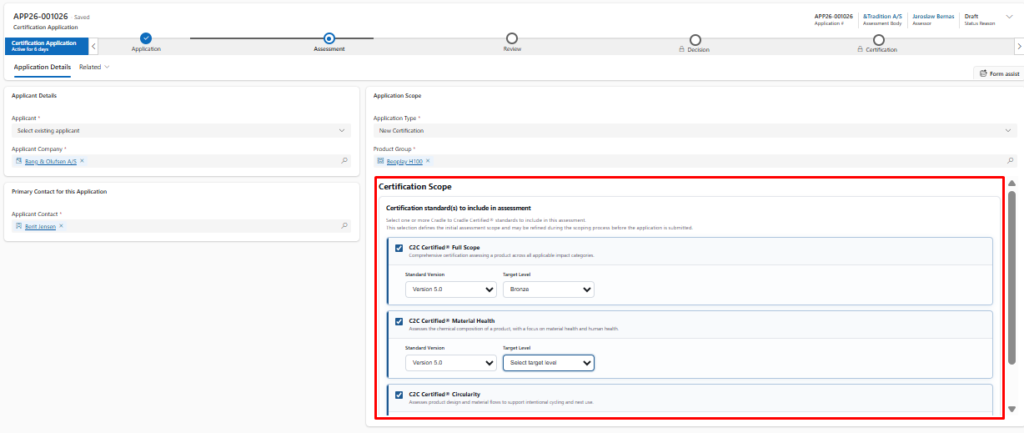
Key Features of the Custom Web Resource
The web resource was designed with two clear goals: solve the filtering problem correctly, and make the form experience noticeably better. Here is how each feature serves those goals.
1. Card-Per-Standard Layout with Checkbox Selection
Each certification standard is rendered as its own self-contained card — with a title, a short description of what that standard covers, and a checkbox. This immediately solves the visual grouping problem that a flat subgrid cannot address.
- Clicking a card (or its checkbox) marks that standard as In Scope
- The selected card highlights with a blue left-border accent and a soft background tint — making it immediately clear which standards are active
- Deselected cards remain compact and unobtrusive, keeping the form clean
For assessors reviewing multiple applications, being able to scan the full scope at a glance — without opening related records or reading through a grid — is a meaningful time saving.
2. Filtered Version Dropdown — Per Standard
This is the feature that directly solves the original problem. When a card is selected and expands, the Standard Version dropdown is populated exclusively from the versions array within that standard’s JSON row.
- A user working on a Full Scope card sees only Full Scope versions
- A user working on a Material Health card sees only Material Health versions
- There is no shared, unfiltered lookup list — each card is fully self-contained
- The latest version is automatically pre-selected, so users rarely need to change it unless they have a specific requirement
This is the direct, clean replacement for what a filtered subgrid lookup should do — except it works reliably, requires no fragile JavaScript workarounds, and is visually far cleaner.
3. Filtered & Sorted Level Dropdown — Per Standard
The Target Level dropdown follows exactly the same principle. Levels are sourced from the selected standard’s own levels array in the JSON, so only relevant levels appear. They are also sorted intelligently:
- If levels carry an explicit
sortOrdervalue, that controls the display order - If no sort order is present, a built-in fallback applies: Bronze → Silver → Gold → Platinum
The dropdown always reads in a logical progression regardless of how the records are stored in Dataverse — no additional configuration required.
4. Smart Default Selection on Load
When the form opens for a new application, the web resource automatically applies sensible defaults rather than presenting a blank state:
- C2C Certified® Full Scope is pre-selected as the default standard, since it is the most common starting point for applicants
- The latest available version for Full Scope is automatically assigned
- These defaults are written back to the CRM field immediately — so a record saved without any user interaction still holds a valid scope
This alone reduces incomplete record submissions and removes the need for server-side validation to catch missing scope data after the fact.
5. Inline Validation Hint
If a user deselects all standards — leaving no standard in scope — a clear amber warning banner appears below the card list:
“Select at least one certification standard to continue defining the certification scope.”
The hint appears and disappears reactively as selections change — no page reload, no save required. Users are guided to correct the issue immediately rather than discovering it later through a server-side error.
6. Consistent Standard Order
Standards are always displayed in the same predefined sequence, regardless of the order they appear in the JSON:
- C2C Certified® Full Scope
- C2C Certified® Material Health
- C2C Certified® Circularity
- C2C Certified® Facility
- C2C Certified® Facility (future)
Assessors comparing scope configurations across different applications always see them in the same order — making reviews faster and reducing the chance of misreading a scope.
7. Polished, Modern Form Appearance
The web resource was built with a deliberate visual design to match the quality of the certification program:
- Clean card borders with smooth hover transitions and a subtle lift effect
- Blue left-border accent and soft background tint for selected cards
- Compact, readable typography consistent with the broader CRM form design
- A loading spinner while the CRM context initializes, and a clear error panel if anything fails — so the form never looks broken
The CRM form now looks and feels like a purpose-built professional tool — not a default platform grid embedded in a form.
How It Works — Technical Implementation
1. The JSON Field as the Data Source
All certification scope data lives in a single CRM text field — c2cpii_applicationlinesjson — as a JSON array. Each object in the array represents one certification standard and carries:
certificationType— the standard name (e.g., “C2C Certified® Full Scope”)versions[]— only the versions that belong to this standard, each with an ID and display namelatestVersion— the currently selected version objectlevels[]— only the levels applicable to this standard, each with a sort order valueselectedLevel— the chosen level (null until the user picks one)inScope—"Yes"or"No"to flag whether this standard is active
Because the filtering is baked into the data structure itself — each standard row carries only its own versions and levels — the UI never needs to query Dataverse at render time or apply a filter condition dynamically. It simply reads what is already scoped in the JSON.
2. Connecting to the CRM Form
The web resource is embedded as an iframe on the CRM form and accesses the parent form’s field value through:
window.parent.Xrm.Page.getAttribute(“c2cpii_applicationlinesjson”)
On load, the control polls this path up to 30 times at 250ms intervals — because the CRM form context and field values may not be immediately available when the iframe first renders. Once the JSON is accessible, it is parsed and the cards are built in the DOM.
Every time a user makes a change — selecting a standard, picking a version, choosing a level — the updated JSON is immediately serialized and written back to the field via setValue(), with setSubmitMode("always") set to ensure the value is captured on form save.
3. Rendering the Cards
Once the JSON is parsed, the control sorts the standards into the predefined display order, applies missing defaults where needed, and builds each card using pure DOM manipulation — no external libraries, no frameworks, one self-contained HTML file. Each card contains:
- A clickable header with a checkbox, standard name, and helper description text
- A collapsible body (hidden when the standard is not in scope) holding the Version and Level dropdowns
- Event listeners on the checkbox, card header click, Enter/Space keydown, and both dropdowns — all wired to update the in-memory JSON and immediately save back to the CRM field
4. Keeping Everything In Sync
All state is held in the in-memory certJSON array throughout the session. Every user interaction updates the relevant row in that array and immediately calls saveJSON(), which serializes the full array and writes it to the CRM field. There is no deferred save, no separate submit button — the CRM field is always up to date with what the user sees on screen.
End-to-End Walkthrough
Here is what an assessor experiences when opening or filling in a certification application form:
- Form opens: The web resource iframe loads. A spinner displays briefly while the control connects to the CRM form context and reads the JSON field.
- Cards appear: All five certification standards are rendered as cards in the correct order. C2C Certified® Full Scope is pre-selected by default — highlighted with a blue accent and expanded to show its version and level dropdowns.
- Filtered dropdowns visible: The Version dropdown shows only Full Scope versions. The Level dropdown shows only Full Scope levels, sorted Bronze through Platinum. No unrelated records appear anywhere.
- Adding another standard: The assessor clicks the Material Health card. It highlights and expands. The Version dropdown inside that card shows only Material Health versions — completely independent of the Full Scope card above it.
- Removing a standard: Clicking a selected card again unchecks it and collapses the panel. The JSON is updated immediately.
- All standards removed: If all cards are deselected, the amber warning hint appears below the list. Selecting any card makes it disappear instantly.
- Form saved: The current JSON — with all selections — is persisted to the
c2cpii_applicationlinesjsonfield on the application record in Dataverse.
Control States at a Glance
| State | What the User Sees | CRM Field Behaviour |
|---|---|---|
| Initializing | Spinner + “Loading certification scope…” | No write until JSON is successfully parsed |
| Standard not selected | Neutral card, collapsed, no accent | inScope: "No" in JSON |
| Standard selected | Blue left border, expanded, filtered dropdowns visible | inScope: "Yes", JSON written to CRM field |
| Nothing in scope | Amber warning banner below cards | JSON persisted; form save still allowed |
| Load / parse error | Red error panel — “Please refresh the page” | No writes; rest of CRM form unaffected |
Architecture & Design Decisions
Components Involved
- Custom HTML Web Resource — the card UI, embedded as an iframe on the CRM application form
- Dynamics CRM / Dataverse — the hosting form, accessed via
window.parent.Xrm.Page - Single JSON Text Field (
c2cpii_applicationlinesjson) — holds all scope data, pre-filtered per standard - Vanilla JavaScript — no frameworks, no external libraries; the entire solution lives in one self-contained HTML file
Default Subgrid vs. Custom Web Resource
| Dimension | Default Subgrid | Custom HTML Web Resource |
|---|---|---|
| Lookup filtering per row | ❌ Not supported natively | ✅ Each card shows only its own versions & levels |
| UI layout | ❌ Flat grid, column config only | ✅ Custom card layout with visual selection states |
| Smart defaults on load | ❌ Requires a plugin or workflow | ✅ Applied in JavaScript at render time |
| Inline validation hints | ❌ Not natively available | ✅ Real-time, reactive warning banner |
| Adding a new standard or version | New Dataverse records, possible schema work | ✅ Update the JSON payload only |
| Form visual quality | Generic out-of-the-box grid | ✅ Modern, polished card interface |
Business Impact
- Lookup filtering: Unfiltered, mixed lookup lists across all standards → Each card shows only the versions and levels that belong to that specific standard
- Selection accuracy: Risk of picking a wrong version from a cluttered list → Pre-filtered dropdown makes the correct choice obvious and reduces errors
- Default handling: Blank form state on open → Full Scope pre-selected with latest version applied automatically
- Inline validation: Silent incomplete records reaching the assessment team → Real-time amber warning when no standard is in scope
- Form experience: Flat, generic subgrid grid → Modern, scannable card layout that reflects the quality of the certification program
- Extensibility: Schema change or new Dataverse records needed to add a standard → Update the JSON payload; no CRM developer work required
FAQs
1. Why can’t you just filter a subgrid lookup field using standard CRM configuration?
CRM subgrid lookup fields can be filtered at the entity level using a static view, but they cannot be filtered dynamically based on the value of another field in the same subgrid row. This is a known platform limitation. Workarounds require form-level JavaScript that attaches event handlers to each subgrid row — which is brittle, hard to maintain, and unsupported by Microsoft. A custom web resource solves the problem cleanly without any of those risks.
2. How does the web resource know which versions belong to which standard?
The JSON field stores each standard as its own object, with a versions[] array that is already scoped to that standard. The filtering happens when the JSON is constructed — not at render time in the browser. The web resource simply reads what is there and populates the dropdown accordingly, with no additional Dataverse queries needed.
3. Does the web resource make any Dataverse API calls at runtime?
No. All data is loaded from the JSON field on the CRM form. The web resource writes back to the same field using the CRM form’s attribute API (window.parent.Xrm.Page). There are no direct Dataverse or Web API calls from the iframe — keeping the solution lightweight and fast.
4. What happens if the CRM form takes a long time to load?
The control includes a retry loop that polls for the CRM form context up to 30 times at 250ms intervals — a total wait of up to 7.5 seconds. This handles normal CRM form load delays gracefully. If the context is still unavailable after that, a clear error panel is shown prompting the user to refresh, without affecting any other part of the form.
5. Can this pattern be applied to other Dynamics CRM scenarios?
Yes — any scenario where a subgrid contains lookup fields that should be filtered based on the context of the row is a strong candidate. Common examples include filtering product options by product family, filtering price lists by currency, or filtering resource skills by project role. Wherever the default lookup shows too much and the right answer depends on another value in the same row, this approach provides a clean solution.
Conclusion
The default CRM subgrid is a capable tool — but when lookup fields need to be filtered based on the context of each individual row, it hits a hard platform limitation. Trying to work around that with form-level scripts adds fragility and maintenance burden without truly solving the problem.
By replacing the subgrid with a custom HTML Web Resource, CloudFronts delivered exactly what the client needed: a certification scope selector where every version and level dropdown shows only what is relevant to that specific standard — cleanly, reliably, and without platform hacks. And by building it as a card-based UI rather than a grid, the solution also gave the client a CRM form they are genuinely proud to show applicants.
Sometimes the right answer is not to fight a platform limitation — it is to build around it, and build something better in the process.
Facing a similar challenge in your Dynamics CRM implementation?
Explore how CloudFronts can help you design smarter, better-looking Power Platform solutions tailored to your business needs.
