How an Abu Dhabi-Based Diversified Holding Company Built a Budget-Controlled Procurement Process in Business Central
Summary
This article explores how Emirates Consortium LLC expanded its use of Microsoft Dynamics 365 Business Central beyond finance to establish a more structured procurement process. Previously, budgets were managed manually through Excel and some procurement activities were performed outside the ERP. The implemented solution introduced a customized Purchase Request-to-Purchase Order process covering the initial requirement, approval, vendor and item selection, Purchase Quotes, Purchase Orders, and budget validation. The process also carries important procurement information such as Department, Category, Subcategory, Location, and Dimensions throughout the purchasing cycle, creating greater visibility, control, and traceability.
Table of Contents
- Introduction
- From Finance-Only Usage to Broader Business Central Adoption
- Starting Procurement with a Purchase Request
- Keeping Supporting Documents with the Request
- Approval Before Procurement Moves Forward
- Turning an Approved Request into Purchase Quotes
- One Purchase Request Can Become Multiple Purchase Quotes
- Carrying Information Forward
- From Purchase Quote to Purchase Order
- Bringing Budget Visibility into the Purchase Order
- The Bigger Picture
- Conclusion
1. Introduction
For many organizations, procurement doesn’t begin with a Purchase Order. It begins much earlier—with a business user identifying a requirement, requesting approval, obtaining quotations, selecting suppliers, and ensuring that the purchase is properly categorized and authorized.
When these steps happen outside the ERP, organizations can end up relying on spreadsheets, emails, manual approvals, and disconnected procurement activities. This makes it difficult to maintain a consistent process and creates additional effort for both procurement and finance teams.
This was the challenge addressed for Emirates Consortium LLC.
Emirates Consortium had been a long-standing client and had primarily been using the Finance capabilities of Microsoft Dynamics 365 Business Central. As part of its next stage of ERP adoption, the organization wanted to expand its use of Business Central and bring more of its procurement activities into the system.
One of the key areas was procurement and budget control.
Previously, budgets were being managed manually through Excel, while some procurement activities were being performed outside the ERP. The objective was therefore not simply to introduce Purchase Orders into Business Central, but to establish a more structured procurement process—from the initial purchase requirement through approval, supplier selection, quotation, and Purchase Order creation.
The Implemented Solution
The resulting solution introduced a customized Purchase Request-to-Purchase Order process within Business Central, with approval controls and budget information carried throughout the purchasing cycle.
2. From Finance-Only Usage to Broader Business Central Adoption
Emirates Consortium’s journey is an example of how an organization can progressively expand its use of Business Central.
Rather than limiting Business Central to financial transactions, the implementation extends the platform into operational procurement.
The process starts with a Purchase Request, which becomes the starting point for the procurement lifecycle.
Procurement Process Flow
Purchase Request → Approval → Vendor & Item Selection → Purchase Quote → Purchase Order → Budget Validation → PO Approval
This approach brings the procurement process into the same ERP environment that already supports the organization’s financial operations.
The implementation specifically carries important procurement classification information—such as Department, Category, Subcategory, Location, and Dimensions—through the process so that it can subsequently participate in budget validation.
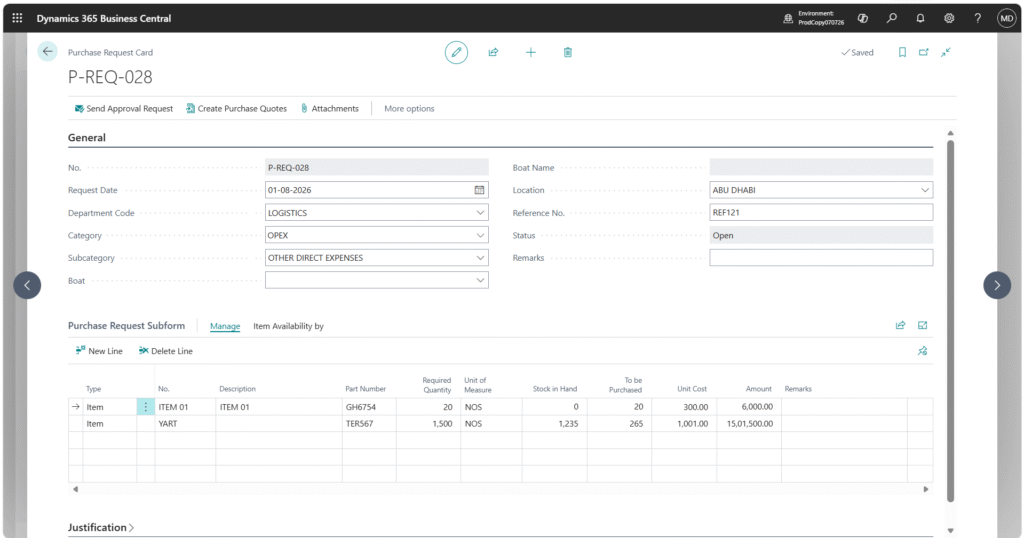
3. Starting Procurement with a Purchase Request
The first step in the process is the creation of a Purchase Request.
Instead of starting directly with a Purchase Order, the requester first communicates what the business needs.
The Purchase Request captures information such as:
- Department
- Category
- Subcategory
- Location
- Item or service required
- Quantity
- Unit of Measure
- Remarks
- Supporting documents
For item-based requests, users can also check Item Availability before determining the quantity that needs to be purchased.
A Clear Separation of Responsibilities
The process creates an important separation between:
“What does the business need?”
and
“Which supplier should we purchase it from?”
That distinction is particularly useful in organizations where a requester may not be responsible for supplier selection.
4. Keeping Supporting Documents with the Request
Procurement requests often require supporting information.
For example, a requester may need to provide specifications, internal documentation, requirement details, or other reference material.
The implemented process provides an Attachments option on the Purchase Request.
Importantly, these attachments remain associated with the individual Purchase Request. They are not automatically transferred to the subsequent Purchase Quote or Purchase Order.
Two Types of Supporting Information
- Documents supporting the original request.
- Documents supporting later purchasing or budget decisions.
This distinction becomes particularly important in the over-budget scenario discussed in Part 2.
5. Approval Before Procurement Moves Forward
Once the Purchase Request has been created, it cannot simply move directly into purchasing.
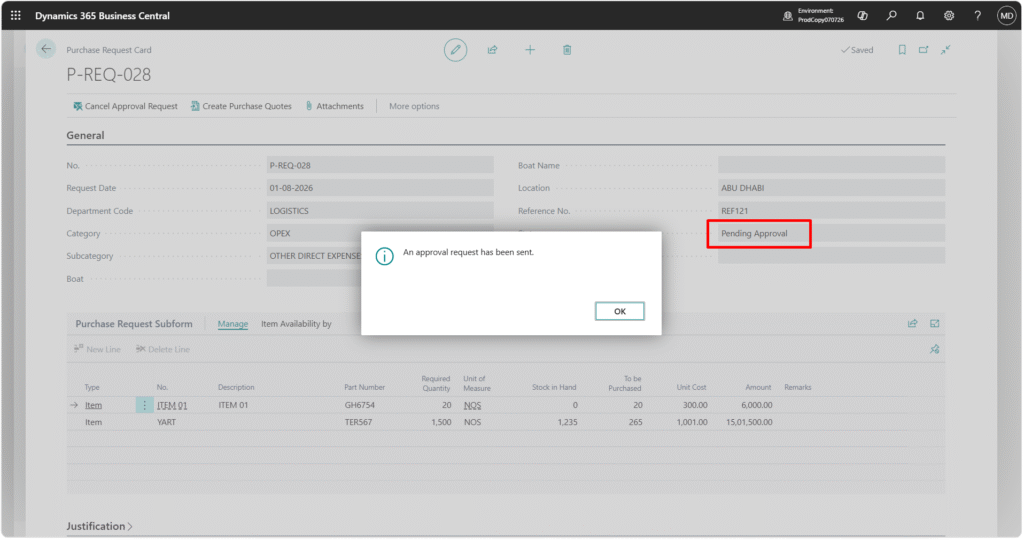
The requester submits it using Send Approval Request.
A dedicated Purchase Request approval workflow was configured for the process.
The workflow supports:
- Approval
- Rejection
- Cancellation
- Delegation
- Approval notifications
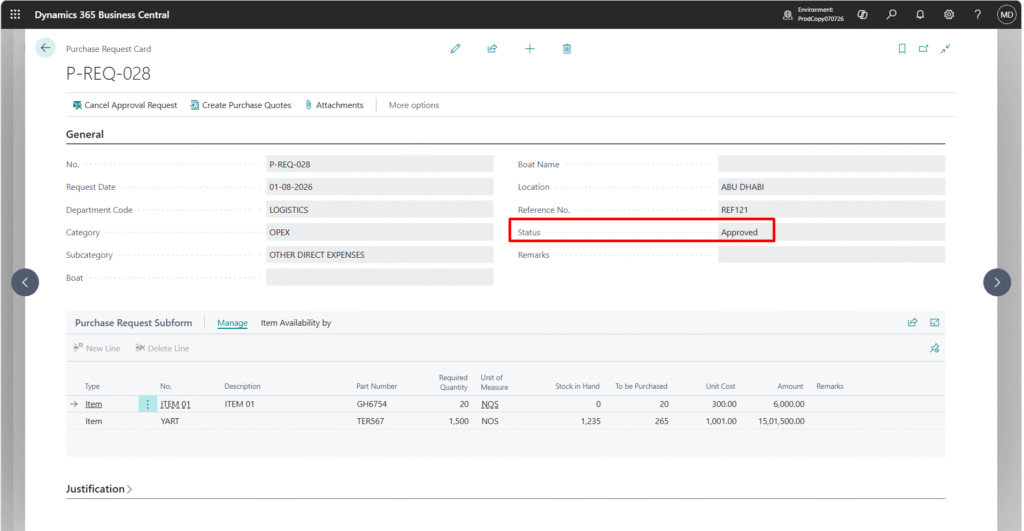
The Purchase Request progresses through statuses such as:
Approval Status Flow
Open → Pending Approval → Approved / Rejected
Only after the required approval is completed can the request proceed to the quotation stage.
This provides a controlled starting point for procurement.
The organization doesn’t simply record what was purchased; it also records who requested it and who approved the requirement.
6. Turning an Approved Request into Purchase Quotes
Once the Purchase Request has been approved, the next step is supplier sourcing.
The implementation allows users to create a Purchase Quote directly from the approved Purchase Request.
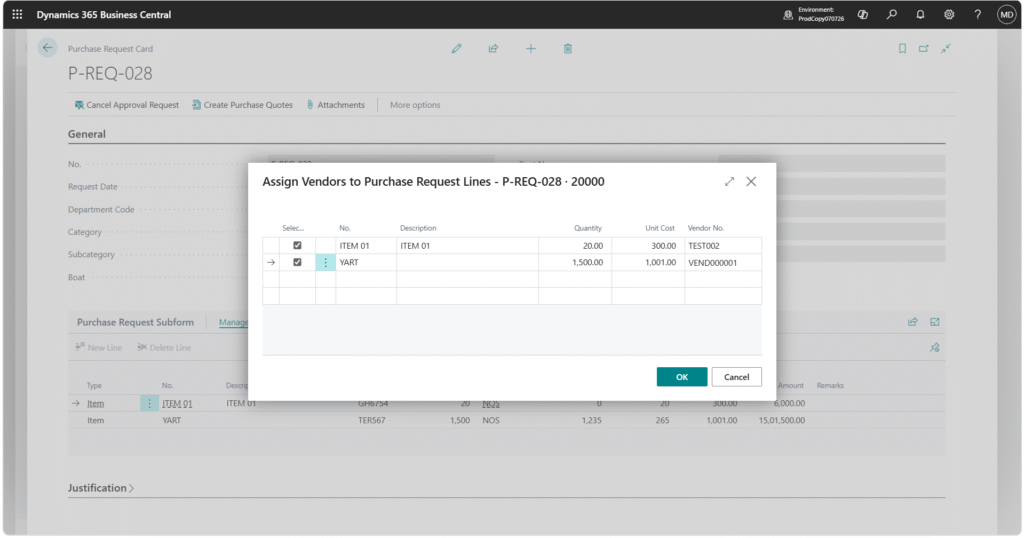
When the user selects Create Purchase Quote, Business Central opens a Vendor and Item Selection page based on the Purchase Request lines.
This is particularly useful when a single request contains multiple items that may be sourced from different vendors.
7. One Purchase Request Can Become Multiple Purchase Quotes
Consider a simple example.
| Purchase Request Line | Selected Vendor | Result |
|---|---|---|
| Item A | Vendor 1 | Purchase Quote – Vendor 1 |
| Item B | Vendor 1 | Purchase Quote – Vendor 1 |
| Item C | Vendor 2 | Purchase Quote – Vendor 2 |
| Item D | Vendor 3 | Purchase Quote – Vendor 3 |
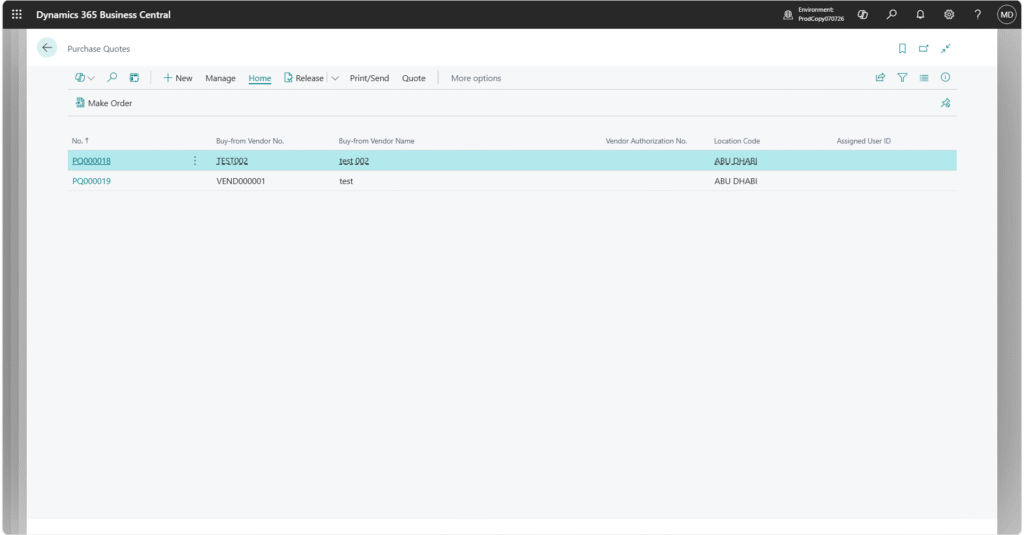
Instead of forcing all four items into one quotation, the system groups the lines based on the selected vendors.
The Result
- Purchase Quote 1 → Vendor 1
- Purchase Quote 2 → Vendor 2
- Purchase Quote 3 → Vendor 3
This vendor-based grouping is part of the implemented process.
This is one of the more interesting aspects of the customization because it allows procurement to make supplier decisions at the line level, rather than treating the entire Purchase Request as a single supplier transaction.
8. Carrying Information Forward
A common problem in multi-step procurement processes is duplicate data entry.
The implemented process addresses this by carrying key information from the Purchase Request into the Purchase Quote.
The information includes:
- Purchase Request Number
- Department
- Category
- Subcategory
- Location
- Dimensions
- Selected Purchase Request Lines
- Quantities
- Other relevant line information
Only the lines assigned to a particular vendor are included in that vendor’s Purchase Quote.
Traceability Across the Procurement Cycle
This creates a traceable relationship between the original requirement and the subsequent purchasing activity.
9. From Purchase Quote to Purchase Order
After the quotation process is completed, the selected Purchase Quote can be converted into a Purchase Order.
An important design decision in this implementation is that there is no separate approval workflow at the Purchase Quote stage.
Once the Purchase Quote has been reviewed and finalized, the user can release it and use Make Order to create the Purchase Order.
Procurement Flow
Purchase Request Approval → Supplier Sourcing → Purchase Quote → Purchase Order
The major budget control is then applied at the Purchase Order stage.
And this is where the solution moves beyond a standard procurement workflow.
10. Bringing Budget Visibility into the Purchase Order
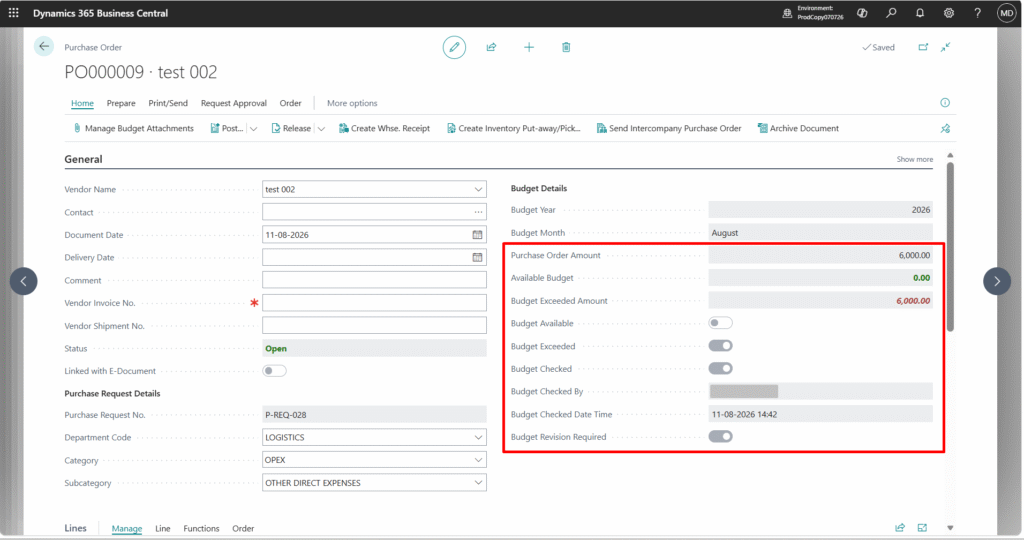
When the Purchase Order is created, the system determines the applicable budget using:
Budget Determination
Department + Budget Year + Budget Month + Category + Subcategory
The Purchase Order amount is then compared against the applicable department budget.
The Purchase Order provides visibility into information such as:
- Budget Year
- Budget Month
- PO Budget Amount
- Available Budget Amount
- Budget Exceeded Amount
- Budget Available
- Budget Exceeded
- Budget Checked
- Budget Checked By
- Budget Checked Date/Time
- Budget Revision Required
From Purchasing Document to Financial Control
The Purchase Order is no longer simply a purchasing document. It becomes a point where procurement and financial control meet.
11. The Bigger Picture
The implementation for Emirates Consortium demonstrates how Business Central can be extended beyond traditional finance processing to support a more structured operational process.
The resulting procurement lifecycle provides:
1. A Structured Starting Point
Employees begin with a Purchase Request rather than directly creating a Purchase Order.
2. Approval Before Sourcing
The requirement is approved before procurement moves forward.
3. Controlled Vendor Selection
Different request lines can be assigned to different vendors.
4. Reduced Duplicate Entry
Relevant information is carried from the Purchase Request into the Purchase Quote and subsequent purchasing documents.
5. Budget Visibility
The Purchase Order can be evaluated against the applicable departmental budget.
6. Traceability
The process maintains links between the request, quotations, and Purchase Order.
Most importantly, the implementation establishes the foundation for the budget-control mechanism that determines whether an expenditure can proceed.
Frequently Asked Questions
1. Why was a Purchase Request introduced before the Purchase Order?
The Purchase Request provides a structured starting point for the procurement process. It allows the business to capture the requirement, including the department, category, subcategory, location, item or service, quantity, unit of measure, remarks, and supporting documents, before procurement moves forward.
2. What happens after a Purchase Request is created?
The Purchase Request is submitted for approval using Send Approval Request. Once the required approval is completed, the request can proceed to vendor and item selection and subsequently to the Purchase Quote stage.
3. Can one Purchase Request be used for multiple vendors?
Yes. The implemented process allows different Purchase Request lines to be assigned to different vendors. Based on the selected vendors, the system can create separate Purchase Quotes for the relevant lines.
4. What information is carried from the Purchase Request to the Purchase Quote?
Key information such as the Purchase Request Number, Department, Category, Subcategory, Location, Dimensions, selected request lines, and quantities can be carried forward. This reduces duplicate data entry and helps maintain traceability between the original requirement and the quotation.
5. Is there a separate approval workflow for Purchase Quotes?
No. As part of the implemented process, there is no separate approval workflow at the Purchase Quote stage. Once the quotation has been reviewed and finalized, it can be released and converted into a Purchase Order using Make Order.
6. How is the applicable budget determined for a Purchase Order?
The applicable budget is determined using a combination of Department, Budget Year, Budget Month, Category, and Subcategory. The Purchase Order amount is then evaluated against the applicable departmental budget.
7. What budget information is visible on the Purchase Order?
The Purchase Order provides visibility into information such as the Budget Year, Budget Month, PO Budget Amount, Available Budget Amount, Budget Exceeded Amount, Budget Available, Budget Exceeded, Budget Checked, Budget Checked By, Budget Checked Date/Time, and whether a Budget Revision is Required.
8. Are Purchase Request attachments automatically transferred to the Purchase Order?
No. Supporting documents attached to the Purchase Request remain associated with that request and are not automatically transferred to the subsequent Purchase Quote or Purchase Order. This distinction is particularly relevant when additional documentation is required for budget-related decisions.
9. What happens when a Purchase Order exceeds the available budget?
The Purchase Order identifies whether the available budget has been exceeded and whether a budget revision is required. The detailed process for handling over-budget Purchase Orders, including Finance budget revisions and final approval, is covered in Part 2 of this implementation story.
10. What is the main benefit of this customized procurement process?
The process creates a more structured procurement lifecycle within Business Central, beginning with the business requirement and continuing through approval, supplier selection, quotation, Purchase Order creation, and budget validation. It also improves visibility and traceability while reducing duplicate data entry.
Conclusion
For Emirates Consortium, expanding Business Central beyond finance was not simply about adding another module or transaction type.
It was about bringing previously manual and partially external procurement activities into a structured, traceable ERP process.
The journey begins with a Purchase Request, passes through approval and supplier selection, and culminates in a Purchase Order with budget visibility.
But what happens when the Purchase Order exceeds the
available budget?
That is where the second part of this implementation story begins.
In Part 2: From Budget Overruns to Approval: Managing Procurement and Budget Control in Business Central , we will explore how the customized budget-control framework works in Business Central—including over-budget Purchase Orders, Finance budget revisions, supporting documentation, budget consumption, and the final approval control.
About the Author

Related posts:

From Client Secrets to Certificate-Based Authentication: Building a Secure Integration with Azure Ke...
From Multiple Data Sources to Azure Databricks: A Zero-Downtime Power BI Report Data Migration for F...
Using AI for Data Discipline That Drives Better AI Outcomes