01Summary
Project-based businesses often run their projects in Dynamics 365 Project Operations and their finance in Dynamics 365 Business Central. The two systems do not talk to each other out of the box, so every customer, project, timesheet, expense and invoice ends up being typed into both, and the numbers finance reports on are always a step behind the project teams.
CloudFronts built an integration that closes this gap using Dataverse plugins: small pieces of C# code that run inside Project Operations every time a record is saved. When someone creates a customer, sets up a project, approves a timesheet or confirms an invoice, the plugin sends that record straight to the matching Business Central web service and writes the Business Central number back onto it. Before material is used on a project, it looks up how much stock Business Central holds at that location. Anything that fails is saved in an Error Log with the exact data that was sent.
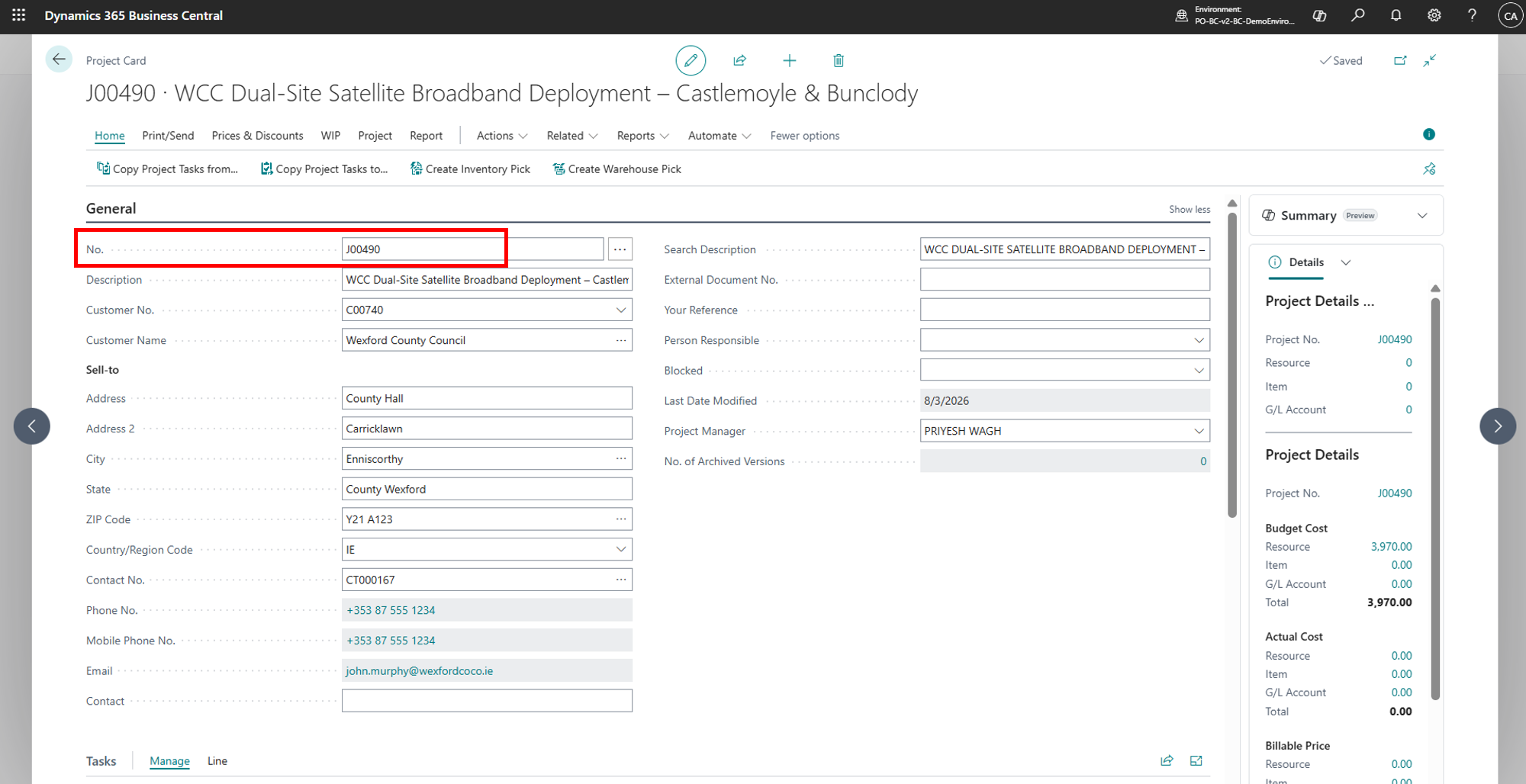
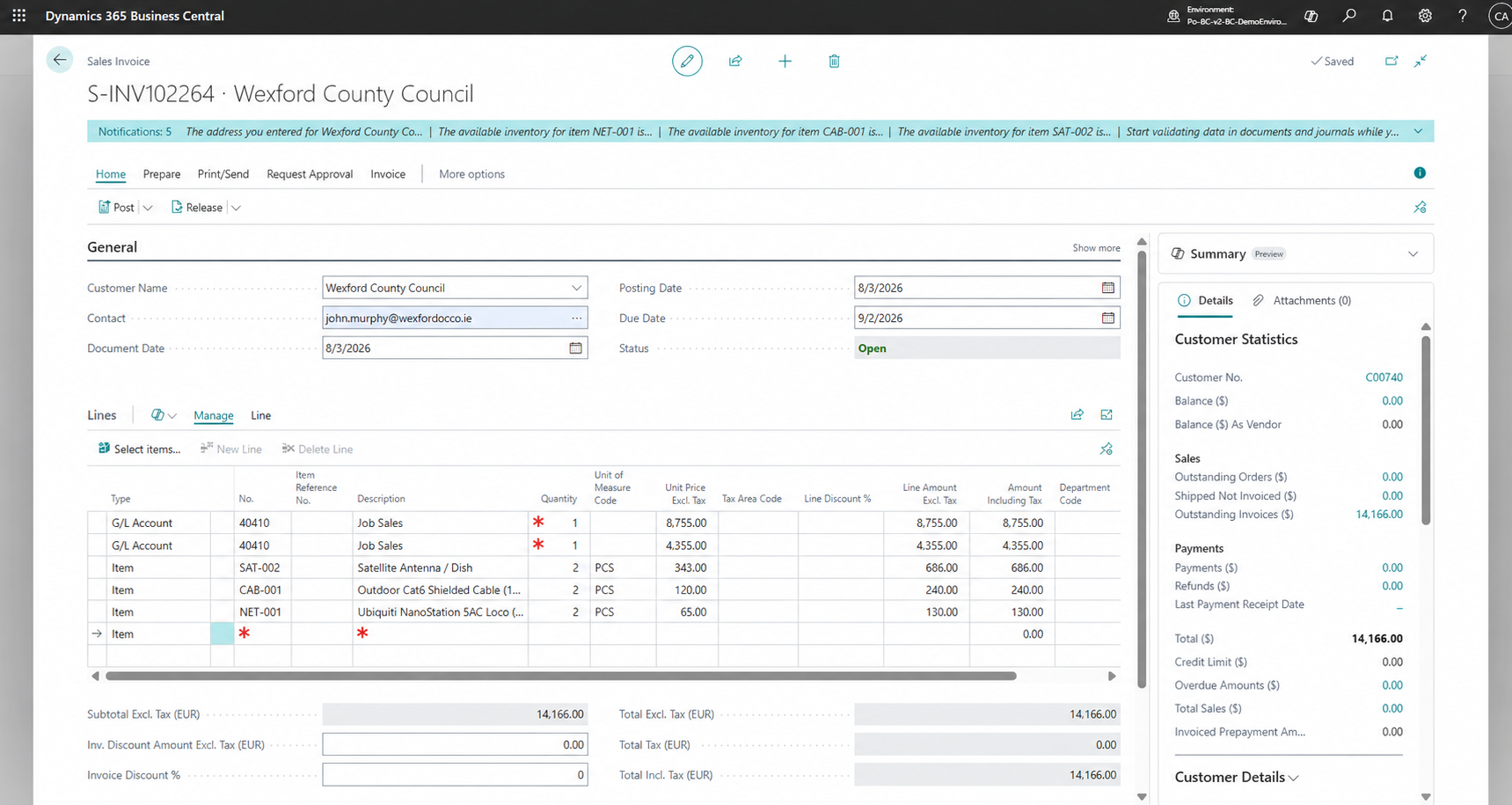
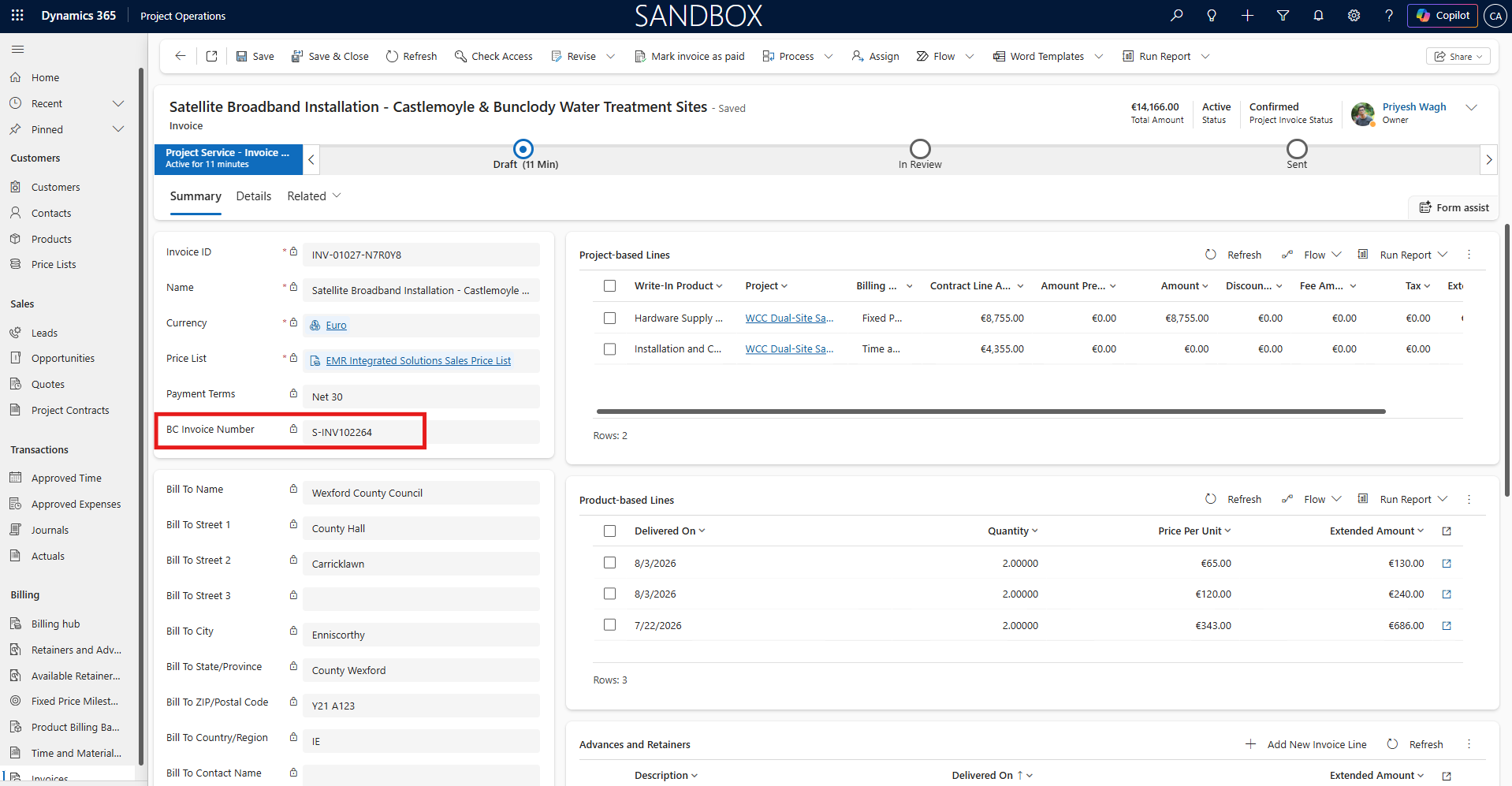
To keep the examples concrete, this post follows a sample scenario: Wexford County Council orders a satellite broadband installation at its Castlemoyle and Bunclody water treatment sites, and the project runs from the first lead to the final invoice across both systems.
Table of Contents
02Business Challenges
Project Operations and Business Central each work well on their own. The trouble is the gap between them: nothing entered in Project Operations reaches Business Central unless someone types it in again. Without an integration, teams run into the same problems:
- Everything is entered twice. A new customer or project is created in Project Operations, then created again in Business Central. Every later change has to be repeated by hand.
- Master data drifts apart. Countries, postcodes, currencies, payment terms, dimensions and work types have to match in both systems. When one side changes and the other does not, records fail to post.
- Approved work reaches finance late. Approved timesheets, expenses and material only arrive in Business Central after someone exports and imports them, so project costs in finance are always behind.
- Material is used without checking stock. Site teams log material against a project without knowing whether Business Central actually has it at that location.
- Invoices are keyed twice. A confirmed project invoice has to be rebuilt in Business Central, line by line, before finance can post it.
- Errors are hard to trace. When a record does not match, nobody can see what was sent or why Business Central rejected it.
03Solution Overview
CloudFronts built one main plugin, RequestProcessor, and registered it on every Project Operations table that finance needs. Two small helper plugins handle the stock check for material. Whenever one of those records is created, updated or deleted, Dataverse runs the plugin. The plugin works out which table the record came from, turns it into the shape Business Central expects, and sends it to the matching Business Central web service.
When Business Central replies, the plugin stores the Business Central number on the Project Operations record, such as the BC customer number or the project code. Next time the record changes, the plugin uses that number to update the same record in Business Central instead of creating a new one.
All the settings the plugin needs, such as where to sign in, which web service to call for each table, and which user is the integration user, live in a single Integration Configuration record in Dataverse. Moving from a test company to the live one is a change to that record, not to the code.
04Technical Approach
How It Works
Every save takes the same path through the plugin:
- A record is saved in Project OperationsFor example, the project manager approves a week of time entries on the Wexford County Council broadband project.
- RequestProcessor loads its settingsIt reads the Integration Configuration record. If the record is missing, the plugin stops quietly instead of failing the user’s save.
- It skips its own changesIf the record was last modified by the integration user, the plugin stops. This keeps it from running again on the Business Central number it has just written back.
- The handler for that table maps the recordIt checks the record’s status, so only approved entries or confirmed invoices go further, and copies the fields into the JSON shape Business Central expects.
- Business Central creates or updates the recordPOST creates a new record; PUT updates the one already linked by its Business Central number.
- The result is savedOn success, the Business Central number is written back onto the Project Operations record. On failure, an Error Log record is created with the details.
What Moves Between the Systems
The plugin handles 20 Project Operations tables. They fall into five groups, in the order a project normally runs.
| Group | Saved in Project Operations | Created in Business Central | When It Is Sent |
|---|---|---|---|
| Customers | Account | Customer, or Vendor when the account type is Vendor | Create and update; a delete blocks the record in BC instead of removing it |
| Customers | Contact | Contact | Create, update and delete |
| Master data | Country code, postcode, currency, payment terms | The same lists in BC | Create and update |
| Master data | Dimension, dimension value, work type, resource group, bookable resource | Dimensions, work types, resource groups, resources | Create and update |
| Project setup | Project | Project; the BC project code is written back | Create and update; projects cannot be deleted |
| Project setup | Project task | Project task | Create and update |
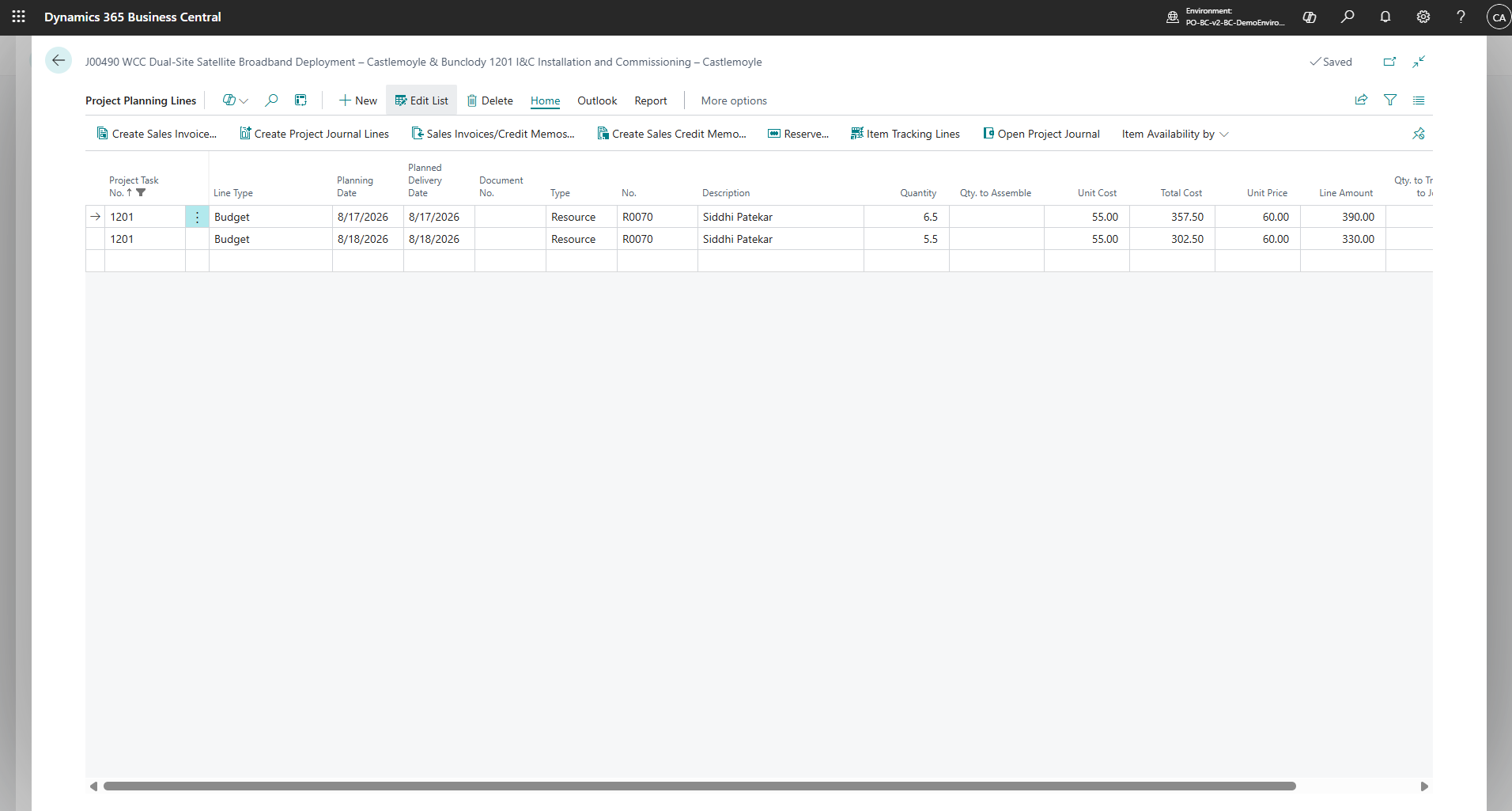
| Project setup | Resource assignment and estimate line | Project Planning Lines (the budget) | When the line is created with its task, quantity and amount |
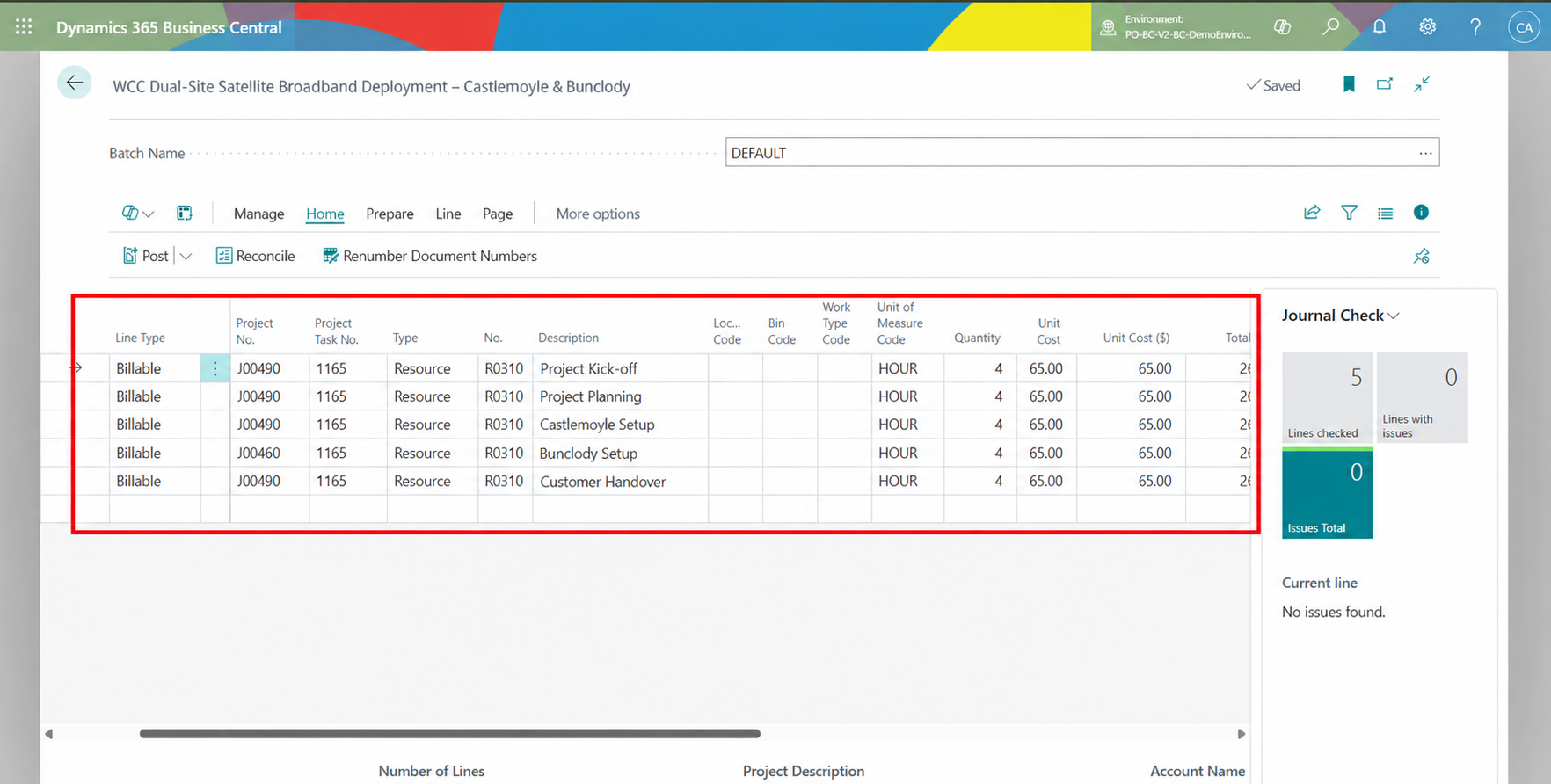
| Actuals | Time entry | Project Journal line (Resource) | When the entry is approved |
| Actuals | Material usage | Project Journal line (Item) | When the usage is approved or returned |
| Actuals | Expense | Project Journal line (G/L Account) | When the expense is approved |
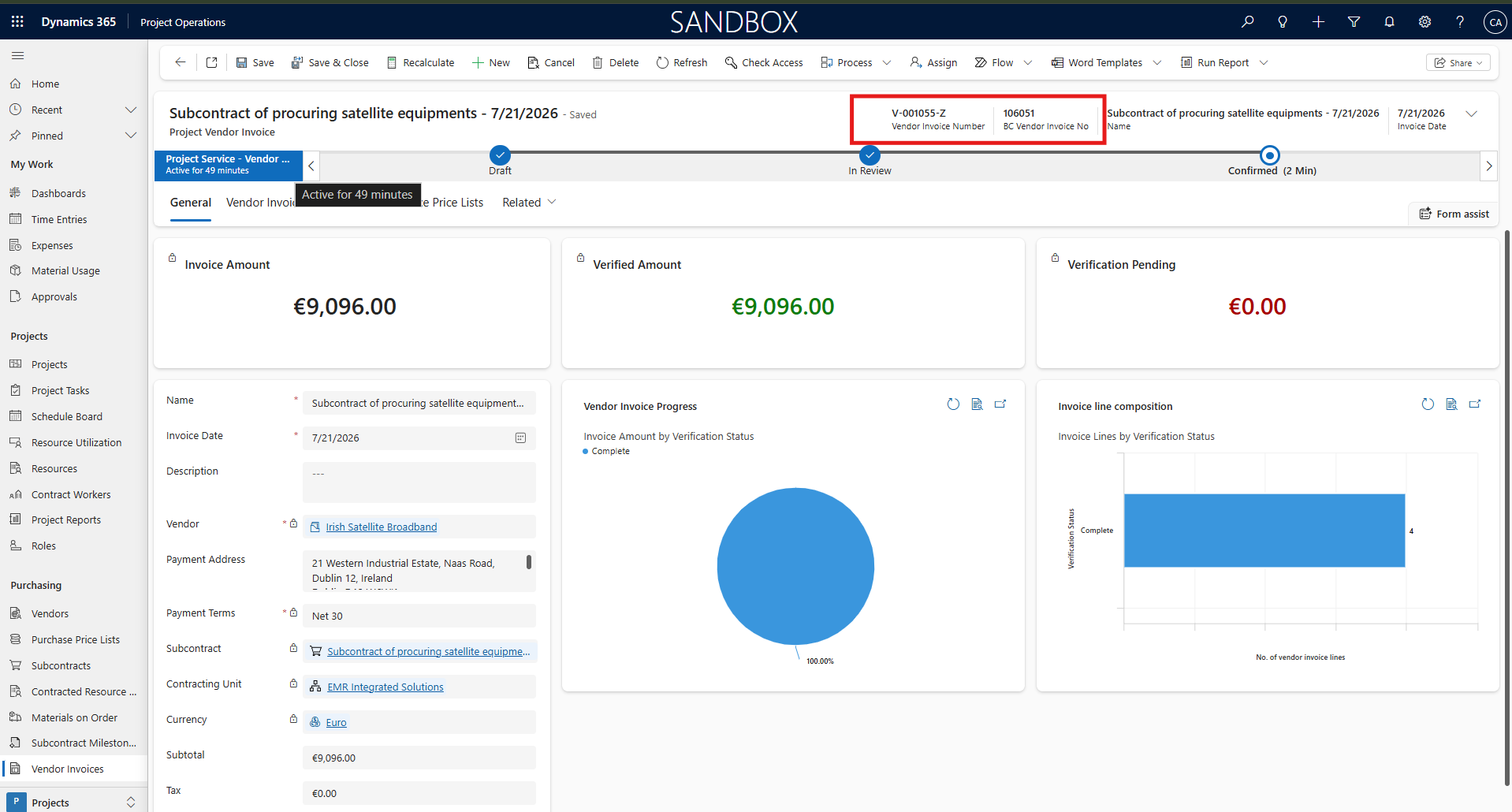
| Billing | Project vendor invoice and its lines | Purchase document and lines | When the vendor invoice is confirmed |
| Billing | Project invoice and its lines | Sales invoice and lines | When the invoice is confirmed |
What the plugin sends from Project Operations to Business Central
Two rules keep this simple:
- Everything flows one way. Project Operations is where records start. Business Central receives them and sends back only its own number for each record.
- Only finished work is sent. Draft timesheets, unapproved expenses and unconfirmed invoices stay in Project Operations. Finance only sees what has been approved.
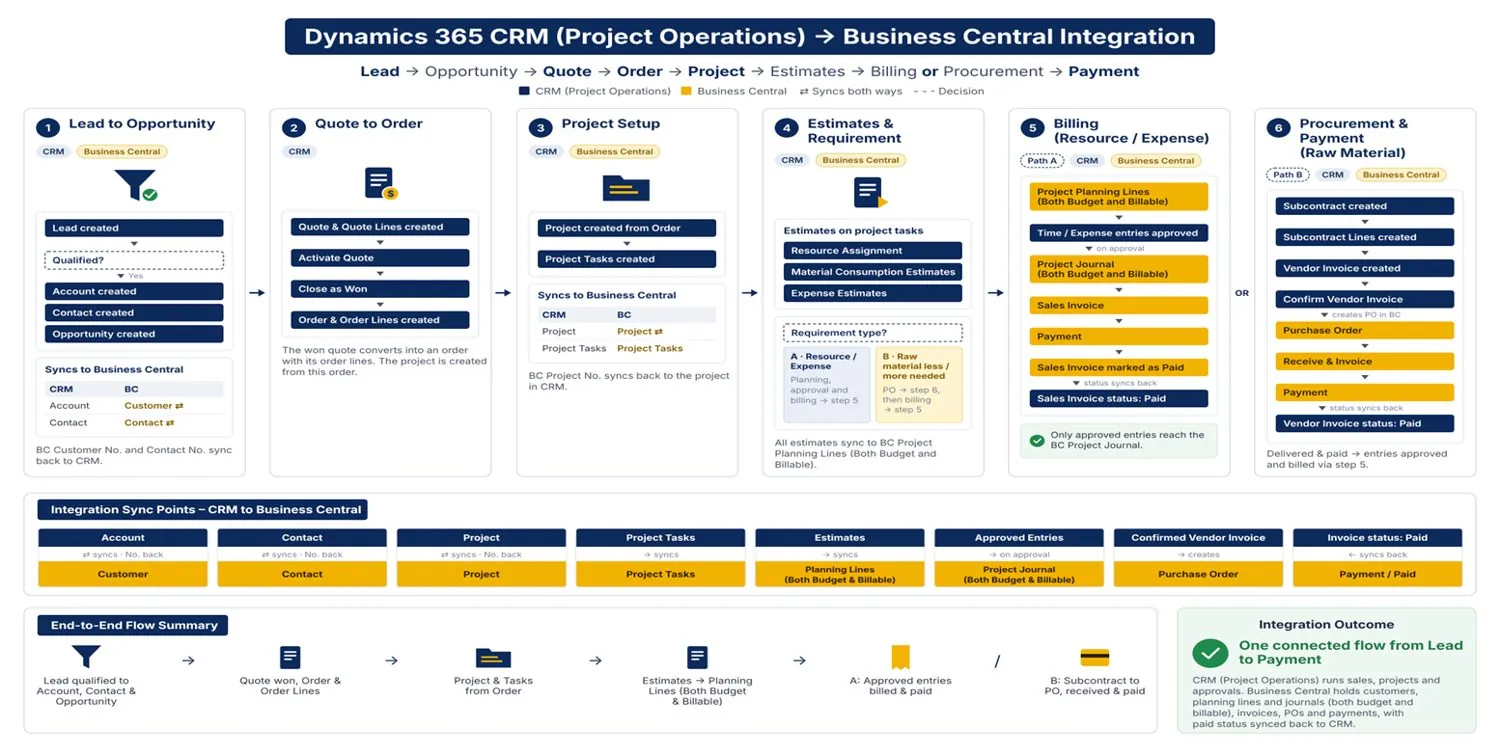
Here is what that looks like in practice, from customer to invoice:
Inside the Plugin, Step by Step
Every save follows the same path through RequestProcessor:
- A record is saved. A user creates, updates or deletes a record on one of the 20 registered tables.
- Load the settings. The plugin reads the Integration Configuration record. If it is missing, the plugin stops quietly.
- Get the full record. For a create, it uses the record being saved. For an update, it uses the post-image (the record as it looks after the save). For a delete, it uses the pre-image (the record as it looked before).
- Skip its own changes. If the record was last modified by the integration user named in the settings, the plugin stops.
- Pick the right handler. A switch on the table name hands the record to the class for that table: AccountsOperations for accounts, TimeEntriesOperations for time entries, and so on. Each handler checks the record’s status first.
- Map and send. The handler copies the fields Business Central needs into a small data class (a DTO), converts it to JSON and sends it to that table’s web service: POST to create, PUT to update.
- Write the BC number back. The number Business Central returns is saved on the Project Operations record, so the next change updates the same record in Business Central.
- Log anything that fails. If Business Central rejects the call, the error, the web service address, the JSON that was sent and Business Central’s reply are saved as an Error Log record.
The routing is a plain switch, which makes it easy to see what happens for each table:
switch (targetEntity.LogicalName)
{
    case Variables.CRM_ACCOUNT:
        if (message == "create") AccountsOperations.SyncCreatedAccountBC(integrationConfig, targetEntity, service);
        else if (message == "update") AccountsOperations.SyncUpdatedAccountBC(integrationConfig, targetEntity, service);
        else if (message == "delete") AccountsOperations.SyncDeletedAccountBC(integrationConfig, targetEntity, service);
        break;

    case Variables.CRM_PROJECT:
        if (message == "delete")
            throw new InvalidPluginExecutionException("Error: Projects cannot be deleted from Project Operations");
        // create and update are sent to the BC project web service
        break;

    case Variables.CRM_TIMEENTRY:
        var entryStatus = targetEntity.GetAttributeValue<OptionSetValue>(Variables.TIMEENTRY_ENTRYSTATUS);
        if (entryStatus != null && entryStatus.Value == 192350002)   // Approved
            TimeEntriesOperations.SyncTimeEntriesToProjectJournalBC(integrationConfig, targetEntity, service, tracingService);
        break;

    // ... one case for each of the 20 tables
}
Setting It Up
- Give the integration its own identity. Register an app in Microsoft Entra ID with the Business Central API permission, create a client secret, then add the same app on the Microsoft Entra Applications page in Business Central with only the permissions the integration needs. The plugin signs in as this app, not as a person, so it keeps working when people change roles.
- Publish the Business Central web services. Each record type is sent to its own web service: customers, vendors, contacts, projects, project tasks, planning lines, the project journal, sales and purchase invoices, the master-data lists, and item ledger entries for stock.
- Fill in the Integration Configuration record. This one Dataverse record holds everything the plugin needs to know (see the table below).
- Register the plugin steps. In the Plugin Registration Tool, register RequestProcessor on Create, Update and Delete for each table it should handle, with a post-image for updates and a pre-image for deletes.
| Setting | What It Holds |
|---|---|
| Token URL, Client ID, Client Secret, Scope, Grant Type | How the plugin signs in to Business Central |
| One web service URL per record type | Where each table is sent, for example the Project or Project Journal web service |
| Time and Material G/L number, Fixed Price G/L number | Which G/L account invoice lines post to, by billing type |
| Integration User | The Dataverse user the plugin acts as, so it can ignore its own changes |
The Integration Configuration record
How the Plugin Signs In and Calls Business Central
Before its first call, the plugin asks Microsoft Entra ID for an access token using the app’s client ID and secret. It keeps the token for the rest of the run, so one save does not sign in again for every call. Each request then carries the token:
POST <Token URL from Integration Configuration>
     grant_type=client_credentials & client_id=... & client_secret=... & scope=...
→ access token

POST <Project web service URL>             create a project, BC returns its number
PUT <Project web service URL>('PR00042') update the same project next timeChecking Stock Before Material Is Used
Material is the one place where Project Operations needs to ask Business Central a question before it sends anything: is this item actually in stock at this location? Two small plugins handle it.
- When material is logged, look up the stock. As a user enters the product and location on a Material Usage record, the ProductsOperation plugin reads the item ledger entries in Business Central for that item number and location code. It saves the quantity in a Quantity Available field, so the user can see it on the form.
- When the material is approved, compare. When a project approval for material moves to the approved stage, the PreValidationMaterialUsageApproval plugin compares the quantity requested with the quantity available. If there is not enough stock, it writes an entry to the Error Log so the team can follow up.
- When approved, post it. RequestProcessor sends the material to the Project Journal in Business Central as an Item line, where posting reduces stock and records the cost against the project.
The stock lookup is a single filtered call to Business Central:
string url = integrationConfig.CF_ITEMLEDGERENTRIESWEBSERVICEURL +
             "?$filter=Item_No eq '" + productNumber + "' and Location_Code eq '" + locationCode + "'";
string response = APIOperations.GetRequestToBC(url, integrationConfig, "fetchProductDetailsFromBC",
                                               targetEntity.LogicalName, targetEntity.Id.ToString(), service);

itemLedgerEntries = (ItemLedgerEntries)APIOperations.ConvertJsonToObject(response, itemLedgerEntries, service);
targetEntity["cf_quantityavailable"] = itemLedgerEntries.Quantity;   // shown on the Material Usage form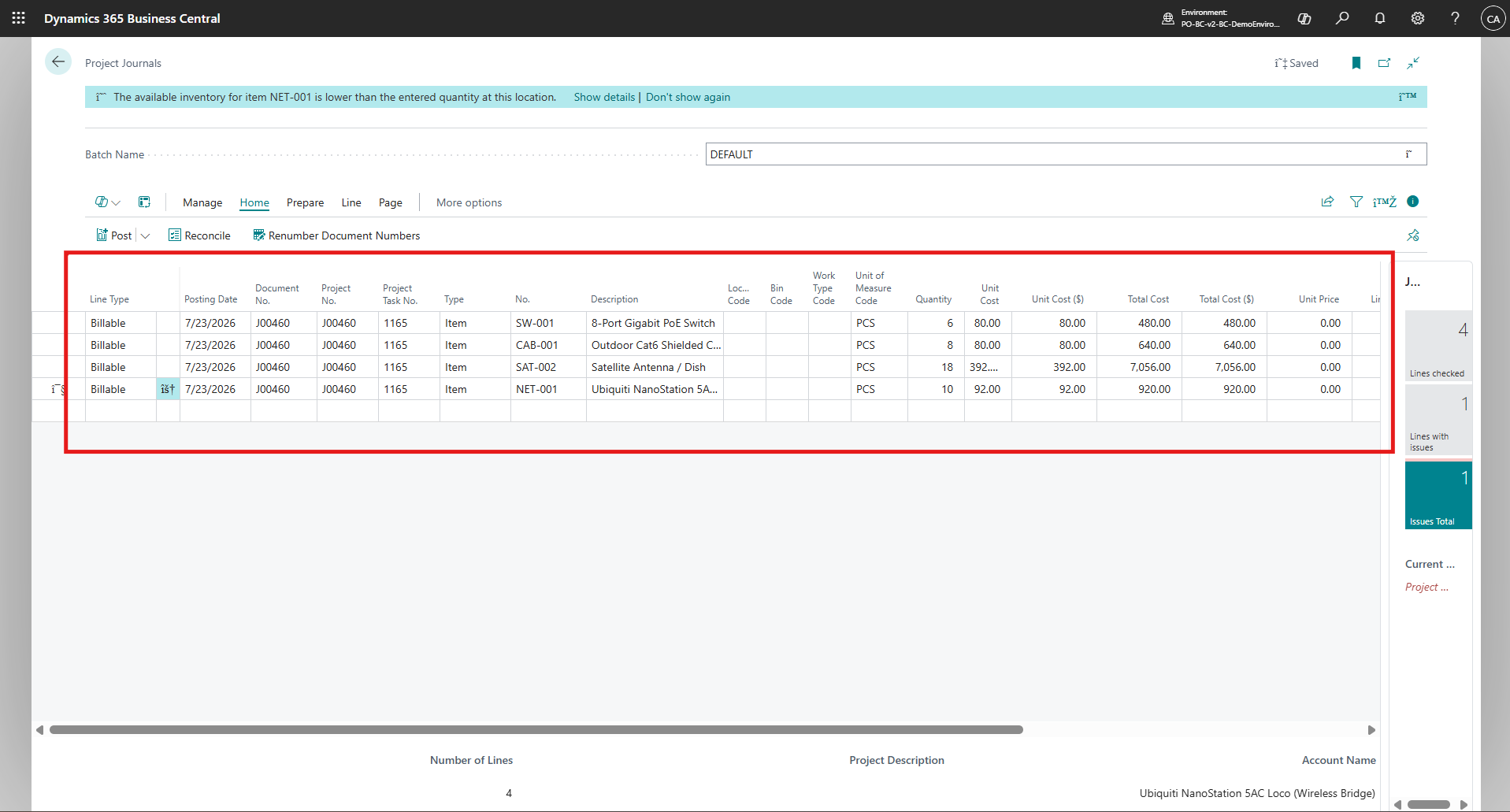
Guardrails for Real-World Use
- 🔁No Endless LoopsWhen the plugin writes the Business Central number back, that is itself a save. The plugin checks who made the change, and if it was the integration user, it stops.
- 🔢Create Once, Then UpdateThe Business Central number stored on each record decides what happens next. No number means create; a number means update that record in Business Central.
- ⛔Nothing Is Deleted by AccidentDeleting an account blocks the customer or vendor in Business Central instead of removing it. Projects cannot be deleted at all; the user sees a clear message instead.
- ✅Only Approved Work Reaches FinanceTime entries, expenses and material are sent only when approved, and invoices only when confirmed.
- 📝Incomplete Data Is Stopped EarlyBefore a time entry or material line is sent, the plugin checks that the project, task, resource or item and quantity are filled in, and tells the user what to fix.
- 🗂Every Failure Is RecordedEach failed call creates an Error Log record with the method, table, record ID, web service address, the JSON sent and Business Central’s reply.
05Business Impact
- 20Project Operations tables synced to Business Central
- 3Plugins: one main plugin and two for the stock check
- 1Configuration record holding every setting
- 0Customers, projects, timesheets or invoices typed in twice
- Records are entered once. Customers, projects, tasks and budgets appear in Business Central as soon as they are saved in Project Operations.
- Master data stays in step. Currencies, payment terms, dimensions, work types and resources match in both systems, so postings stop failing on missing codes.
- Project costs in finance are current. Approved time, expenses and material reach the Project Journal when they are approved, not at month end.
- Invoices are not rebuilt by hand. A confirmed project invoice arrives in Business Central as a sales invoice with its lines, ready for finance to post.
- Stock is visible where material is logged. Users see the quantity Business Central holds before they use it, and shortfalls are flagged at approval.
Because every failed call is logged with the data that was sent, fixing a sync issue takes minutes instead of a search through two systems.
06Conclusion
Keeping finance up to date with project work is rarely difficult. It is just repetitive: set the customer up again, create the project again, retype the timesheets, rebuild the invoice. A Dataverse plugin takes that repetition away. Each record is sent to Business Central the moment it is saved or approved in Project Operations, the Business Central number comes back onto the record, and anything that fails is logged with the data that was sent.
The same pattern works beyond Project Operations: one plugin that routes by table, a configuration record for settings, the Business Central number stored on each record, and an error log. It applies to any Dataverse system that needs to feed Business Central, such as Dynamics 365 Sales orders, Field Service work orders or Customer Service cases that need billing.
CloudFronts also offers this integration as a ready-to-deploy solution: the Project Operations to Business Central Integration Module on Microsoft Marketplace.
Ready to Connect Project Operations and Business Central?
If your project and finance teams are typing the same data into Dynamics 365 Project Operations and Business Central, connect with CloudFronts for a solution architecture review. We have built plugin-based Project Operations to Business Central integrations and can help you design one around your own process.
About the Author

Cassandra Rodrigues is a Microsoft Dynamics 365 and Power Platform Consultant with four years of experience delivering CRM customization, business-process automation, customer portals, and system integrations. Her work spans Dynamics 365 Sales, Customer Service, Project Operations, Power Apps, Power Automate, Power Pages, Microsoft Dataverse, JavaScript, C# plugins, and Azure Functions. She focuses on understanding how people work today and translating complex business processes into practical, scalable digital solutions.