Summary
Most project businesses we work with have the same quiet problem. The project team plans and tracks work in Dynamics 365 Project Operations. The finance team bills, buys and closes the books in Dynamics 365 Business Central. Everything the project team decides has to be typed again by finance. The two teams spend their week checking each other’s numbers.
At CloudFronts we closed that gap with plugins: small automatic helpers that sit inside Project Operations and act the moment someone saves a record. When a project, a plan, a timesheet or an invoice is saved, the helper creates the matching record in Business Central and writes the Business Central reference back on the project. This integration is available as the PO-BC Integration Module 2.0 on Microsoft Marketplace.
To show how this works in practice, we ran a real example through our demo environment: CloudFronts – Smart Office Rollout, Mumbai, a short project to fit out a new office floor. Every screenshot in this post comes from that one project.
Table of Contents
Business Challenges
Picture the Mumbai office rollout without any connection between the two systems.
- Monday. The project manager sets up the project, splits it into four tasks and plans 104 hours of work in Project Operations. Finance is told about it in an email.
- Tuesday. Finance creates the same project in Business Central, retypes the four tasks, and builds a budget from a spreadsheet the project manager sent over. One task name is spelt differently. Nobody notices.
- Wednesday. The plan changes: cabling needs an extra day. Project Operations is updated. The budget in Business Central is not.
- Thursday. Twenty desks are taken from the warehouse for the new floor. The site team records it in Project Operations. Business Central still believes the desks are on the shelf.
- Friday. Finance asks why the project margin looks wrong. Two people spend the afternoon comparing screens.
None of this is anyone’s fault. Each system is doing its job. They just do not talk to each other.
The Idea in Plain Words
A plugin is a small piece of code that lives inside Project Operations and wakes up at a specific moment, for example when a project is saved or a timesheet is approved. Ours does three things each time it wakes up:
- It reads what just changedThe project name, the customer, the task, the hours, the item and quantity: whatever finance would otherwise have to retype.
- It creates or updates the same record in Business CentralIt signs in to Business Central with its own dedicated account, not a person’s login, so it keeps working when people change roles or leave.
- It writes the answer backBusiness Central replies with its own reference, such as a project number or an invoice number. That reference is saved on the Project Operations record, so both teams can always find the matching record in the other system.
Walkthrough: The Mumbai Office Rollout
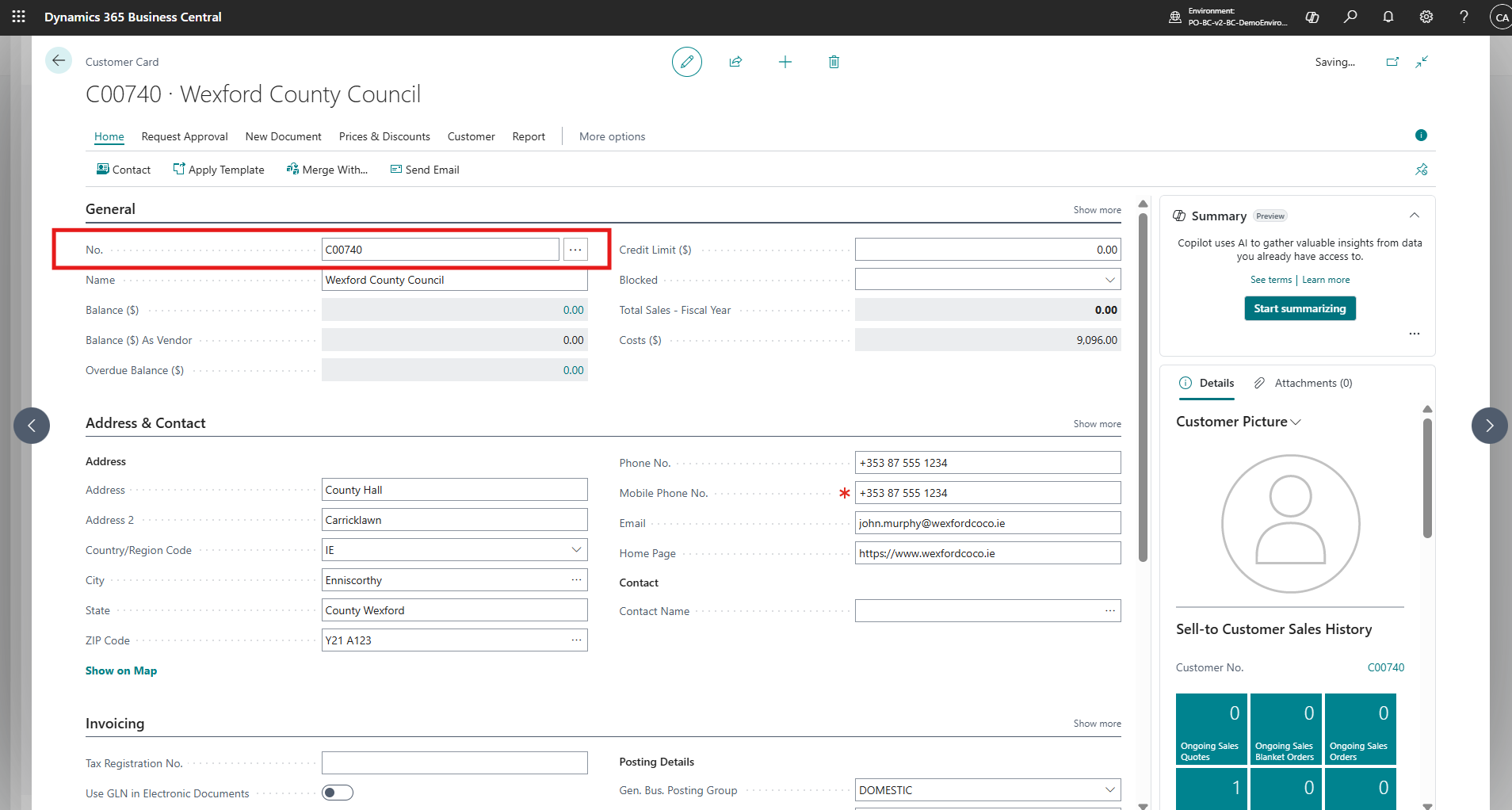
Here is the same week again, this time with the integration switched on. The customer is CloudFronts Technologies, already known to Business Central as customer C00310. The work is 40 new workstations, meeting-room screens and office Wi-Fi.
Step 1: The Project Manager Creates the Project, Once
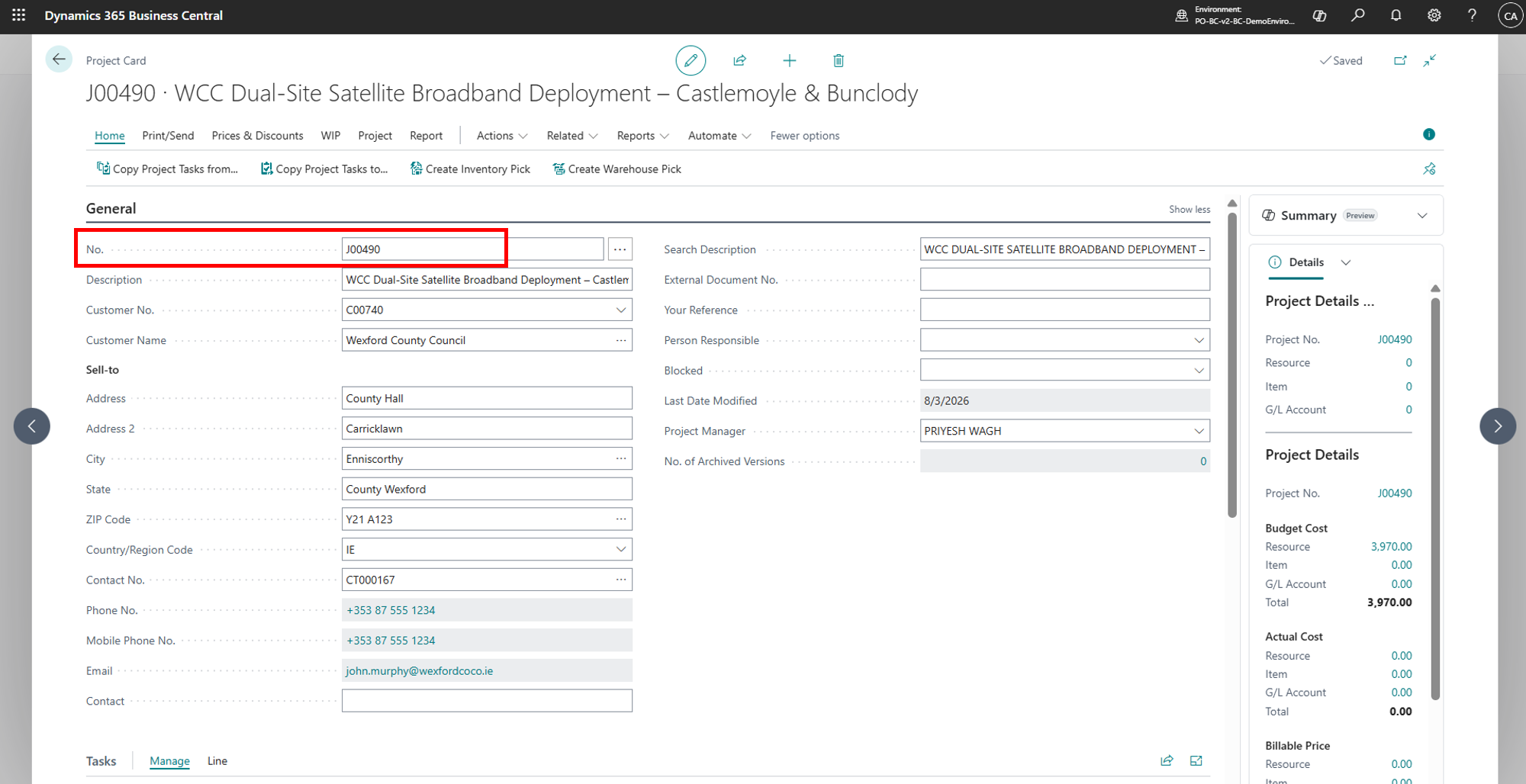
The project manager creates the project in Project Operations with a name, the customer, a start date of 12 October and a finish date in December. The project code is left blank because nobody knows it yet. A few seconds after saving, the code J00700 appears in the Project Code field. That number came back from Business Central.
Step 2: The Tasks Follow
The project manager adds four tasks in the project plan: Site Survey and Floor Plan, Network Cabling and Wi-Fi, Workstation and Screen Installation, and Testing and Handover. Each one is created under project J00700 in Business Central with the same name and dates, numbered 1272 to 1275. Finance did not open anything.
Step 3: The Plan Becomes the Budget
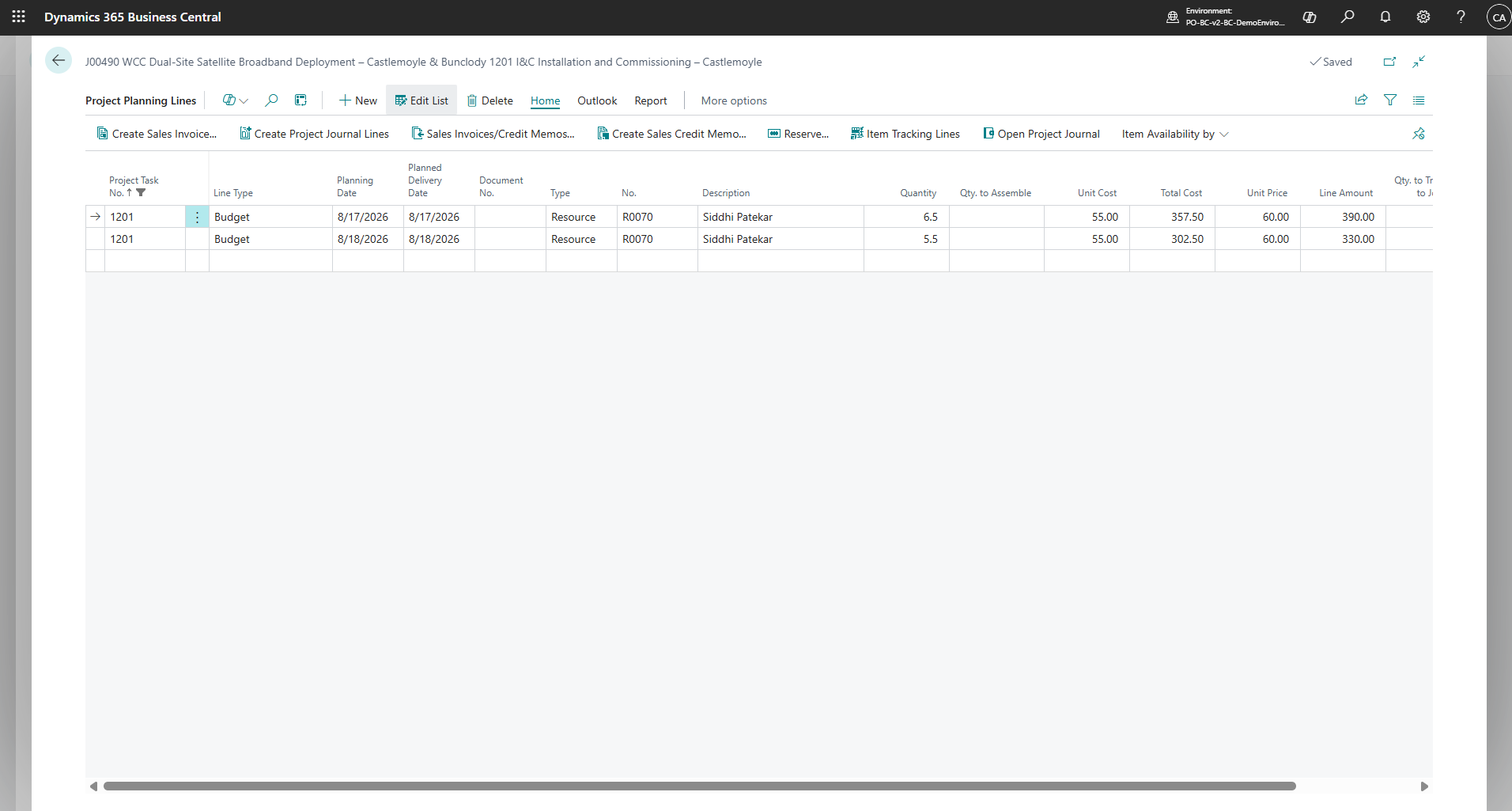
Next, the project manager assigns a named person to each task: 16 hours for the survey, 40 for cabling, 32 for installation and 16 for testing and handover. The integration turns that plan into budget lines in Business Central, one line per working day per person, so finance sees not only how much work is planned but when it falls. Weekends are skipped automatically.
Step 4: Real Work and Real Material Arrive as Actuals
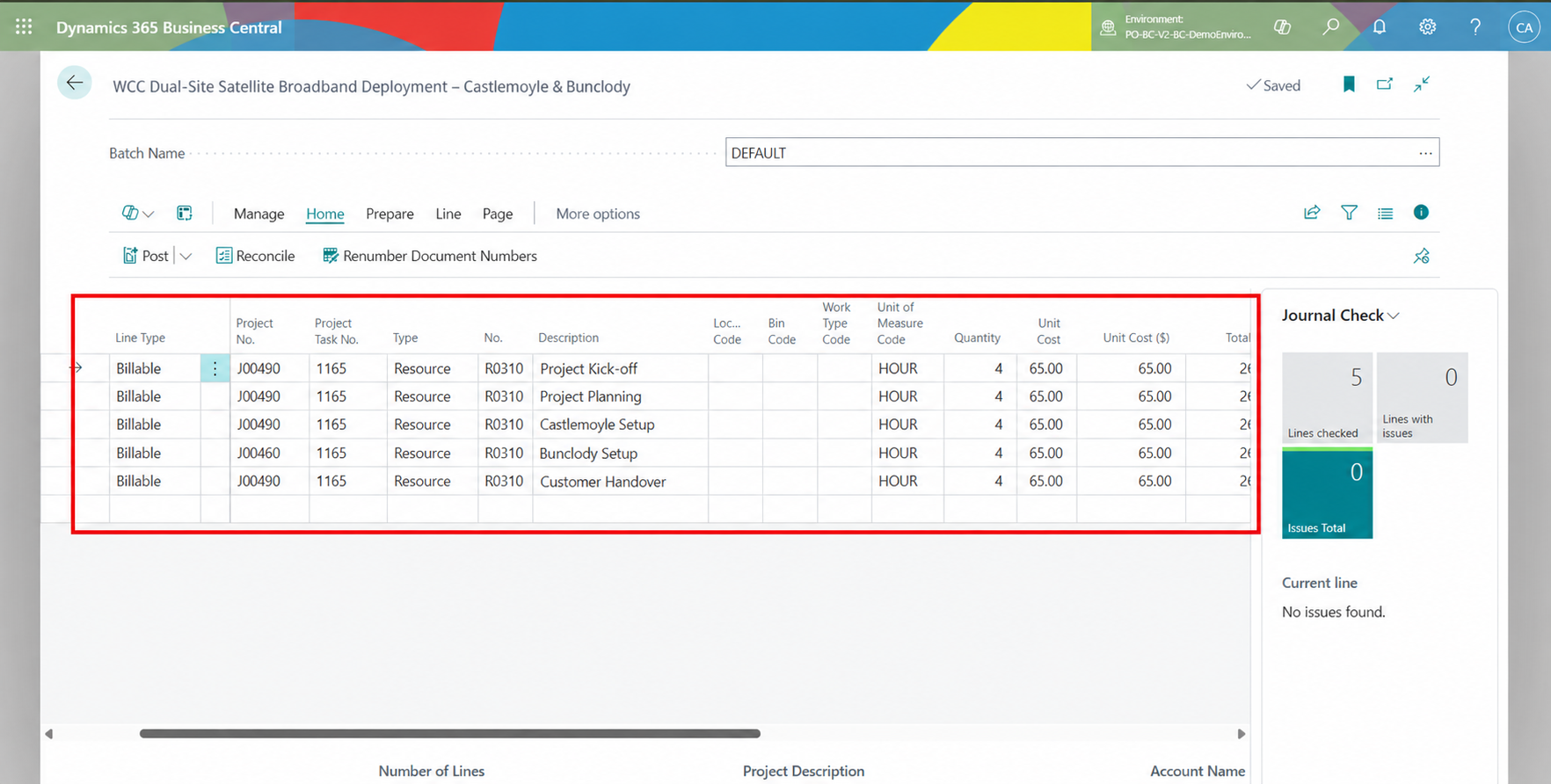
On 12 October, the consultant logs a day on the site survey: "Walk-through of the new floor; desk layout and cable routes agreed with facilities." A week later, the site team records 20 ATHENS desks taken from the Main Warehouse for the installation task.
The integration does not send rough drafts. Time and material only go to Business Central once they are submitted for approval, and the project manager approves them in Project Operations as usual. They land in the project journal in Business Central against the right project, task and date, ready for finance to post.
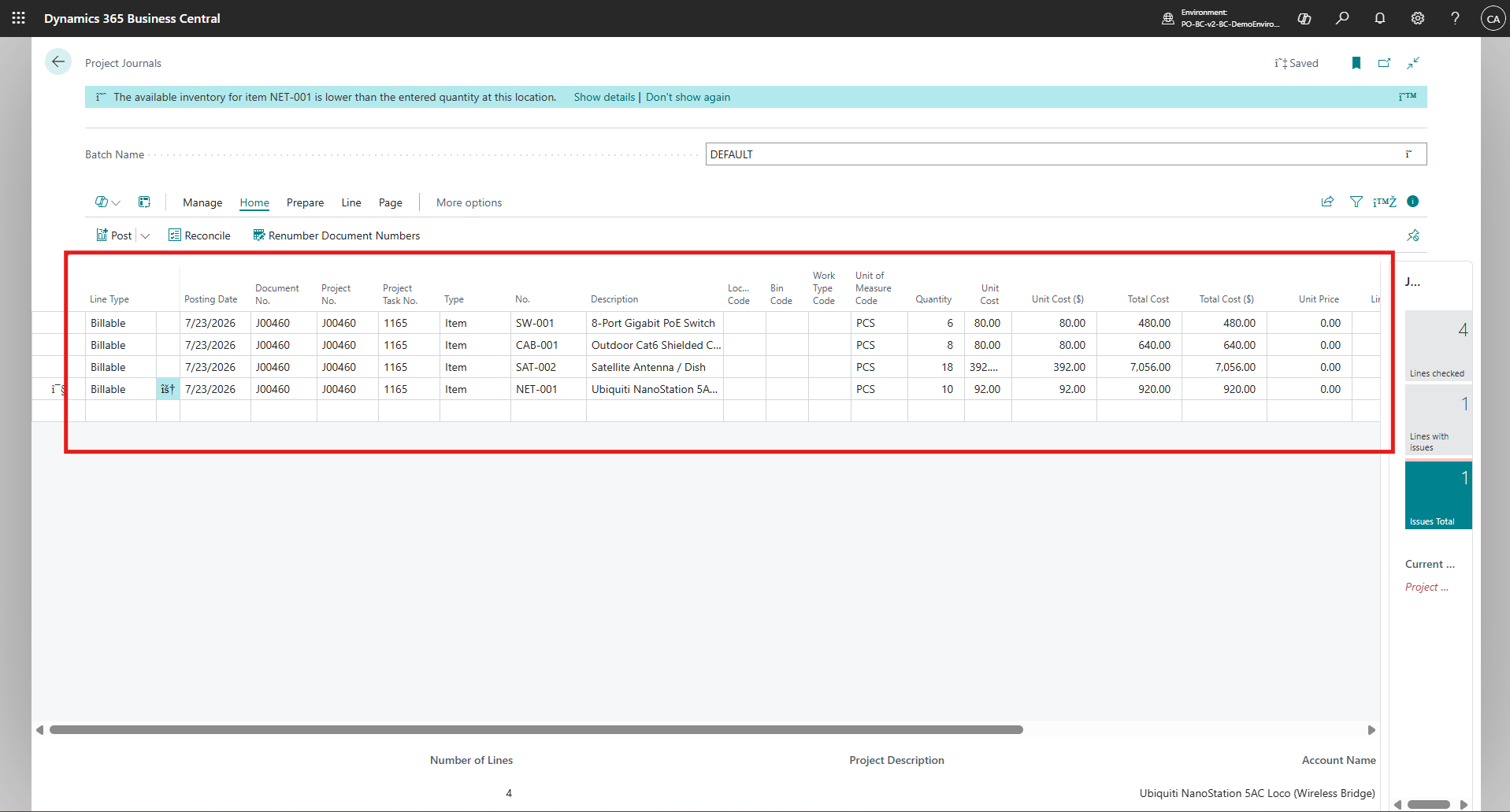
For material there is one extra check. Before the line is approved, the integration compares the quantity requested with the stock Business Central holds at that warehouse. If there is not enough, it is flagged straight away instead of turning up weeks later as a stock difference.
Step 5: The Invoice
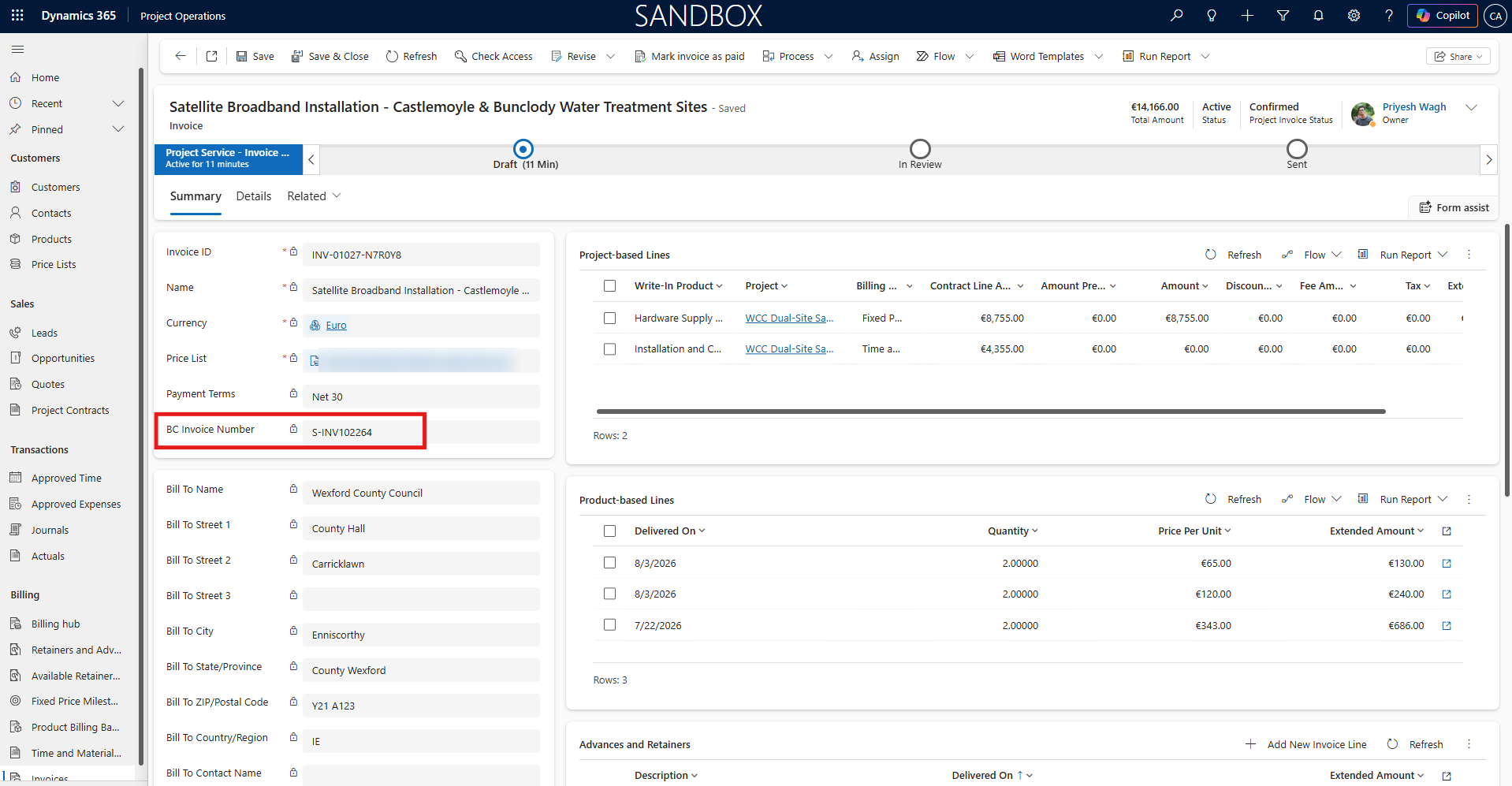
When the project manager confirms a customer invoice in Project Operations, the integration creates the matching sales invoice and its lines in Business Central for the same customer, with the same due date.
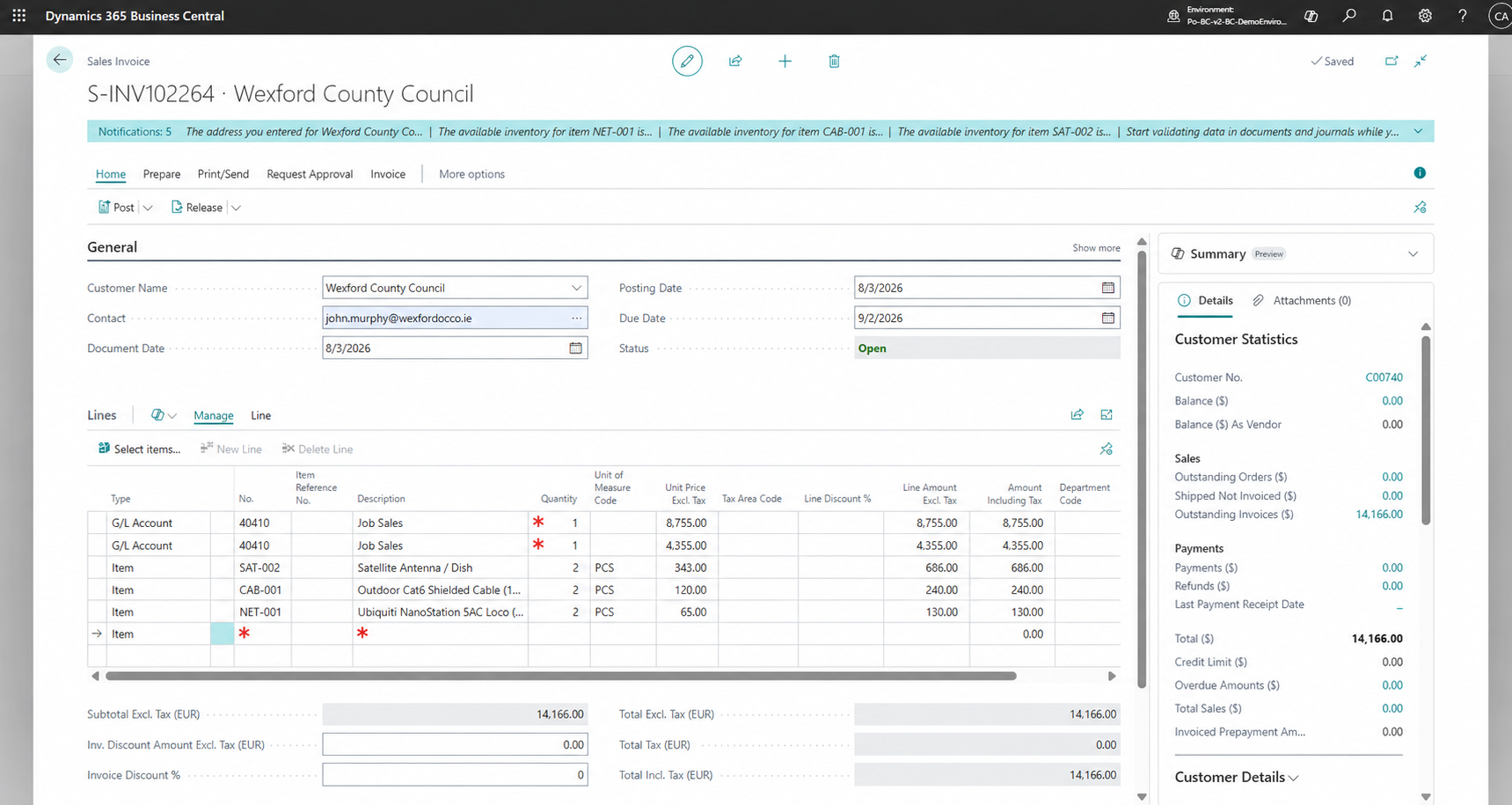
The Business Central invoice number is then written back on the Project Operations invoice.
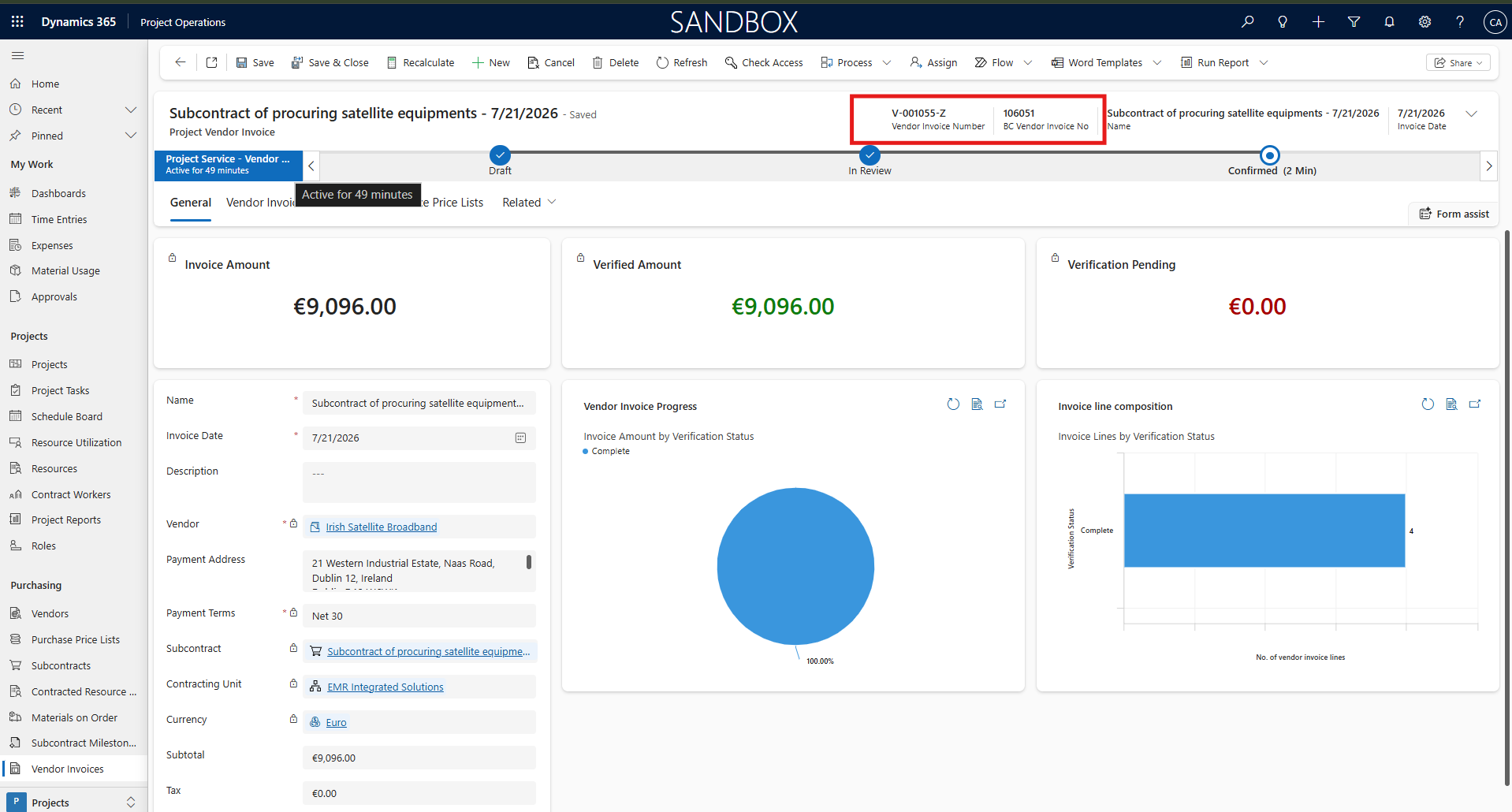
Supplier invoices work the same way: once one is confirmed in Project Operations, the purchase invoice appears in Business Central and its number is sent back.
What Moves, and When
Everything follows one rule: the person who owns the decision enters it once, in their own system. The integration carries it to the other side at the moment it becomes real.
| What the team does in Project Operations | What appears in Business Central | When it moves |
|---|---|---|
| Adds a customer or contact | Customer or contact, with its Business Central number sent back | On save |
| Creates or renames a project | Project, with the project number sent back | On save |
| Adds or changes tasks | Project tasks with the same names and dates | On save |
| Assigns people to tasks | Daily budget lines per person | When hours are set on the assignment |
| Logs time or expenses | Project journal lines | When submitted or approved |
| Records material used | Stock check, then a project journal line | When approved |
| Confirms a customer invoice | Sales invoice with lines, invoice number sent back | When confirmed |
| Confirms a supplier invoice | Purchase invoice with lines | When confirmed |
| Maintains people, roles, currencies, payment terms and cost codes | The same setup, kept in step | On save |
What the integration carries from Project Operations to Business Central
Quotes and drafts never leave Project Operations. A project that is never won, or a timesheet still being edited, should not create anything in the finance system.
The Safety Nets
Connecting two systems is easy. Making the connection trustworthy is where the real work is. These are the safeguards we built in:
- 🗂A Diary of Every ProblemIf Business Central rejects something, the reason is saved in an error log inside Project Operations, with the record it came from and exactly what was sent. Support can read it without a developer.
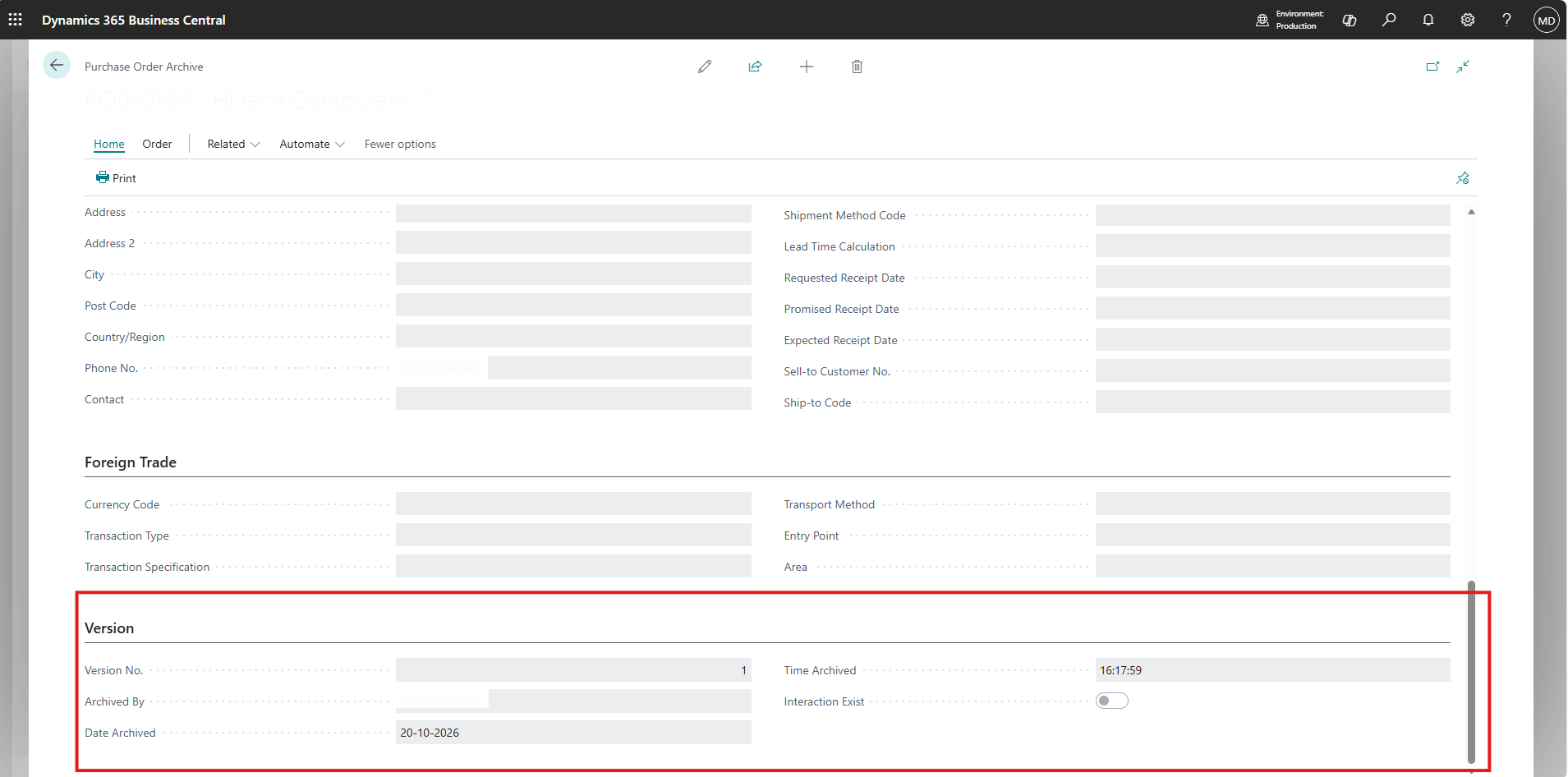
- 🛑No Accidental DuplicatesEvery journal line carries a fixed reference number. If the same timesheet is sent twice, Business Central refuses the second copy instead of booking the cost twice. We saw this happen during the walkthrough, and the log recorded it.
- 🔁No Endless Ping-PongThe integration has its own account. Changes made by that account are ignored, so an update written back from Business Central never triggers another send.
- ⚙️Settings in One PlaceBusiness Central addresses, sign-in details and default cost accounts live in a single settings record in Project Operations, not in the code. Pointing the test system at a test company takes minutes.
- 🔒Projects Cannot Be Deleted by MistakeOnce a project exists in both systems, deleting it in Project Operations is blocked, so finance is never left with an orphaned project.
- 👤Users Are Not InterruptedIf Business Central is busy or a setting is missing, the project team keeps working. The problem goes into the log rather than onto their screen.
What We Learned Building It
- Agree who owns each record before writing any code. Projects, tasks and plans belong to the project team. Customers’ credit terms and postings belong to finance. When one side owns each record, nobody overwrites anybody else.
- Send at the moment it becomes true. Drafts change. Approved time and confirmed invoices do not. Picking the right trigger removed most of the clean-up work.
- Always send the reference back. Writing the Business Central project number and invoice number onto the Project Operations record was the single most useful decision. It answers "did it go across?" at a glance.
- Reference numbers must stay unique. Our walkthrough showed two time entries on the same task, logged at almost the same moment, can ask for the same journal reference. Business Central kept the books correct by refusing the second one, but it taught us to hand out these numbers more carefully when several entries arrive together.
- Test with a real-looking project. A test record named "test1" proves the connection works. A project with real tasks, people, dates and stock shows whether the result makes sense to finance.
Business Impact / Key Takeaways
From the Mumbai office rollout alone:
- 1Save in Project Operations to create the project in Business Central
- 4Tasks created in Business Central with matching names and dates
- 13Daily budget lines built from 104 planned hours
- 0Records retyped by finance
- Finance works from the current plan, not last week’s spreadsheet.
- Project cost is visible in finance as soon as work is approved, not at month end.
- Stock problems are caught when material is used, not during the stock count.
- Both teams can trace any record to the other system using the reference written back on it.
Questions We Get Asked
Q1Does the project team need to learn Business Central?
No. They keep working in Project Operations exactly as before. The only visible difference is that Business Central numbers start appearing on their projects and invoices.
Q2What happens if Business Central is unavailable?
The project team is not blocked. The failed send is written to the error log with the full details, and it can be sent again once the issue is fixed.
Q3Can it be adapted to our own process?
Yes. The moments that trigger a send, such as submitted versus approved, and which fields are carried across, are decided per customer during design. The building blocks stay the same.
Conclusion / Final Thoughts
Project Operations and Business Central are a strong pair, but only when they agree. Small, focused plugins that act on each save remove the retyping, the mismatched budgets and the Friday-afternoon reconciliations. The project team enters a decision once. Finance sees it within seconds. Each record carries a reference back to its twin in the other system.
If your project and finance teams are still comparing screens, start with the projects and tasks. That alone removes most of the double entry, and the rest can follow one step at a time.
The integration shown in this post is available as the PO-BC Integration Module 2.0 on Microsoft Marketplace.
Call to Action / Connect With Us
Facing the same challenge?
We build this kind of automation inside Dynamics 365 and the Power Platform every week. Tell us what is breaking and we will tell you what it takes to fix it.
Author Profile

Cassandra Rodrigues
Consultant · CloudFronts
I’m a Microsoft Dynamics 365 and Power Platform Consultant with four years of experience delivering CRM customizations, business process automation, customer portals, and system integrations. I work with Dynamics 365 Sales, Customer Service, Project Operations, Power Apps, Power Automate, Power Pages, and Microsoft Dataverse, alongside JavaScript, C# plugins, and Azure Functions. I enjoy understanding how people work, identifying everyday challenges, and turning complex business requirements into practical, scalable solutions. Through this blog, I share insights and lessons from my implementation experience.