Summary
A Houston based cybersecurity company came to us with a familiar complaint. Their sales leaders had everything they needed sitting in Dynamics 365, yet every Monday review still started in Excel. They asked for two things: their reports laid out the way they actually think about the business, and an assistant they could simply ask questions. We delivered both in one app, built with Power Apps Code Apps on top of the CRM data they already had.
In This Blog
- What was slowing the sales team down
- What we built for them, screen by screen
- The AI agent we added so leaders can just ask
- What changed for the business
- How to tell if this approach fits your team
Table of Contents
Business Challenges
Nothing was broken. The data was good and the team was using the CRM. The trouble was getting answers out of it quickly. A standard view shows you a list of records, which is great when you are working a lead. It is far less helpful when the sales director wants to know how many leads turned into real opportunities this quarter, and who brought them in.
So the weekly routine looked like this:
- Open one view, then another, then a third, to piece the funnel together.
- Export everything to Excel and rebuild the same pivot table as last week.
- Walk into the meeting with numbers that were already a few days old.
What the team really wanted was simple: better looking reports they could read at a glance, and an AI agent alongside them to answer the questions the reports did not cover.
- Several views to see one picture
- Weekly exports and pivot tables
- Numbers out of date by meeting time
- Key numbers on the first screen
- One set of filters for everything
- Answers by simply asking
What We Built
Power Apps Code Apps let us design the screens completely from scratch while still reading the same Dynamics 365 data, live. Think of it as a new front door to the CRM, arranged around the questions the leadership team asks every week. Nothing was copied or moved anywhere else.
The app has four pages, and they all work the same way, so people only learn it once:
- LeadsWhere new interest comes from and how much of it qualifies.
- OpportunitiesThe live pipeline, in the order leadership reviews it.
- SalesWhat has closed and how the team is tracking.
- ProjectsWhat happens after the deal is won, from Project Operations.
Each page opens with the headline numbers, such as total leads, open leads, qualified leads and the qualification rate. Below that sits a single filter bar for owner, status, account, dates and search. Change one filter and every number, chart and list on the page updates with it.
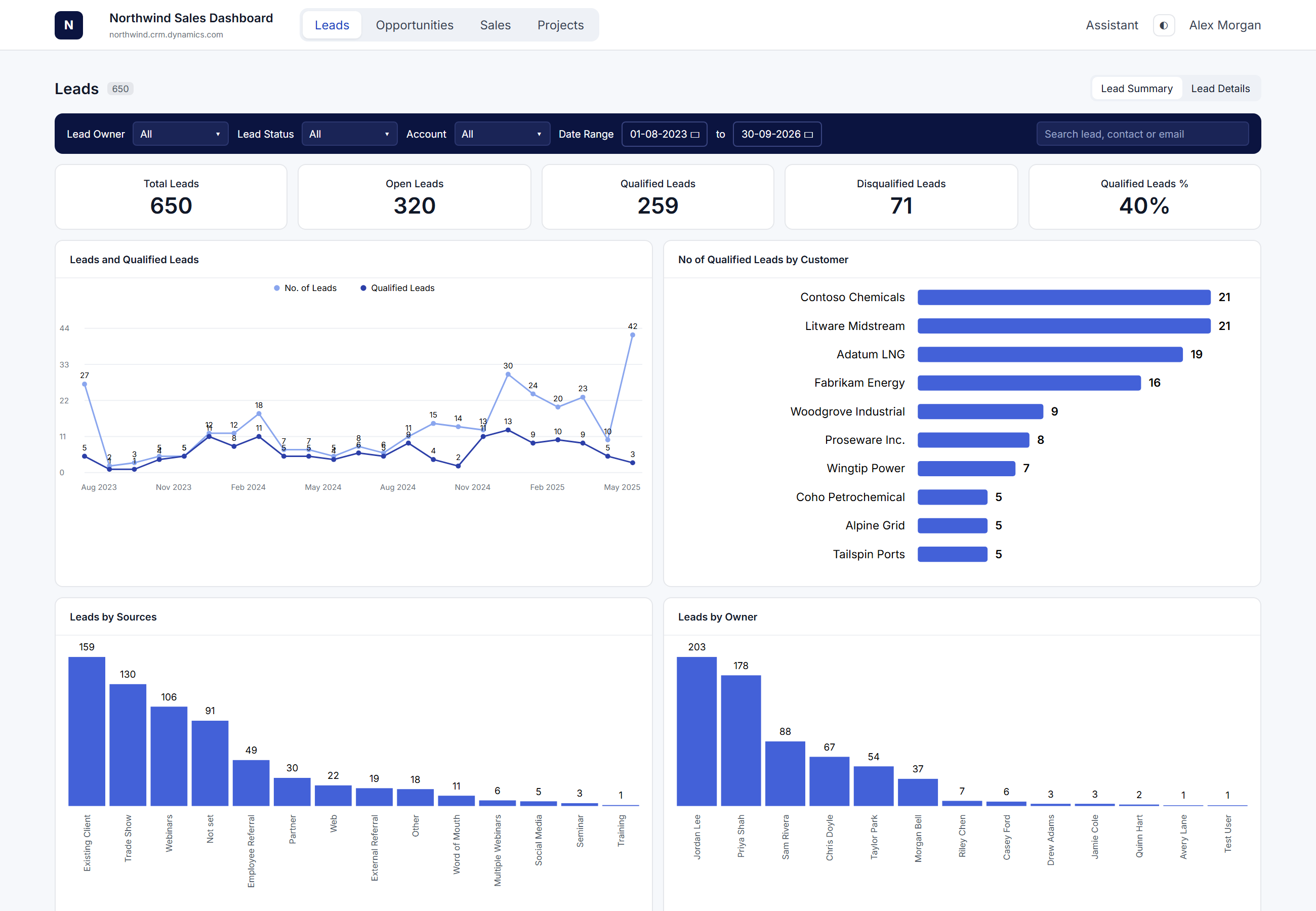
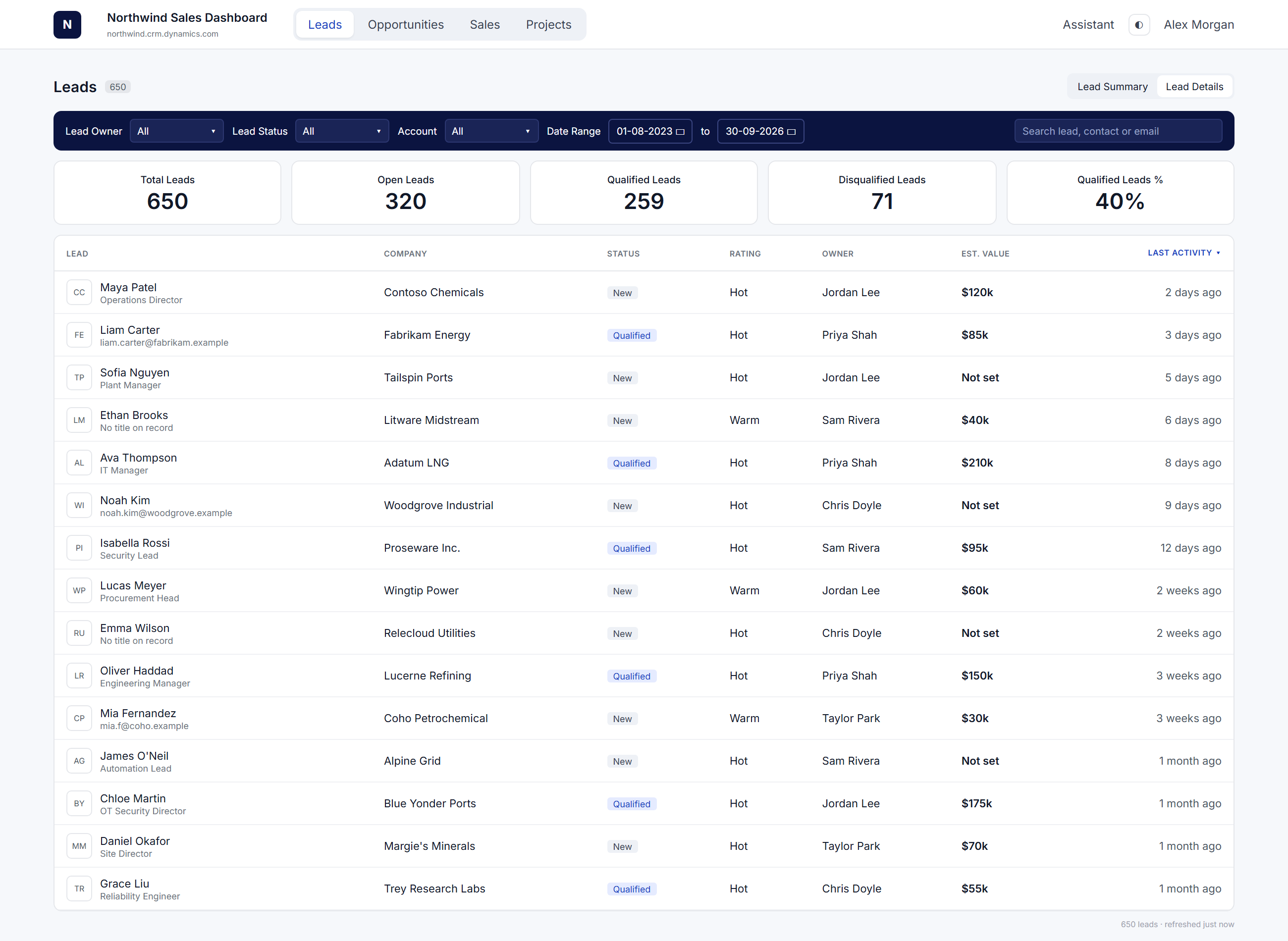
When a chart raises a question, the detail page shows the actual records behind it, already filtered the same way.
The AI Agent
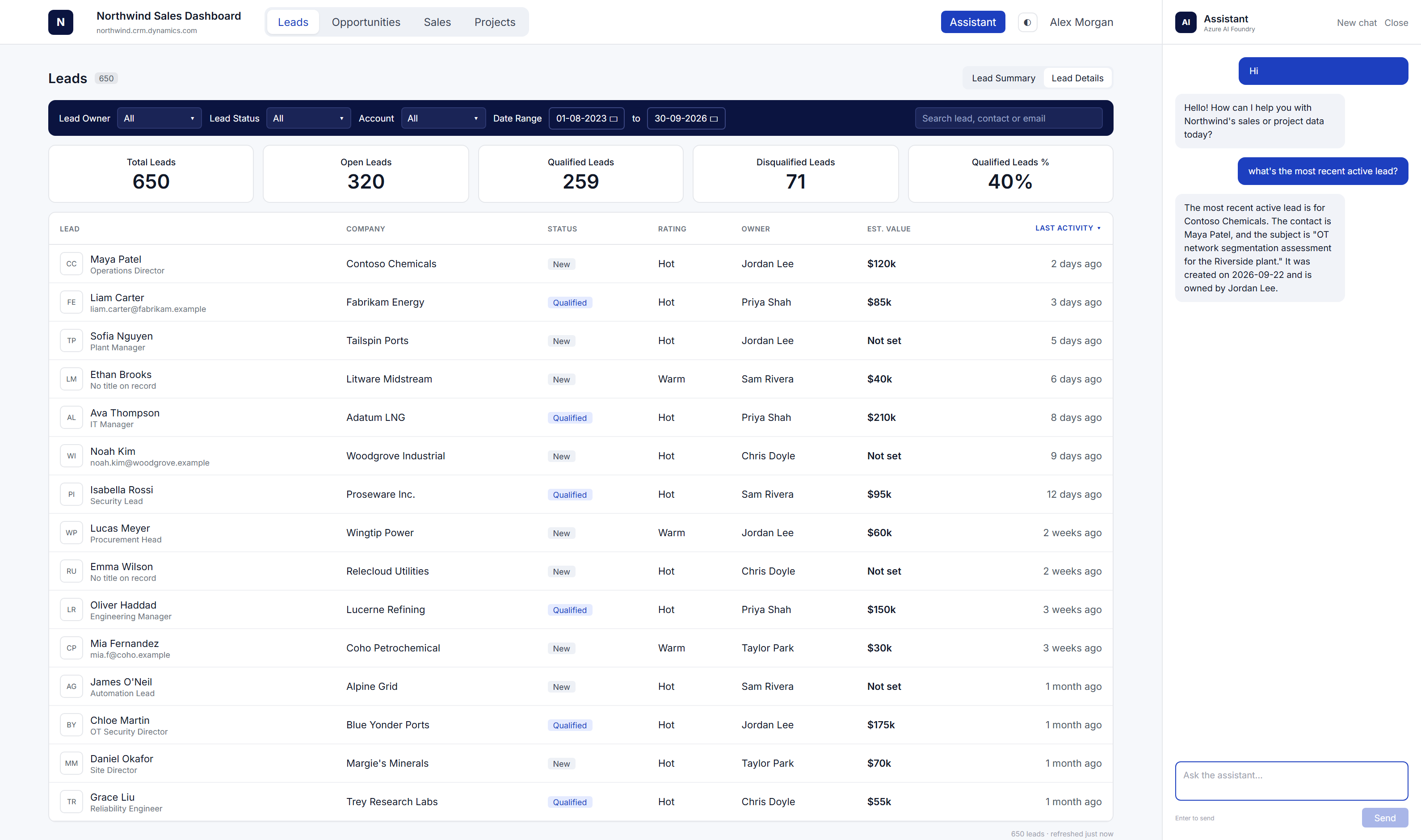
The second half of the request was an assistant. Code Apps do not include one, so we built our own AI agent and placed it in a side panel inside the app. Leaders type a question the way they would ask a colleague, and the agent answers from the live CRM data.
Questions like which lead came in most recently, which owner has the best qualification rate this quarter, or which accounts have open deals but no new leads. Things that used to need an export now take a few seconds. In practice this is the feature people mention first when they talk about the app.
Want to see how the agent itself was built? We covered that in our earlier post on how we connected an Azure AI Foundry agent to Dynamics 365 for the same client.
How It Works
You do not need to be technical to follow this. There are really only four moving parts.
- Step oneSign in as usualSame Microsoft account, nothing new to remember
- Step twoPower Apps opens the appInside the platform you already use
- Step threeYour custom screensNumbers, charts and lists in your layout
- Step fourLive CRM dataAlways current, never copied
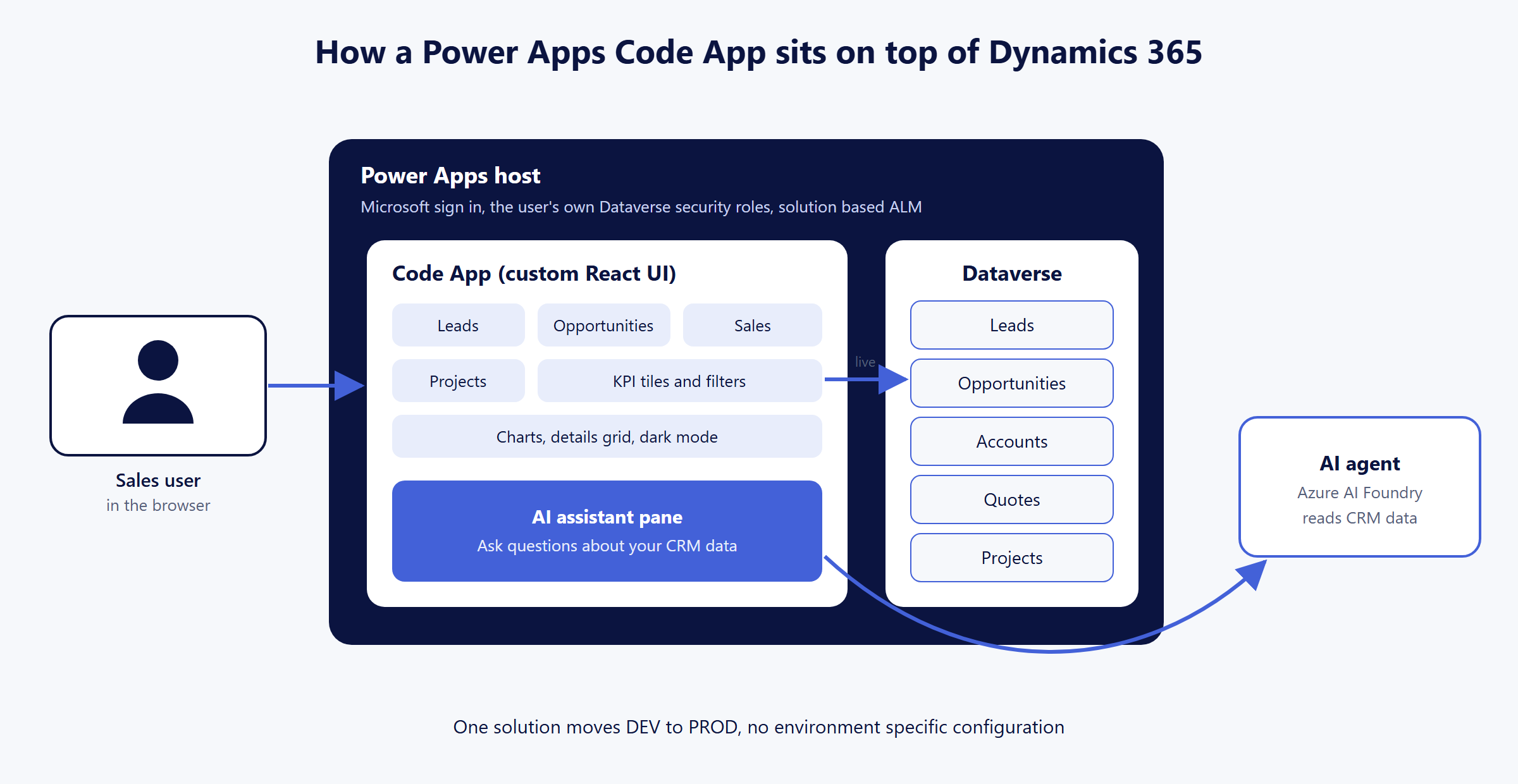
A few things matter here for the business. People only see the records they were already allowed to see in Dynamics 365. There is no separate portal to pay for or look after. And because the app sits inside a normal Dynamics 365 solution, moving it from testing to live was as routine as any other release.
Users cannot save their own personal views in this kind of app, so the filters need to be planned with the team up front. Very heavy reporting may still be better in Power BI. And it is built by a developer rather than configured, so plan for someone to own small changes after go live.
Impact
- One place for the whole story. Leads, pipeline, sales and delivery sit side by side instead of in four corners of the CRM.
- Questions get answered on the spot. The AI agent handles the ones nobody built a chart for.
- No new licences or logins. It runs on what the client already owned, under the security they already manage.
Is This Right for You?
Code Apps are not a replacement for everything in Dynamics 365. This is how we usually explain the choice to clients.
| This projectCode App | Standard Dynamics 365 app | Power Pages | |
|---|---|---|---|
| Who it is for | Your own team, when they need a view built around their role | Your own team, for everyday record work | Customers, partners or suppliers |
| How it looks | Completely your design | The familiar Dynamics 365 screens | A branded website |
| Who sets it up | A developer | A functional consultant | A maker or a developer |
| Personal saved views | No, filters are planned in | Yes | Limited |
Conclusion
If your team exports Dynamics 365 every week just to answer the same questions, the data is rarely the problem. The screens are. For this client, a custom app on the same data, plus an AI agent they can talk to, turned the CRM from something people updated into something they actually use to run the business.
FAQ
Q1Do we need extra licences for this?
In most cases, no. People who already use Power Apps and Dynamics 365 can use the app inside the platform you already pay for.
Q2Could someone see records they should not?
No. The app follows the same permissions as Dynamics 365, so each person sees exactly what they could see before.
Q3Does this replace our current Dynamics 365 app?
No, it sits alongside it. Your team keeps using the standard app for daily work and uses the Code App for reviewing and steering.
Q4Is the AI agent part of Code Apps?
No. We built the agent separately and connected it to the app. It answers from your CRM data and can be limited to the areas each team needs.
Q5How long does something like this take?
It depends on the number of pages and questions. Starting with one page and one team keeps the first release small and quick to get feedback on.
Get in Touch
Want a CRM your sales team actually opens?
We design and build Power Apps Code Apps on Dynamics 365, and AI agents that answer from your own CRM data. Book a short discovery call and we will show you what your version could look like.
Talk to our CRM team →
Suchit Chaudhari
Associate Consultant, CloudFronts
Suchit works with CloudFronts clients on Dynamics 365 and the Power Platform, building apps and AI agents that help teams get more out of the CRM data they already have.