01Summary
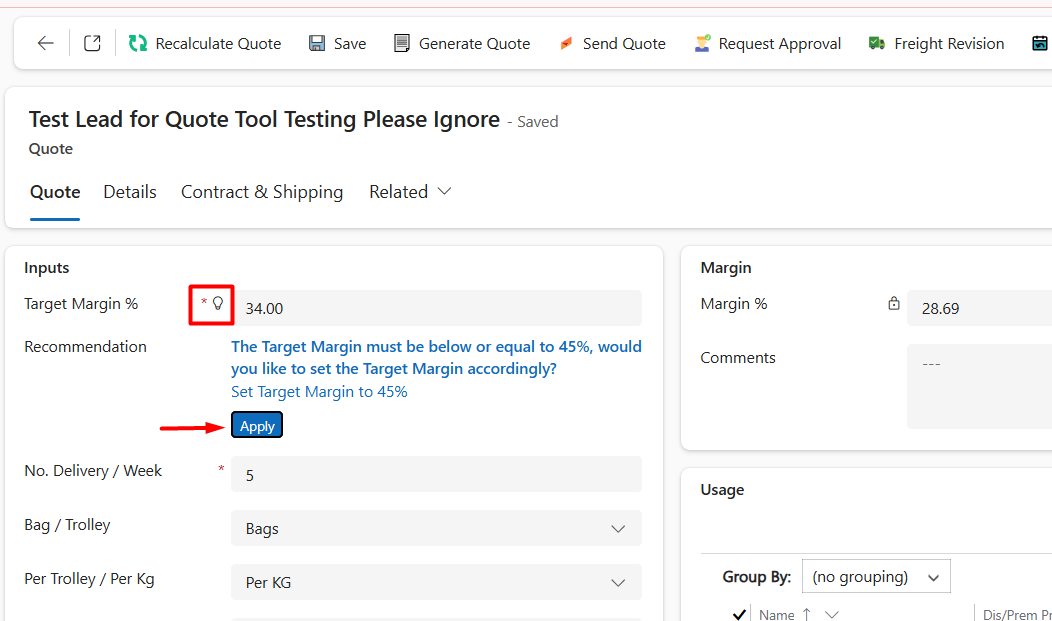
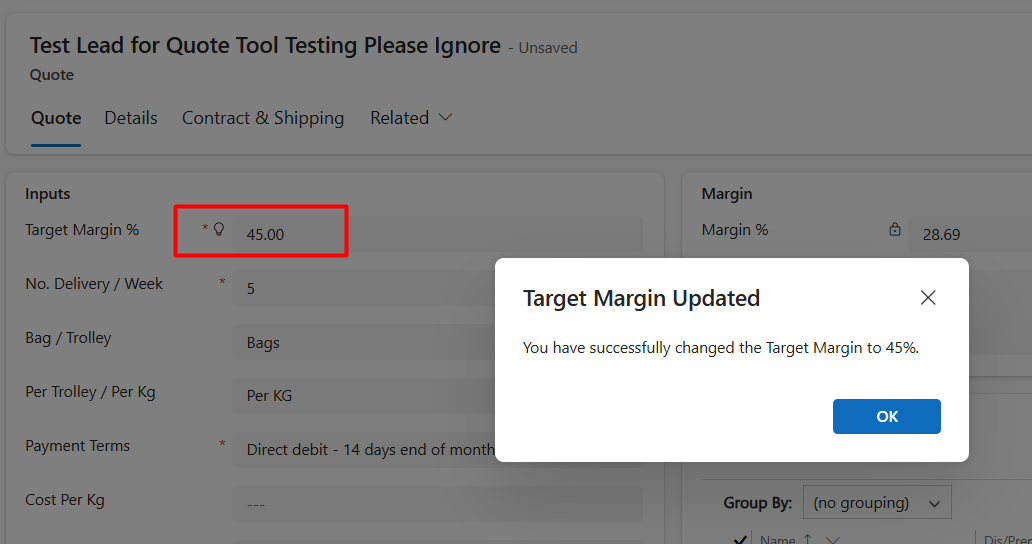
During a recent Dynamics 365 implementation for a customer in the manufacturing industry, we came across a simple but important user experience requirement: when the Target Margin exceeded 45%, users needed to know about it and have an easy way to correct it. Rather than interrupting the user with a hard error or adding another button to the form, we used the native field recommendation control to provide guidance directly where the decision was being made. With a single click, the user can set the Target Margin back to 45%, trigger the field’s existing logic, and receive confirmation that the change was made.
02In This Blog
This blog explores a simple but useful way to make Dynamics 365 forms more interactive using field recommendations.
- The Scenario: A Target Margin above 45% needs attention, but we don’t want to interrupt the user with a hard error.
- The Approach: Use the native Dynamics 365 field recommendation to place the guidance right where the user needs it.
- The Action: Give the user a one-click option to set the Target Margin back to 45%.
- The Outcome: Update the field, trigger its existing logic, and show a simple confirmation all without adding a new button, plugin, or complex customization.
A small recommendation, a single click, and a much smoother user experience.
Table of Contents
03Business Challenges
Most teams that want to nudge a user on a specific field end up reaching for something heavier than the problem needs.
- A business rule can show an error or a warning, but it only fires on save or on change, and it cannot run a custom action when clicked.
- A ribbon button can call a script, but it sits at the top of the form, disconnected from the field it actually relates to.
- A form notification banner can carry a message, but it does not support a click handler, so it cannot open a dialog or call an action.
- None of these give a user a visual cue on the field itself that also does something when clicked, which is what teams ask for when they say ‘can we show a hint here and let them act on it’.
The field recommendation control already exists in the platform for exactly this gap, but it is easy to miss because Microsoft’s own documentation covers the property, not the click through pattern most teams actually want.
04Solution Overview
Dynamics 365 already ships a feature called field recommendations, the small lightbulb icon that can appear next to a field when the platform or a customization wants to draw attention to it. We set a recommendation on a field with a short message and a clickable action. When a user clicks the icon, the form runs a JavaScript function we registered against it. Here that function opens an alert, in a live rollout it can just as easily open a business process step, set a related field, or launch a quick create form.
Why not a business rule or a ribbon button
A business rule stops the user after they try to save or change the field. A ribbon button sits away from the field it concerns. The recommendation icon shows up on the field itself, before the user moves on, and it is the only one of the three that supports a click through action out of the box.
05Technical Approach
- Register the OnLoad handler (or trigger on any event)Add the JavaScript web resource to the form and bind a function to OnLoad, passing the execution context.
- Get the field controlInside the handler, call formContext.getControl on the target field.
- Attach the recommendationCall addNotification on that control with notificationLevel set to RECOMMENDATION, a message, a uniqueId, and an actions array pointing at the click handler.
- Handle the clickThe action function fires when the user clicks the icon. In this build it opens an alert dialog, nothing more.
- Clear it when resolvedOn the field’s OnChange event, check the condition and call removeNotification with the same uniqueId once it no longer applies.
function onLoad(executionContext) {
    var formContext = executionContext.getFormContext();
    var attribute = formContext.getAttribute("cf_targetmargin");

    if (!attribute) {
        console.error("cf_targetmargin attribute not found.");
        return;
    }

    attribute.controls.forEach(function (control) {
        control.addNotification({
            messages: [
                "The Target Margin must be below or equal to 45%, would you like to set the Target Margin accordingly?"
            ],
            notificationLevel: "RECOMMENDATION",
            uniqueId: "targetMarginRecommendation",
            actions: [
                {
                    message: "Set Target Margin to 45%",
                    actions: [
                        function () {
                            attribute.setValue(45);
                            attribute.fireOnChange();

                            Xrm.Navigation.openAlertDialog({
                                text: "You have successfully changed the Target Margin to 45%.",
                                title: "Target Margin Updated"
                            });

                            console.log("Target Margin successfully set to 45%.");
                        }
                    ]
                }
            ]
        });

        console.log("Recommendation added to: " + control.getName());
    });
}
| Setting | Value |
|---|---|
| Event | OnLoad and Field OnChange |
| Library | new_recommendation.js |
| Functions | onLoad, onDiscountChange |
| Pass execution context | Yes |
| Field | discountpercentage |
Form event registration
You can use multiple recommendations by linking them with unique IDs. This will help to handle multiple calls else there would be issue in adding, removing and calling functions.
06Impact
- 1web resource deployed
- 0plugins or workflows added
- 1 clickfrom field icon to custom action
- 40 linesof JavaScript in the handler
- The recommendation fires while the user is still on the field, not after they try to save.
- One JavaScript file replaced what would otherwise be a business rule, a ribbon button, and a separate form notification.
07Conclusion
Field recommendations are a small, easy to miss control in the Dynamics 365 form designer, and most teams reach for a business rule or a ribbon button instead because those are better documented. For a single field nudge with a click through action, the notification API gets the same result with less to deploy and maintain. The pattern extends past alerts, the same click handler can call an action, open a dialog, or set a sibling field, whatever the process actually needs. We would reach for this again anywhere the goal is to catch a user mid field rather than after they hit save.
08FAQ
Q1Can this approach be used for other business requirements?
Absolutely. The same pattern can be adapted to other field-level business scenarios where users need contextual guidance and an immediate action. The action could update a value, open a dialog, trigger existing form logic, or perform another client-side operation. The key idea is to bring the action closer to the field instead of making the user navigate elsewhere.
Q2What are field recommendations in Dynamics 365?
Field recommendations allow you to display contextual guidance directly on a field in a Dynamics 365 Model-Driven App. They can also include an action that users can select, making them useful when guidance needs to be actionable rather than just informational.
Q3Can a Dynamics 365 field recommendation trigger JavaScript?
Yes. A field recommendation can include an action that invokes a JavaScript function. This makes it possible to go beyond displaying a message and perform client-side operations such as updating a field, opening a dialog, or triggering other form logic.
Q4Can a field recommendation update the field value?
Yes. In this example, selecting the recommendation updates the cf_targetmargin field to 45 using JavaScript. The code then calls fireOnChange() so that any existing OnChange logic associated with the field can run.
Q5Why use a field recommendation instead of a business rule?
A business rule is useful for enforcing or communicating conditions, but it doesn’t provide the same click-through interaction. A field recommendation keeps the guidance directly beside the field and can give the user an immediate action to resolve the condition.
Q6Can field recommendations have multiple actions?
Yes. The recommendation API supports actions, allowing the experience to provide user-selectable operations from the recommendation itself. When implementing multiple recommendations, using unique identifiers for each notification helps manage them independently.
Q7Do field recommendations automatically disappear?
No. A recommendation added with addNotification() remains until it is explicitly removed using removeNotification() with the same uniqueId. If the recommendation should disappear once a condition is resolved, an appropriate OnChange or other event handler should be added.
Q8Does this require a plugin or custom control?
No. The example uses a JavaScript web resource and the native Dynamics 365 field recommendation capability. No plugin, custom control, or additional server-side component is required for this interaction.
09Get in Touch
Looking to improve your Dynamics 365 user experience with practical, lightweight customizations? Our team can help you turn business requirements into solutions that are simple to use and maintain. Connect with CloudFronts
Author Profile

Ethan Rebello
Solution Architect – Business Application · CloudFronts
I’m a Solution Architect focused on Microsoft Business Applications, working across Dynamics 365, Power Platform, and Azure AI. I enjoy understanding complex business challenges, designing practical and scalable solutions, and bringing together different Microsoft technologies to create meaningful outcomes. I also enjoy learning, experimenting, and sharing knowledge with the community.