

01Summary
SIP Industries, based in Houston, Texas, is a manufacturer of engineered components with engineering and production in India and customers in the U.S. It runs every new part through a six-stage New Product Development (NPD) process in Dynamics 365. The process was well designed, but most of the people who had to approve each stage did not work in the CRM. Plant engineers, quality inspectors and customer-side reviewers were chased over email, and the CRM team keyed their replies into Dynamics 365 and moved the Business Process Flow (BPF) by hand. CloudFronts built an approval layer on Power Automate that sends each approver a stage-specific email with a single button. The button opens a branded HTML form, already filled in from the NPD record, that needs no login or Dynamics 365 licence. When the approver submits, Dynamics 365 saves the decision, moves the BPF to the next stage once that stage’s conditions are met, and emails the next approver. Nobody moves a stage by hand.
Table of Contents
02About the Customer
The customer manufactures engineered components to customer specification. Engineering, tooling, pattern making and first article inspection happen in India, while a large share of its customers and its U.S. engineering team sit in the United States. Every new part goes through feasibility, drawing approval, pattern development, inspection and customer sign-off before it reaches production, and each of those steps is owned by a different team.
03Business Challenges
The NPD process already lived in Dynamics 365 as a Business Process Flow on a custom New Product Development table. The stages themselves worked well. The delays came from the approval step: most of the approvers at each stage were not CRM users, so every stage waited until someone collected their answer by email and entered it in Dynamics 365.
- Approvers lived outside the CRM. Plant engineers, QA inspectors in India, the U.S. engineering team and customer reviewers rarely or never logged in to Dynamics 365. Giving each of them a licence, training and a reason to open the app was not realistic.
- Approvals arrived as email replies. A “looks good, go ahead” in an email thread had to be read, interpreted and keyed into the NPD record by the CRM team. Notes, dates and estimates were often lost or entered days later.
- Stages were moved by hand. Even after an approval was recorded, someone had to open the record and click Next Stage. When that person was busy, the next team did not know it was their turn.
- Some stages needed more than one decision. Feasibility only closes when feasibility, engineering approval and the engineering drawing are all in place. First Article Inspection needs sign-off from both the India QA team and the U.S. engineering team. Tracking these combinations by hand was where most delays started.
- Follow-ups depended on memory. Drawing approvals in particular could sit with a reviewer for weeks. There was no automatic reminder, so chasing depended on someone remembering to do it.
- No audit trail in one place. Who approved what, and when, was spread across personal mailboxes rather than on the NPD record.
04Solution Overview
CloudFronts built an approval layer on top of the existing NPD Business Process Flow. Each time the NPD record enters a stage, Dynamics 365 sends the right approver an email written for that stage, with the key details of the part and a single Review & Approve button.
The button opens a branded web form in the browser. The form is filled in from whatever is already saved on the NPD record, lists the documents stored in SharePoint for that product, and lets the approver upload new files. The approver records their decision and notes and clicks Submit. Dynamics 365 saves the answers, moves the BPF to the next stage if that stage’s conditions are now met, and the next approver receives their email.
A rejection never moves the process. It sends a notification back to the NPD team, and the record stays in its current stage until the issue is resolved.
05Technical Approach
The NPD Process and Its Stage Gates
The NPD Business Process Flow has six stages. Each stage has its own approvers and its own rule for when it is complete.
| Stage | Approver | Captured on the Form | Stage Gate |
|---|---|---|---|
| Feasibility | Feasibility and Engineering teams | Feasibility approval; engineering approval, notes, estimated development timeline, estimated tooling cost | Feasibility approved, engineering approved and engineering drawing created |
| Drawing Approval | Drawing reviewer | Drawing received, sample required, feedback, approval | Drawing approved on the form |
| Pattern | Plant / tooling team | Pattern status and notes | Pattern Status set to Ready For Inspection |
| First Article Inspection (FAI) | India QA and U.S. engineering | FAI approved, FAI date, sample sent to U.S., shipment date; U.S. engineering approval and comments | Both the India and U.S. FAI approvals recorded |
| Customer Approval | Customer | Outcome (Yes / No / Requires Changes); approval date set automatically | Customer approves the sample |
| Production | Production team | Notification of release to production | Final stage |
NPD stages, approvers and stage gates
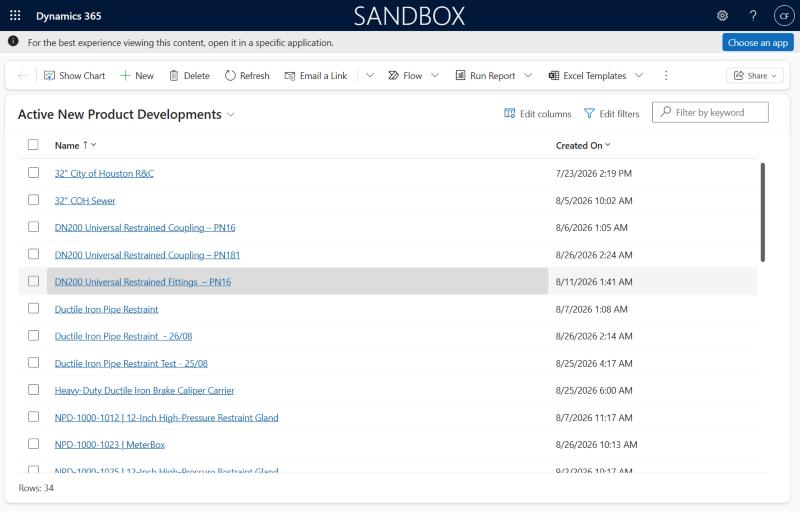
The forms only show fields that apply. On the India FAI form, the “Sample Sent to U.S.” field appears only if the drawing stage marked a sample as required, and the shipment date appears only once the sample has been sent. The U.S. FAI form shows the U.S.-side inspection fields only when a sample is actually on its way.
What the Approver Experiences
- A stage-specific email arrivesThe email comes from the company’s CRM mailbox. Its content is written for the stage: a Pattern email shows pattern details, an FAI email shows inspection details. It ends with one button: Review & Approve.
- The form opens, already filled inClicking the button opens a branded form in the browser with no login. Every field already saved on the NPD record is shown, together with the product’s SharePoint documents and an option to upload more.
- The approver submits a decisionThe approver records approval, rejection or changes requested, adds notes and clicks Submit. Fields left blank keep their saved values, so a quick approval never wipes earlier data.
- Dynamics 365 moves the process onThe NPD record is updated, the BPF moves to the next stage if the stage gate is met, and the next approver receives their email. The full exchange is visible on the NPD timeline.
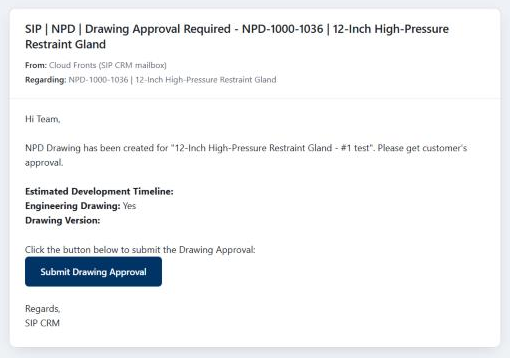
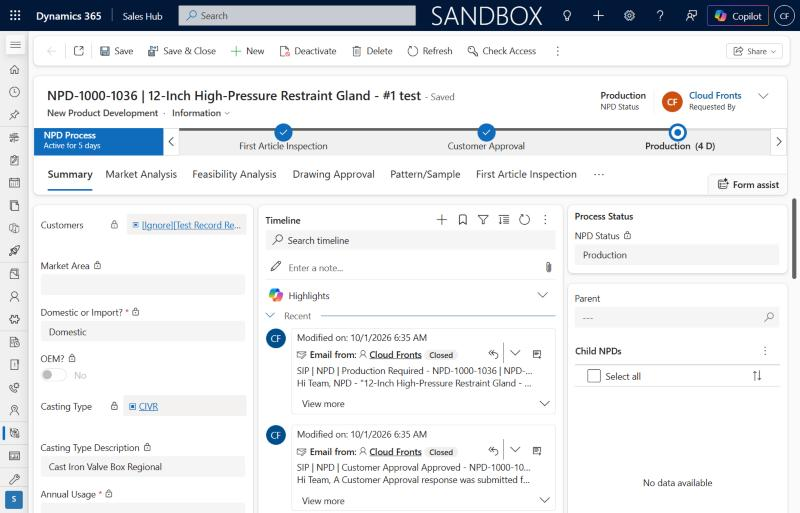
Four Generic Flows Instead of Twenty
The obvious build is one set of flows per stage: an email flow, a form flow and a save flow for Feasibility, another three for Drawing, and so on. With eight forms that quickly passes twenty near-identical flows, and every branding or logic change has to be repeated in each one. Instead, the whole solution runs on four flows that take a stage key (feasibility, engineering, drawing, pattern, fai, fai_us, customer, production) and behave accordingly.
| Flow | Trigger | What It Does |
|---|---|---|
| 1. Send Approval Email | NPD record modified (status and approval fields) | Works out the current stage, builds the stage-specific email, sends it as a tracked CRM email, and moves the stages whose gates depend on several conditions |
| 2. Show Approval Form | HTTP request (the button link) | Reads the NPD record, returns the stage’s HTML form already filled in, lists SharePoint documents and accepts uploads |
| 3. Save Approval Response | HTTP request (form submit) | Writes the answers to Dataverse, moves the BPF for stages that close on a single approval, and notifies the NPD team on rejection |
| 4. Drawing Follow-Up Reminder | Daily schedule | Sends a reminder for open drawing approvals every 14 days until they are answered |
The four Power Automate flows behind the approval layer
Inside Each Flow, Step by Step
The screenshots below show each flow in the Power Automate designer, from top to bottom, followed by what each step does.
Flow 1: Send Approval Email
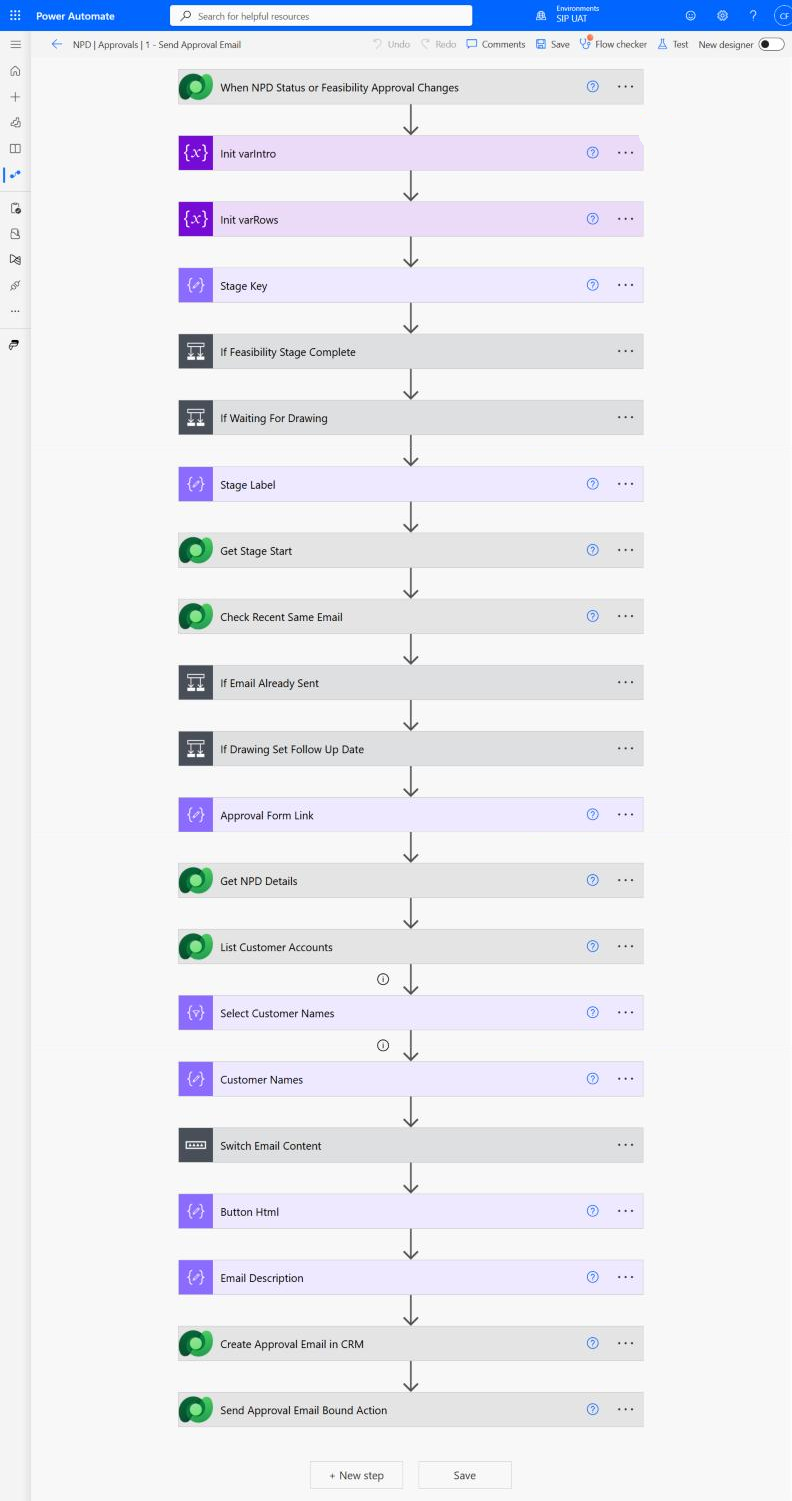
- When NPD Status or Feasibility Approval Changes. The flow runs when an NPD record is saved and one of the fields that drive the process has changed: NPD status, feasibility approval, engineering approval, engineering drawing created, pattern status, or either of the two FAI approvals.
- Init varIntro and Init varRows. Two empty text holders, filled in later with the opening line of the email and the product details for the stage.
- Stage Key. Reads the NPD status and approval fields and decides what this run should do: send one of the eight approval emails, move the process to the next stage because a stage is complete, or do nothing yet.
- If Feasibility Stage Complete. Handles the stages that need more than one condition. When feasibility, engineering approval and the engineering drawing are all in place, when the pattern is marked Ready For Inspection, or when both FAI approvals are recorded, the flow finds the record’s Business Process Flow, checks it is still in that stage, and moves it to the next one.
- If Waiting For Drawing. If feasibility and engineering are approved but the engineering drawing has not been created yet, there is nothing to send, so the flow stops.
- Stage Label. Turns the stage into a readable name, such as “Drawing Approval”, used in the email subject and text.
- Get Stage Start, Check Recent Same Email and If Email Already Sent. Looks up when the record entered its current stage and checks whether the same request has already been sent since then. If it has, the flow stops, so each approver gets one email per stage.
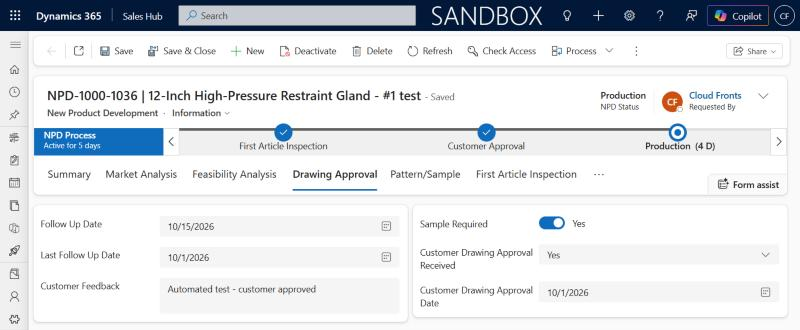
- If Drawing Set Follow Up Date. When the record enters Drawing Approval, sets Last Follow Up to that date and Follow Up to 14 days later. Flow 4 uses these dates for reminders.
- Approval Form Link. Builds the link behind the email button. It points to Flow 2 and carries the stage and the NPD record ID.
- Get NPD Details, List Customer Accounts, Select Customer Names and Customer Names. Reads the full NPD record and the customers linked to it, and joins the customer names into one line for the email.
- Switch Email Content. Writes the opening line and the list of details for the stage. There is one case for each of the eight emails, so a Pattern email shows pattern details and an FAI email shows inspection details.
- Button Html and Email Description. Builds the “Submit” button and puts the full email body together.
- Create Approval Email in CRM and Send Approval Email Bound Action. Creates the email as an Email activity on the NPD record, from the CRM mailbox, and sends it with the Dynamics 365 SendEmail action, so it appears on the NPD timeline.
Flow 2: Show Approval Form
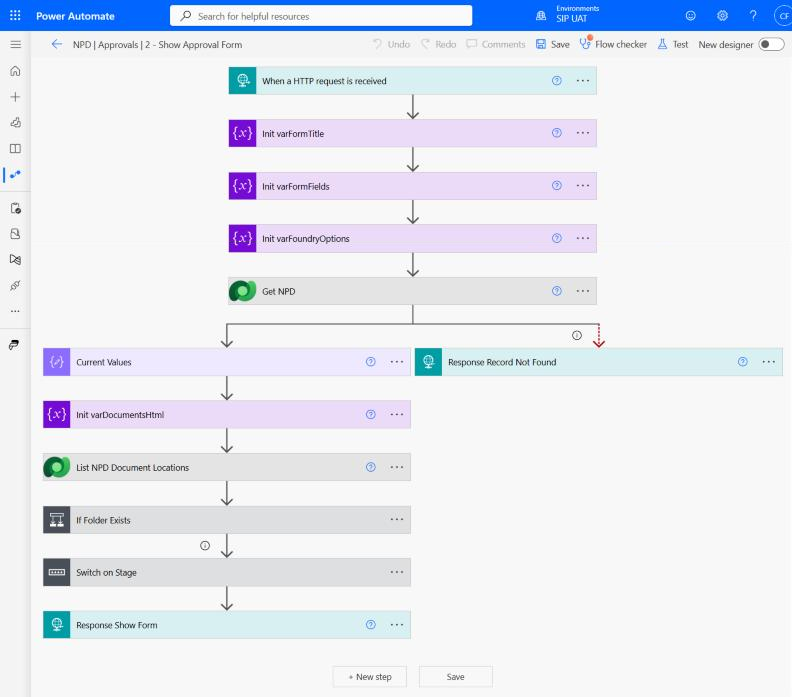
- When a HTTP request is received. Runs when the approver clicks the button in the email. The link tells the flow which stage and which NPD record to show.
- Init varFormTitle, Init varFormFields and Init varFoundryOptions. Text holders for the form heading, the form fields, and the list of foundries used on the Pattern form.
- Get NPD. Reads the NPD record. If the record cannot be found, Response Record Not Found shows the approver a short message instead of a form.
- Current Values. Collects the values already saved on the record, so the form opens filled in.
- Init varDocumentsHtml, List NPD Document Locations and If Folder Exists. Finds the product’s SharePoint folder. If there is one, the flow lists its files and builds a clickable list of documents for the form.
- Switch on Stage. Builds the title and fields for the requested stage. There is one case for each of the eight forms. The Pattern case also loads the foundry list for a dropdown.
- Response Show Form. Sends the finished HTML page back to the browser, which shows it as an ordinary web page.
Flow 3: Save Approval Response
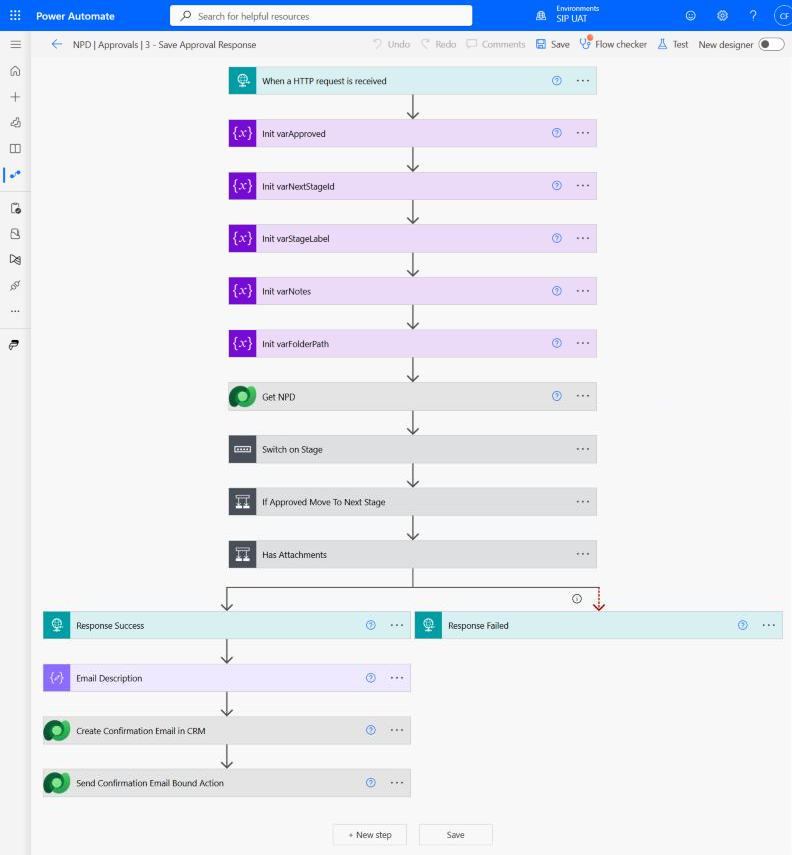
- When a HTTP request is received. Runs when the approver clicks Submit on the form. It receives the stage, the NPD record ID, the answers and any uploaded files.
- Init varApproved, varNextStageId, varStageLabel, varNotes and varFolderPath. Holders for whether the response was an approval, which stage comes next, the stage name, the notes, and the SharePoint folder for uploads.
- Get NPD. Reads the NPD record.
- Switch on Stage. Saves the answers for that stage to the NPD record, writing only the fields the approver filled in. It also records whether the response was an approval and which stage comes next.
- If Approved Move To Next Stage. For stages that close on a single approval, such as Drawing Approval and Customer Approval, moves the Business Process Flow to the next stage. A rejection or “Requires Changes” leaves the stage as it is.
- Has Attachments. If the approver uploaded files, finds the product’s SharePoint folder, or creates one if it does not exist, and uploads each file into it.
- Response Success or Response Failed. Shows the approver a confirmation page, or an error page if something went wrong.
- Email Description, Create Confirmation Email in CRM and Send Confirmation Email Bound Action. Sends the NPD team a tracked email with the response, so they know about approvals and rejections straight away.
Flow 4: Drawing Approval Follow-Up Reminder
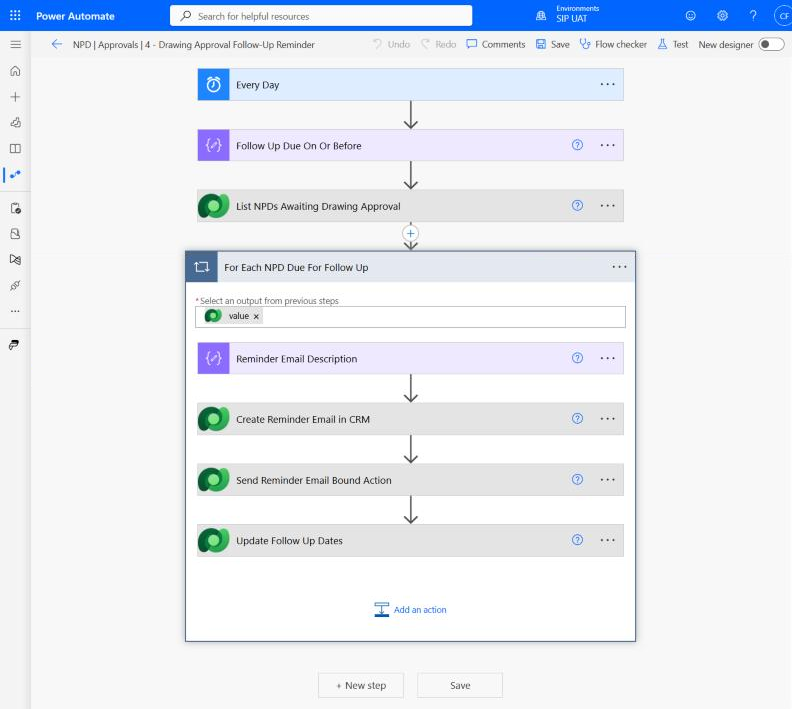
- Every Day. Runs once a day.
- Follow Up Due On Or Before. Works out today’s date.
- List NPDs Awaiting Drawing Approval. Finds the active NPD records that are still waiting for drawing approval and whose Follow Up date is today or earlier.
- For Each NPD Due For Follow Up. For each of those records, builds a reminder email, creates and sends it as a tracked email on the NPD record, and then sets Last Follow Up to today and Follow Up to 14 days from today.
Serving an HTML Form from Power Automate
The form is not hosted anywhere. The button in the email links to a Power Automate flow with an HTTP request trigger, passing the stage and the NPD record ID as query parameters. The flow reads the record from Dataverse, builds the HTML for that stage with the current values filled in, and returns it with a Response action and a text/html content type. The browser renders it as an ordinary web page.
GET https://<flow-trigger-url>&stage=drawing&recordId=<npd-record-guid>

→ Flow 2 reads the NPD record from Dataverse
→ Builds the Drawing Approval form with saved values filled in
→ Response: 200, Content-Type: text/html
Submitting the form posts the fields to the second HTTP flow, which parses them and updates the NPD record. Only fields the approver actually filled in are written, and date-only fields are saved at midday UTC so that approvers in India and the U.S. always see the same date.
Moving the Business Process Flow Automatically
A BPF stage is not a column on the NPD record. It lives on a separate BPF instance record linked to it. To move the process, the flow looks up the instance for the NPD record, finds the ID of the next stage, and updates the active stage and the traversed path. Users see the stage change on the record exactly as if someone had clicked Next Stage.
PATCH /api/data/v9.2/<bpf_instance_entityset>(<instance-id>)
{
  "activestageid@odata.bind": "/processstages(<next-stage-id>)",
  "traversedpath": "<existing-path>,<next-stage-id>"
}
Stage moves are split between two flows on purpose, based on where each business rule lives:
| Stage Move | Moved By | Why There |
|---|---|---|
| Feasibility → Drawing Approval | Flow 1 (record change) | Needs three conditions that can be set from the form or directly in the CRM |
| Drawing Approval → Pattern | Flow 3 (form submit) | Closes on a single approval |
| Pattern → FAI | Flow 1 (record change) | Pattern Status can be set to Ready For Inspection from the form or in the CRM |
| FAI → Customer Approval | Flow 1 (record change) | Needs approvals from two teams, which may arrive in either order |
| Customer Approval → Production | Flow 3 (form submit) | Closes on the customer’s single decision |
Where each automatic stage move happens
Tracked Emails, Not Just Sent Emails
Power Automate can send mail through Outlook in a single step, but that email never appears in Dynamics 365. Every request and reminder in this solution is created as an Email activity in Dataverse, regarding the NPD record, and sent with the SendEmail action from a dedicated CRM mailbox. Anyone who opens the NPD record sees who was asked, when, and exactly what they were sent.
Guardrails for Real-World Use
- 🔁One Email per Stage EntryRecord-change triggers can fire several times for one save. The email flow runs one instance at a time and checks when the current BPF stage started, so each stage entry sends exactly one request.
- 📝Blank Means KeepThe save flow only writes fields the approver filled in. A quick approval never clears notes, dates or estimates entered earlier.
- ⛔Rejections Do Not Move the StageA “No” or “Requires Changes” sends a notification and leaves the stage unchanged, so the process can never skip ahead by accident.
- 🕒Time-Zone-Safe DatesDate-only fields are saved at midday UTC, so approvers in India and the U.S. see the same date on the form and in the CRM.
- ⏰Automatic Follow-UpsEntering Drawing Approval sets a follow-up date 14 days out. A daily flow sends the reminder when that date arrives and sets the next one.
- 📎Documents on the FormEach form lists the product’s SharePoint documents and accepts uploads, so approvers review the latest drawing or report without searching for it.
06Business Impact
- 0Dynamics 365 licences needed by approvers outside the CRM
- 0Manual stage moves across the six-stage NPD process
- 8Stage-specific approval forms, filled in from the NPD record
- 4Generic Power Automate flows running the whole process
- Approvers act from their inbox. Plant, QA, U.S. engineering and customer reviewers approve with one click and a short form, without a CRM login, licence or training.
- The process moves the moment the work is done. Stage gates are checked automatically, and the BPF advances as soon as the last required approval arrives, not when someone next opens the record.
- The CRM team stops doing data entry for others. Decisions, notes, dates and estimates are captured at the source, in the right fields, by the person who made the decision.
- Every decision is on the record. Requests, reminders and responses are tracked as activities on the NPD timeline, giving a complete audit trail without searching mailboxes.
- Reminders are sent automatically. Drawing approvals are chased automatically every 14 days until they are answered.
Because every stage entry and every approval is now timestamped in Dataverse, time spent in each NPD stage can be reported in Power BI directly, making it easy to see where new products wait longest.
07Conclusion
In most approval processes, the decision itself takes minutes. The days go into finding the right person, getting their answer into the system and remembering to move the process on. By bringing a filled-in form to the approver’s inbox and letting Dynamics 365 move the Business Process Flow itself, SIP Industries no longer needs the CRM team to collect approvals and move each NPD stage by hand. Dynamics 365 now does both automatically.
The pattern is not specific to product development. A stage-aware email, an HTML form served by Power Automate and an automatic BPF move work for any multi-stage process whose approvers sit outside the CRM: quote approvals, supplier onboarding, engineering change requests, credit approvals and field service sign-offs.
Ready to Modernize Your Product-Development Process?
If your organization is looking to digitize a manual product-development or approval process in Microsoft Dynamics 365, our specialists can help build a scalable solution that reduces manual effort, improves visibility, and strengthens process governance.
About the Author

Cassandra Rodrigues is a Microsoft Dynamics 365 and Power Platform Consultant with four years of experience delivering CRM customization, business-process automation, customer portals, and system integrations. Her work spans Dynamics 365 Sales, Customer Service, Project Operations, Power Apps, Power Automate, Power Pages, Microsoft Dataverse, JavaScript, C# plugins, and Azure Functions. She focuses on understanding how people work today and translating complex business processes into practical, scalable digital solutions.
