

Tax-on-Tax Configuration in Microsoft Dynamics 365 Finance and Operations: Step-by-Step Guide for 18% + 5% Cascading Tax
Summary
Sales tax configurations in Microsoft Dynamics 365 Finance and Operations can go beyond simple percentage calculations. In scenarios where taxes are layered or interdependent, businesses often require a tax-on-tax (cascading tax) setup. This blog explains how to configure an 18% primary tax and an additional 5% tax calculated on top of it, ensuring accurate, automated, and compliant tax calculations for complex service-based industries like Oil & Gas.
Sales Tax Setup in Microsoft Dynamics 365 Finance & Operations (18% + 5% Tax-on-Tax)
In global and industry-specific implementations, taxation is not always flat. Many organizations, especially in regulated sectors, require layered tax calculations where one tax is applied on top of another.
In one such implementation within Microsoft Dynamics 365 Finance and Operations, this configuration was successfully used for a service-based company in the Oil and Gas industry.
The requirement was straightforward but technically nuanced:
a. Apply a primary tax of 18% on the service value
b. Apply an additional 5% tax on the total amount after the first tax
This type of setup is commonly required when:
a. Multiple statutory taxes are interdependent
b. Regulations mandate tax calculation on already taxed values
c. Service contracts involve multi-layered billing structures
By configuring this correctly, businesses can eliminate manual calculations and ensure compliance.
Understanding the Requirement
The logic follows a cascading structure:
a. First, calculate 18% on the base amount
b. Then, calculate 5% on (Base Amount + 18% tax)
Example Calculation:
a. Item price = ₹100
b. 18% tax = ₹18
c. 5% tax on ₹118 = ₹5.9
d. Total tax = ₹23.9
e. Final amount = ₹123.9
This demonstrates how the second tax depends on the first, making configuration accuracy critical.
Step-by-Step Configuration
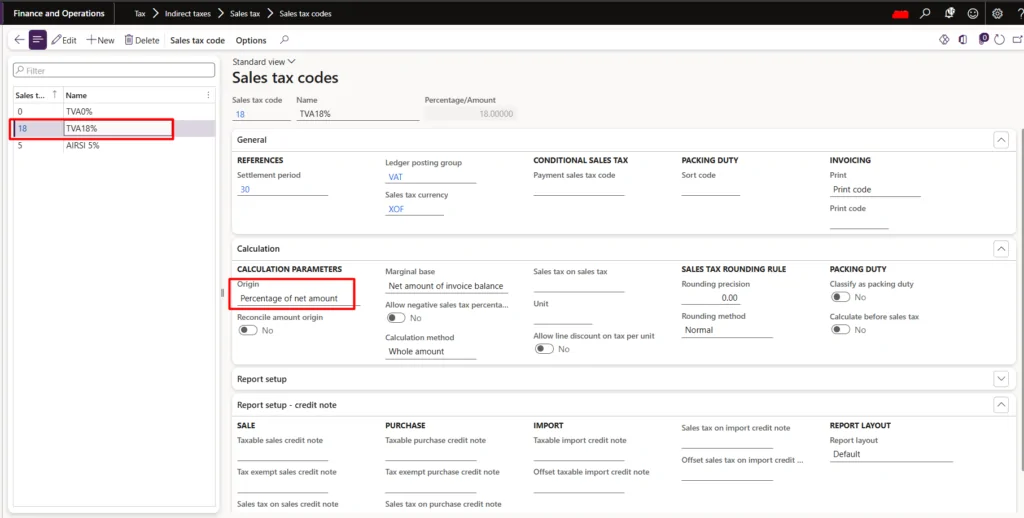
1. Create Sales Tax CodesNavigate to:
Tax > Indirect taxes > Sales tax > Sales tax codes
a. Create Tax Code 1
Name: Tax18
Percentage: 18%
b. Create Tax Code 2
Name: Tax5
Percentage: 5%
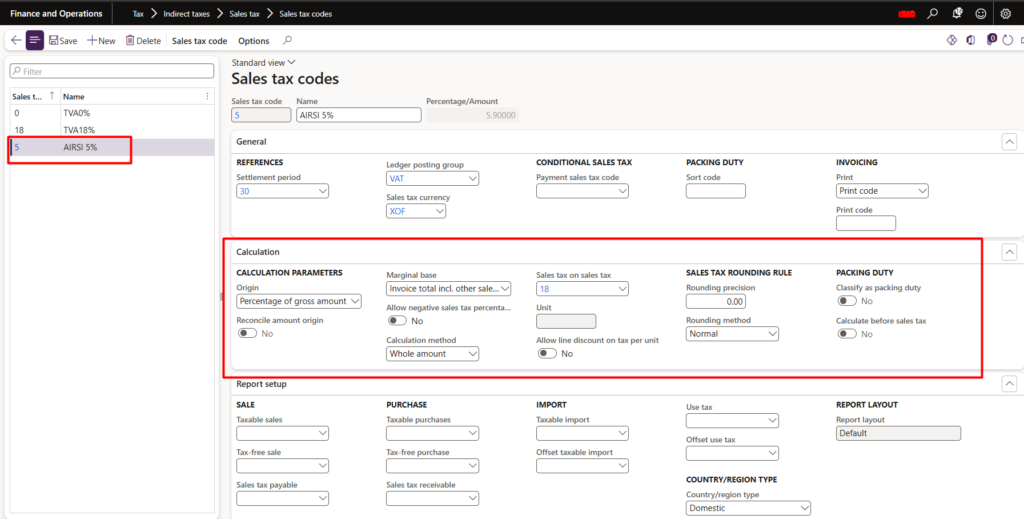
2. Configure Tax-on-Tax
For Tax5 (5%):
a. Enable: Calculate tax on tax
b. Select base tax: Tax18
This ensures Tax5 is calculated on the net amount + Tax18.
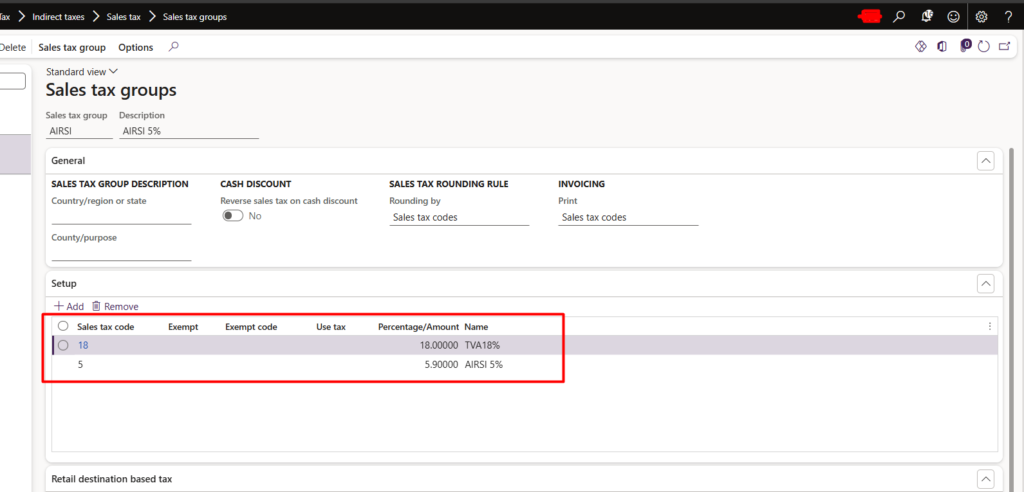
3. Create Sales Tax Group
Navigate to:
Tax > Indirect taxes > Sales tax > Sales tax groups
a. Create: SALES_TAX_GROUP
b. Add:
i. Tax18
ii. Tax5
4. Create Item Sales Tax Group
Navigate to:
Tax > Indirect taxes > Sales tax > Item sales tax groups
a. Create: ITEM_TAX_GROUP
b. Add:
i. Tax18
ii. Tax5
5. Assign Tax Groups
a. Assign the Item sales tax group to the item
b. Ensure correct mapping in transactions

Tax Calculation Flow
| Step | Amount |
| Base Amount | ₹1000 |
| GST18 (18%) | ₹180 |
| GST5 (5% on 118) | ₹59 |
| Total Tax | ₹239 |
| Final Amount | ₹1239 |

- Important Points to Consider
a. Tax-on-tax must always be configured on the dependent tax (5%)
b. Sequence of tax codes directly impacts calculation accuracy
c. Always validate through Sales Order → Invoice → Tax details
d. Perform complete testing in Sandbox before Production deployment
Conclusion
Tax-on-tax configuration in Microsoft Dynamics 365 Finance and Operations is a powerful capability that enables businesses to handle complex, cascading tax requirements with precision.
By structuring tax dependencies correctly:
a. The base tax (18%) is calculated first
b. The dependent tax (5%) is automatically applied on the cumulative amount
This ensures:
a. Accurate financial reporting
b. Regulatory compliance
c. Zero manual intervention
For industries dealing with layered taxation models, this approach is not just helpful-it is essential.
I hope you found this blog useful. If you would like to discuss anything further, feel free to reach out to us at transform@cloudfronts.com.
