Location-Based Item Based Visibility in Business Central for a Maldives-Based Marine Services Firm
Summary
For a Maldives-based marine services firm running Microsoft Dynamics 365 Business Central across multiple operating sites, item journals are used to record consumption and disposal of inventory such as diving and water sports equipment, consumables, and spares. The standard item journal does not stop a user from consuming or disposing more than is physically available at the selected location, because the item lookup and the Inventory figure reflect stock across all locations. In this implementation, we restricted item visibility and quantity validation to the location selected on the journal line. Users must select the location first, the item lookup shows only items with stock at that location, and the quantity is validated both when the line is entered and again at posting. We also carried the location onto the Item Journal Batch so that approval workflows can be routed per location.
Table of Contents
- Introduction
- Understanding the Business Requirement
- The Challenge with Standard Item Journals
- Filtering the Lookup vs. Validating the Line
- Designing the Solution
- Filtering the Item Lookup by Location
- Validating Quantity at Entry and Posting
- Routing Approvals by Location
- Implementation Approach
- Business Impact
- Frequently Asked Questions
- Conclusion
Introduction
Many organizations running Microsoft Dynamics 365 Business Central hold the same items across several locations: properties, stores, warehouses, or project sites. Day-to-day consumption and disposal of that stock is usually recorded through item journals.
Consider a storekeeper who opens the item journal to record the use of cleaning supplies. Business Central tells her one thing; her storeroom tells her another.
200
Units shown in Business Central
60
Units on her own shelf
140
Units at other locations
Without additional controls, nothing prevents her from posting 100 units from her location. The journal accepts it, the location goes negative, and the difference only surfaces during stock counts or month-end reconciliation.
This was the challenge for a Maldives-based marine services firm we worked with. Its sites are spread across separate islands, so equipment and consumables held at one site cannot simply be used at another. We addressed this with one rule enforced at every step:
The Rule
A user can only consume or dispose of what is physically available at the location they selected.
Understanding the Business Requirement
Before writing any code, we agreed the expected behavior with the client as concrete scenarios. Each scenario later became a test case for user acceptance testing.
Scenario 1
Item Stocked Across All Locations
Cleaning concentrate. User selects Location A.
- Location A60
- Other locations140
- Company total200
Shows 60 available. Entering 100 is blocked.
Scenario 2
Item Available at Several Locations
Snorkel mask. User selects Location A.
- Location A30
- Location B5
- Location C21
- Location D10
Shows 30 available. Other locations are ignored.
Scenario 3
No Stock at the Selected Location
Kids’ snorkel set. User selects Location D.
- Location A10
- Location B0
- Location C0
- Location D0
Not available. Consumption and disposal are blocked.
From these scenarios, we derived three key requirements:
- Show only the items and quantities available at the selected location.
- Prevent any consumption or disposal quantity greater than the location’s available stock.
- Route approvals to the person responsible for that location.
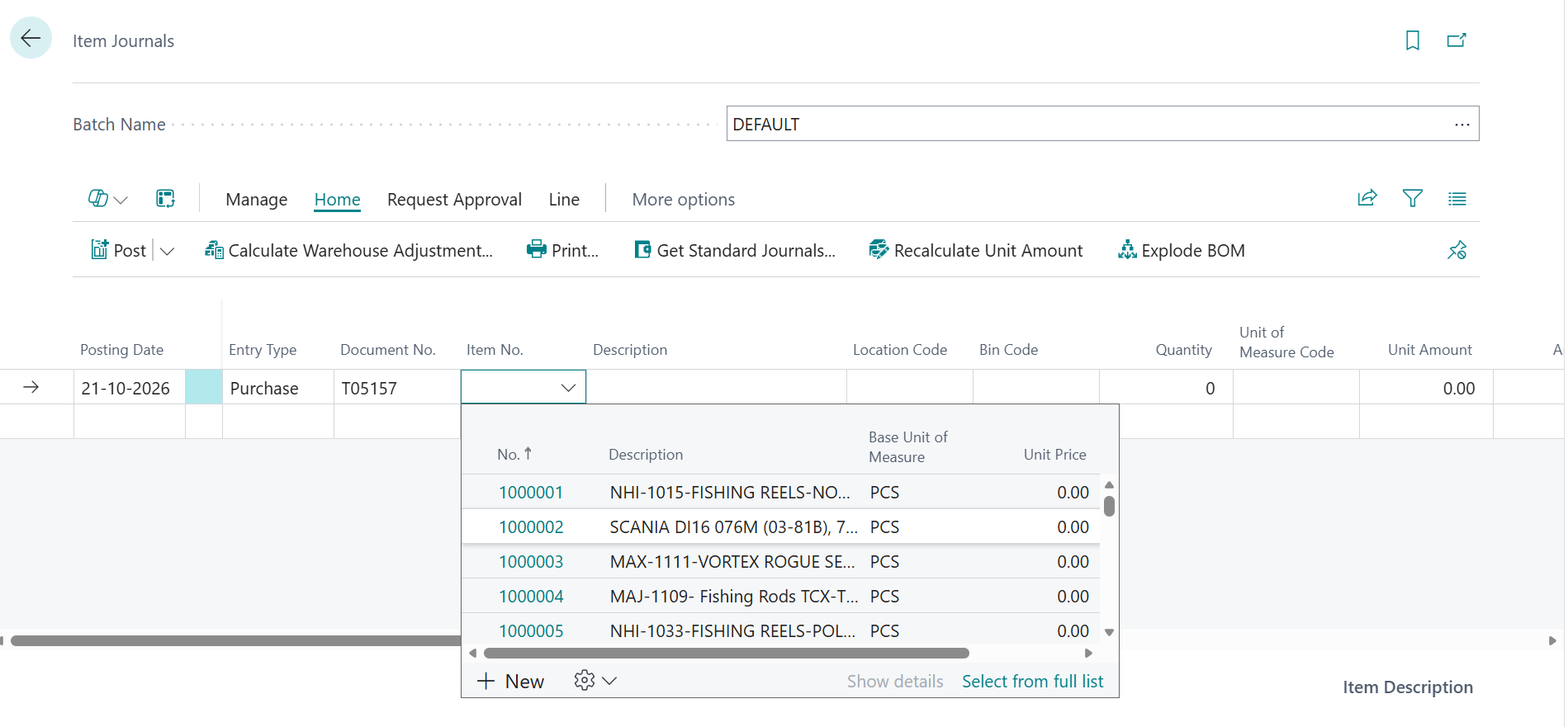
The Challenge with Standard Item Journals
Standard Business Central treats the item journal as a general-purpose adjustment tool, and it trusts the user. For businesses with stock spread across sites, three gaps follow from that.
01
Lookup Shows Company-Wide Stock
The Inventory figure on the Item List is the total across all locations unless a location filter is applied. A user sees 200 when only 60 is on their shelf.
02
Location Is Just Another Field
Users can select the item first and the location later, or leave it blank, so the system has no location context when the item is chosen.
03
Quantity Isn’t Checked by Location
Prevent Negative Inventory is often switched off, only triggers at posting, and gives a storekeeper little guidance.
Key Design Consideration
Location needed to be the starting point of every consumption and disposal line, not an optional detail added afterwards.
Filtering the Lookup vs. Validating the Line
The first instinct is to filter the item lookup by location. That is useful, but it is not a control on its own.
Guides
Lookup Filtering
Points the user to the right items. It does nothing when someone types an item number directly, pastes lines, or uses Edit in Excel.
Enforces
Validation
Runs whenever the field changes, however the value arrives. Every rule shown in the lookup needs a matching check in table validation and at posting.
How a consumption or disposal line moves through the checks
Select Location
→
Item Lookup at Location
→
Entry Check
→
Posting Check
→
Line Posts
Designing the Solution
We reduced the requirement to four rules that apply to every consumption and disposal line.
1
Location First
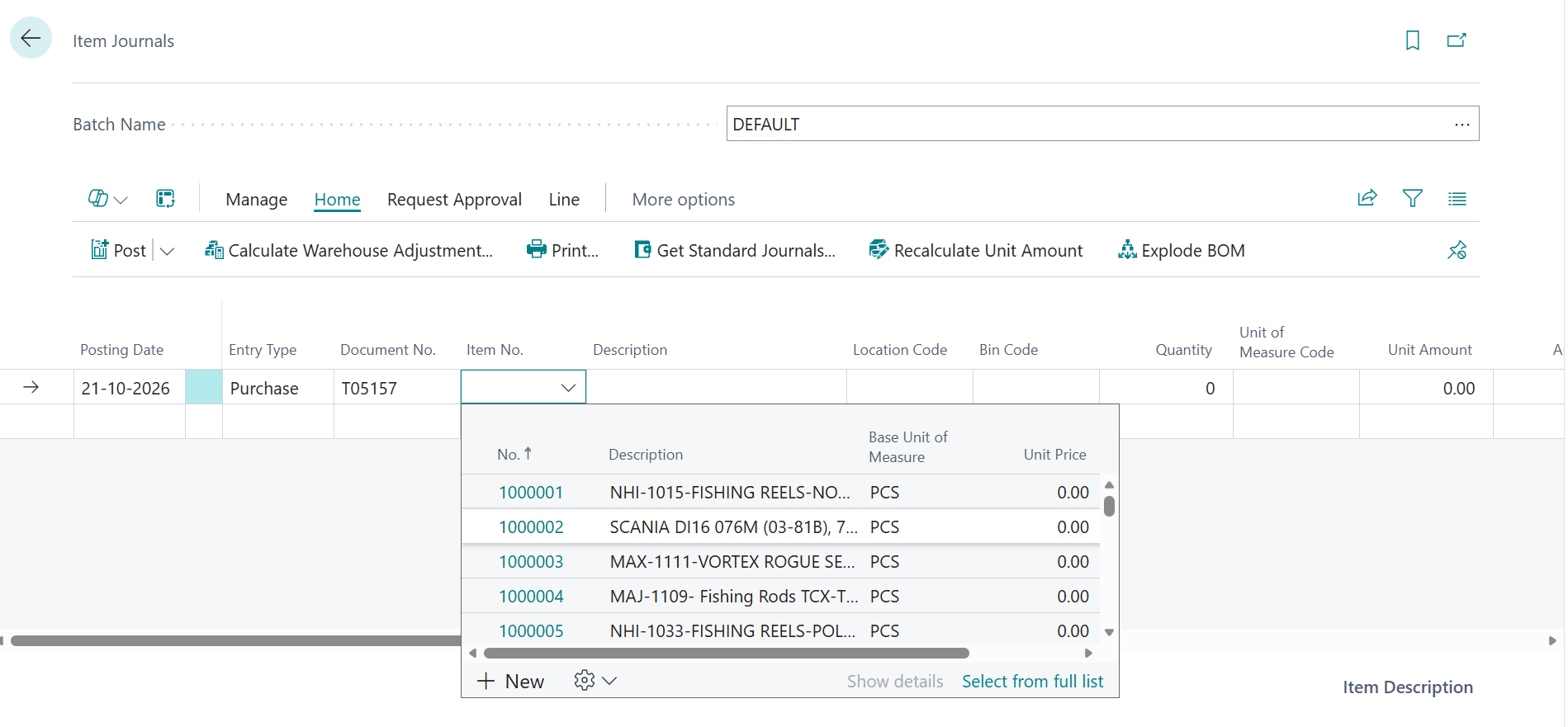
The user must select the Usage Location Code before the Item No. field becomes editable. The location carries over to the next new line.
2
Show Only What Is There
The item lookup lists only items with stock above zero at the selected location, with that location’s quantity.
3
Never More Than Is There
The quantity cannot exceed available stock at the location, after subtracting other unposted lines for the same item.
4
Check Again at Posting
Stock can change between entering and posting a line, so the same rule runs again just before each line posts.
Together, these rules form three layers of control:
Layer 1 · Lookup
Guides the user to items in stock at the selected location.
Layer 2 · Entry Check
Blocks over-consumption as soon as the line is entered.
Layer 3 · Posting Check
Confirms availability against live stock before posting.
Filtering the Item Lookup by Location
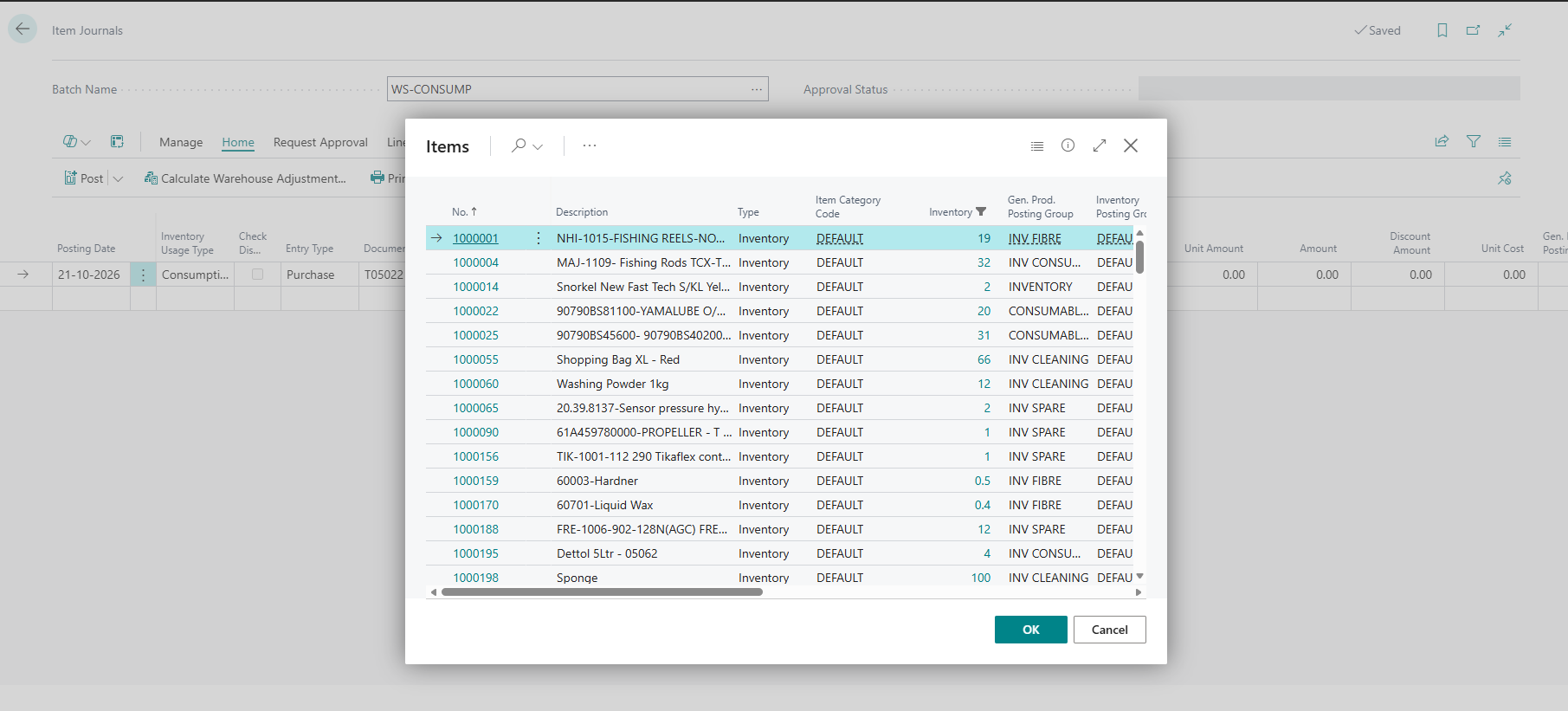
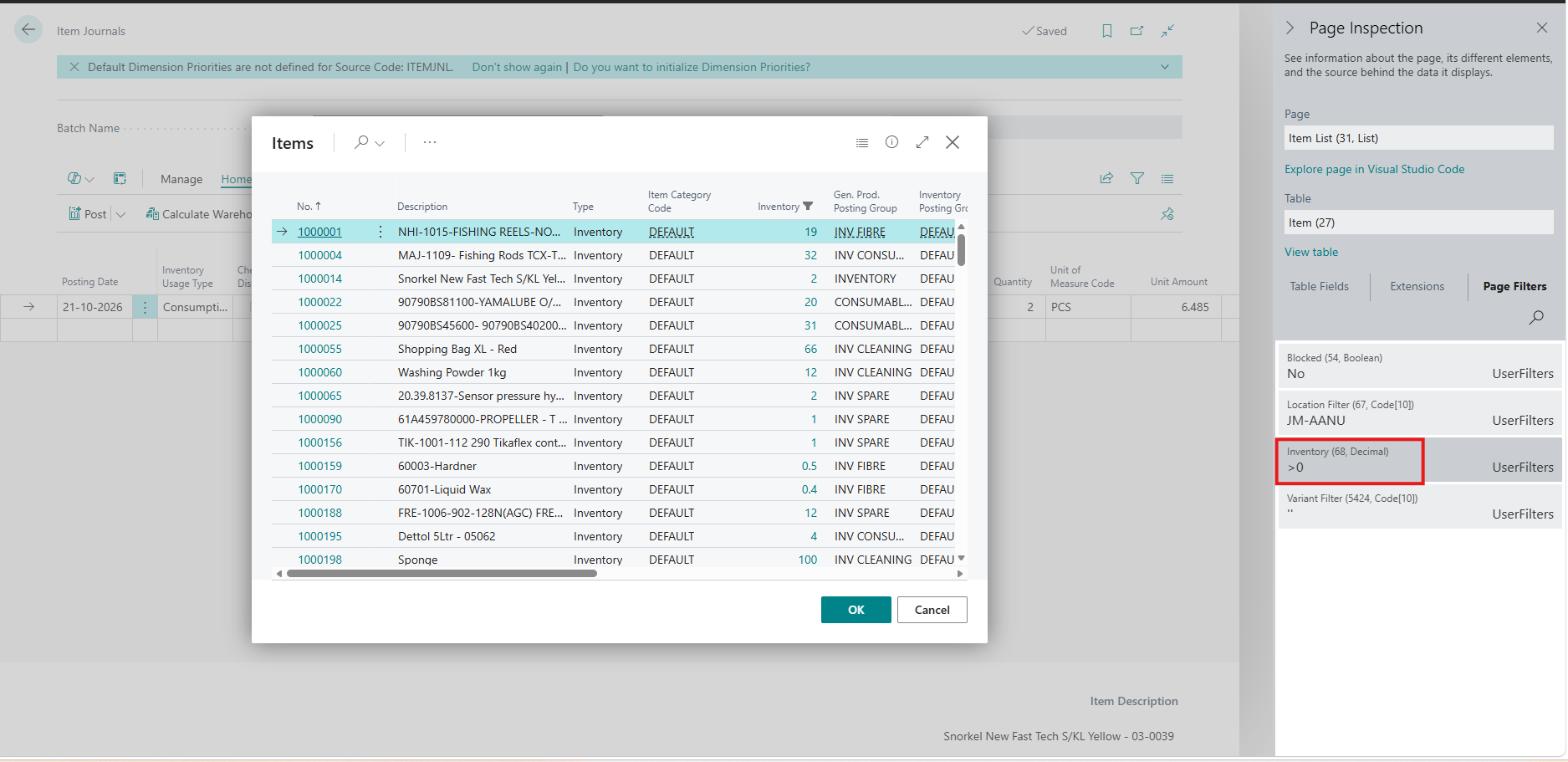
Business Central already calculates stock per location. The Inventory field on
the Item table is a FlowField that respects the Location Filter and
Variant Filter FlowFilters. Once these are set, both the filter and the displayed
quantity become location-specific, without building a custom stock table.
Item.SetRange(Blocked, false);
Item.SetRange("Location Filter", ItemJnlLine."Usage Location Code");
Item.SetRange("Variant Filter", ItemJnlLine."Variant Code");
Item.SetFilter(Inventory, '>0');

if Item.IsEmpty() then
    Error(NoItemsErr, ItemJnlLine."Usage Location Code");
If no items have stock at the selected location, the user receives a clear message instead of an empty list.
Validating Quantity at Entry and Posting
Entry-Time Validation
The entry check runs on validation of Item No., Quantity, and
Usage Location Code. It compares the requested quantity against the location’s
stock minus other unposted negative adjustment lines for the same item, location, and variant
across all batches. This prevents two users from claiming the same units in different journals.
Available := Item.Inventory - PendingNegativeQty;   // same item, location, variant

if ItemJnlLine."Quantity (Base)" > Available then
    Error(QtyExceedsErr, Available, ItemJnlLine."Item No.",
          ItemJnlLine."Usage Location Code", ItemJnlLine."Quantity (Base)");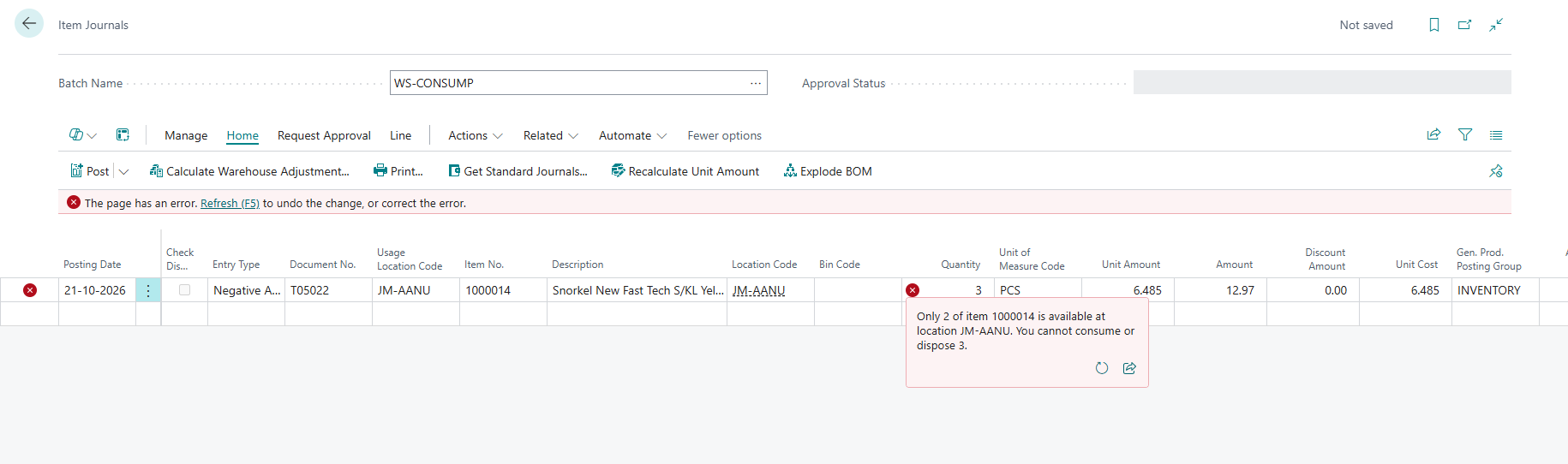
Posting-Time Validation
The posting check subscribes to the OnAfterCheckItemJnlLine event in the
Item Jnl.-Check Line codeunit. During batch posting, each line is checked just before it
posts, so lines posted earlier in the same batch have already reduced inventory.
Why the Two Checks Differ
At entry, other unposted lines are subtracted from stock. At posting, the check compares against live inventory only, because earlier lines in the batch have already posted. Subtracting pending lines here would count them twice.
What happens from entry to posting
Line Entered
→
Stock minus Open Lines
→
Post Batch
→
Live Stock Check per Line
→
Posted
Routing Approvals by Location
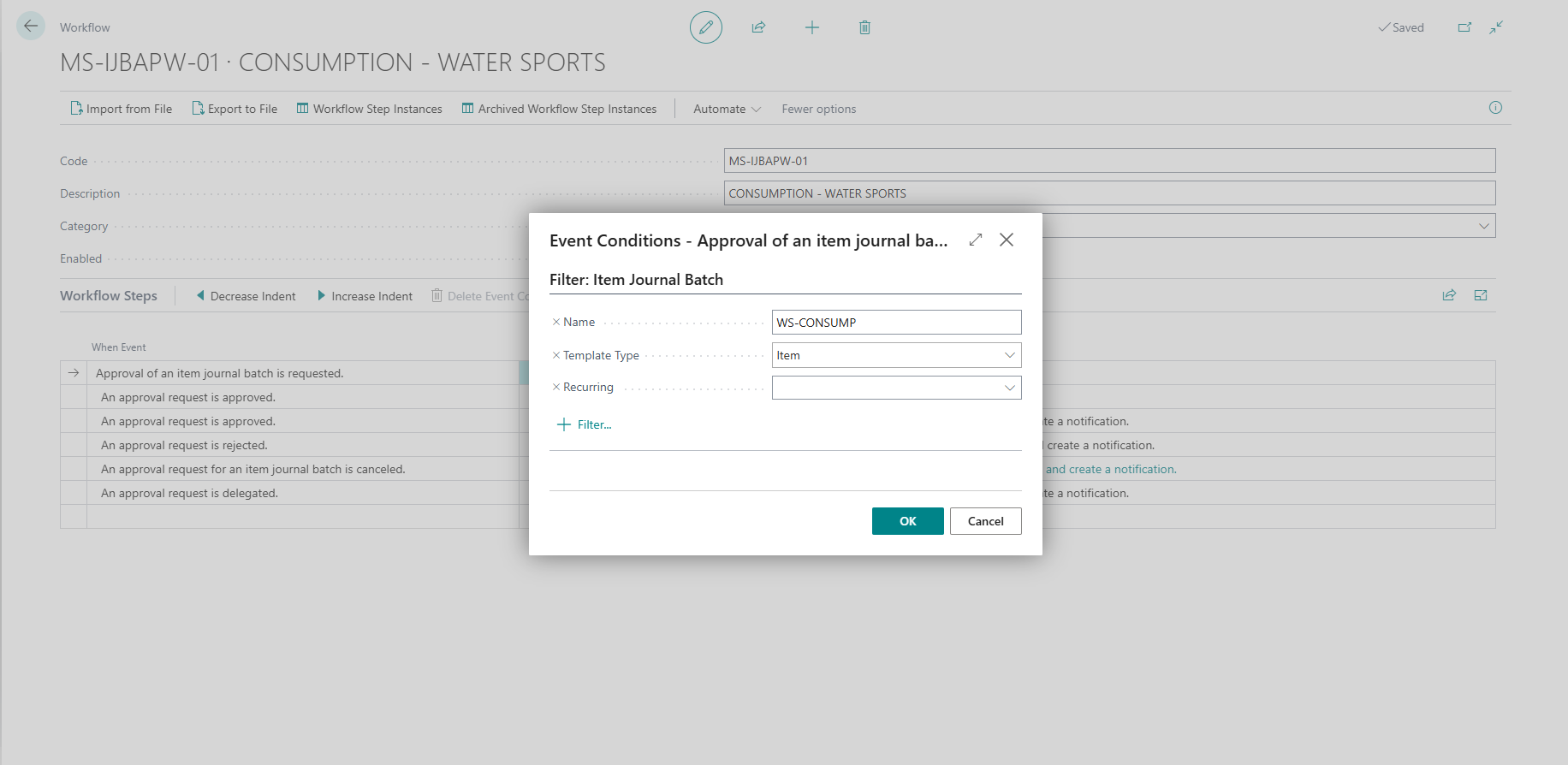
Once stock is controlled per location, approvals should follow the same principle: the manager responsible for a location should approve that location’s consumption and disposal.
Business Central workflow conditions read fields on the record being approved, which in this case is the Item Journal Batch. However, the location sits on the journal lines, not the batch. We closed this gap by adding two fields to the batch.
Inventory Usage Type
Consumption or Disposal, set once per batch. Journal lines read their usage type from the batch, replacing hard-coded batch names.
Usage Location Code
Copied from the journal lines. A line with a different location from the rest of the batch is blocked, so one batch always represents one location.
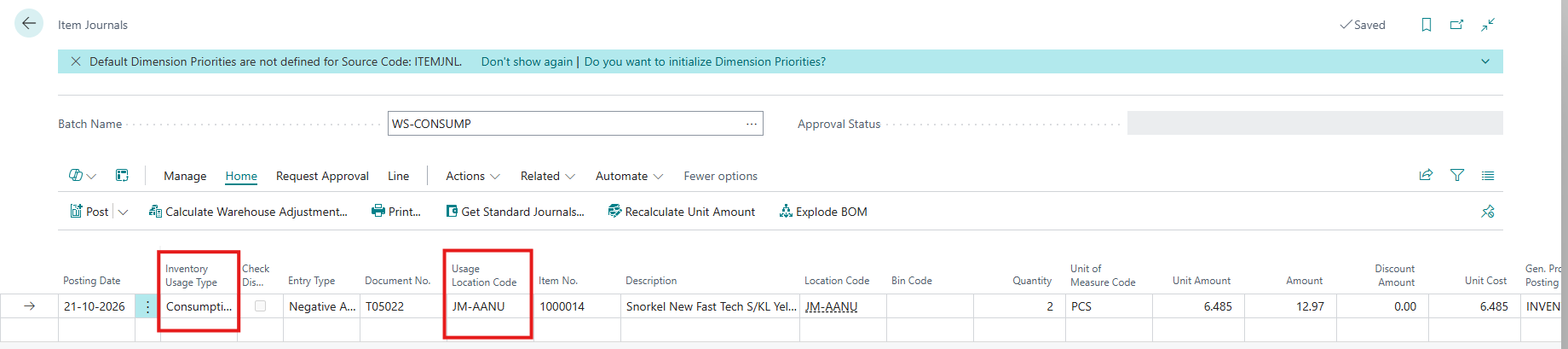
Each approval workflow then uses both fields as its condition, for example Disposal at Location A. Adding a new location requires a new workflow, not new code.
Implementation Approach
The solution is delivered as a per-tenant extension and does not modify any base objects.
Objects Used
| Object | Extends | Responsibility |
|---|---|---|
| Codeunit | New | Item lookup, entry-time and posting-time validation, and batch location sync |
| Table extension | Item Journal Line | Usage Location Code, usage type, and field validation |
| Page extension | Item Journal | Location-first entry and the filtered item lookup |
| Table extension | Item Journal Batch | Inventory Usage Type and Usage Location Code for workflows |
Edge Cases Addressed
A review of the design surfaced three ways the rule could be bypassed:
| Edge Case | Risk | Fix |
|---|---|---|
| Hard-coded batch names | A new or renamed batch silently skipped every check | Usage type moved onto the batch as a setting |
| Entry type | Switching to Positive Adjmt. avoided the stock check | Posting requires Negative Adjmt. on usage lines |
| Variants | Stock of one variant counted as available for another | All checks filter by variant |
Keeping It Simple
Early iterations also filtered items by department and by user category. Each layer added edge cases without matching the client’s real need, which was physical: what is on this shelf. We removed both and kept location as the only filter.
Business Impact
Storekeepers now work with one number: the stock on their own shelf. A consumption or disposal line that would push a location negative cannot be saved, let alone posted.
Accurate Location Stock
Inventory at each location stays aligned with what is physically available.
Errors Caught Early
Over-consumption is blocked when the line is entered, not discovered at month-end.
Faster, Simpler Entry
Users see only relevant items for their location instead of the full item list.
Location-Based Approvals
Consumption and disposal requests reach the manager responsible for that location.
Easy to Extend
New locations and batches are handled through setup and workflows, without code changes.
Frequently Asked Questions
Isn’t the Prevent Negative Inventory setting enough?
It helps as a final safeguard and does work per location. However, it only triggers at posting, does not filter what users see, and does not account for other unposted lines. This solution catches the issue at entry with a clear, location-specific message.
What happens if a user types an item number instead of using the lookup?
The same location and quantity checks run on field validation, so typed, pasted, or imported lines are validated in the same way as lines selected from the lookup.
Can two users consume the same stock at the same time?
No. The entry check subtracts other unposted consumption and disposal lines for the same item and location across all batches, and the posting check validates against live stock.
Does this affect other item journals?
No. The checks apply only to batches marked as Consumption or Disposal. Other item journal batches continue to work as standard.
Can a single batch contain lines for more than one location?
No. Keeping one location per batch ensures that each approval request is routed to the correct location’s approver.
Conclusion
Restricting consumption and disposal to the selected location may appear to be a small customization, but for multi-location businesses it is the difference between inventory that matches the shelf and inventory that has to be corrected every month.
By carrying the location onto the Item Journal Batch, the same design also supports location-based approval workflows, without additional code for each new location.
Key Takeaway
Treat location as the starting point of every line, and enforce the rule in three places: the lookup, field validation, and posting.
The implementation shows how a focused Business Central extension, built on standard FlowFields and events, can improve inventory accuracy while staying within the standard ERP framework.
Looking to improve inventory accuracy across multiple locations in Business Central?
CloudFronts helps organizations extend Microsoft Dynamics 365 Business Central with practical customizations, automation, approval workflows, and inventory process solutions designed around real-world business requirements. To discuss a similar implementation, reach out to us.
Contact us at transform@cloudfronts.comAbout the Author