

Debugging Made Simple: Using IISExpress.exe for Faster D365 Finance & Operations Development
Summary
In modern web application development, debugging efficiency plays a critical role in overall productivity. While full Internet Information Services (IIS) is powerful, it often introduces unnecessary complexity and slows down development cycles. This article explores how IIS Express (iisexpress.exe) provides a lightweight, fast, and developer-friendly alternative for debugging. You will learn how to use IIS Express effectively, understand its advantages over full IIS, and discover practical ways to streamline your debugging workflow for faster and more efficient development.
Debugging Faster with IIS Express: A Practical Guide for Modern Developers
In modern application development, debugging speed and flexibility can significantly impact productivity. While full IIS is powerful, it often introduces overhead that slows down iterative development. This is where IIS Express (iisexpress.exe) becomes a powerful yet underutilized tool.
This article explores how to effectively use IIS Express for debugging, why it matters, and how it can streamline your development workflow.
What is IIS Express?
IIS Express is a lightweight, self-contained version of Internet Information Services (IIS) designed specifically for developers.
It allows you to:
- Run web applications locally
- Debug without admin privileges
- Avoid full IIS configuration overhead
- Quickly spin up and tear down environments
Why Use IIS Express for Debugging?
- Faster Startup
Unlike full IIS, IIS Express starts quickly, making it ideal for frequent debugging cycles. - No Admin Rights Required
You do not need elevated permissions to run or debug applications. - Isolated Environment
Each project runs independently, reducing conflicts between applications. - Easy Configuration
Configuration is stored locally in applicationhost.config, making it easy to modify and version-control.
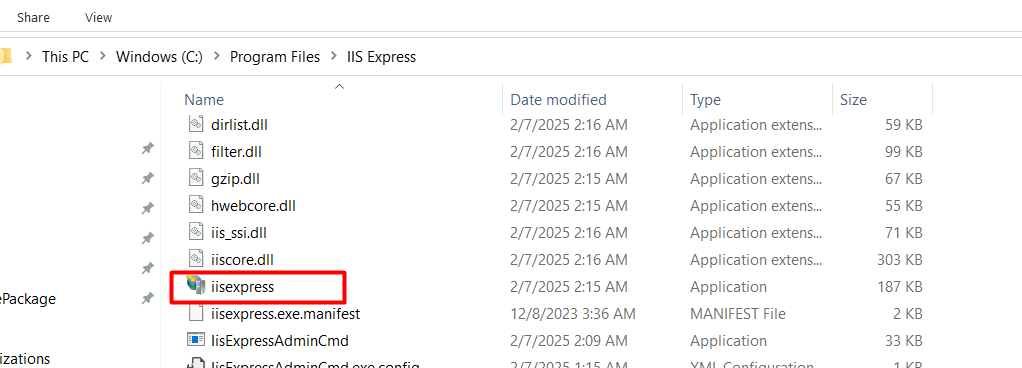
Where is IISExpress.exe Located?
It is typically found at:
C:\Program Files\IIS Express\iisexpress.exe
How to Run IIS Express Manually
You can start IIS Express from the command line:
iisexpress.exe /path:”C:\MyApp” /port:8080
Parameters Explained:
a. /path → Physical path of your application
b. /port → Port number to run the application
Debugging with IIS Express in Visual Studio
Step 1: Set Project to Use IIS Express
a. Open Project Properties
b. Go to the Web section
c. Select IIS Express
Step 2: Start Debugging
Press F5 or click Start Debugging.
Visual Studio will:
- Launch IIS Express
- Attach the debugger automatically
- Open the browser with your application
Attaching Debugger Manually
Sometimes you may need to debug an already running instance.
Steps:
- Run IIS Express manually
- Open Visual Studio
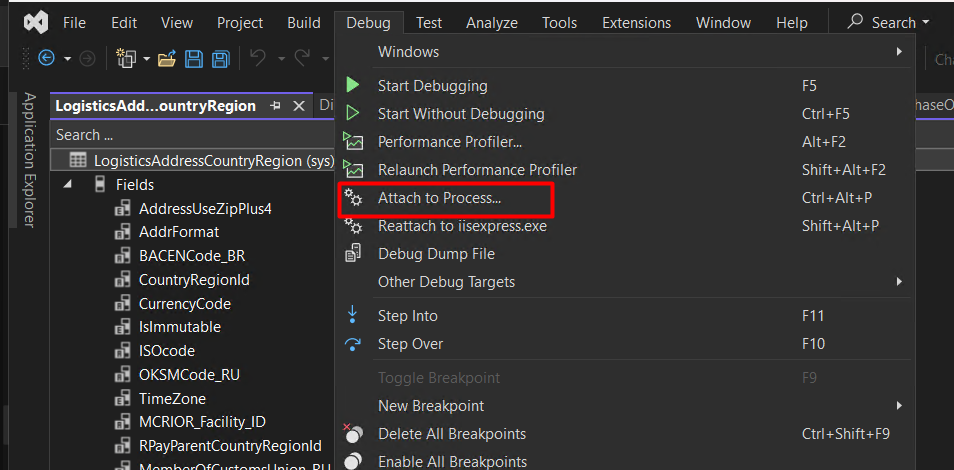
- Go to Debug → Attach to Process
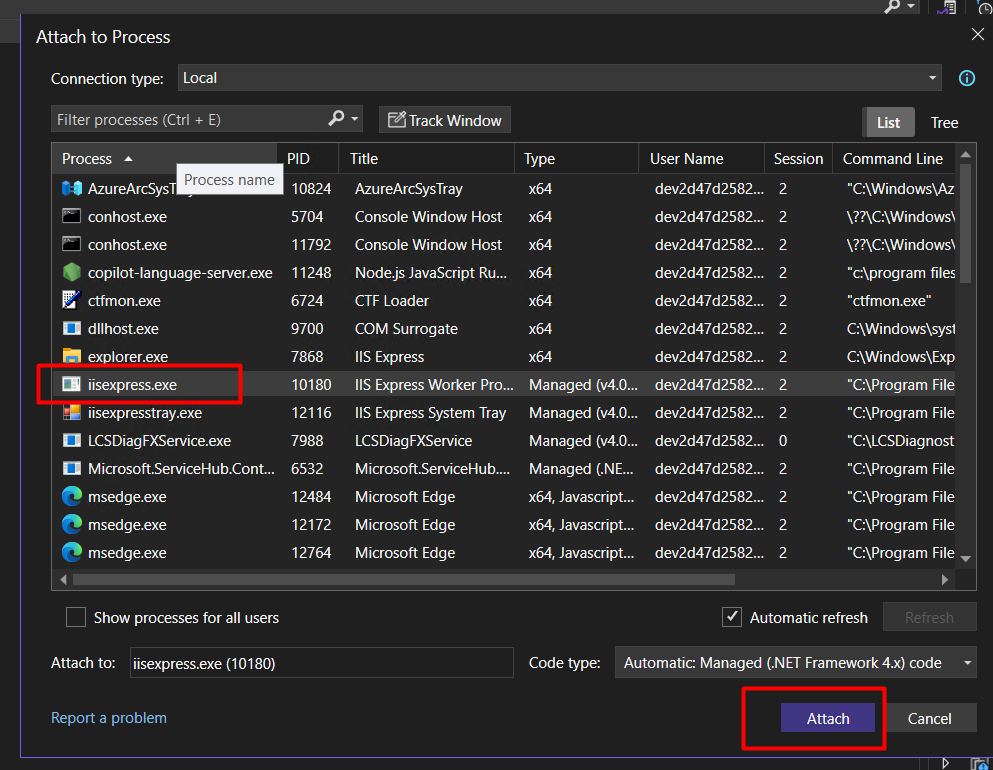
- Select iisexpress.exe
- Click Attach
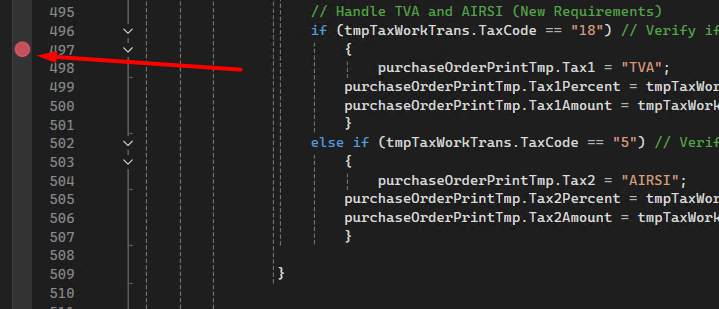
You can then add breakpoints in your code.
You can add break points in code.
Common Debugging Scenarios
- API Debugging
Run backend APIs locally and test via:
a. Postman
b. Browser
c. Frontend applications - Integration Testing
Simulate real endpoints without deploying to a full IIS server. - Breakpoint Debugging
Set breakpoints in:
a. Controllers
b. Services
c. Middleware
IIS Express vs Full IIS
| Feature | IIS Express | Full IIS |
| Setup | Minimal | Complex |
| Admin Rights | Not required | Required |
| Performance | Lightweight | Production-ready |
| Use Case | Development | Production |
Best Practices
- Use IIS Express for:
a. Daily development
b. Debugging
c. API testing - Use full IIS for:
a. Production deployment
b. Load testing
c. Advanced hosting scenarios
Strategic Insight
Many developers default to full IIS for debugging, but this introduces:
- Configuration complexity
- Slower feedback loops
- Environment inconsistencies
IIS Express provides a developer-first approach, enabling:
- Faster iterations
- Cleaner debugging
- Reduced friction
Final Thoughts
Debugging should be fast, predictable, and low-friction. IIS Express achieves this by providing a lightweight yet powerful runtime environment.
Whether you are building APIs, web applications, or integrations, mastering IIS Express can significantly improve your development efficiency.
Key Takeaway
Use IIS Express for fast, isolated, and efficient debugging-without the overhead of full IIS.
If you are implementing of F&O and want more clarity in your finance processes, feel free to reach out to us at transform@cloudfonts.com. We have helped multiple organizations streamline exactly these scenarios.
