How to Access a Dynamics 365 Finance & Operations Sandbox Database from a DEV VM Using JIT Access
In Microsoft Dynamics 365 Finance & Operations, direct SQL access to Sandbox environments is restricted for security reasons. However, you can access the Sandbox database from a DEV VM using Just-in-Time (JIT) access and SQL credentials provided through Lifecycle Services (LCS).
This guide explains the complete process step-by-step.
Prerequisites
Before connecting, ensure you have:
- a. Access to the DEV VM
- b. Required permissions in Microsoft Dynamics Lifecycle Services
- c. JIT access approval
- d. SQL Server Management Studio (SSMS) installed
- e. Sandbox environment available in LCS
Step 1: Request JIT Access
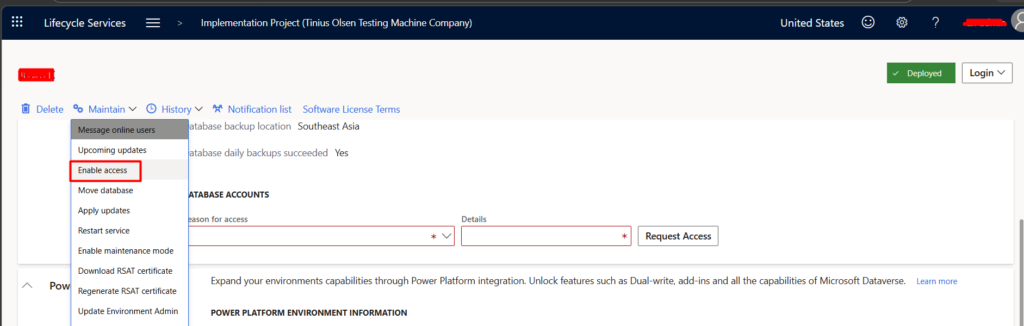
Open your Sandbox environment in LCS.
Navigate to:
Environment → Maintain → Enable access
Depending on organization policies:
- a. Approval workflow may trigger
- b. MFA verification may be required
- c. Access duration may be limited
Common access types:
- a. Database access
- b. RDP access
- c. Administrative access
Step 2: Retrieve SQL Connection Details
After JIT access is enabled:
Go to:
Environment Details → Full details
You will find:
- a. SQL Server name
- b. Database name
- c. SQL username
- d. SQL password (temporary)
- e. Access expiration time
Example:
| Field | Example |
| Server | axdbserver.database.windows.net |
| Database | AxDB |
| Authentication | SQL Authentication |
Step 3: Whitelist DEV VM Public IP (If Required)
Some environments require firewall whitelisting.
From DEV VM:
- Open browser
- Search:
what is my ip - Copy public IP
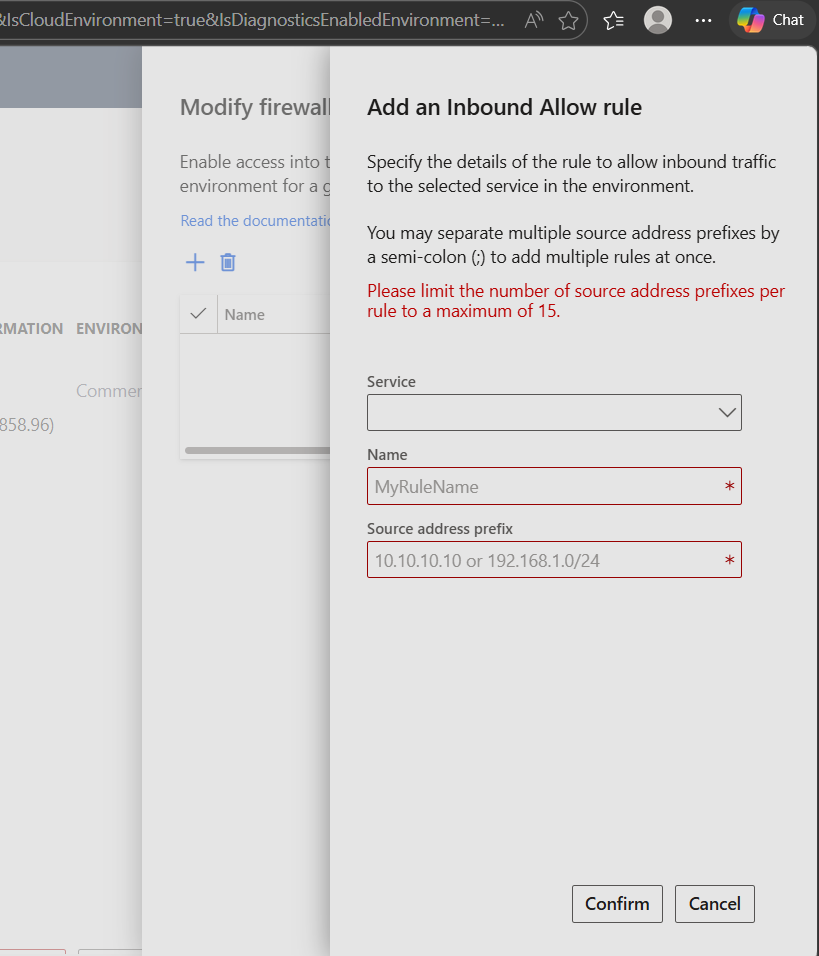
In LCS:
Maintain → SQL firewall configuration
Add:
- a. DEV VM public IP
Wait a few minutes for propagation.
Step 4: Open SSMS on DEV VM
Launch:
SQL Server Management Studio
Step 5: Enter Connection Details
In SSMS:
Server Name
Paste SQL server name from LCS.
Example:
axdbserver.database.windows.net
Authentication
Select:
SQL Server Authentication
Login
Enter SQL username from LCS.
Password
Enter temporary password from LCS.
Step 6: Configure Encryption Settings
Click:
Options → Connection Properties
Ensure:
- a. Encrypt connection = Checked
- b. Trust server certificate = Checked (if required)
Step 7: Connect to Database
Click:
Connect
If successful, you can access:
- a. Tables
- b. Views
- c. Stored procedures
- d. Read-only data (depending on permissions)
Important Notes
Sandbox Databases Are Usually Read-Only
Microsoft restricts many write operations.
Avoid:
- a. Direct data updates
- b. Table modifications
- c. Schema changes
unless explicitly approved.
Access Is Temporary
JIT access expires automatically after the approved duration.
You may need to:
- a. Re-request access
- b. Generate new SQL password
Production Database Access
Direct Production DB access is heavily restricted and generally unavailable.
Use:
- a. Data management exports
- b. BYOD
- c. Entity Store
- d. Synapse Link
instead.
Common Connection Errors
Login Failed
Possible reasons:
- a. Expired JIT access
- b. Wrong SQL credentials
- c. Password expired
Cannot Open Server Requested by Login
Usually firewall issue.
Solution:
- a. Add DEV VM public IP to SQL firewall
SSL / Certificate Error
Enable:
- a. Encrypt connection
- b. Trust server certificate
Recommended Best Practices
Use Read-Only Queries
Prefer:
SELECT TOP 100 *
FROM CUSTTABLE
Avoid update/delete statements.
Use Views Instead of Base Tables
Many standard views provide safer reporting access.
Avoid Heavy Queries
Large queries may impact environment performance.
Example SQL Query
SELECT TOP 10 ACCOUNTNUM, NAME
FROM CUSTTABLE
ORDER BY CREATEDDATETIME DESC
Security Recommendations
- a. Never share SQL passwords
- b. Use JIT only when needed
- c. Disconnect after use
- d. Follow customer compliance policies
- e. Audit database activities regularly
To conclude, Using Just-in-Time (JIT) access to connect a Sandbox database through SQL Server Management Studio (SSMS) in Microsoft Dynamics 365 Finance & Operations provides a secure and controlled way to troubleshoot, validate data, and perform reporting activities without granting permanent elevated access.
Reach out at transform@cloudfronts.com.
Related posts:
From Project Operations to Business Central: Following the Data Behind Project Financials
Location-Based Item Based Visibility in Business Central for a Maldives-Based Marine Services Firm
Connecting Project Operations to Finance: Our Dataverse-to-Business Central Integration for Project ...