

Optimizing Power BI Dataset Performance Using Incremental Refresh for Large-Scale Analytics.
Summary
- Large datasets in Microsoft Power BI can significantly slow down refresh performance, but incremental refresh reduces processing time by refreshing only new and changed data.
- Incremental refresh in Power BI improves report performance and reduces resource consumption by partitioning data based on date filters.
- CloudFronts implementations have shown up to 70% reduction in dataset refresh time using incremental refresh for enterprise-scale reporting.
- Using parameters like RangeStart and RangeEnd enables efficient data loading and seamless integration with Power BI Service refresh policies.
Use Case / Why This Matters
- Organizations using Microsoft Power BI for reporting often deal with millions of records, especially in finance, sales, and operations datasets. Full dataset refreshes increase refresh time, consume resources, and impact report performance.
- Incremental refresh solves this by refreshing only recent or modified data, ensuring faster performance and scalable analytics.
Prerequisites
Before implementing incremental refresh in Microsoft Power BI, ensure the following:
- Power BI Pro or Premium workspace (Premium recommended for large datasets)
- Dataset contains a date/time column
- Data source supports query folding (e.g., SQL Server, Azure SQL)
- Power BI Desktop installed
- Basic understanding of Power Query
Step-by-Step Implementation
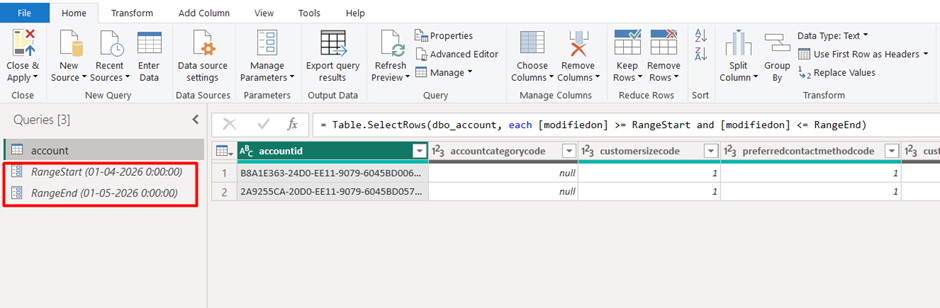
Step 1: Create Parameters (RangeStart & RangeEnd)
This step defines the data boundaries for incremental refresh.
- Go to Power BI Desktop → Transform Data → Manage Parameters
- Create:
- a. RangeStart (Date/Time)
- b. RangeEnd (Date/Time)
These parameters will control which data gets refreshed.
Step 2: Apply Filter in Power Query
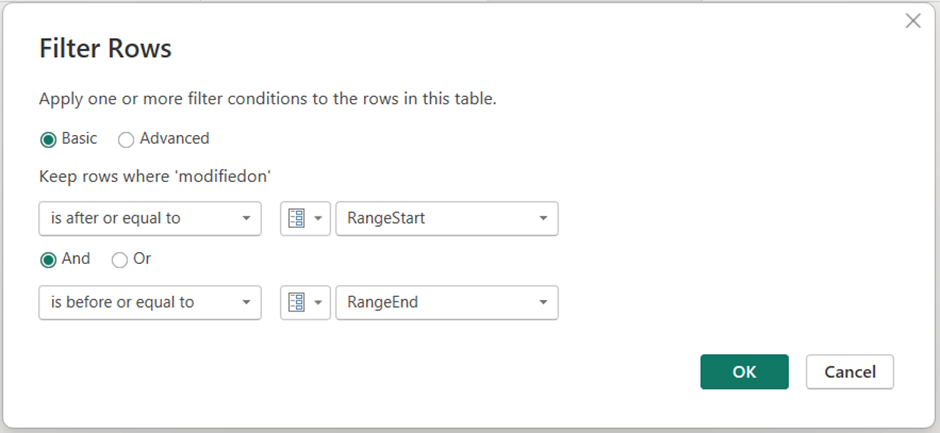
This step filters the dataset using the parameters.
Select your date column
Apply filter:
DateColumn >= RangeStart AND DateColumn < RangeEnd
This ensures only relevant data is processed.
Step 3: Enable Query Folding
This step ensures filtering happens at the data source level.
Right-click last step → View Native Query
If available → Query folding is enabled
Query folding is critical for performance optimization.
Step 4: Configure Incremental Refresh Policy
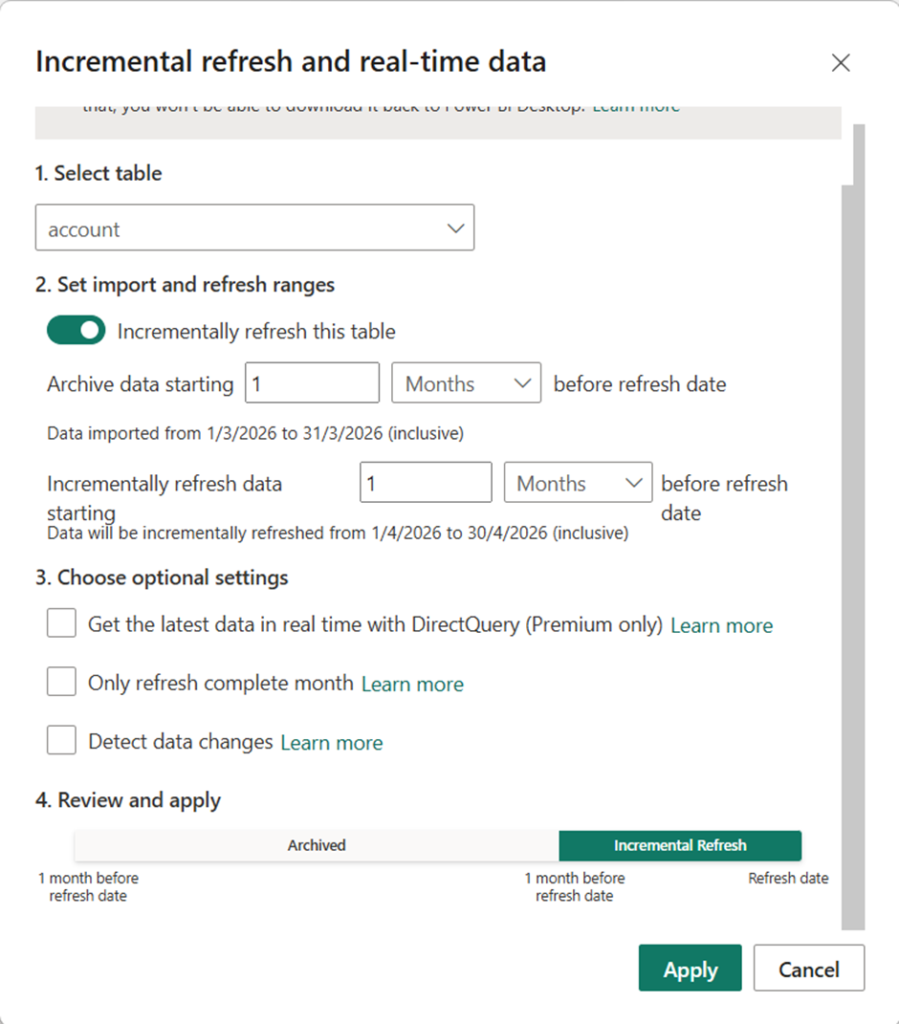
This step defines how much data to store and refresh.
- Go to Model view → Table → Incremental Refresh
- Configure:
- a. Store data for: e.g., 5 years
- b. Refresh data for: e.g., last 7 days
This creates partitions in the dataset.
Step 5: Publish to Power BI Service
This step activates incremental refresh in the cloud.
- a. Publish dataset to Power BI Service
- b. Trigger first refresh
After publishing, Power BI automatically manages partitions.
Business Impact
Following the implementation, organizations achieved the following results
| Metric | Before | After |
| Dataset refresh time | 2–3 hours (full refresh) | 30–45 minutes |
| Data processing load | Entire dataset processed | Only recent data processed |
| Report performance | Slow with large datasets | Faster load & interaction |
| System resource usage | High | Optimized and controlled |
Incremental refresh significantly improves scalability and ensures consistent performance for enterprise reporting.
To conclude, Incremental refresh in Microsoft Power BI transforms how organizations handle large datasets by reducing refresh times and improving performance. By implementing proper data filtering, query folding, and refresh policies, businesses can scale their analytics without compromising speed.
As data volumes continue to grow, adopting incremental refresh is no longer optional—it is essential for efficient and cost-effective reporting.
If your Power BI reports are slowing down due to large datasets, start implementing Incremental Refresh today.
Begin by identifying your date columns, defining parameters, and configuring refresh policies. A small change can lead to massive performance improvements in your reporting environment.
We hope you found this blog useful. If you would like to learn more or discuss similar solutions, feel free to reach out to us at transform@cloudfronts.com.
