

From Quote to Signed Contract in Minutes: Automating Adobe Acrobat Sign Integration for an Australia based Linen and Garments company
Summary
- Automated end-to-end contract generation, digital signing, and document filing for an Australia-based commercial linen and garments company using Dynamics 365 Sales, Microsoft Power Automate, and Adobe Acrobat Sign.
- Eliminated manual contract preparation by generating personalized Word contracts directly from accepted Dynamics 365 Quotes using a reusable Word template.
- Leveraged Adobe Acrobat Sign text tags embedded within the Word template to automatically create signature, date, and fillable fields without manual field placement or custom development.
- Automated agreement creation, customer notifications, and real-time signing status tracking through Adobe Acrobat Sign, providing complete visibility throughout the contract lifecycle.
- Implemented a dedicated child Power Automate flow that automatically identified completed agreements from Adobe Sign emails and archived signed contracts into the correct SharePoint document library.
- Reduced contract turnaround from a manual, multi-step process to a one-click, fully automated workflow while ensuring audit-ready signed documents and eliminating manual document handling.
Table of Contents
Introduction
For any business that runs on contracts — service agreements, quotes-turned-orders, vendor sign-offs — the gap between "quote accepted" and "contract signed" is often where deals slow down. Manual document preparation, back-and-forth emails, chasing signatures, and manually filing signed copies all eat into time that should be spent serving the customer.
For an Australia based Linen and Garments, a commercial textile services company, CloudFronts built an end-to-end automation that takes a sales quote all the way through to a fully signed, filed contract — with zero manual document handling in between. The solution combines a Word contract template, Microsoft Power Automate, and Adobe Acrobat Sign, orchestrated across two connected flows: a parent flow that creates and sends the contract, and a child flow that listens for the signed response and files it automatically.
This post walks through how that solution works, including the one detail that makes the whole thing possible without any custom code: Adobe Sign text tags embedded directly inside the Word template.
The Business Challenge
Once a quote is accepted, the team needed the resulting contract to:
- Be generated automatically from the quote and its line items — no manual copy-pasting of customer details into a Word document.
- Be sent for signature immediately, with the right fields ready for the customer to fill in and sign — bank details, account information, and a signature block, all in the right place.
- Notify both the customer and the internal Adobe Sign account holder the moment it’s out for signing.
- Automatically file the final, fully signed PDF back into the correct SharePoint location tied to that quote — without anyone needing to remember to save it.
Procedure
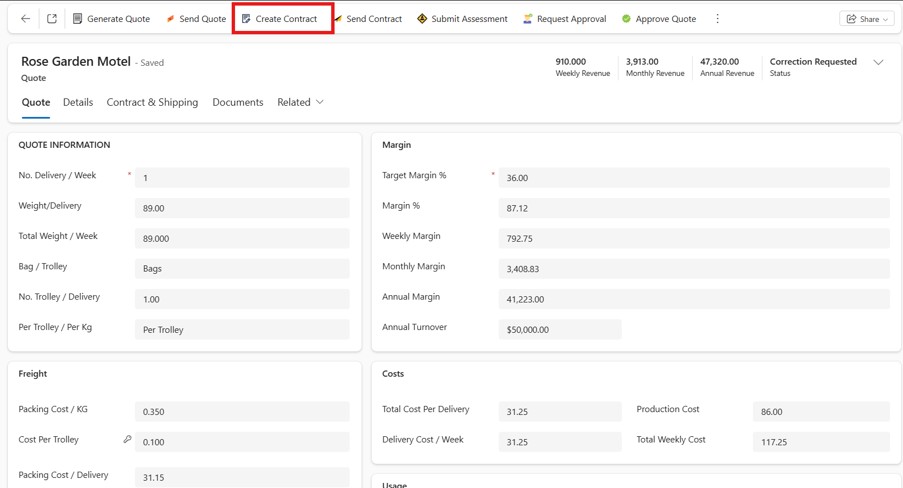
Step 1: Auto-Generating the Contract from the Quote
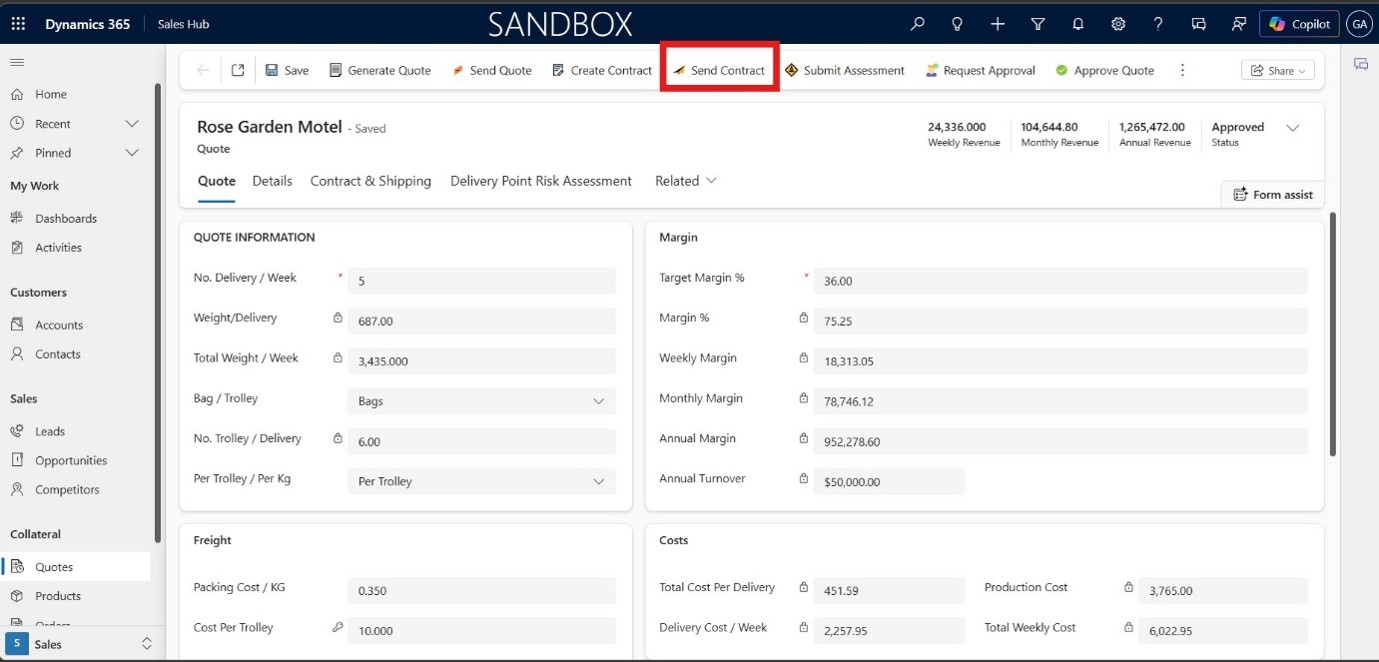
The process starts with a single action: Create Contract. This triggers the parent Power Automate flow, which:
- Composes the Quote ID from the selected record.
- Retrieves the document location tied to that quote (the Word contract template).
- Pulls the Quote, the associated Customer, and the Contact record for the signer.
- Uses these to populate a Word template — the standard “Populate a Word Template” merge step — filling in customer name, contract terms, line items, and contact details automatically.
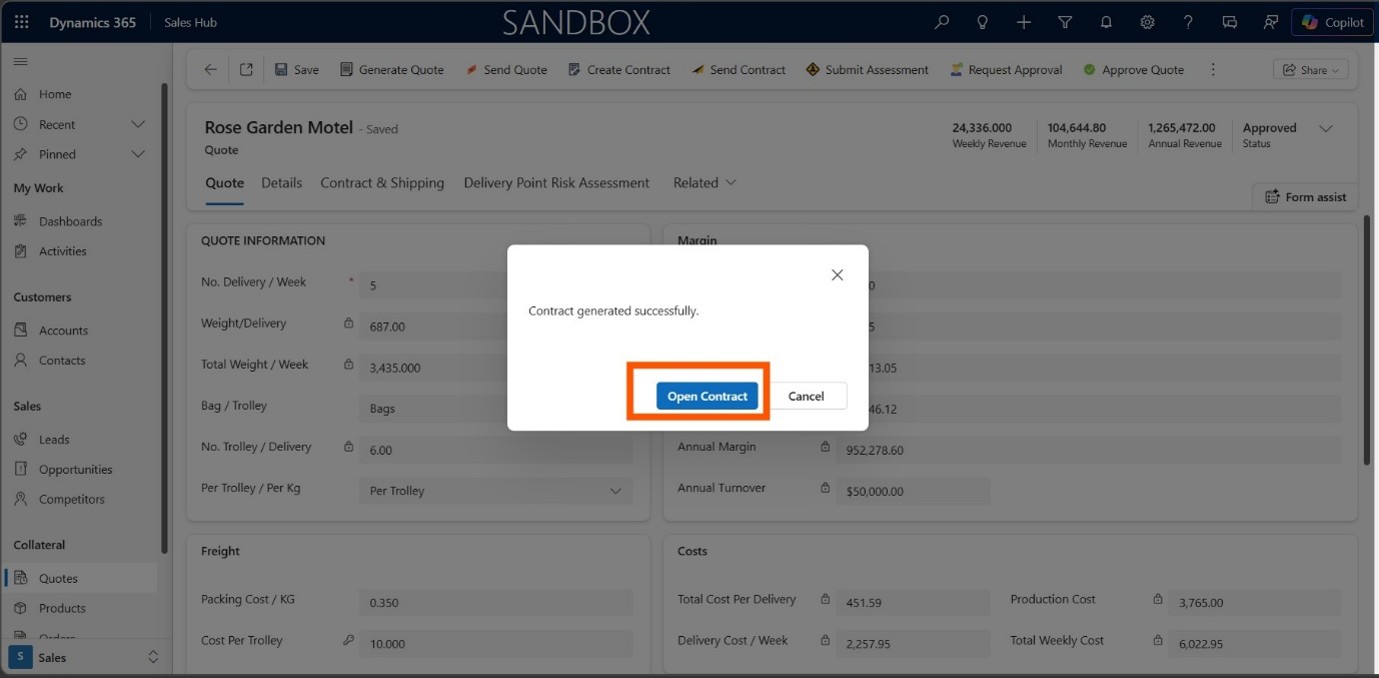
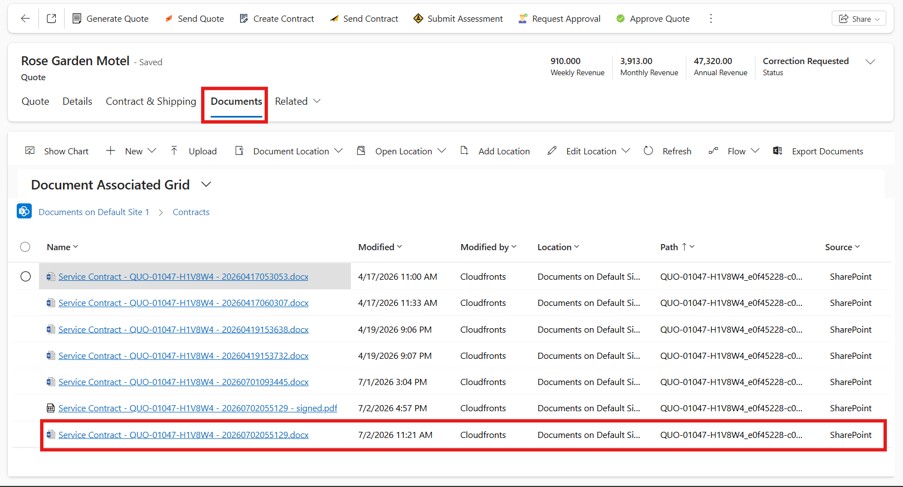
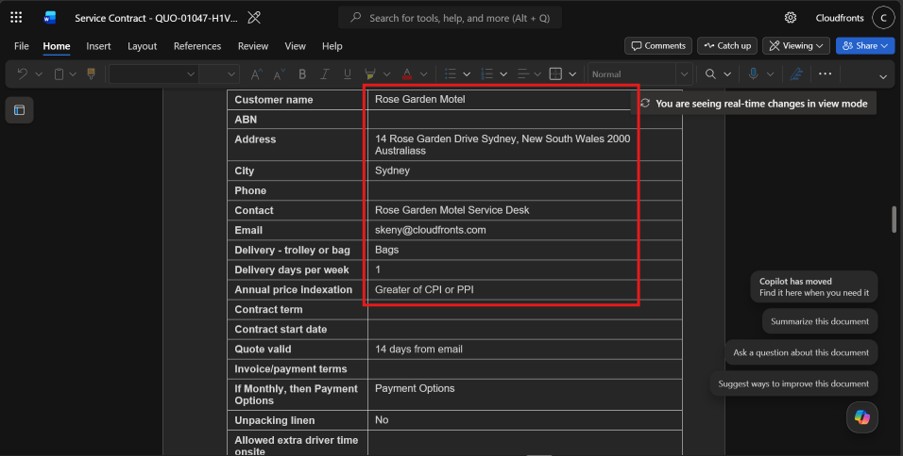
This is the same idea used in most contract-automation flows: merge structured CRM/quote data into a pre-built Word template, so the resulting document is fully personalized without a single manual edit.
Step 2: Making the Contract Signable — Text Tags in the Template
This is the step that makes the entire signing experience work, and it's worth explaining properly, because it's easy to get wrong.
A merged Word document, by itself, is just static text. For Adobe Acrobat Sign to know where a customer needs to sign, initial, or fill something in, the template needs special markers called text tags — plain text strings embedded directly into the Word template before it's ever merged. When the finished document is sent to Adobe Sign, Adobe automatically scans it, finds these tags, and converts them into live, interactive fields for the signer.
For the contract, the template includes tags like:
{{Customer_Sign_es_:signer1:signature}}
{{Date_Of_Signature_es_:signer1:date}}
{{Financial_Institution_es_:signer1}}
{{BSB_Number_es_:signer1}}
{{Account_Name_es_:signer1}}
{{Account_Number_es_:signer1}}
Each tag follows Adobe's syntax: a field name, the _es_ identifier, the signer role (signer1), and an optional field type (signature, date, or left blank for a plain fillable text box). Because these tags are just text, they can sit anywhere in the Word template exactly where the business wants the field to appear — no separate field-placement tool required.
Getting this right matters more than it looks. A few lessons learned building this out:
- The entire tag must stay on a single line and in a common font — if it wraps across a line break during merge or PDF conversion, Adobe won’t recognize it, and the raw tag text stays visible instead of becoming a field.
- Field type directives are limited to what Adobe actually supports (signature, date, initials, etc.) — leaving the type off entirely creates a plain fillable text field, which is what was used for the banking detail fields here.
-
Converting the merged Word document to PDF before sending it to Adobe Sign tends to produce more consistent tag detection than sending the raw
.docx.
Step 3: Sending the Contract for Signature
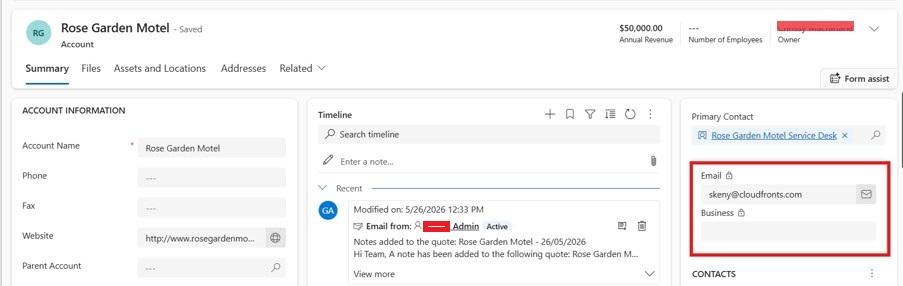
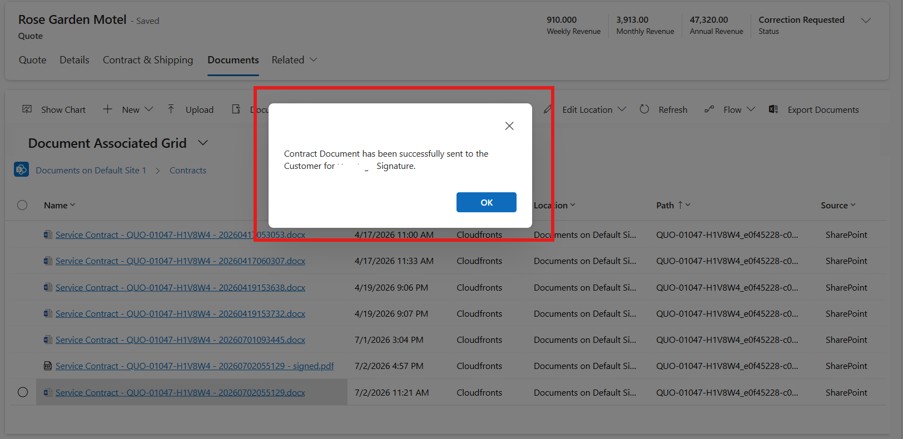
Once the Word template is fully populated, the flow hands it off to Adobe Acrobat Sign using the Create an agreement from a file content and send for signature action — passing the merged file straight through, along with the signer's name, email, and role.
At this point, two things happen simultaneously:
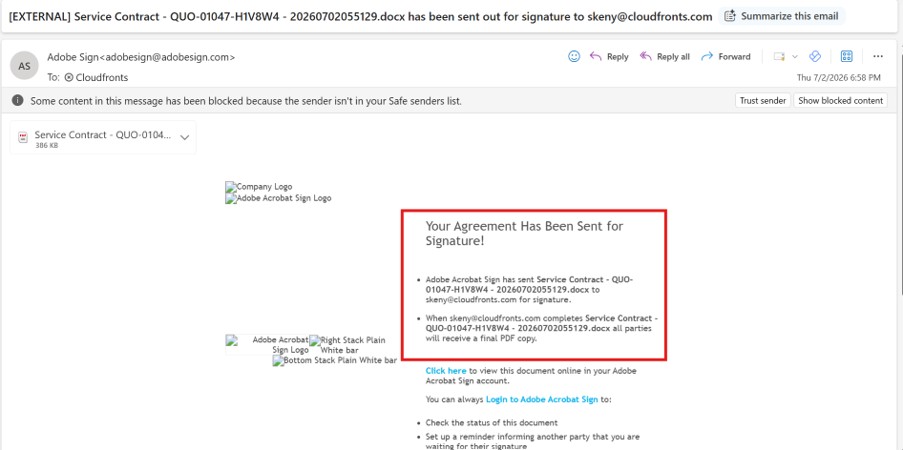
a) The customer's Contact person receives an email from Adobe Sign, inviting them to review and sign the contract.
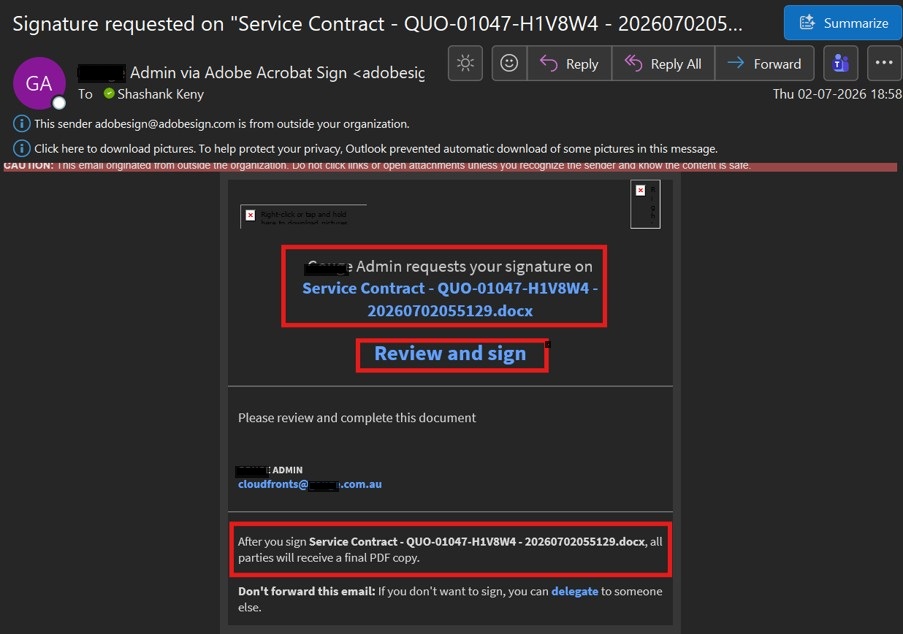
b) The internal Adobe Sign–registered account also receives a notification, since it's the sender of record for the agreement.
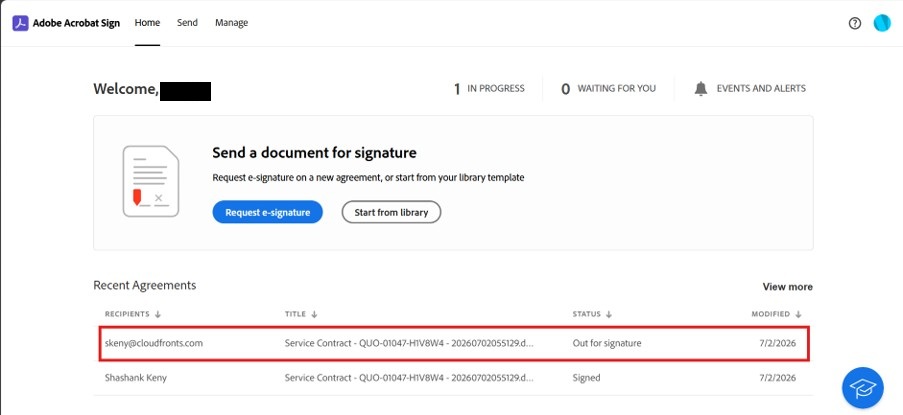
c) On the Adobe Sign portal, the agreement immediately shows a status of "Out for Signing" — giving the internal team live visibility into where the document stands, without needing to check in with the customer.
Step 4: The Signing Experience
When the recipient opens the document, they see exactly what the text tags described:
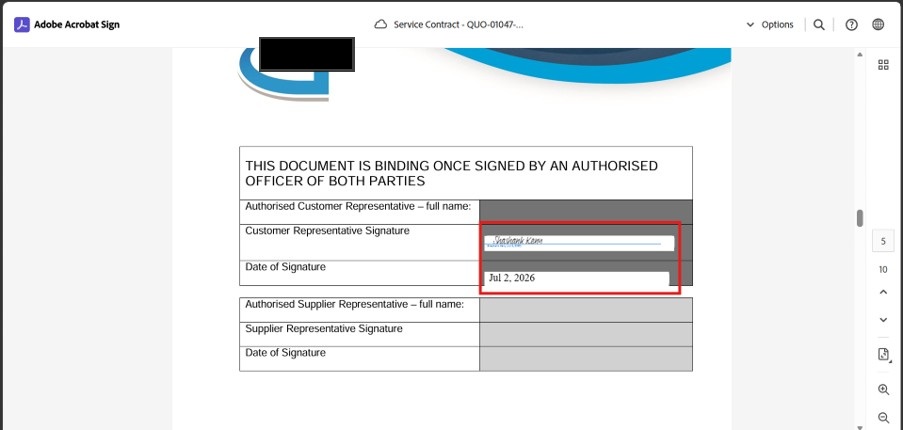
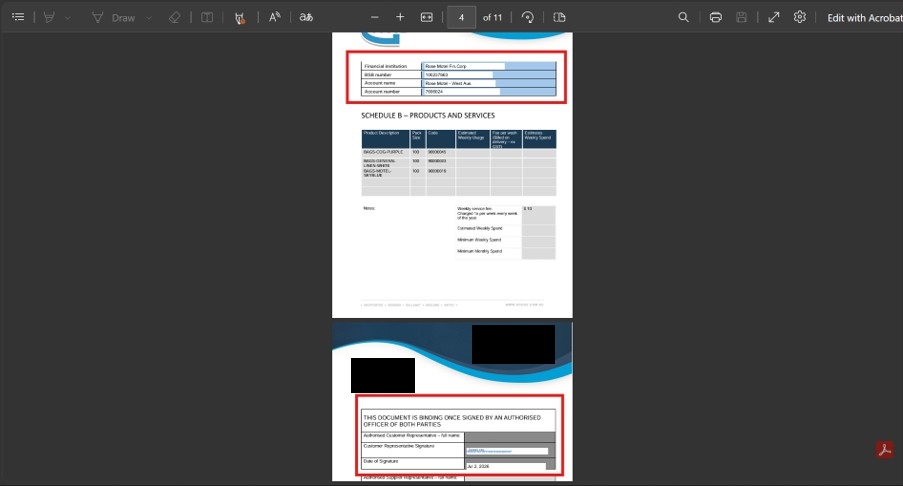
- A signature field, ready to sign electronically.
- A date field, automatically populated with the actual signing date the moment they sign — this field is read-only, since Adobe fills it in based on the real transaction time.
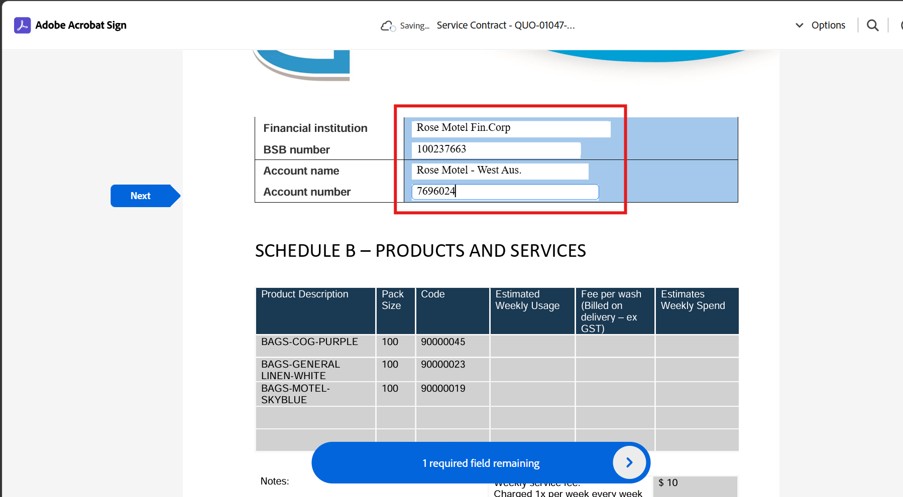
- Editable text fields for their financial institution, BSB number, account name, and account number — the exact details the business needed captured as part of the agreement, without a single one of those fields needing to be pre-typed by the sales team.
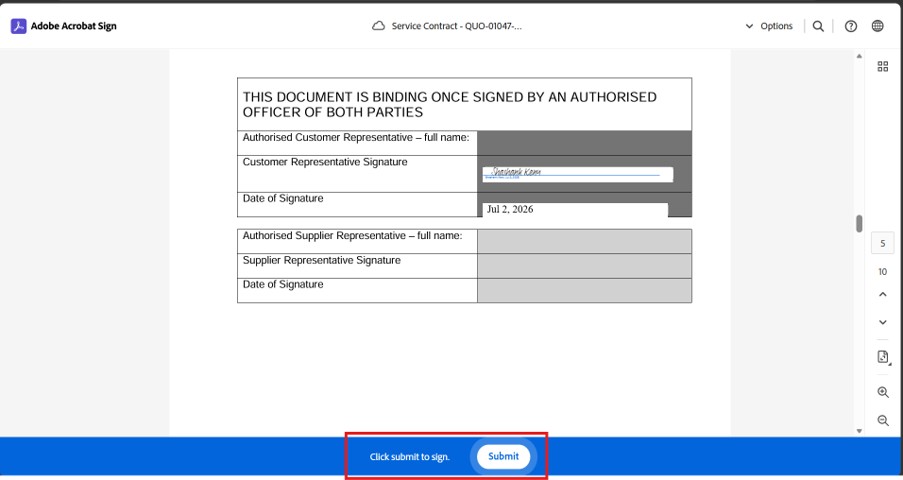
The signer fills in their details, applies their signature, and submits — all inside Adobe's guided signing flow, with no separate login or account required on their end.
Step 5: Receiving the Signed Document
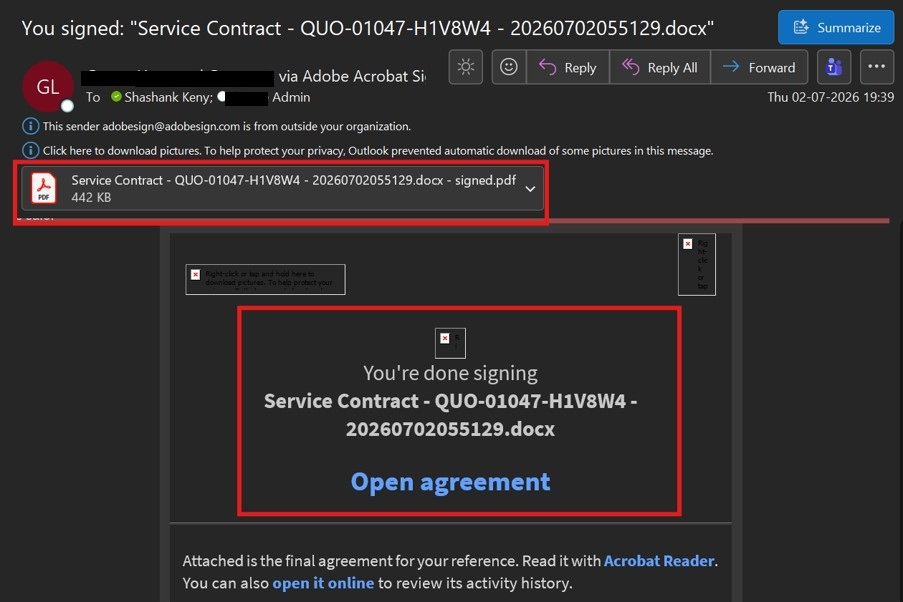
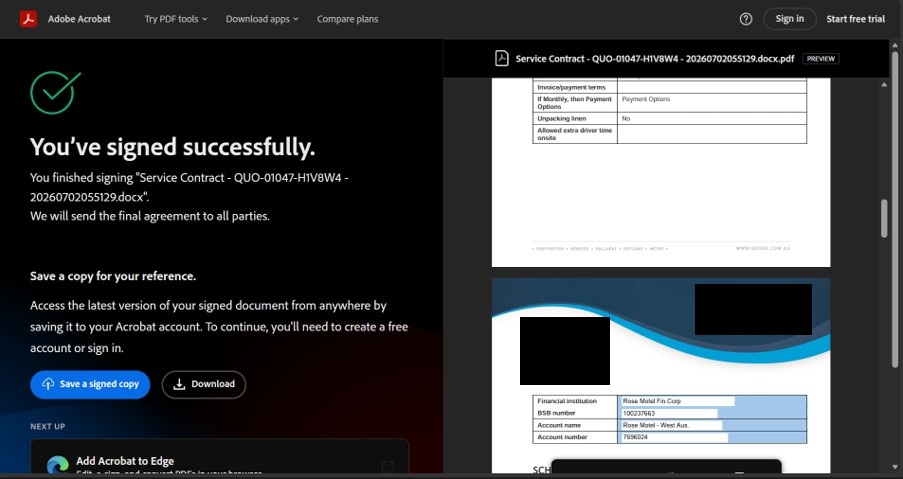
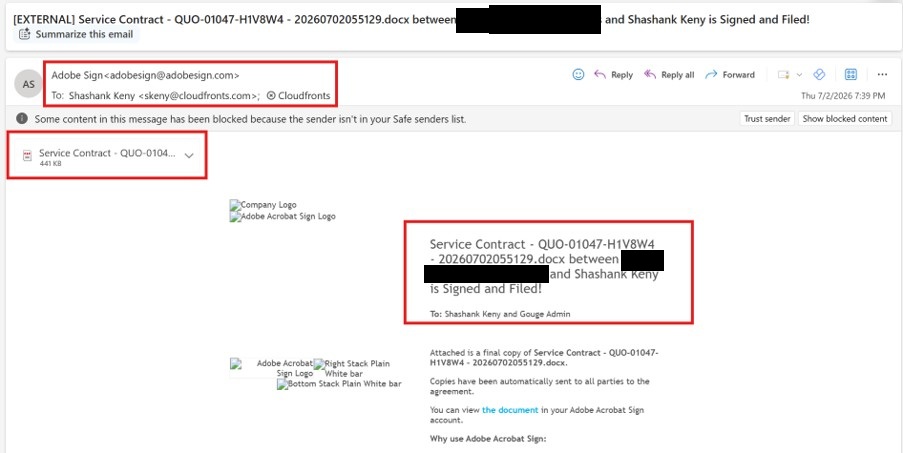
The moment every required signer completes the agreement, Adobe Sign automatically:
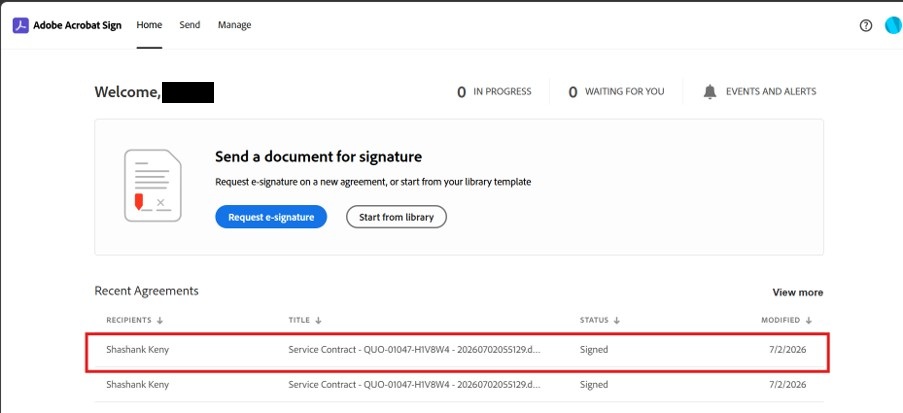
- Sends a signing confirmation email with the final signed PDF attached to the signer.
- Sends the same signed copy to the requestor (the internal sender).
- Updates the agreement’s status inside the Adobe Sign portal to reflect that it’s complete.
Step 6: Automated Filing — the Child Flow
This is where the second flow takes over. Rather than relying on someone to notice the confirmation email and manually save the attachment, a dedicated child flow — built entirely around an Outlook mailbox trigger — handles filing automatically:
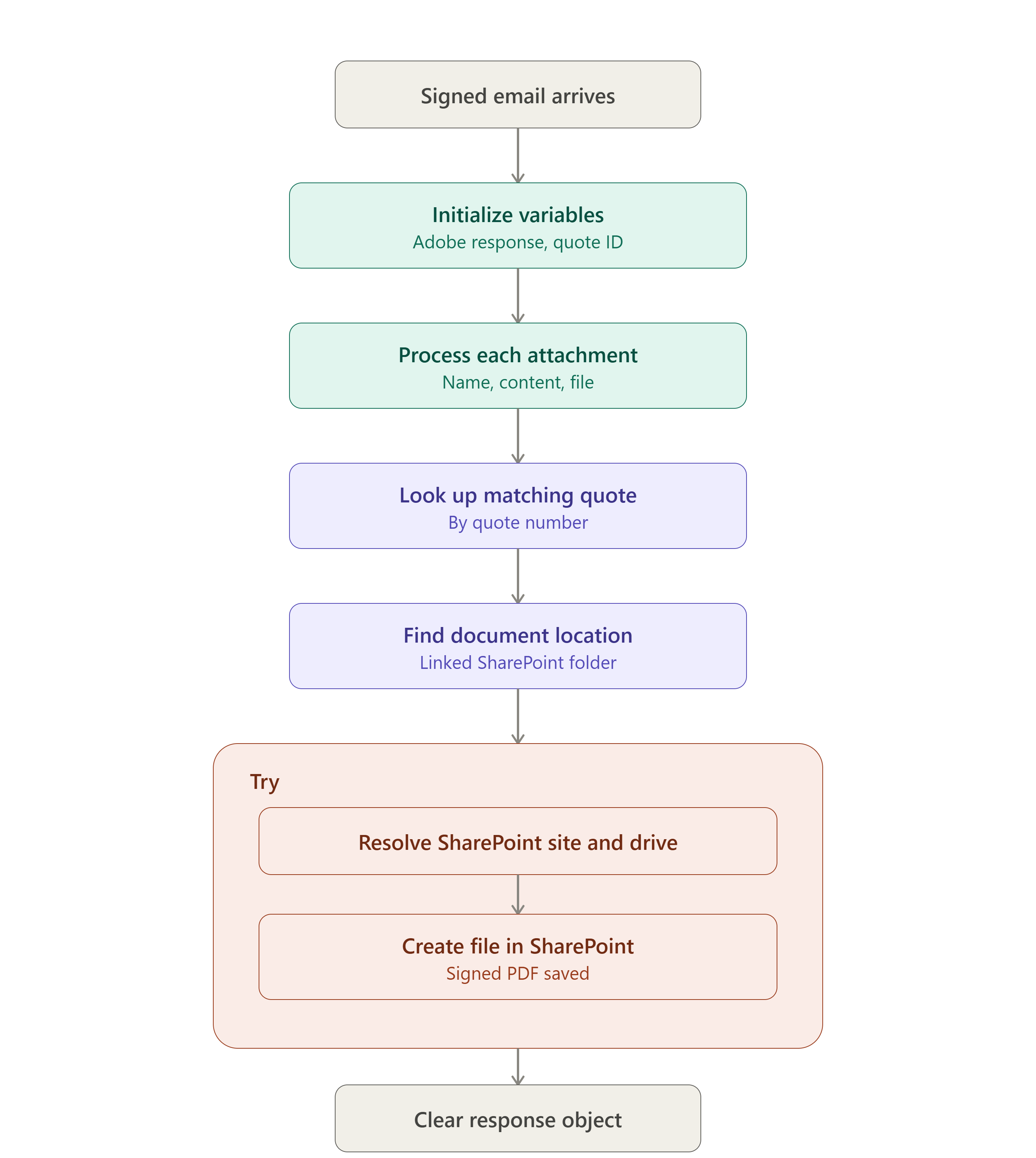
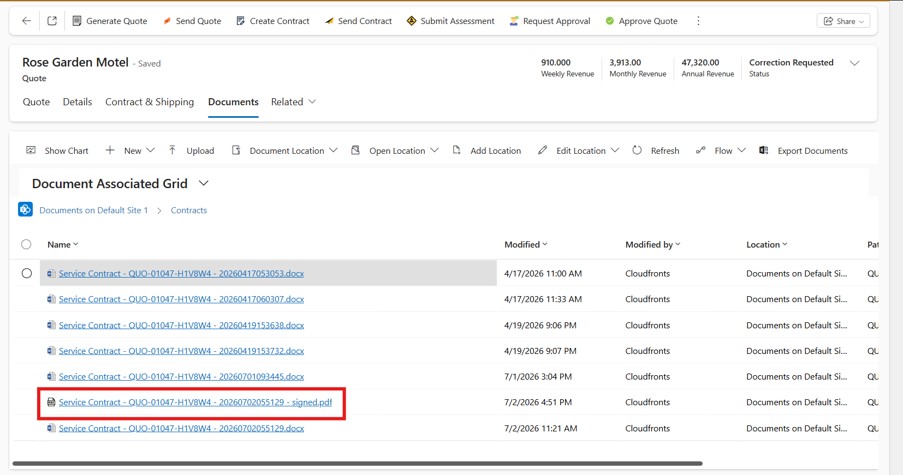
The key design choice here: rather than depending on Adobe Sign's webhook/API events firing correctly (which can be inconsistent depending on account tier and permissions), this child flow listens for the actual completion email Adobe Sign always sends — a channel that's guaranteed to work regardless of API-level entitlements. It parses the Quote Number embedded in the document's filename, uses that to look up the originating Quote record, resolves the correct SharePoint document library and folder for that quote, and drops the signed PDF straight into place — fully automatically.
The result: by the time anyone on the team goes looking for the signed contract, it's already sitting in the right SharePoint folder, complete with Adobe's audit trail baked in.
The End-to-End Flow, Start to Finish
- Create Contract is triggered from the Quote → Word template is populated with quote, customer, and contact data.
- The template’s embedded text tags define exactly where signature, date, and fillable fields belong.
- The populated document is sent to Adobe Acrobat Sign for signature.
- Both the customer and the internal Adobe Sign account are notified; the agreement shows “Out for Signing” in the portal.
- The recipient reviews, fills in their details, and signs electronically.
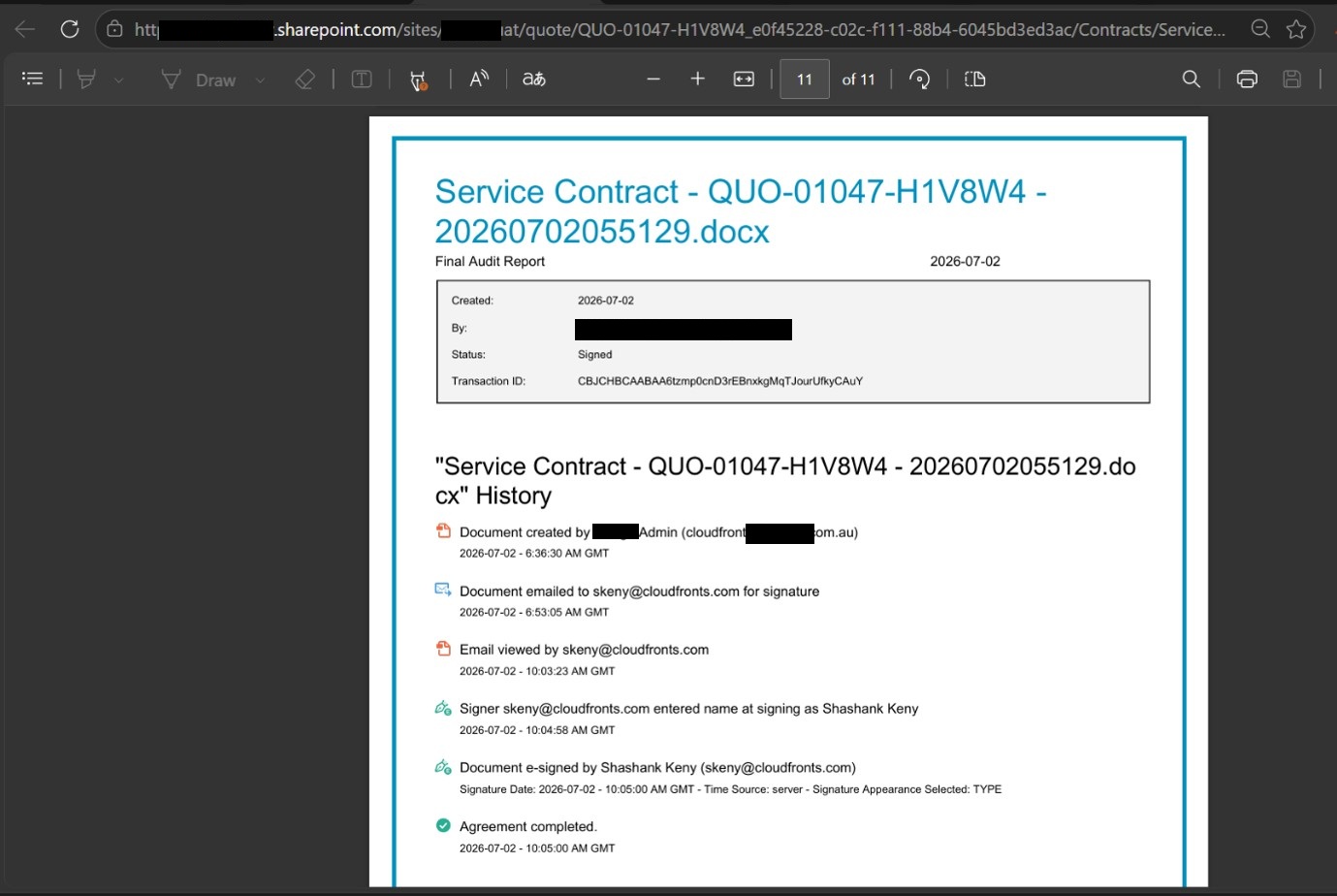
- On completion, Adobe Sign emails the signed PDF with audit trail to all parties.
- A child flow, triggered by that completion email, automatically files the signed contract into SharePoint, matched to the correct quote.
Why This Approach Works
-
No Manual Document Creation
Every contract is generated consistently from the same template using live quote data, eliminating repetitive document preparation and reducing human error.
-
No Manual Field Placement
Adobe Sign text tags are embedded once in the Word template, automatically defining the location of signature, date, and fillable fields for every contract generated thereafter.
-
No Manual Filing
The child flow automatically stores every completed contract in the correct SharePoint location, removing the need for users to manually save or organize signed documents.
-
Full Auditability
Every signed contract includes Adobe Sign’s built-in audit trail, providing a tamper-evident record of the entire signing process within the document itself.
-
Resilient by Design
By triggering the filing process from Adobe Sign’s completion email instead of relying solely on webhooks, the solution remains reliable even when API or webhook capabilities are restricted by account permissions.
Conclusion
What used to be a manual, multi-person, multi-day process—drafting a contract, emailing it around, chasing signatures, and remembering to file the completed document—now happens automatically from the moment a quote is accepted to the moment the signed, audit-trailed contract is securely stored. The business team only needs to perform a single action: Create Contract.
Have a similar Adobe Sign, DocuSign, or contract automation challenge? CloudFronts helps businesses transform manual, multi-step approval and signature processes into seamless, automated workflows using Microsoft Power Automate and leading e-signature platforms.
Also Read:
If you’re interested in document automation with e-signature platforms, also read our blog on From Quote to Signed Contract in Minutes: Automating DocuSign Integration for an Australia-Based Commercial Textile Services Company .
If you’re interested in document automation with e-signature platforms, also read our blog on From Quote to Signed Contract in Minutes: Automating DocuSign Integration for an Australia-Based Commercial Textile Services Company .

Shashank Keny
Associate Consultant · CloudFronts
Shashank Keny is an Associate Consultant at CloudFronts with 1.5+ years of experience in cloud, data, and business applications. He specializes in building scalable, API-driven architectures and integrating enterprise systems across the Microsoft ecosystem.
He is a Certified Databricks Data Engineer with hands-on experience in Dynamics 365 Project Operations and Dynamics 365 Sales, along with delivering business intelligence solutions using Power BI.
His expertise also extends to modern AI solutions, including building custom copilots and implementing intelligent applications using Azure AI Foundry.
Passionate about solving real-world business challenges through data and AI, he focuses on delivering efficient, scalable, and production-ready solutions.
- Experience: 1.5+ years
- Certification: Databricks Certified Data Engineer
- Specialization: Dynamics 365 Project Operations, Power BI, Azure Integrations, AI Solutions
