Integration of CSV file from ADLS to Azure SQL DB using ADF
How to create Linked Services for ADLS2 in ADF
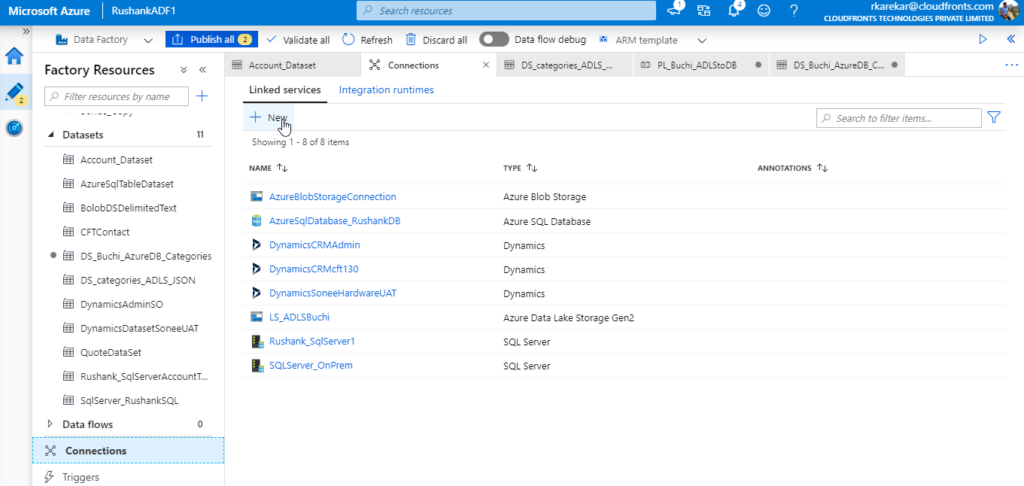
Step 1: Click on New from Connections section at the Bottom to create a new Linked service.
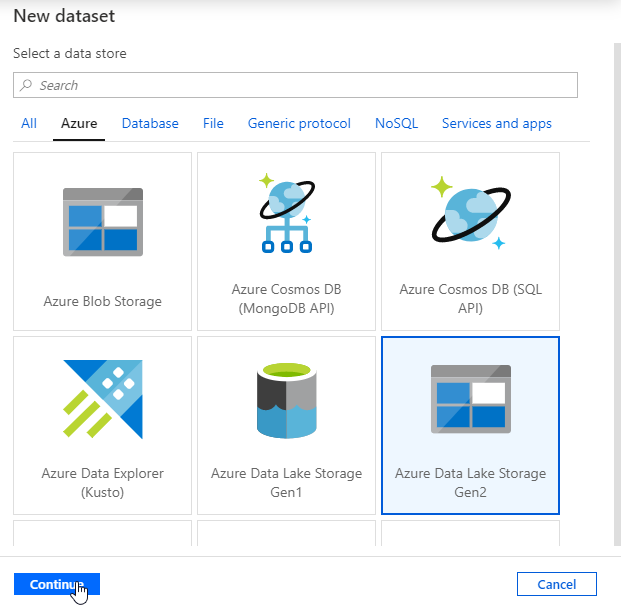
Step 2: Select ADLS Gen 2 and click on continue.
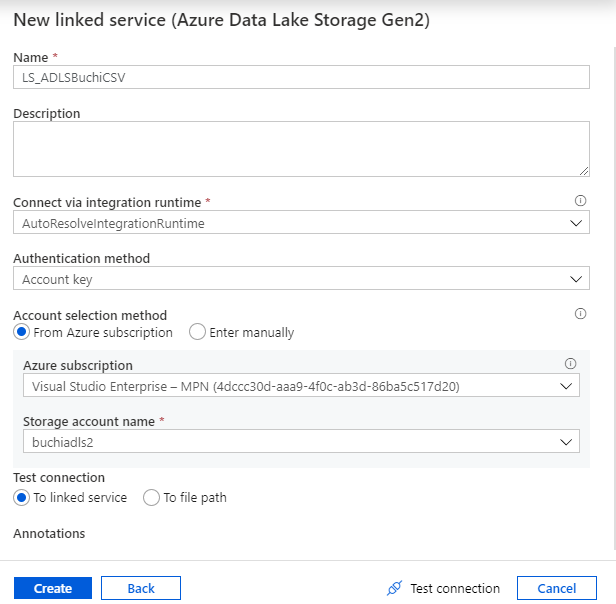
Step 3: Enter the details as follows and click on Test Connection and Click Create.
Note: Similarly create a new LS for Azure SQL DB.
How to create Dataset for ADLS2 in ADF
Step 1: Click on New dataset from Datasets section.
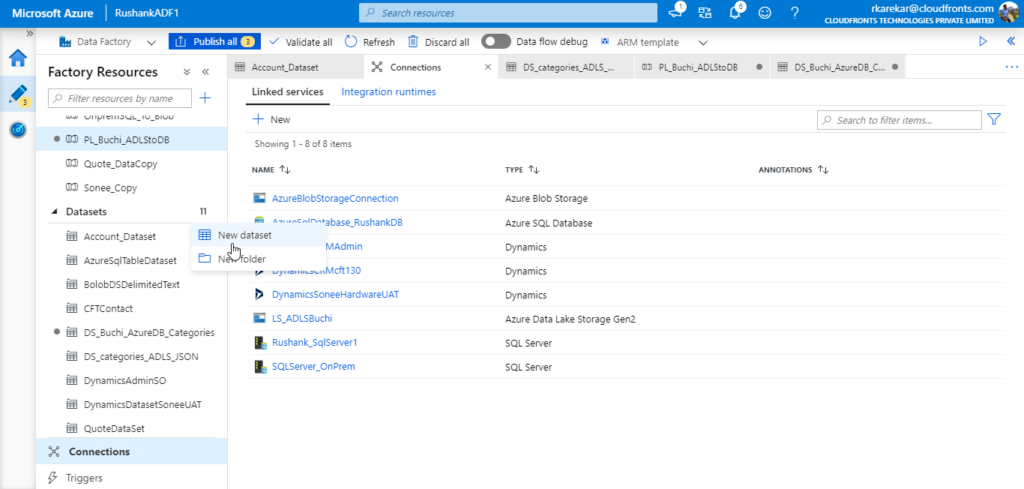
Step 2: Select ADLS gen 2 option and click on Continue.
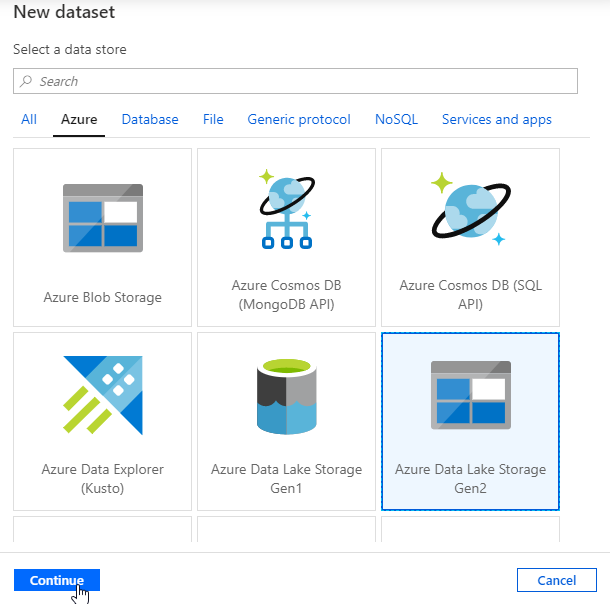
Step 3: Select Delimited Text and click on continue.
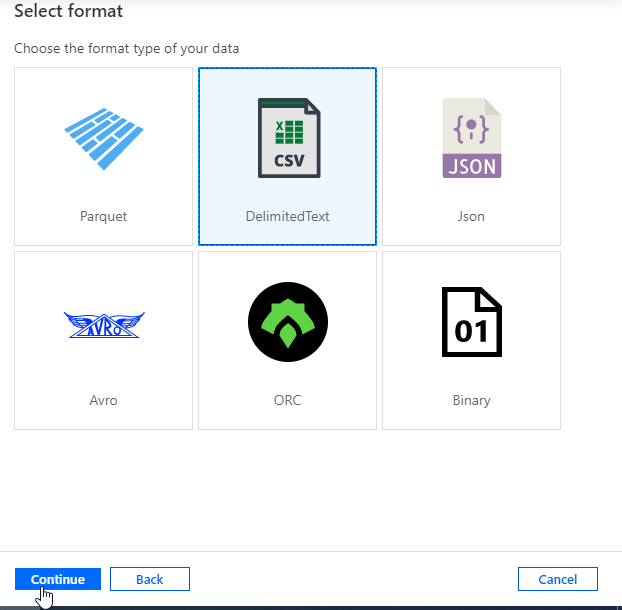
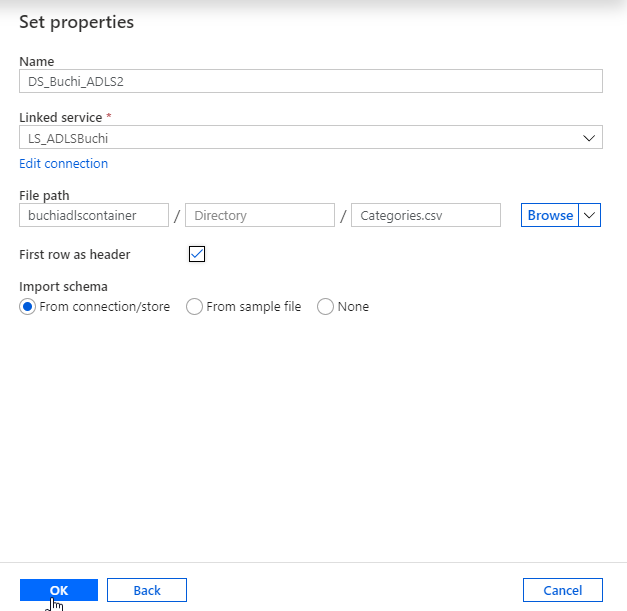
Step 4: Enter Details and Click on browse.
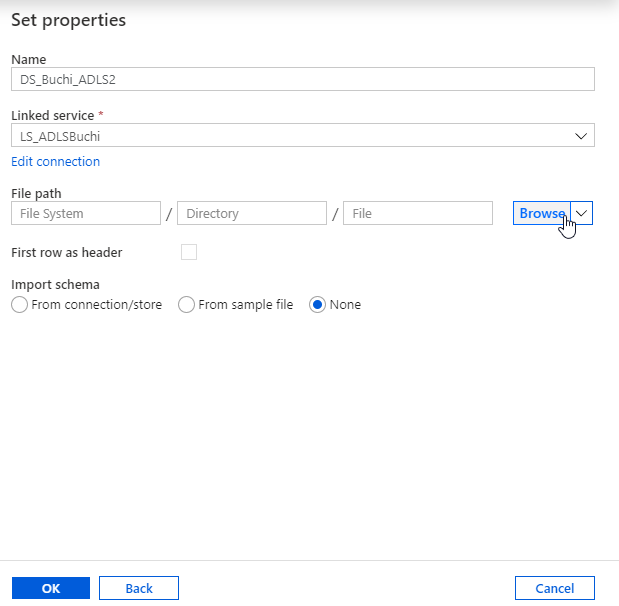
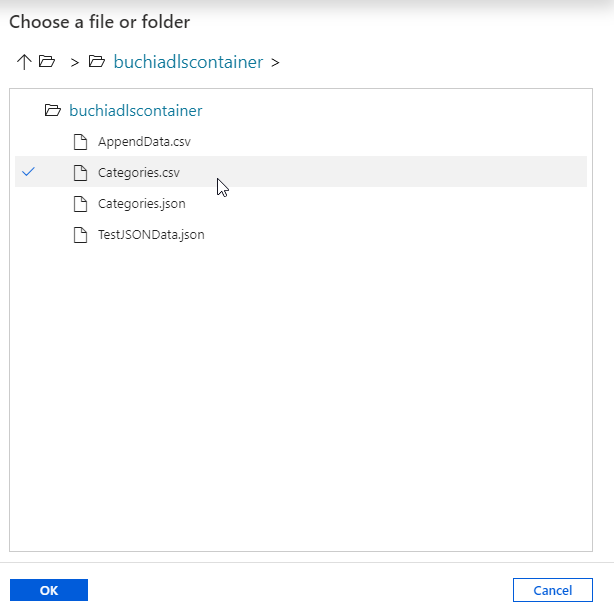
Step 5: Select Categories.csv file from your container and click on ok.
Step 6: Select other details as shown for First Row as header and Import Schema options.
How to create a pipeline in ADF
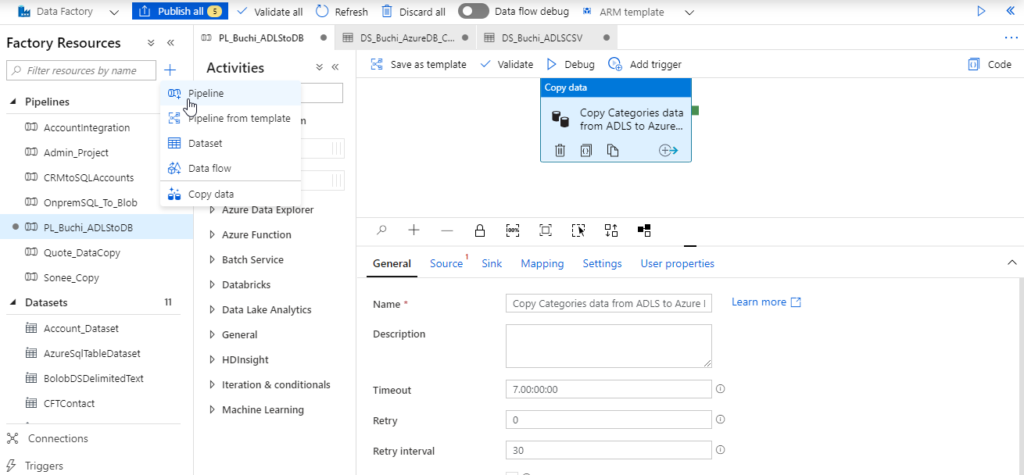
Step 1: Click on New Pipeline from the ‘+’ icon at the top and give it a suitable name.
Step 2: Select the Copy Activity from Move and Transform section.
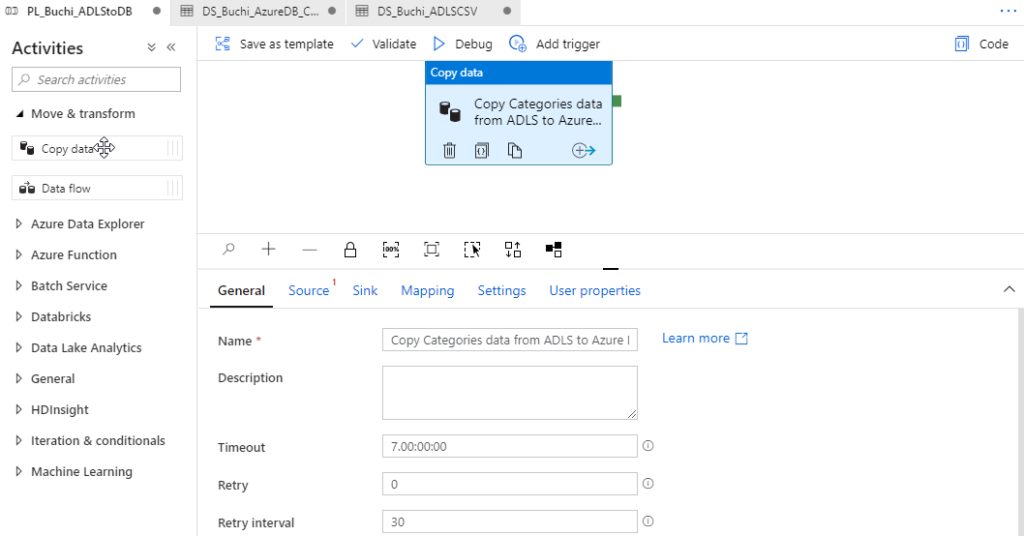
Step 3: Select the Copy Activity from Move and Transform section.
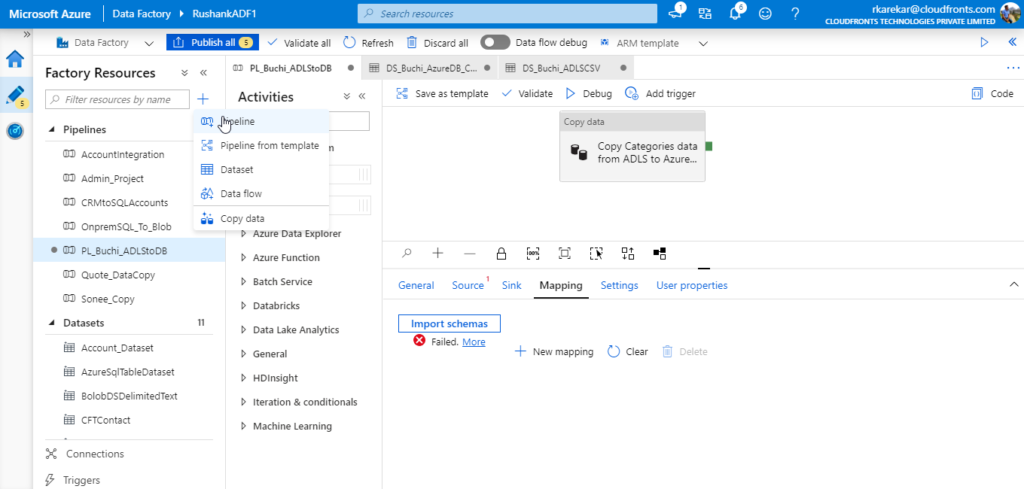
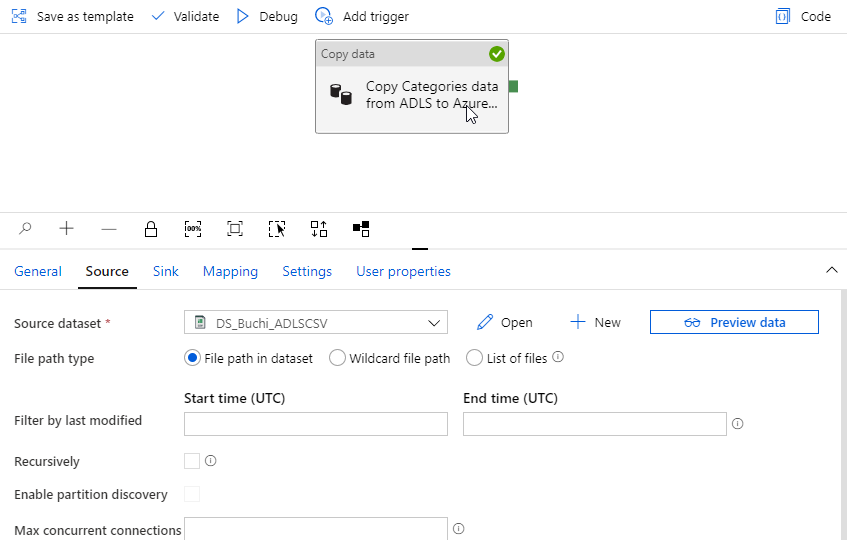
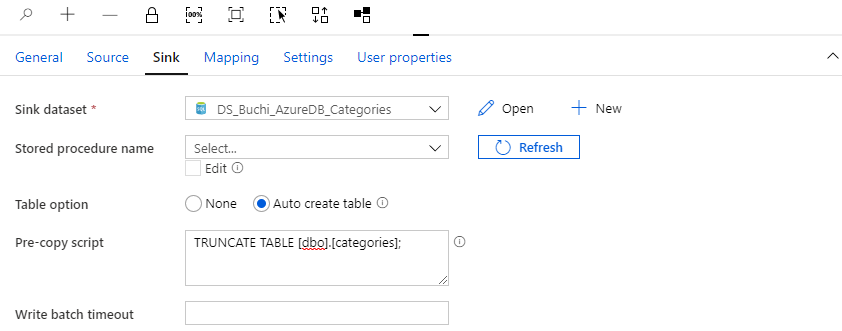
Step 4: Configure the Source and Sink as follows.
Source:
Sink:
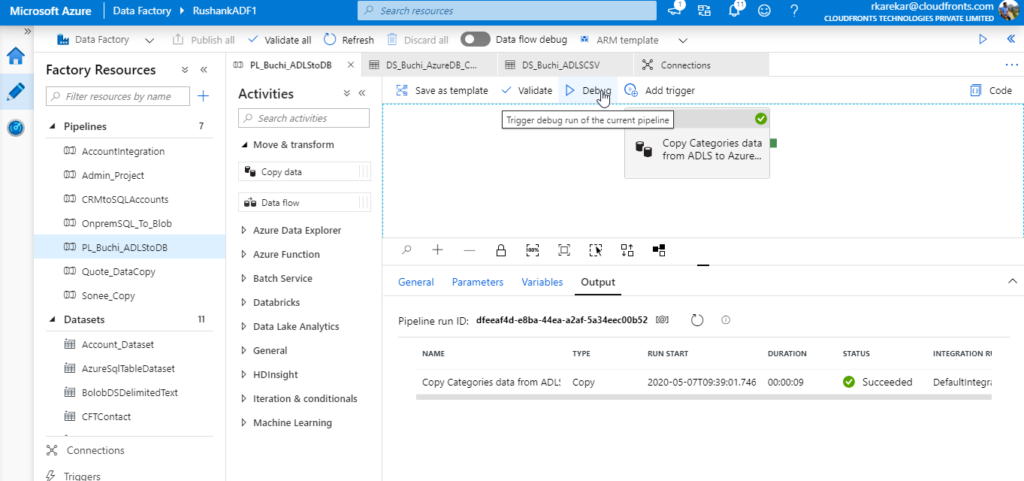
Step 5: Click on Debug and check the output.
Related posts:

How a Multi-Country Infrastructure Group Evaluated One vs Two Production Environments in Dynamics 36...
How an Australian Linen Company Made Quote Approvals Secure with One Time Links in Dynamics 365
Recovering Lost Approval History After a Purchase Order Deletion in Business Central