

How to Schedule and Manage Microsoft Dynamics 365 Business Central Updates Without Disrupting Your Operations
Summary
Microsoft Dynamics 365 Business Central keeps your business future‑ready with regular updates that improve speed, security, and usability. For customers, this means smoother workflows, fewer disruptions, and access to the latest features without extra effort. Updates are scheduled with flexibility, tested in sandboxes, and designed to fit around your operations so you stay focused on running your business while Business Central takes care of the rest.
Steps to Achieve Goal
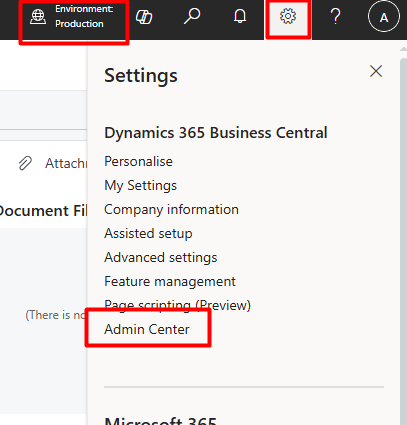
Access the Admin Center
- a. Log in with administrator credentials.
- b. Select the environment (Production, Sandbox, or Test) you want to update
Review Available Updates
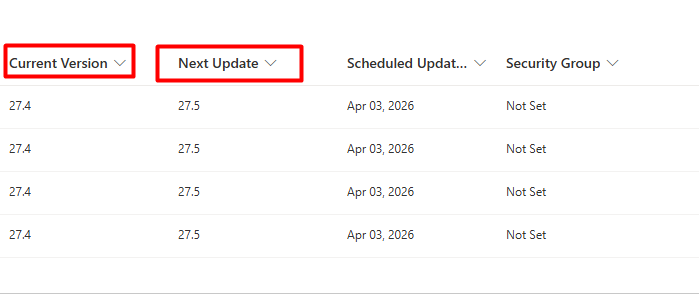
- a. Navigate to the Updates section.
- b. Check for the latest cumulative updates or major releases.
- c. Read Microsoft’s release notes to understand new features and changes.
Schedule the Update
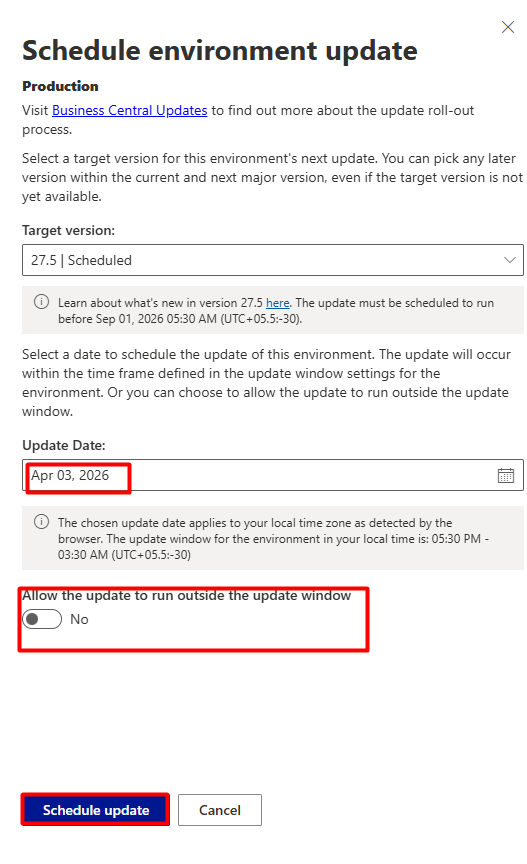
- a. Click Schedule Update.
- b. Choose the date and time that minimizes disruption.
- c. Save the update window.

Coordinate with Production Scheduling
- a. Inform your operations team about planned downtime.
- b. Adjust production schedules to avoid conflicts.
- c. Ensure critical transactions are completed before the update begins.
Test in Sandbox
- a. Apply the update first in a Sandbox environment.
- b. Validate key processes like sales orders, purchase orders, and production scheduling.
- c. Confirm integrations with external systems are working.
To conclude, updating Microsoft Dynamics 365 Business Central isn’t just a technical task it’s a way to keep your business secure, efficient, and ready for growth. Every update is designed with customers in mind: fewer disruptions, stronger protection, and smarter features that make daily work easier. By preparing ahead and using sandbox testing, you can ensure updates fit seamlessly into your operations. With Business Central, staying current means staying confident your system evolves so your business can keep moving forward without missing a step.
Connect with CloudFronts to get started at transform@cloudfonts.com
