How to Set Button Icons in Dynamics 365
Introduction:
Let’s say we want to set an icon for a button on a form in Dynamics 365. We will use the Ribbon Workbench to do this.
Let’s add this to our Quote form.
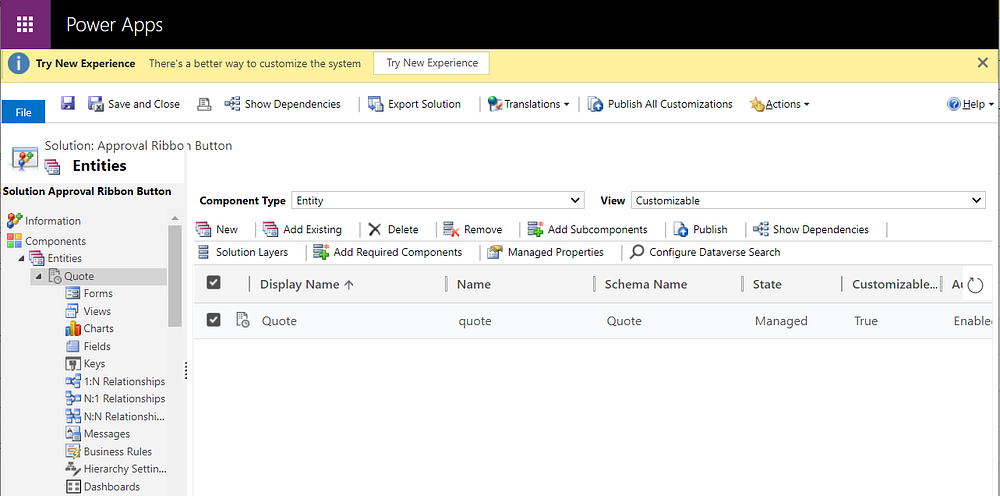
First, create a solution and add Quote Entity:
To add buttons, we will use SVG images. For the Web Client, we will use PNG images. There are online tools ( https://www.iconfinder.com/) to download these 2 formats.
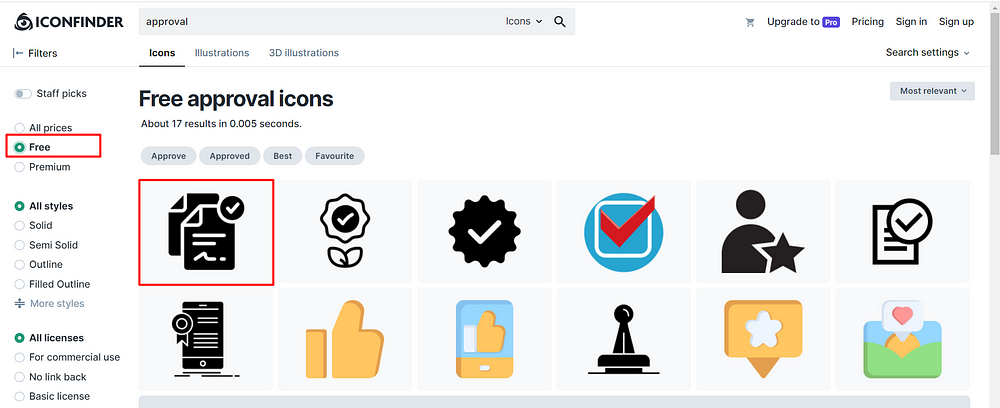
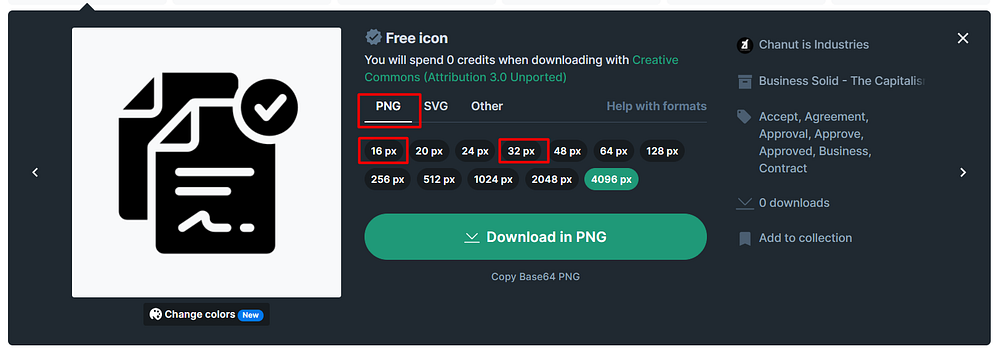
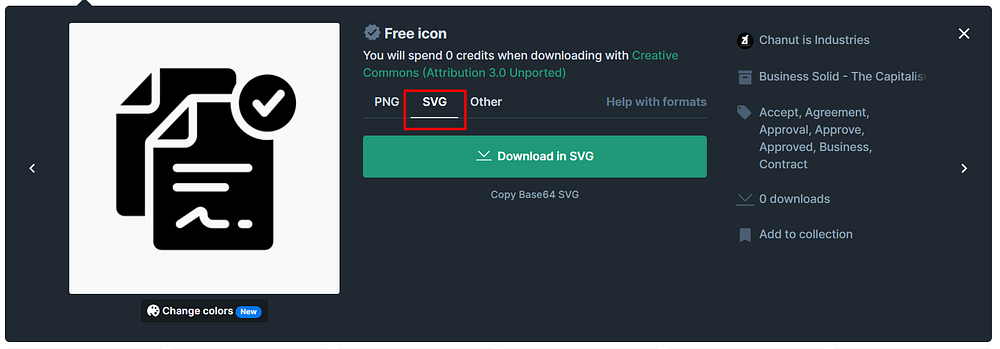
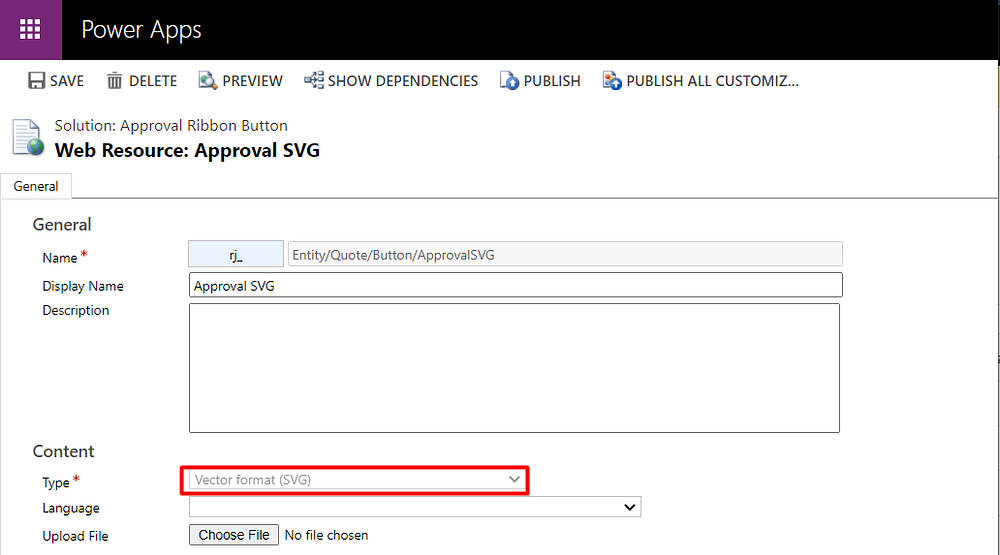
Let’s create a Approval button with approval images and save it as a Web Resource.
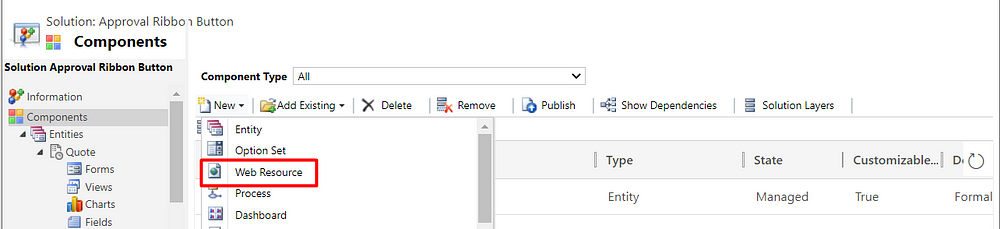
PNG file:
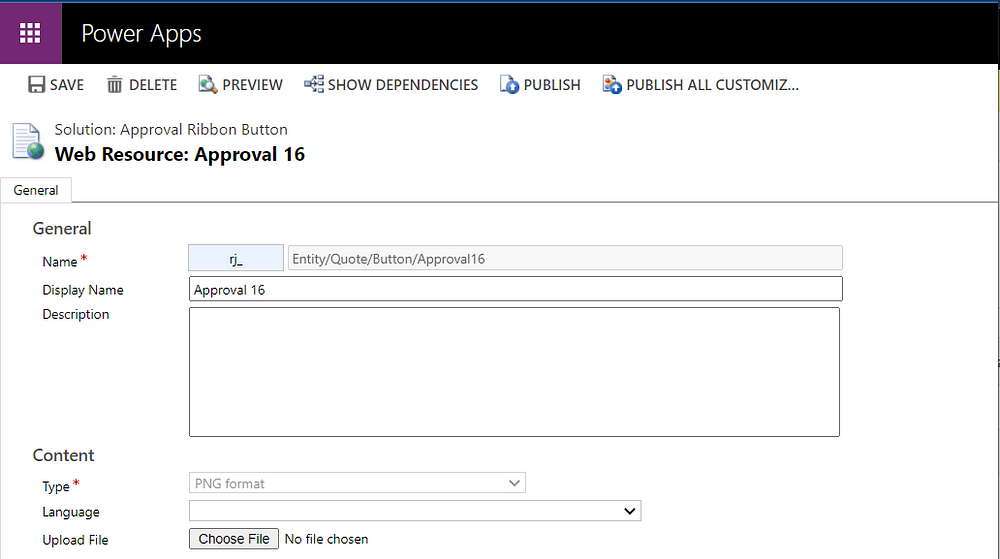
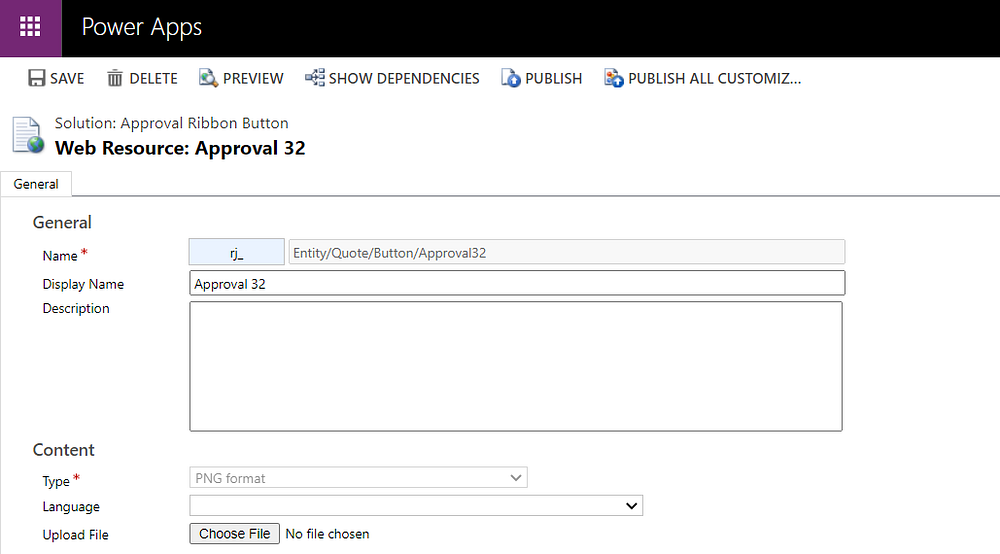
SVG file:
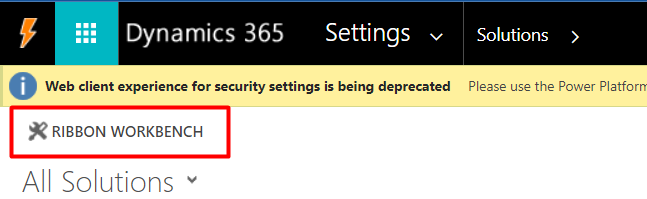
Now open the Ribbon Workbench:
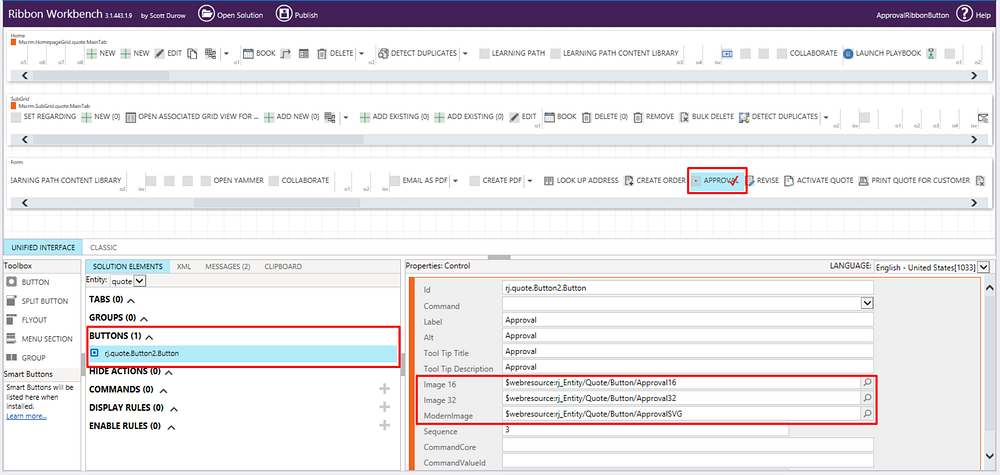
Add a new button to the Form, and add the PNG and SVG images from above. The PNG images are Image 16 and Image 32, and the SVG image is Modern Image, then Publish:
Once published, go to the Unified Interface app and pull up an Account. You will see the new button:

Hope this helps…
Related posts:

Why Business Central Rejects API Data: Understanding Validation Errors and Posting Setup
How a U.S. Industrial Cybersecurity Company Built a Custom Sales Portal with Power Apps Code Apps
How a U.S. Castings Manufacturer Saved Time by Updating Dynamics 365 Without Logging Into CRM